Welcome to this hands-on guide for building your own exciting mobile-style game. If you’re new to development or looking to grow your skills, this project is a fantastic starting point. We will walk through the entire process together.
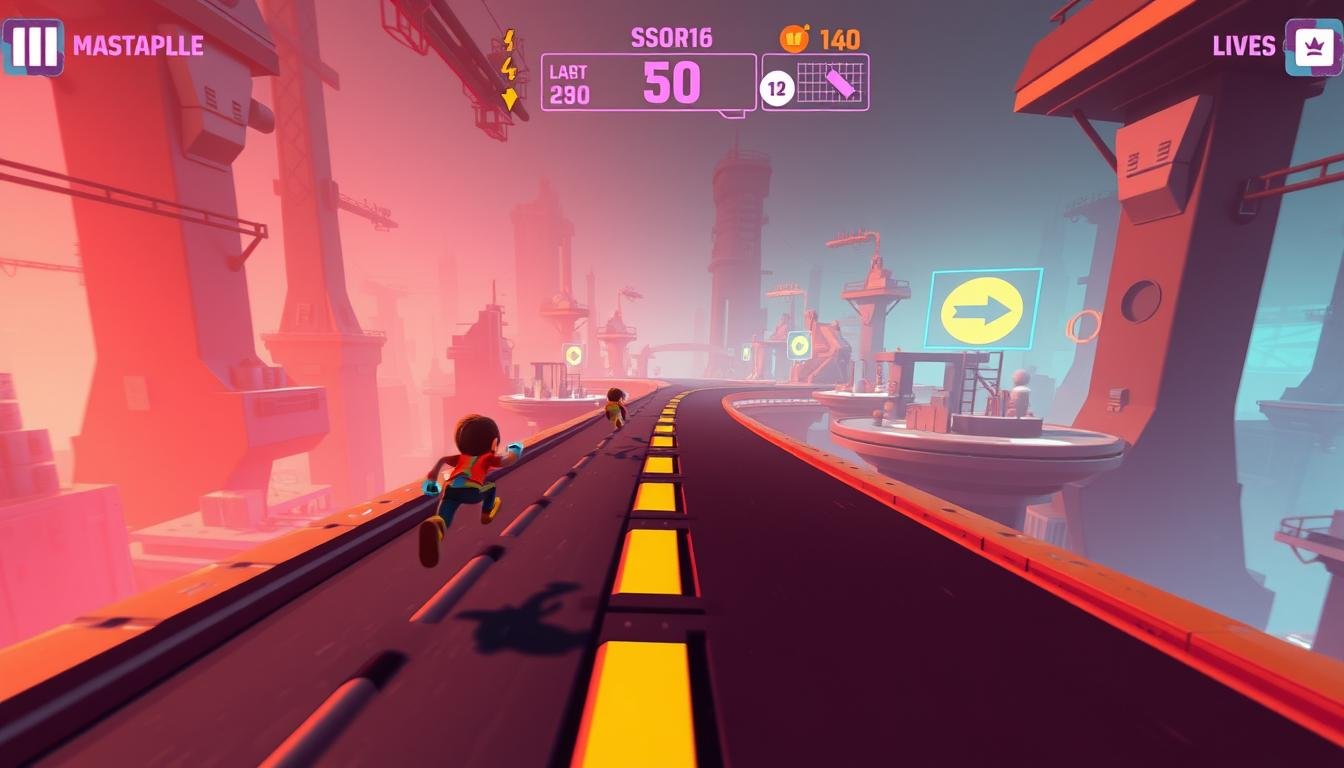
This type of game is incredibly popular. Players control a character that moves continuously, dodging obstacles to survive as long as possible. You will learn to build a complete project from the ground up.
Our tutorial covers essential concepts like sprite setup, physics, and collision detection. You will also learn about generating obstacles automatically to keep the action going. This approach teaches you core principles that apply to many other projects.
By the end, you will have a fully playable experience. You can then customize it with your own art, sounds, and unique mechanics. This guide provides a solid foundation for your creative journey in game development.
Key Takeaways
- Learn the fundamental steps to build a complete, playable project from scratch.
- Gain practical experience with core development concepts like physics and collisions.
- Understand how to create a dynamic environment with automatically generated content.
- Acquire skills that are easily transferable to other types of games and projects.
- Finish with a customizable foundation ready for your own creative ideas.
Introduction to 2D Game Development with Unity
The auto-runner format, seen in hits like the Chrome Dino game, excels at teaching vital development workflows. This type of project focuses on core mechanics that are the building blocks for many interactive experiences.
Understanding the Endless Runner Genre
This popular genre features a simple but engaging loop. Your character moves forward automatically. Your job is to control jumps or slides to avoid obstacles.
The challenge increases over time. This creates a compelling and addictive gameplay experience. It’s a fantastic model for learning.
Key Concepts and Benefits
Using an engine like Unity is ideal for this project. You get powerful built-in physics and collision systems. The visual editor makes the process intuitive, even for beginners.
You will learn crucial skills like managing sprites and understanding the main game loop. Implementing player input and creating dynamic content are also key takeaways.
These abilities are highly transferable. You will build a strong foundation in managing game assets and workflow. This prepares you for more complex projects in the future.
Setting Up Your Unity Environment and Project
Getting your development environment ready is the first crucial step in bringing your game idea to life. This process involves a few key actions that will create a stable foundation for your work.
We will walk through each stage to ensure you start on the right foot.
Installing Unity and Configuring 2D Mode
First, download and install Unity Hub. This application helps you manage different versions of the editor. It makes it simple to open your project and switch between versions.
When you pick a version, choose a Long Term Support (LTS) release. This ensures stability and ongoing support for your work. Aim for version 2020.1.0 or a newer LTS build.
To create a new project, launch the software and select File > New Project. A configuration window will appear. Here, you name your project, pick a save location on your computer, and select the 2D template.
This template optimizes the editor with the correct default settings. It sets up an orthographic camera and prepares the physics for a 2D game. After creation, check for the 2D icon in the Scene view to confirm the mode is active.
Project Creation and Initial Settings
Once your project is created, take a moment to learn the layout. The main windows are the Hierarchy, Scene view, Inspector, and Project panel. Each has a specific role in managing your game’s objects and assets.
An important initial setting is removing the default skybox. You can find this in Window > Lighting > Settings. A clean background is better for a 2D game and makes your view clearer.
Feel free to drag and arrange the windows to suit your style. A comfortable workspace can significantly improve your efficiency as you build your game.
Designing Your Game Environment and Visual Assets
Creating an engaging environment is crucial for player immersion in your interactive experience. This stage transforms your empty project into a vibrant world that players will enjoy exploring.
Creating Sprites and Backgrounds
Start building your visual foundation using basic shapes. From the Project window, navigate to Create | Sprites | Square to generate placeholder assets. These simple forms serve as your ground, obstacles, and character during early development.
Organize your assets with clear names in the Project window. This maintains a clean workspace as your project grows. The Sprite Renderer component offers essential control over appearance, letting you adjust colors and layering.
For your background, begin with solid colors. Gradually add depth using layered elements like mountains and clouds. As you progress, consider free asset packs to give your game a polished look.
Thoughtful arrangement of visual elements creates an appealing environment. This foundation sets the stage for all subsequent gameplay mechanics.
Developing the Player Character and Core Mechanics
Now we’ll transform static assets into a dynamic, controllable game character. This process brings true interactivity to your project. The player character becomes the central focus of your entire experience.
Implementing Player Controls and Rigidbody Settings
Start by duplicating your ground sprite using CTRL + D. Rename this new object “player” and position it at (0, -3, 0). Adjust the scale to (1, 1, 1) for proper sizing.
Add a Rigidbody2D component through Component | Physics2D | RigidBody2D. This enables physics simulation for realistic movement. Your character will now respond to gravity and forces naturally.
Create a C# script called “ControlPlayer” to manage all input handling. This code will track ground contact using a boolean variable. The OnCollisionEnter2D function detects when your character touches ground objects.
Setting Up Jump Mechanics with Spacebar Input
The jump function applies an upward force of 400.0f to the Rigidbody2D. Use GetComponent().AddForce(new Vector2(0, 400.0f)) for this action. This creates satisfying vertical movement.
In the Update function, detect spacebar presses with Input.GetKeyDown(KeyCode.Space). The code only triggers jumps when the character is grounded. This prevents unrealistic mid-air jumping.
Test your controls frequently by pressing CTRL + P for play mode. Adjust force values and physics settings until movement feels responsive. Fine-tuning these elements creates polished character mechanics.
Implementing Randomized Obstacles and Movement
Creating unpredictable gameplay elements will transform your project from static to dynamic. This phase introduces the core challenge system that makes each playthrough unique and engaging for the player.
Designing and Prefabing Obstacles
Start by duplicating your ground object in the Hierarchy window. Rename this new object “obstacle” and position it at (3, -3, 0). Change its color to red using the Sprite Renderer for clear visibility.
Apply a custom “obstacle” tag to help your code identify these objects during gameplay. Create a prefab by dragging the obstacle from the Hierarchy to the Project window. This reusable template allows efficient obstacle generation throughout your game.
Write an “Obstacle” script with movement logic in the Update function. Use transform.Translate(Vector2.left * 4*Time.deltaTime) for smooth leftward motion. Include Destroy(gameObject) when position.y
Create an empty GameObject called “generateObjects” to manage spawning. Its script should maintain a timer variable incremented by Time.deltaTime. When the timer reaches 2 seconds, call an addObstacle() function.
The addObstacle function instantiates obstacles using Random.Range(1, 5) to create 1-4 obstacles per wave. Position them at the player’s initial location plus Vector3.right * 20 with varying offsets. This randomization ensures every playthrough feels fresh and challenging.
Adding Collision Detection and Level Restart Features
Now it’s time to make your game truly interactive by implementing consequences for player actions. Collision detection transforms your creation from a visual demo into a challenging experience where mistakes matter. When your character hits barriers, the game should respond immediately.
Unity’s built-in physics system handles this beautifully. The OnCollisionEnter2D function automatically triggers when objects with colliders touch. This provides the perfect mechanism for detecting when your player hits obstacles.
Start by adding using UnityEngine.SceneManagement; at the top of your ControlPlayer script. This namespace gives access to scene management functions needed for restarting. In your OnCollisionEnter2D function, add code to check if the collision involves an obstacle.
The implementation uses a simple tag check: if (coll.collider.tag == “obstacle”). When true, call SceneManager.LoadScene(SceneManager.GetActiveScene().name). This command reloads the current level, resetting all objects to their starting positions.
Before this works, you must register your scene in Build Settings. Open this window using File | Build Settings or CTRL + SHIFT + B. Click the “Add Open Scenes” button to include your current level. This step is essential for the reload function to operate correctly.
This immediate restart mechanic creates the core gameplay loop. Players attempt, fail, and quickly try again. The fast reset maintains pacing and encourages repeated attempts to improve scores.
Mastering 2D endless runner Unity Mechanics
Proper collision mechanics form the backbone of any engaging interactive experience. They ensure that every action the player takes has a clear and fair consequence. This creates the challenge that keeps people coming back for more.
Detecting Collisions with Obstacles
Your project needs components to handle physical interactions. Attach a BoxCollider2D to both the ground and your obstacles. This defines their solid boundaries.
The main character requires a Rigidbody2D. This component lets it react to physics forces like gravity. It also enables collision detection with other objects.
Organization is key. You must create tags for “ground” and “obstacle.” Go to the Inspector window, click the Tag dropdown, and select “Add Tag.” Press the + button to create your new tags.
Apply these tags to the correct objects. Select an object in the Hierarchy, find the Tag field in the Inspector window, and choose the appropriate tag. Your code will use these tags to identify what the player hits.
Restarting Levels upon Impact
The magic happens inside the `OnCollisionEnter2D` function in your player control script. This function runs automatically when a collision occurs.
Your code checks the tag of the collided object. If it’s an obstacle, it triggers a level restart. This uses `SceneManager.LoadScene` to reload the current scene instantly.
Fine-tuning the collider sizes is crucial. Make sure they match your sprites visually. This prevents unfair situations where the player appears to dodge an obstacle but still collides. A fair game is a fun game.
Integrating Parallax Scrolling and Dynamic Backgrounds
Adding visual depth through layered backgrounds can transform a simple project into a professional-looking experience. This technique creates the illusion of three-dimensional space while keeping your development workflow straightforward.
Layering Background Elements for Depth
Start by creating distant mountains using basic shapes. Generate a Triangle sprite from the Create menu. Set its scale to (10, 10, 10) and position it at (-10, -1, 0).
The “Order in Layer” attribute controls rendering depth. Assign lower values like -10 to background elements. This places them behind your main gameplay area.
Different movement speeds create the parallax effect. Distant mountains move slowly while closer trees scroll faster. This mimics real-world depth perception.
Build your complete environment with multiple layers. Use values like -10 for distant elements and -5 for mid-ground objects. Your main gameplay sits at layer 0.
Dynamic elements like clouds and trees add variety without manual placement. Random instantiation keeps the background fresh throughout each play session.
Test your setup in the editor to fine-tune movement speeds. Proper implementation enhances visual appeal without distracting from core mechanics.
Optimizing Code and Managing Game Assets
Keeping your project organized and efficient is crucial for long-term success. A well-structured workspace prevents confusion as your creation grows. This makes development smoother and more enjoyable.
Your Assets folder is the heart of your project. It holds all your important files like sprites, scripts, and sounds. Create clear folders inside it to keep everything tidy.
Good code starts with smart organization. Group similar scripts together in separate folders. Use consistent naming for all your files so you can find them quickly.
Writing clean code is equally important. Avoid repeating expensive operations in your Update loops. Cache component references instead of calling GetComponent every frame.
Thorough commenting helps you remember your logic later. It also makes collaboration easier. This is especially valuable for learning projects.
Regular maintenance keeps your project healthy. Remove unused assets and consolidate duplicate code. These habits ensure your work remains manageable and efficient.
Enhancing the User Interface and Game Controls
User interface elements transform your creation from a technical demo into a polished product. These visual components provide essential feedback and control options that enhance the overall experience.
A well-designed interface keeps players informed about their progress. It also offers convenient actions like pausing when needed.
Creating and Configuring UI Elements
Start by selecting GameObject | UI | Text from the main menu. This automatically generates a Canvas parent object for your interface components.
Configure your text through the Inspector window. Set dimensions to 400×200 and choose center alignment for balanced presentation. Position the element at (0, 228) for top-screen placement.
Increase font size to 68 and select white color for maximum readability. These settings ensure your score display remains visible during intense gameplay moments.
Implementing Pause and Resume Functions
Create pause and resume button elements using the UI menu. These controls allow players to temporarily halt the game when needed.
The pause function sets Time.timeScale to 0, freezing all movement and physics. Resume functionality restores normal time flow by setting it back to 1.
Test your interface in the Game window to ensure proper scaling across different resolutions. Well-sized button elements prevent frustration during critical moments.
Testing, Debugging, and Fine-Tuning Your Game
Debugging and fine-tuning separate basic prototypes from polished, enjoyable games. This phase transforms your technical work into a playable experience.
Use the editor’s play mode for rapid testing. Press CTRL + P to enter this mode instantly. This allows quick iteration without lengthy build times.
Test each system methodically. Verify that controls respond precisely to the player’s input. Check collision detection with various obstacles.
Debugging your code involves strategic Debug.Log statements. Place these throughout scripts to track variable values. The console window reveals execution flow and problem areas.
Fine-tuning requires multiple test sessions. Adjust parameters like jump force and spawn timing incrementally. Observe how changes affect the player experience over time.
This iterative process of test-fix-refine continues throughout development. Each cycle improves your project. Keep detailed notes to guide optimization between sessions.
Final Reflections on Your Unity Game Development Journey
The systems you’ve built—from character controls to procedural generation—form a toolkit you can adapt to countless future projects. This educational exercise has taught you far more than just creating a single game.
You now understand how individual scripts, assets, and settings work together. Your player character, obstacles, and environment all represent systems you can confidently implement in any genre.
Version control with Git establishes professional practices for collaboration and project safety. This foundation becomes increasingly valuable as your projects grow in complexity.
Your code, while functional, intentionally leaves room for optimization. This invites continued learning and refinement of your programming skills over time.
Future improvements might include enhanced mechanics, power-ups, or mobile controls. Each represents a new opportunity to expand your capabilities at the top tier of game development.