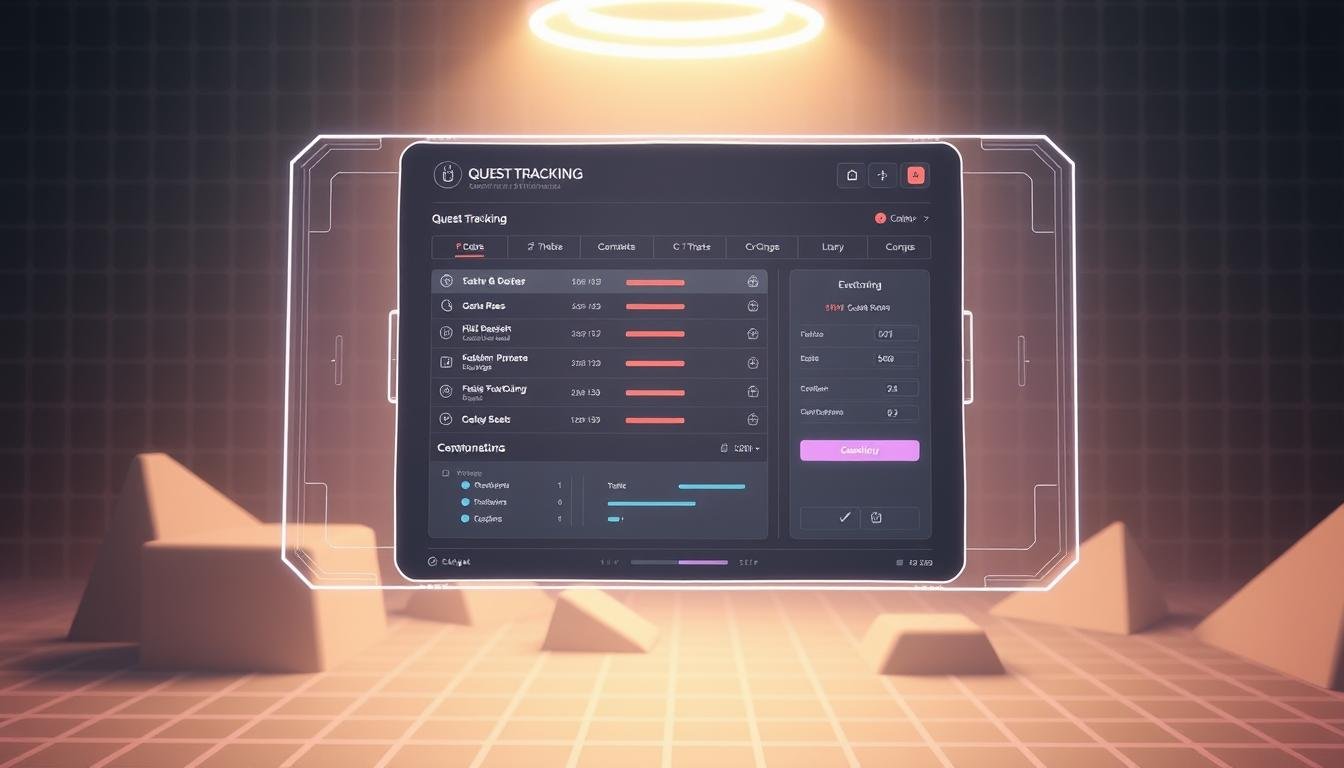
Creating engaging objectives keeps players invested in your game world. A well-designed tracking system helps gamers stay focused on their goals. This tutorial shows you how to build professional quest tracking.
You will learn two powerful approaches for implementation. The first method uses built-in UI components for quick setup. The second approach offers deeper customization through scripting.
We cover everything from basic setup to advanced features. You’ll manage quest states, progress indicators, and visual feedback. These techniques work for RPGs, adventure games, and any project needing structured objectives.
By the end, you’ll create systems that rival commercial titles. Your players will always know what to do next. This keeps them motivated and engaged throughout their journey.
Key Takeaways
- Build both simple and advanced quest tracking systems
- Use Unity’s UI components for rapid implementation
- Create custom scripts for complete control
- Manage quest states and progress indicators dynamically
- Integrate tracking seamlessly with existing game systems
- Add visual cues to communicate objective availability
- Debug and handle multiplayer scenarios effectively
Introduction to Quest Tracking in Unity
A structured goal system provides the foundation for player engagement and narrative progression in interactive entertainment. This framework helps developers create meaningful experiences that keep users invested in their journey.
Overview of the Quest System
Mission management typically involves multiple status categories. Objectives can exist in various phases like unassigned, active, success, or failure. Each phase represents a different stage of completion.
Complex missions often include smaller tasks with individual progress indicators. This breakdown allows for detailed tracking of multi-stage adventures. The approach supports intricate narrative structures.
Benefits for Game Interactivity
Visual progress displays give immediate feedback on objective completion. On-screen indicators update dynamically as players reach milestones. This creates satisfying incremental achievement throughout gameplay.
Modern systems allow simultaneous tracking of multiple adventures. Users can prioritize objectives based on personal preference. This flexibility prevents interface clutter while maintaining engagement.
Robust state handling enables dynamic narrative responses to user choices. The infrastructure supports conditional objectives and branching storylines. This creates personalized gaming experiences that adapt to player decisions.
Exploring Unity UI Components for Quest Management
Leveraging built-in components can significantly accelerate the development of your game’s objective system. This approach provides a solid foundation that you can customize later.
The Standard UI Quest Tracker is a powerful component found within the editor’s menus. It offers an out-of-the-box solution for displaying player goals.
Standard UI Quest Tracker Features
You can access and configure this component through the Inspector window. This panel displays all the key properties you need to use.
The system uses a container-based design. Individual goal entries are created from a template and placed inside this container for dynamic management.
You have granular control over what information is shown. Options include displaying active or completed objectives and choosing between titles or full descriptions.
Understanding the Inspector and Prefab Settings
Working with the pre-configured prefab is the easiest way to start. This prefab comes with all necessary templates already set up.
The Inspector window makes it simple to customize the display without writing code. You can assign templates and set visibility options directly.
This method saves considerable development time. It allows you to focus on tailoring the visual style to match your game’s unique look and feel.
Setting Up Your Development Environment
Getting your workspace ready is the crucial first step toward building effective game systems. A properly configured environment ensures smooth implementation and prevents common errors.
Configuring Unity Packages and Manifest
Begin by editing your Packages/manifest.json file. Add the NPM registry configuration to connect your project with external repositories.
The Package manager then provides visual control over package version selection. This makes updates and rollbacks straightforward as your project evolves.
Creating Your Quest Database and Settings Object
Right-click in the Project window and navigate to Create > Fluid > Quest Journal > Database. This creates your central repository for objective definitions.
Next, create a Settings object using the same menu path. Place this in a Resources folder with its default name unchanged.
Attach your database to the settings object. This step ensures proper runtime functionality. The system uses Resources.Load to find this configuration when your game starts.
Following these steps carefully establishes a solid foundation. Your development environment will be properly initialized for building advanced features.
Building a Custom Quest Tracker in Unity
Script-based objective systems provide the ultimate level of control over how players interact with your game’s missions. This approach lets you design exactly the experience you envision without compromise.
Step-by-Step Implementation Using Scripts
Begin by creating a script that references the QuestJournalManager singleton. This manager handles adding missions and monitoring their status throughout gameplay.
The basic implementation steps involve defining a reference to your QuestDefinitionBase asset. In the Start method, you add the objective to the manager’s collection.
Here’s a practical code example for automatic updates:
public class MyFirstQuest : MonoBehavior {
    private IQuestInstance _questInstance;
    public QuestDefinitionBase quest;

    void Start() {
        _questInstance = QuestJournalManager.Instance.Quests.Add(quest);
        Debug.Log(_questInstance.Status); // Prints Ongoing
    }

    public void NextTask() {
        _questInstance.Next();
        Debug.Log(_questInstance.ActiveTask.Title);
    }
}
The system includes helpful example scenes to accelerate development. The Quickstart Quest Menu contains a functional GUI prefab ready for export.
Another valuable scene provides debugging tools for testing various mission states. This approach requires minimal scripting while offering deep customization options.
Following these methods helps you understand how the objective tracking system operates. You can quickly adapt it to match your specific gameplay mechanics.
Key Quest Tracker Properties and Configuration
Mastering the essential settings of your goal tracking component unlocks its full potential. Proper configuration ensures your system behaves exactly as intended.
These core properties work together to create a flexible interface. They adapt to different gameplay scenarios without code changes.
PlayerPrefs Toggle Key and Visibility Options
The Player Prefs Toggle Key stores visibility state in PlayerPrefs. This remembers each player‘s preference across sessions.
Visibility options control what information appears. You can show active objectives or include completed ones. The display mode adapts to your game’s needs.
Configure Visible On Start for initial scene loading. You can override this setting at runtime. This gives dynamic control based on player choices.
Quest Track Template Customization
The Quest Track Template prefab defines visual appearance. This template clones for each tracked objective. It includes text fields for the objective name.
Container configuration determines where instances appear. Typically, this uses layout groups for organized arrangement. The container manages entry placement automatically.
Quest Description Source lets you choose between title or full details. This flexibility suits different interface space requirements. You control how much information displays.
Show Container If Empty maintains layout consistency. It keeps the element visible even with no active objectives. This prevents UI jumping during gameplay transitions.
Mastering the Unity quest tracker Integration
A well-integrated objective system connects smoothly with your game’s interface. This creates a seamless experience where players always know their current goals.
Implementing Active and Completed Quest Views
The Main Panel acts as your control center for switching between viewing modes. Players can toggle between active missions and completed accomplishments with simple button clicks.
Your Selection Panel displays mission headings in an organized list. Group foldouts help categorize objectives for easier navigation in complex games.
The Details Panel shows full information about the selected objective. This three-panel design keeps the interface clean and intuitive.
Ensuring Runtime Updates and Debugging
Real-time updates are crucial for accurate mission tracking. The system must reflect progress immediately as players complete tasks.
The QuestJournalManager provides event hooks for automatic UI updates. Subscribe to events like quest completion to keep your display synchronized.
Debugging becomes straightforward using the Watches tab during play mode. Monitor mission states and variable values in real-time to identify issues quickly.
The “Track Only One Quest” option prevents interface clutter when screen space is limited. This feature is particularly useful for linear gameplay experiences.
Incorporating Quest State and Entry Management
Effective mission progression relies on robust state management that responds to player decisions. This system forms the core of how objectives evolve throughout your game experience.
Setting Quest States and Entries via Scripts
You can control mission status using Lua functions like CurrentQuestState() and SetQuestState(). These tools check conditions and update progression during gameplay.
The PixelCrushers.DialogueSystem.QuestLog class provides comprehensive C# methods for manipulation. You can programmatically add missions, remove them, and query current status.
For complex objectives with multiple steps, use SetQuestEntryState() for granular control. This allows independent tracking of individual tasks within larger missions.
The system sends OnQuestStateChange messages when status updates occur. Multiple game systems can respond to these events for dynamic reactions.
Point-and-Click Lua wizards in the Dialogue Editor simplify the process. They generate correct function calls automatically during conversations.
Understanding the distinction between overall mission status and individual task states is crucial. Both can be managed independently through your scripts.
Proper state handling ensures consistent objective tracking across scene transitions and save cycles. This maintains player progress through complex gameplay scenarios.
Advanced Customization and Scripting Techniques
Once you’ve mastered the basics, you can elevate your game’s objective system with advanced customization. These techniques let you build specialized features that match your unique gameplay needs.
Using Custom Quest and Task Definitions
Create specialized objective types by inheriting from QuestDefinitionBase. Add your own fields like sideQuest flags or reward structures.
The CreateMenu attribute makes your new types appear in the editor’s Create menu. Designers can then make specialized objectives without coding.
Tasks support the same approach through TaskDefinitionBase inheritance. Add waypoint locations or required item counts for your gameplay.
Access these at runtime by casting to your custom type. This exposes all your special properties and methods.
Event Hooks and Scripting for Dynamic Updates
Event hooks create reactive systems that respond to player progress. Subscribe to events like quest completion or task updates.
These triggers can update UI, grant rewards, or play sound effects. The system supports dynamic reactions to player actions.
Remember to remove listeners when objects are destroyed. This prevents memory leaks during longer play sessions.
Debug Utilities for Testing Various Quest Scenarios
The included debug scene provides valuable testing tools. You can manually advance objectives and complete tasks.
This lets you test edge cases without playing through entire game sections. The utilities print metadata for easy monitoring.
These tools help ensure your custom implementations work correctly. They save development time during testing phases.
Integrating with Dialogue Systems and NPC Interactions
Dialogue integration transforms static missions into dynamic story experiences. This connection makes objectives feel like natural parts of your game world rather than separate tasks.
Character conversations become the primary way players receive and complete goals. The system provides built-in tools for managing objectives within dialogue.
Linking Quest Tracking to NPC Conversations
Point-and-Click Lua wizards let you set mission states without complex coding. You can check completion conditions and branch conversations based on player progress.
This approach creates responsive storytelling. Dialogue changes based on what objectives the player has completed.
Implementing Quest Indicators and Listener Components
Visual cues help players identify important characters. Common symbols include question marks for new objectives and exclamation marks for updates.
The Quest State Indicator component manages these visual elements. It associates GameObjects with numeric levels representing different mission states.
Add a Quest State Listener component to automatically update indicators. This system ensures real-time visual feedback as mission states change.
The DemoScene2 scene shows a complete working example. NPC Sergeant Graves demonstrates how indicators and dialogue work together.
Wrapping Up and Next Steps
As you move forward with your newly built system, several key considerations will help ensure its scalability and maintainability. You now have comprehensive knowledge that serves your project throughout development.
Focus on customizing the visual appearance to match your game’s unique style. The system should feel natural to your users. Implement save and load functionality using the built-in support.
For multiplayer scenarios, validate objective states on authoritative servers. Use the override delegates to prevent cheating while maintaining responsiveness. Always reference the included example scenes as learning resources.
Keep your packages updated by checking the releases page for new versions. Join community Discord servers for additional support. Document your naming conventions and folder structure in your project notes.
Test thoroughly across different scenarios and start with simple implementations. Use the inspector tools during development to monitor states at runtime. These steps will help you create satisfying player experiences.