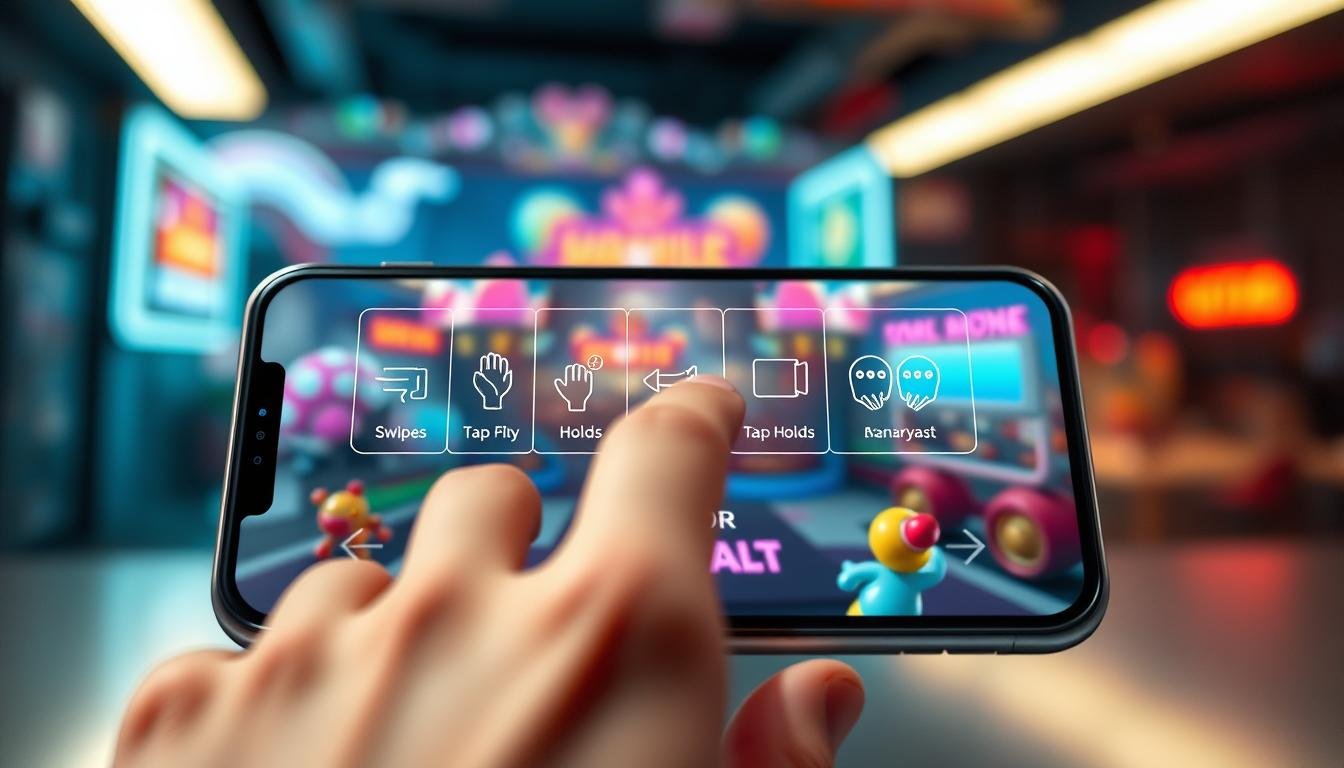
Welcome! Building interactive experiences for smartphones and tablets presents a unique set of challenges. Unlike traditional controllers, players interact directly with the screen. This makes the feel of every swipe and tap absolutely critical to your project’s success.
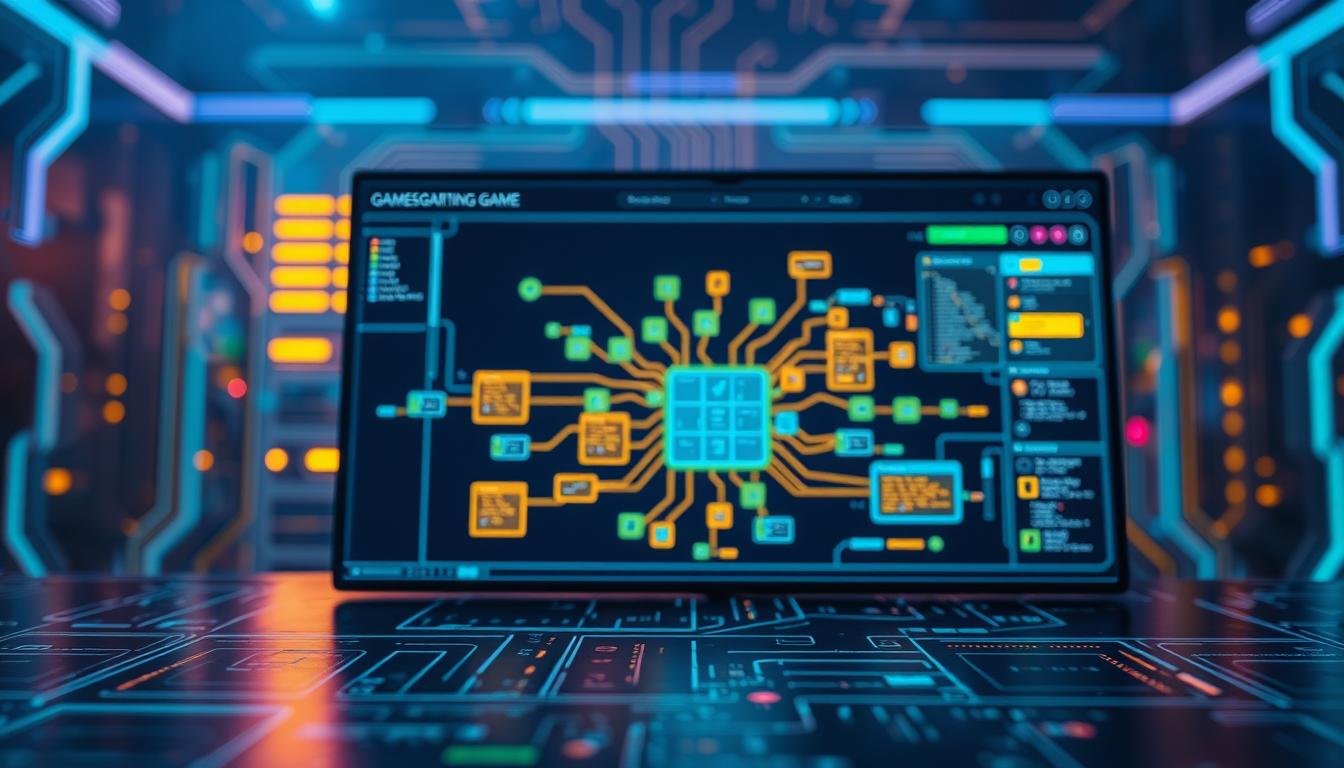
This powerful development suite is designed for creators of all skill levels. It provides an intuitive interface and a smooth learning curve. The package includes robust tools for characters, cameras, visual scripting, and more.
Our focus here is on its sophisticated input system. This system allows you to build controls once and deploy your project across various platforms. The goal is to achieve a responsive and natural feel that keeps players engaged.
Whether you are just starting out or are a seasoned developer, this guide offers practical steps. We will explore core concepts and advanced techniques. You will learn how to configure touch responses for a polished, professional result.
Key Takeaways
- Touchscreen controls are fundamental for a positive player experience on smartphones and tablets.
- The development environment offers a flexible input system that works across multiple platforms.
- Proper configuration of swipes and taps is key to making your project feel responsive and intuitive.
- Techniques like input buffering can help create smooth combo systems and advanced interactions.
- This tutorial uses real-world examples to demonstrate practical application of these concepts.
- Optimizing controls helps create a polished final product that encourages players to return.
Getting Started with Game Creator 2 Mobile Input
At the heart of the system are eight simple keys that power complex interactions. These abstract keys, labeled A through H, act as a universal bridge. They connect your project’s logic to the physical actions a person performs.
This design is the key to multi-platform support. You define an action once, like “jump,” and assign it to key ‘A’. Then, you map key ‘A’ to a tap on a smartphone, the spacebar on a PC, or a button on a controller. This smart input abstraction saves immense development time.
Understanding the Input Mechanism and Interfaces
The real power emerges when this system connects with other features. For example, equipping a character with a weapon that has a Combo asset automatically prepares it to receive commands. The combat module then intelligently decides which skill to execute based on the input received.
This offers a flexible way to build dynamic systems. You can trigger skills directly or let the combo logic choose the appropriate action. This gives the player a seamless and responsive experience.
Multi-Platform Support and Initial Setup
Beginning your project is straightforward thanks to this architecture. You are not building separate control schemes for each device. Instead, you focus on the actions within your game and link them to the abstract keys.
The initial setup involves understanding this connection. We will explore how to map touch gestures to these keys, ensuring your controls feel perfect on any screen.
Customizing Swipe and Tap Controls for Enhanced Gameplay
The real magic happens when you customize how swipes and taps respond to user actions. This level of personalization transforms basic interactions into polished, professional experiences that keep people engaged.
Configuring Input Charge and Execute Instructions
The development environment offers two fundamental instructions for handling actions. The charge instruction activates when someone presses a button, while the execute instruction triggers upon release.
This system works beautifully for mechanics like charged attacks. Touching the screen begins the charge, and lifting your finger executes the action. It provides granular control over how actions perform.
Adjusting Defaults for a Snappier, Responsive Control Experience
If your project doesn’t need charged mechanics, you can skip the charge instruction entirely. Simply set the execute instruction to trigger directly on press rather than release.
This adjustment creates instant, arcade-style responsiveness. Instead of press-and-release, actions happen immediately with a single tap. The default configuration uses charge-and-execute, but experimenting with different setups helps find what works best.
Testing these configurations on actual devices is crucial. What feels good in simulation might differ when tapping a real screen. Consider the trade-offs between variable power options and pure speed when setting your control scheme.
Advanced Input Techniques and Multi-Platform Integration
Professional-grade control systems incorporate intelligent timing mechanisms that anticipate user actions. These advanced features transform basic interactions into seamless experiences that feel natural across all devices.
Leveraging Input Buffers for Combos
Input buffering creates a timing window that remembers commands before the current action finishes. This technique is essential for fluid combo chains.
Consider a three-hit attack sequence. The first strike takes one second to complete. If someone taps again at 0.75 seconds, the system stores that command. It executes immediately after the first action ends.
Without this buffer, the second tap would be lost. The default window is 0.5 seconds, but you can adjust this value using the Set Buffer Window instruction.
Integrating Keyboard and Gamepad Triggers
Supporting multiple control methods is straightforward. You map different physical inputs to the same abstract keys.
Create triggers for mouse clicks, gamepad button presses, and touch gestures. They all activate the same in-game actions. This approach ensures consistent behavior across platforms.
Real-World Examples and Practical Customization Tips
For touchscreens, assign tap gestures to attack commands and swipes to special moves. This creates an intuitive control scheme.
Test buffer windows on actual devices. Touchscreen timing often benefits from slightly longer windows than keyboard controls. Adjust values based on real-world testing for optimal responsiveness.
Conclusion
The journey to perfect touch responsiveness ends with practical application of these concepts. You now possess the knowledge to create controls that feel professional and intuitive.
Remember the value of finding the right balance for your specific project. Choose between charge-and-execute patterns or instant-response approaches based on your needs. Each input method serves different gameplay styles.
Testing on actual devices remains crucial throughout development. The tactile feedback of real screens reveals nuances that simulations cannot capture. This ensures your final product meets player expectations for responsive interaction.
Your next step is implementation. Open your project and start experimenting with these techniques. Continuous refinement based on real-world testing will elevate your touch controls to professional standards.