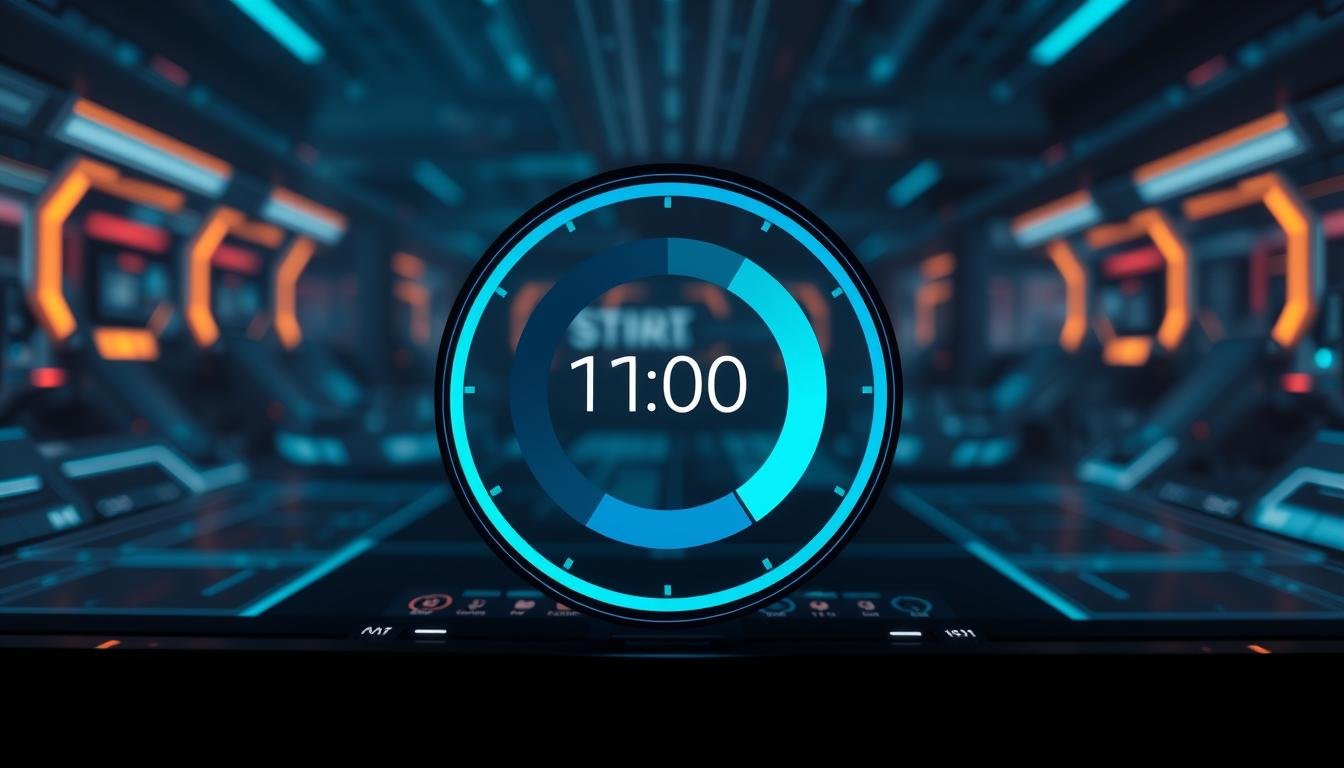
Welcome! This guide will teach you to build beautiful circular indicators for your game’s interface. These elements are perfect for showing cooldowns, health, or skill readiness.
A well-designed circular progress bar adds a professional touch. It gives players clear info about timed actions or character stats.
We will create a shader-based solution in the Unity engine. This method is both visually appealing and efficient for performance.
This technique works for many game types. Use it in RPGs for ability timers or in racing games for speed displays.
By the end, you will have a fully working system. You can customize it with colors and animations to fit your game’s style.
The shader approach we use offers great flexibility. You can make many variations without hurting your game’s speed.
Get ready to boost your UI skills. You will add a dynamic element that makes your game more engaging for players.
Key Takeaways
- Circular indicators provide clear visual feedback for game mechanics.
- A shader-based approach ensures good performance and flexibility.
- This tutorial covers creation from start to finish within the Unity environment.
- The final product is highly customizable for different game aesthetics.
- This skill is applicable to a wide variety of game genres and UI needs.
- You will learn a technique that enhances the player’s experience.
Introduction to Circular Cooldown Timers in Unity
Game developers increasingly rely on circular UI elements to convey time-based information efficiently. These visual tools help players track ability readiness and status changes at a glance.
Circular indicators serve as essential interface components in contemporary game design. They provide immediate visual feedback about reload times, skill availability, and various status effects.
Unlike traditional horizontal designs, circular layouts offer a more compact presentation. This space-saving approach creates visually engaging displays for temporal data within your game’s interface.
The shader technique we’ll explore produces polished, professional-looking circular indicators. These can showcase diverse data types from character health to loading status and speed metrics.
This method utilizes shader technology instead of sprite animations. You’ll achieve smooth, resolution-independent graphics that perform well across different platforms.
Circular timers prove especially valuable in action-packed games where screen space is limited. Players can quickly check cooldown status without distracting from core gameplay.
The flexibility of this shader-based system is its greatest strength. Once you master the fundamentals, you can adapt the same project for health displays, mana trackers, experience gauges, and numerous other interface elements.
Getting Started with Radial Progress Bar Unity
To begin crafting your visual timer, you’ll need to acquire the foundational package files. This section walks you through the simple setup process to get everything ready in your development environment.
Downloading and Importing the Unity Package
Head over to the GitHub repository’s releases tab to find the latest package. Download the .unitypackage file to your computer. This contains all essential shader files and example materials.
The download process is straightforward. Navigate to the releases section and grab the most recent version. Note that the screenshots folder won’t be included in this package download.
Once you have the files, open your Unity project. Go to Assets > Import Package > Custom Package. Select the downloaded file from your computer.
This project was developed using Unity 2017.4.8f1. The shader works perfectly with newer versions too. You can use it regardless of your current Unity version.
After importing, check your project window. You’ll see a new folder containing shader files, example materials, and sample scenes. These demonstrate various configurations of the circular indicator.
Take time to explore the imported folder structure. Familiarizing yourself with the layout makes it easier to reference materials throughout the tutorial.
For extensive modifications or contributions, consider cloning the entire repository. This gives you access to the full development environment and version control.
Setting Up Your Unity Project
Establishing a clean project layout from the start saves time and prevents confusion later. A well-structured workspace makes it easier to locate assets and maintain your code.
Good organization helps you work more efficiently. You’ll spend less time searching for files and more time building your game.
Organizing Files and Folders
Create a main directory for your circular timer assets. Use clear names like “Shaders” and “Materials” for subfolders.
Move imported shader files into the appropriate locations. Keep experimental work separate from production-ready assets.
This systematic approach ensures everything stays manageable. You can quickly find what you need as your project grows.
Configuring Unity Editor Settings
Arrange your workspace for optimal visibility. Dock the Inspector window where you can easily access shader properties.
The basic setup process is straightforward. Attach the shader to a material and apply it to a quad object.
For collaboration, use the recommended engine version. This ensures compatibility across different development environments.
Implementing the Progress Bar Shader
The heart of our circular indicator system lies in the shader implementation we’ll explore next. This powerful component drives the visual display and offers extensive customization options.
Our shader works seamlessly with Amplify Shader Editor, a visual tool that simplifies customization. This approach makes modifying the visual content much easier than coding from scratch.
Integrating with Amplify Shader Editor
If you have Amplify Shader Editor installed, you can open our shader file directly. The node-based structure reveals how the circular effect is generated.
This visual editor lets you understand and modify the shader without deep coding knowledge. You can tweak parameters and see results in real-time.
Understanding Standard vs Simplified Versions
We provide two distinct shader versions to suit different needs. The standard option offers comprehensive control over visual aspects.
The simplified version removes many advanced settings for faster implementation. It’s perfect for mobile projects where performance matters most.
Both versions maintain core circular display functionality. The standard edition allows sophisticated effects like animated textures and color transitions.
Community contributions to our project repository are always welcome. If you create enhancements, consider sharing them with other developers.
Configuring Progress Bar Parameters
Fine-tuning your circular indicator’s appearance requires mastering the parameter configuration system. These controls let you create exactly the visual feedback your game needs.
The parameter system divides into logical sections for easy navigation. Each group handles specific aspects of your timer’s display.
General and Background Settings
Start with the fill percentage setting. This primary value controls how much of the circle fills up. It ranges from 0 to 1, representing empty to full.
Rotation and arc range settings determine your indicator’s starting position and span. You can create full circles or partial arcs from 0 to 360 degrees.
Background options provide a consistent visual reference. Adjust colors, border widths, and opacity to match your game’s style.
Border and Fill Customization
The border section offers color transition capabilities. Set minimum and maximum colors for smooth gradients as the bar fills.
Fill settings provide texture layering options. You can apply main, secondary, and noise textures with individual controls.
Each parameter contributes to clear player information display. Proper configuration ensures your timer communicates effectively during gameplay.
Adding Textures for Enhanced Visuals
Taking your circular indicator to the next level involves adding texture layers. This system provides immense creative freedom for your game’s interface.
Textures add depth and personality to your visual feedback. They transform a simple shape into a dynamic piece of graphics.
Main and Secondary Texture Setup
The Main texture is the foundation of your design. It holds the primary pattern for the filled part of the indicator.
Secondary textures add another layer of visual content. Use them for highlights or subtle overlay effects.
Both layers share the same control parameters. You can adjust opacity, contrast, tiling, and offset for each one.
A fantastic feature lets you animate these textures. You can make them scroll or rotate around the circle.
This creates effects like spinning rings or flowing energy. It adds significant value to your player’s experience.
Utilizing Noise Textures Creatively
Noise textures introduce organic variation into your radial progress element. They can simulate energy fields or digital static.
The shader blends these layers in a specific way. The noise multiplies with the secondary texture first.
That result then adds to the main texture. This mathematical relationship allows for complex and unique visuals.
Experiment with different combinations to find what fits your game. This is where your radial progress indicator becomes truly unique.
Optimizing Performance and Visuals
The final step in creating professional circular timers involves careful optimization of both performance and appearance. This ensures your interface elements run smoothly while maintaining visual appeal.
Remember that the example scripts provided are quick demonstrations, not production-ready code. Use them for inspiration when writing your own efficient implementations.
Performance Considerations
Shader-based indicators are more efficient than sprite animations, but texture resolution matters. Limit texture layers when possible, especially for mobile games.
Multiple active instances can impact performance. Use object pooling for frequently appearing elements rather than constant instantiation.
Regularly check the profiler window to monitor draw calls and GPU usage. This helps identify performance bottlenecks early.
Visual Tweaks for a Smooth Experience
Test your indicators at various resolutions and frame rates. Smooth animations prevent jerky updates that break player immersion.
Interpolate fill percentage changes rather than using discrete steps. This creates a more polished appearance.
Visual quality is part performance and part aesthetic tuning. Consider using simplified shaders for background elements.
Reserve full-featured versions for important UI components. This balance maintains visual appeal while optimizing system resources.
Troubleshooting Common Issues
Even with the best preparation, you might encounter some challenges when implementing your circular timer. Most problems have straightforward solutions once you know where to look.
The example scenes included with the package are excellent references. Compare your work against them to spot differences in configuration.
Debugging Tips in Unity
Start by checking basic assignments. Verify that your material uses the correct shader and is applied to the UI element.
Use the Inspector window during Play mode to test parameters. This lets you see changes instantly and identify problematic ranges.
Texture issues often come from extreme tiling or offset settings. These can push visual content outside the visible area.
Adjusting Parameters for Best Results
If your timer isn’t filling correctly, check the Fill percentage value in your script. It should range between 0 and 1.
Rotation problems are common for beginners. Experiment with the rotation setting to find the right starting angle.
When colors don’t transition smoothly, ensure your min and max colors differ. Also verify the fill range matches your expectations.
For Amplify Shader Editor users, examine node connections. This helps understand data flow and spot custom modification errors.
Conclusion
With the skills you’ve acquired, your game interfaces will now feature professional visual feedback systems. The shader-based method offers incredible flexibility for creating everything from simple indicators to complex animated elements.
Remember this tool is completely free under the MIT License. You can use, modify, and distribute it in commercial projects without restrictions. This reflects the collaborative spirit of the development community.
As you implement these elements in your actual game project, balance visual complexity with performance needs. The techniques learned here will serve you well beyond just circular indicators.
Keep experimenting with different settings to discover unique styles that match your game’s aesthetic. The creative possibilities are truly endless with this flexible system.
Thank you for following this tutorial. Best of luck creating stunning visual elements that make your Unity game interfaces more engaging and informative for players.