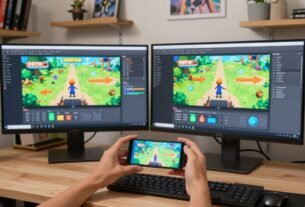
Creating a polished game interface requires more than just static screens. The way your menus and buttons change from one view to another is critical. This flow between different screens is what we call a state transition.
Mastering these visual changes can turn a good game into a great one. Players notice when buttons animate smoothly or menus fade in gracefully. These details create a professional feel and keep users engaged.
This guide explores the tools available in a popular game engine for building these effects. You will learn both simple styling methods and more advanced scripting techniques. The goal is to give you complete control over the look and timing of your interface.
We will cover practical examples, from basic hover effects to complex screen changes. By the end, you will be able to implement production-ready animations that enhance the player’s experience significantly.
Key Takeaways
- State transitions are vital for a professional and engaging user interface.
- You can create these effects using both visual styling and code.
- Animating properties like color, scale, and rotation adds polish.
- Practical examples will guide you from basic to advanced techniques.
- These skills help improve the overall feel and responsiveness of your game.
- A well-animated interface responds dynamically to player input.
Introduction to Smooth UI Transitions
Visual flow between different interface states serves as an invisible language that guides players through their gaming experience. These movements create a dialogue between the user and the system.
Exploring the Importance of UI Transitions in Games
Smooth screen changes provide essential feedback that player actions have registered. They bridge the gap between input and response. This creates a seamless interactive experience.
The value of well-implemented animations extends beyond mere aesthetics. They directly impact how users perceive application quality and responsiveness. Without appropriate effects, screen changes can appear abrupt.
User expectations and visual feedback
Modern gamers expect immediate confirmation when they interact with menus. A well-timed transition signals that an event was successful. This prevents confusion about whether actions completed.
Professional interfaces use these effects to guide attention and signal state changes. Research shows applications with smooth animations appear more polished. The right timing is crucial for effectiveness.
Starting with clear objectives ensures every animation choice serves a functional purpose. This foundation will guide all implementation decisions moving forward.
Understanding Unity’s UI Toolkit and USS
Modern game development demands a systematic approach to interface styling and behavior management. The right tools can streamline your workflow while ensuring consistent visual results across different screens.
Overview of the UI Toolkit
This system represents a contemporary method for building game interfaces. It separates visual presentation from functional logic using a declarative approach.
The architecture automatically handles layout recalculations when styles change. This ensures smooth updates without manual coding intervention.
Styling with USS and pseudo-classes
Unity Style Sheets (USS) provide a familiar syntax for developers with web experience. You define properties like color, size, and positioning in centralized files.
The pseudo-class system enables automatic style changes based on user interaction. Elements can have different appearances for hover, active, or disabled states.
Understanding specificity rules helps manage complex style hierarchies effectively. This ensures your transitions apply correctly across various element states.
The visual UI Builder window offers real-time preview capabilities. This accelerates design iteration by showing immediate results of style adjustments.
Setting Up Your Unity Project for UI Transitions
Before diving into animation techniques, establishing a properly configured project foundation is essential for success. This initial setup phase ensures your development environment can support the sophisticated visual effects you’ll create.
Creating a new project and organizing folders
Begin by creating a new project using Unity 2020.3.26f1 or higher. This version provides full support for the UI Toolkit system. Choose any template that fits your needs.
Organization is critical from the start. Create dedicated folders for different asset types. A typical structure includes separate directories for UXML files, USS stylesheets, and C# scripts.
This systematic approach prevents clutter and streamlines your workflow. Well-organized projects are easier to maintain and scale as complexity grows.
Importing necessary packages and assets
Navigate to the Project window and use the Create menu to generate an Editor Window. This action automatically produces three interconnected files essential for development.
The system creates a C# script for logic, a UXML file for structure, and a USS file for styling. Understanding how these component files relate is crucial for effective implementation.
Configure your project settings to ensure the UI Toolkit is properly enabled. Import any additional assets like custom fonts or icon sets that your visual effects might require.
Setting up a test gameobject early provides immediate feedback. This allows you to preview changes as you develop them, creating an efficient iteration cycle.
Building Transitions with UI Builder
The visual interface builder provides designers with powerful tools for creating engaging animations without coding expertise. This approach makes sophisticated effects accessible to team members with varying technical backgrounds.
Configuring hover selectors and styles
Open your UXML file in the builder window to access the StyleSheets panel. Click “Add new selector” and enter syntax like “Label:hover” to define hover states. This creates the target appearance for your elements.
The system automatically generates clean USS code. You can preview changes instantly in the visual interface. This eliminates common syntax errors during development.
Defining transition duration and animation properties
Set the transition-duration property on base elements rather than hover states. A value like 3 seconds ensures smooth animation in both directions. This is crucial for consistent visual feedback.
Use the Transform section to configure scale and rotation properties. An example setup might include scale X: 1.1 and rotate: 10 degrees. These settings create engaging visual responses.
The simple transition builder approach enables rapid iteration. Designers can test different timing and property combinations visually. This workflow supports creating professional-quality effects efficiently.
Implementing Dynamic Transitions with C# Scripts
Programming transitions with code unlocks dynamic behaviors that respond to game conditions. While visual builders work well for basic effects, C# scripting provides greater control.
This approach lets you create sophisticated animations that change based on player actions or game states.
Using pointer events to trigger transitions
The foundation of interactive effects lies in event handling. You can register callbacks for PointerOverEvent and PointerOutEvent.
These events simulate hover behavior programmatically. The system triggers your custom logic when players interact with elements.
Your event handlers call a function that applies style changes. This creates smooth animations as users move their cursor.
Integrating C# code with UI elements
Start by creating elements entirely through code. Set transition properties using style.transitionDuration with a list of TimeValue objects.
Always record default style values before making changes. This ensures elements return to their original state correctly.
The SetHover function encapsulates transition logic. It accepts a boolean parameter to determine which styles to apply.
Proper cleanup is essential. Unregister callbacks in OnDisable to prevent memory issues. This example demonstrates a pattern you can extend for complex effects.
Optimizing ui transitions unity for Game State Changes
Fine-tuning the timing of interface animations requires a thoughtful approach to user psychology and technical constraints. The right duration settings can make your game feel responsive and polished.
Adjusting transition durations and time settings
Custom timing values allow you to match animation speed to different interaction contexts. Quick effects around 0.2 seconds work well for button feedback.
Longer animations lasting one second or more suit major screen changes. These time adjustments help guide player attention effectively.
Comparing default settings with custom configurations
The default configuration provides a basic starting point for development. However, production games often need tailored settings.
Testing different duration options reveals what feels most natural to players. The default values may not suit every game state.
Custom configurations consider performance across various devices. This section helps you balance visual quality with smooth operation.
Proper timing ensures interface events feel connected to player actions. The UI Builder window in unity simplifies these adjustments.
Integrating UI Elements with Transition Effects
Coordinating visual effects across multiple interface elements creates a unified and professional user experience. This integration ensures that buttons, labels, and other components work together seamlessly.
Animating buttons and labels
Button components benefit from multi-state transitions that provide clear visual feedback. You can animate properties like scale, rotation, and color values to create engaging effects.
A practical example might involve a button that scales up and changes color when hovered. These animations help users understand the current interaction state instantly.
Synchronizing UI events and transitions
Advanced integration involves coordinating multiple elements simultaneously. When a player interacts with one component, related elements can animate together.
Function-based triggers allow transitions to respond to various game events. This creates cohesive behaviors that enhance the overall player experience significantly.
Proper synchronization ensures all interface elements work in harmony. The right timing values create polished effects that feel natural to users.
Troubleshooting and Testing Your UI Transitions
Even the most carefully designed animations can encounter unexpected issues during implementation. Proper testing helps catch problems before they reach players.
Identifying common pitfalls and errors
One frequent mistake involves placing transition properties on hover states instead of base elements. This causes animations to work in only one direction.
Another critical error is forgetting to unregister event callbacks. This can lead to memory leaks over time. Always clean up in OnDisable or OnDestroy functions.
Value mismatches between recorded default states and actual initial states create jarring jumps. Verify resolvedStyle values after layout calculations complete.
Best practices for performance optimization
Test your transitions on various hardware profiles. Lower-end devices may struggle with complex effects. Reduce simultaneous animations if needed.
Create a standardized library with documented duration values. This ensures consistency across all interface elements. A good starting point is around 0.3 seconds for button feedback.
Automated testing can verify that animations complete within expected time ranges. This catches regressions before they affect the final product.
Systematic testing should check how effects behave when rapidly triggered. Ensure smooth operation from start to end under all conditions.
Conclusion
Mastering interface animations marks the final step in creating truly engaging game experiences. This comprehensive guide has walked you through both visual and programmatic approaches to achieve polished results.
The dual methodology provides flexibility for different scenarios. You can create simple effects using the UI Builder or implement complex behaviors through C# scripting. Both pathways lead to professional-quality results.
Remember that the true value of smooth animations lies in their subtlety. When implemented correctly, players feel the interface’s responsiveness rather than consciously noticing each transition. This creates a cohesive experience that elevates your game’s perceived quality.
As you start implementing these techniques, begin with the foundational methods presented here. The end goal is an interface that feels intuitive and responsive. Test different timing values to find what works best for your specific menu systems.
Whether building basic screen changes or sophisticated animated hierarchies, these principles provide the essential knowledge base. Continue iterating based on player feedback to refine your approach over time.
FAQ
What is the primary purpose of adding smooth transitions to a game’s user interface?
How does the UI Builder in Unity simplify the process of creating transitions?
Can I create complex animations that go beyond basic hover effects?
What are some common performance issues to watch for when implementing these effects?
How do I synchronize a UI transition with a specific game event, like a level completion?

Game developer with over 10 years of professional experience specializing in the mobile sector. George’s journey began with a passion for indie development, leading him to contribute to several successful mobile titles, including the critically acclaimed puzzle-platformer ChronoShift and the top-down strategy game Pocket Empires.