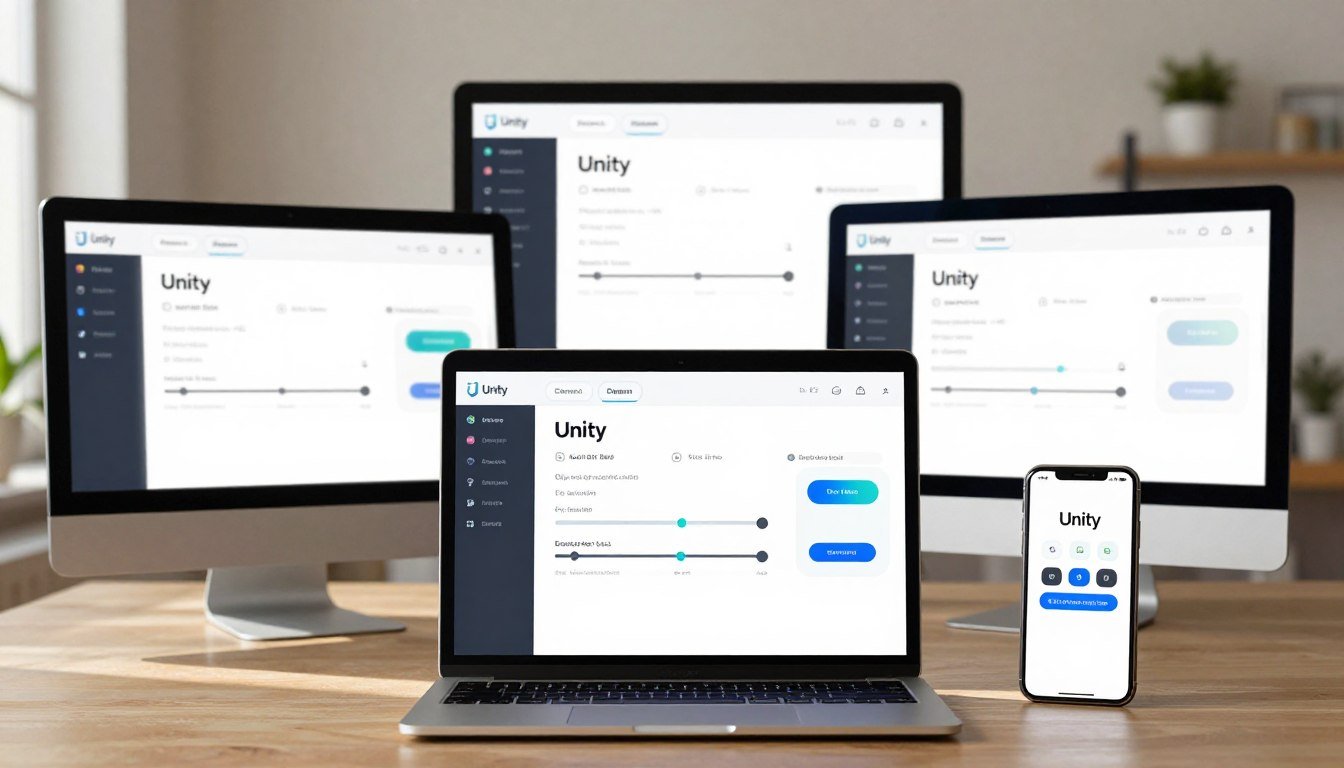
You build games in the unity engine for many devices. Early constraints are varied aspect ratios, tight battery budgets, and devices that behave differently at runtime.
Beginners often tweak canvas scaler per scene until it “looks right” and then forget which scene has which settings. That causes UIs that match the Editor but shift on a phone or tablet. The root causes are different resolution/aspect, scaler configuration, and anchoring.
Test with at least three extremes in the Editor: a wide phone, a tall phone, and a tablet. Verify your layout does not drift before you touch anchors. Avoid recomputing layout every frame; react to size changes via callbacks to save battery and keep frame pacing smooth.
Quick, working step: add this script to make scaler settings explicit and reviewable in version control.
using UnityEngine;
using UnityEngine.UI;

[RequireComponent(typeof(Canvas))]
public class FixedScalerSetup : MonoBehaviour
{
    public Vector2 reference = new Vector2(1080, 1920);
    void Awake()
    {
        var cs = GetComponentInChildren(true);
        cs.uiScaleMode = CanvasScaler.ScaleMode.ScaleWithScreenSize;
        cs.referenceResolution = reference;
        cs.screenMatchMode = CanvasScaler.ScreenMatchMode.MatchWidthOrHeight;
    }
}
Implement a mobile-proof Canvas Scaler setup you can ship
Start by picking a small set of extreme screen shapes to test your layout early. In the Editor, create Game View presets for 16:9, 20:9, 4:3, and a foldable-ish ratio. Repeat those in the Device Simulator so you catch layout shifts before you build.
Concrete Game View and Device Simulator steps
Make presets: 1080×1920 (portrait), 1920×1080 (landscape), 1280×720 (tablet), 2200×1800 (foldable-ish). Avoid Free Aspect — it hides real user screens and encourages eyeballing positions.
Standard CanvasScaler settings to start with
Set UI Scale Mode to “Scale With Screen Size”. Use a project-wide reference resolution that matches your design file (example: 1080×1920). Set Screen Match Mode to Match Width Or Height and start Match at 0.5.
| Preset | Aspect | Suggested Match Bias | Notes |
|---|---|---|---|
| 1080×1920 | 9:16 (tall) | 0.6 (height) | Better for stacked HUD and vertical layouts |
| 1920×1080 | 16:9 (wide) | 0.4 (width) | Good for side-anchored controls and joysticks |
| 1280×960 | 4:3 (tablet) | 0.5 (balanced) | Confirm spacing; anchors should hold offsets |
| Foldable-ish | ≈11:9 | Adjust per-panel | Consider Constant Physical Size for critical buttons |
Use the guardrail script from Section 1 to lock these settings across scenes. If you mix scaling modes, document exactly which prefabs use Constant Physical Size so QA knows what to test.
Unity responsive UI, canvas scaler mobile resolution: how scaling really works
When art that looks perfect in the Editor breaks on a real device, it’s usually following rules you never fully set. Two things change between Editor and device: actual pixel count and aspect. Your layout is not “wrong”—it is scaling based on the reference rules you chose.
Why your layout shifts on a Galaxy phone or Tab A7
Game view uses a chosen screen size, but physical devices mix different pixels-per-inch and aspect ratios. A tall phone and a tablet with the same pixel height still present different widths. That makes spacing and text scale appear different.
Match Width or Height: practical view
The match slider picks which axis drives the scale factor. 0.5 splits the difference. It is not a silver bullet for foldables. On a Z Fold-like aspect a balanced match can shrink center content too much, leaving edge panels oversized.
- Fix: box panels, add min/max scale constraints, avoid manual per-rect scaling.
- Tip: keep “Unity – Manual: Designing UI for Multiple Resolutions” open and read how scale factor and anchors behave.
| Problem | Likely Cause | Quick Fix |
|---|---|---|
| Layout OK in Editor, broken on tablet | Different aspect & PPI | Test presets, lock anchors, use min/max |
| Buttons too small on foldable | Match set to 0.5 with wide aspect | Panel boxing + clamp scales |
| Stacked elements drift | Manual rect scaling layered with canvas scale | Remove manual scales; rely on layout groups |
Anchors, pivots, and offsets: the part most beginners get wrong
Anchors and pivots are the small settings that make big layout differences on phones. They set the origin for position values so your elements keep predictable offsets as the screen size changes.
Use anchor presets intentionally. Alt applied with a preset also moves position. Shift changes pivot. That combo can hide anchor mistakes: something looks right in the Editor but slides on device.
Anchor presets vs manual anchors
Do this: pick the correct anchor for a top-left HUD button first. Then set offsets like 60px right and 60px down. Treat those offsets as the contract you must preserve.
Not that: dragging an element with its anchor centered. It will drift when aspect changes.
Convert “looks right” into stable offsets
Lock the anchor, set pivot if needed, then edit the anchored position. Rely on offsets and layout groups rather than manual rect scaling.
Safe areas and notches
Wrap HUD elements in a SafeArea panel that reads Screen.safeArea and applies padding. Anchor your controls to that panel, not the full screen, so users on modern phones don’t lose content under notches.
| Common mistake | Cause | Quick fix |
|---|---|---|
| Element slides on device | Wrong anchor | Set anchor → set offsets |
| Looks fine in Editor, clipped on iPhone | No safe-area handling | Wrap HUD in SafeArea panel |
| Pivot offset unexpected | Used Shift with preset | Reset pivot and reapply offset |
Layout architecture that scales: top, center, bottom without fighting the system
Design your layout as three predictable bands so elements keep their place across shapes and sizes.
Start with a single root panel that uses a Vertical Layout Group. Add three children: TopPanel, CenterPanel, BottomPanel. Give each child a Layout Element and control preferred, min, and flexible heights rather than eyeballing offsets.
Boxing strategy from production
Isolate complex areas—like a game board or a dense stats cluster—inside their own panel. That “boxing” keeps aspect changes from cascading through other areas.
Vertical Layout Group + Layout Element
Practical setup: Top and Bottom get a Preferred Height and Flexible Height = 0. Center gets Flexible Height = 1 so it expands to fill extra space.
Tune those numbers against your extreme presets (tall portrait, wide landscape, tablet) not just one monitor.
Content Size Fitter caution
Avoid putting Content Size Fitter on elements already controlled by a Layout Group. Nested fitters can trigger rebuild loops and jitter.
Fix: choose a single owner for size in each branch and use Layout Elements to communicate preferred sizes upward.
Text sizing constraints
Use TextMeshPro autosize with a sensible min/max range. Test tall portrait views where text tends to shrink; raise the min if it becomes unreadable.
On tablets, clamp max size so headings don’t burst layout gaps or force reflows.
When to keep variants
One layout sometimes works, but it requires strict boxing and compromises. If gameplay or touch targets suffer, maintain portrait and landscape variants and toggle by orientation bands.
| Part | Role | Suggested LayoutElement |
|---|---|---|
| TopPanel | HUD, status | PreferredHeight, Flexible=0 |
| CenterPanel | Board, main content | Flexible=1, MinHeight tuned |
| BottomPanel | Action buttons, rows | PreferredHeight, Flexible=0 |
Handling extreme aspect ratios and orientation changes
Extreme tall or ultra-wide screens force you to pick a clear strategy for layout and rotation. Decide whether a single adaptive layout will reflow elements, or whether you ship two clean roots and toggle between portrait and landscape bands.
Adaptive layout vs. two-root approach
Adaptive layout: panels rearrange and flex. Use layout groups, Layout Elements, and boxing so the center content scales while controls remain reachable. This works well when the game has a central board and a simple HUD.
Two roots: maintain separate portrait and landscape prefab trees and switch by aspect bands. This is faster to ship when interaction density or thumb reach matters.
Pillarbox / letterbox as a deliberate choice
If extreme width or foldable states break usability, pick a target aspect and accept bars. Pillarboxing protects element size and spacing but reduces usable area. Re-check button touch size and text min values inside the boxed region.
Camera rect aspect limiter pattern
Implement a small script that sets Camera.rect to a target width/height on Start and on orientation or fold events. Note: Screen Space – Camera canvases follow that rect and stay inside the boxed area. Screen Space – Overlay canvases still cover the full display unless you add padding or safe-area logic.
| When to use | Pros | Cons |
|---|---|---|
| Adaptive | Single art path, uses flexible layouts | More testing across devices |
| Two roots | Thumb-friendly, fewer edge bugs | More prefabs to maintain |
| Pillarbox | Preserves scale and spacing | Less usable screen area |
Choose adaptive for HUD + central content. Choose dual roots when controls dominate. Run the aspect limiter on Start and on orientation changes so foldables and rotation are handled at runtime.
Mobile performance considerations for UI scaling
Small runtime changes to your layout often cost far more CPU than you expect. On mid-range phones, layout and graphic rebuilds can cause visible stutter during gameplay.
Canvas rebuild cost
Changing RectTransform sizes, Layout Group properties, or many text fields triggers costly rebuilds. If you update these every frame, the engine recomputes geometry and materials repeatedly.
Draw calls and batching
One large canvas means one big rebuild when any child changes. Splitting canvases can localize rebuilds, but it may raise draw calls and overdraw if you split incorrectly.
Memory and sprite atlases
Pack sprites into atlases and keep texture sizes sensible. Large textures increase memory use on tablets and phones and can bloat app size.
Battery and frame pacing
- Update HUD text only on value change or at a fixed cadence.
- Avoid animating Layout Group properties; animate transforms or CanvasGroup alpha instead.
- React to size/orientation changes with events, not per-frame polling.
| Problem | Cause | Fix |
|---|---|---|
| CPU spike | Frequent layout rebuilds | Stabilize layout, coalesce updates |
| High draw calls | Many small canvases | Split by static vs changing elements |
| Memory pressure | Oversized textures | Atlas and downscale assets |
Conclusion
A stable layout starts with clear, documented scaling choices that you enforce across the project.
Lock your canvas scaler settings project-wide, test extreme aspect presets in Editor and Device Simulator, anchor by intent, and box complex areas into predictable panels. Treat reference resolution as a baseline, not a device list.
If interaction density or foldables matter, plan two variants and toggle by aspect bands; if the HUD is simple, one adaptive layout usually works. Re-check top bugs before release: wrong anchors, ignored safe area, Content Size Fitter loops, and scene-to-scene scaler drift.
Mind performance: minimize layout rebuilds, split canvases by update frequency, optimize atlases, and watch draw calls. Keep Unity Manual “Designing UI for Multiple Resolutions” bookmarked and your scaling contract dated Dec 2025 for team feedback and future fixes.

Game developer with over 10 years of professional experience specializing in the mobile sector. George’s journey began with a passion for indie development, leading him to contribute to several successful mobile titles, including the critically acclaimed puzzle-platformer ChronoShift and the top-down strategy game Pocket Empires.