You will build a complete Unity HUD system for mobile: a fixed overlay for health and cooldowns, plus pooled damage numbers for transient feedback. Treat this as a true system, not scattered visual objects, to reduce draw calls and battery use on small screens.
Start in the first five minutes: create a GameObject named “HUD”, add a UIDocument component, assign PanelSettings and your UXML, then attach one C# script and wire the PlayerControl reference in the Inspector. That gives instant on-screen feedback without frame polling.
Use event-driven updates to avoid Update() cost. This minimal script subscribes safely, caches Q<Label>(), and computes a safe ratio so you never show NaN on device builds:
<!-- C# snippet -->
public class HudBinder : MonoBehaviour {
  public PlayerControl player;
  Label healthLabel;
  void OnEnable() {
    var root = GetComponent<UIDocument>().rootVisualElement;
    healthLabel = root.Q<Label>("HealthLabel");
    player.OnHealthChange += OnHealthChanged;
    Refresh();
  }
  void OnDisable() => player.OnHealthChange -= OnHealthChanged;
  void OnHealthChanged(int value, int max) {
    float ratio = max > 0 ? (float)value / max : 0f;
    healthLabel.text = $"{value} / {max} ({ratio:P0})";
  }
  void Refresh() => OnHealthChanged(player.Current, player.Max);
}
Later sections will cover mask-based fills, USS extraction, correct time sources for cooldowns, pooling for damage numbers, and references to the UI Toolkit manual, PanelSettings docs, and a GDC UI/UX talk. You’ll also avoid common beginner mistakes: null Q<> queries, unsubscribed events, and bad scaling.
Wire the HUD to player health with UI Toolkit events (working code)
Bind VisualElements to gameplay events so the on-screen display updates only when values change. This keeps CPU and battery use low and makes your display responsive without per-frame polling.
Create the UIDocument and query elements
Create a UIDocument GameObject and assign the GameUI asset in the inspector. Name your elements explicitly in UXML so rootVisualElement.Q queries are deterministic and fast.
Event-driven script pattern
Cache queries once and subscribe to the player event in OnEnable. Unsubscribe in OnDisable to avoid leaked handlers after a scene reload.
Example:
<!-- C# -->
void OnEnable() {
  var doc = GetComponent<UIDocument>();
  if (doc==null) return;
  var root = doc.rootVisualElement;
  label = root.Q<Label>("HealthLabel");
  mask  = root.Q<VisualElement>("HealthMask");
  player.OnHealthChange += OnHealthChanged;
}
void OnDisable() => player.OnHealthChange -= OnHealthChanged;
void OnHealthChanged(int cur, int max) {
  cur = Mathf.Clamp(cur, 0, max);
  float ratio = max>0 ? (float)cur/max : 0f;
  label.text = $"{cur} / {max}";
  float pct = Mathf.Lerp(8f, 88f, ratio); // 0-100 expected by Length.Percent
  mask.style.width = Length.Percent(pct);
}
Troubleshoot fast
- If Q returns null, confirm element name spelling in UXML or UI Builder.
- Ensure UIDocument.SourceAsset is assigned before you query root.
- Rebind in OnEnable so destroyed player references don’t send ghost updates.
Choose your HUD stack for mobile: UI Toolkit, uGUI, and TextMeshPro
Choosing the proper runtime display stack affects performance and iteration speed. For fixed top-corner components like player health, cooldowns, and ammo, the toolkit approach is a strong fit. It keeps a small, stable tree that rarely forces layout recalcs.
For transient, world‑space feedback—floating damage numbers or hit pop—uGUI + TextMeshPro often wins. TMP gives crisp numerals across DPIs and predictable batching when you share font assets and materials.
Practical hybrid many teams ship
You can pair both: toolkit for the fixed overlay and uGUI/TMP canvases for enemy feedback. Feed both from the same gameplay events to avoid duplication and keep data flow clean.
- Event-driven updates: subscribe to changes and update only when values change.
- Don’t poll in Update() for health or cooldowns unless you need per-frame interpolation.
- If you interpolate, do it at a controlled cadence in UI code to limit allocations.
| Use case | Best fit | Pros | Cons |
|---|---|---|---|
| Fixed top-corner readouts (player health, ammo) | UI Toolkit | Low layout churn; small draw cost | Less tooling for world cues |
| Floating numbers, world labels | uGUI + TextMeshPro | Crisp text; fast iteration; pooled prefabs | Batched canvases needed to avoid redraws |
| Quick prototype | uGUI | Fast to iterate | Can get expensive on phones if left unoptimized |
Build the health bar layout in UI Builder using UXML structure
Start by enabling “Match Game View” in the editor so what you place in the project window matches the game display. That prevents anchor surprises across devices and aspect ratios.
Use this exact element hierarchy in UXML to avoid label occlusion:
- HealthBarBackground (container)
- HealthBarMask (child of background)
- HealthBarFill (child of mask)
- HealthLabel (last child so it draws on top)
Switch the container mode from the default flexbox to Absolute when pinning a top corner. Flexbox is great for lists and menus, but Absolute keeps a fixed position and size across screens.
Common mistakes and quick fixes:
- If the label hides, check child order and mask overflow before touching code.
- Zero default label padding/margins, then add only the padding you need.
- Enable Match Game View and test safe-area offsets for notches later.
| Problem | Cause | Fix | When to use |
|---|---|---|---|
| Label hidden behind fill | Render order / mask occlusion | Move HealthLabel last or place outside mask | Top-corner readouts |
| Layout shifts on devices | Flexbox anchors + aspect mismatch | Enable Match Game View; use Absolute | Fixed-size HUD elements |
| Label misaligned | Default padding/margins | Reset spacing, then add explicit padding | Small text inside containers |
Health bar visuals that scale cleanly on different phones
Start with PanelSettings set to Scale Mode = “Scale with Screen Size” and a concrete reference resolution such as 1920×1080. That gives predictable scaling across a wide range of screen shapes and DPIs.
Choose Screen Match Mode = “Match Width or Height” and bias the slider toward the axis you must protect. Match width when your design is portrait-first so horizontal layouts stay intact. Match height when landscape spacing matters more.
Quick default configuration
PanelSettings: Scale Mode = Scale with Screen Size. Reference Resolution = 1920×1080. Screen Match Mode = Match Width or Height with a bias you control.
What to test
- Open the Game view at 3–4 aspect ratios (tall phone, standard, wide tablet).
- Verify the component remains readable and the image and background edges are not clipped.
- Adjust the reference size or bias if the bar or text becomes too small on high‑DPI displays.
| Concern | When to bias | Result |
|---|---|---|
| Protect horizontal layout | Portrait bias (width) | Labels keep spacing |
| Protect vertical spacing | Landscape bias (height) | Bars don’t compress |
| Art fidelity | Match design reference | Sprites scale predictably |
For details, consult the PanelSettings properties reference and the UI Toolkit manual in the official Unity documentation to match these settings to your project.
Unity HUD system, health bar UI tutorial mobile: filling logic, masking, and animation
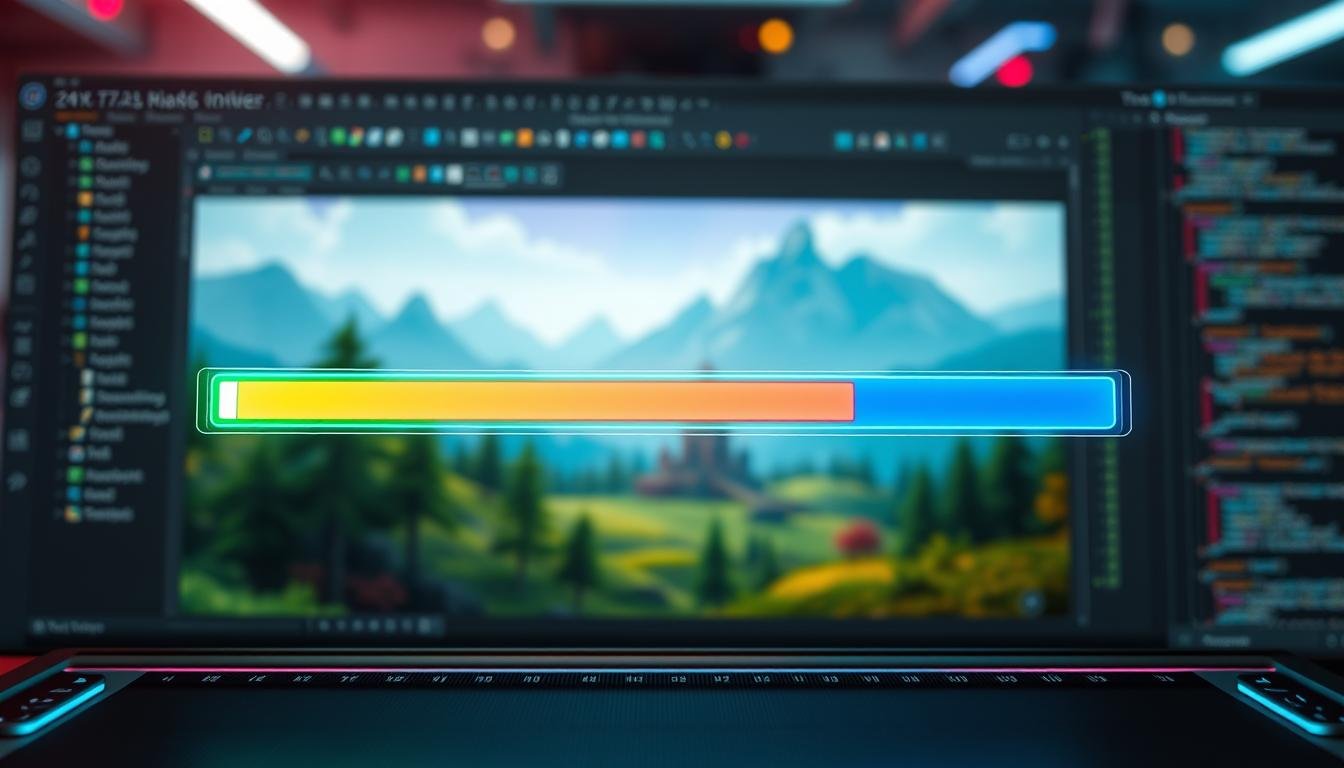
Treat the mask as the moving frame and the fill as the stable artwork it reveals.
Overflow: hidden masking and explicit sizing
Set the HealthBarMask overflow to hidden and give HealthBarFill an explicit pixel width. The mask clips the child; if the fill is set to 100% it will shrink with the mask and you lose the clip effect.
Animating width with transitions
Animate the mask width, not the fill. Move the clip boundary so sprites and artwork remain stable while the reveal changes.
- Map ratio via Lerp to 8% (empty) → 88% (full) to match art frames.
- Example: duration = 0.5s, easing = Ease Out Bounce for editor testing; prefer Ease Out Quad or Linear in combat to reduce visual noise.
- Avoid animating many properties at once; fewer transitions reduce layout recalcs on low-end devices.
Clamping and edge cases
Guard calculations: if max == 0 early-out with zero percent. Clamp ratio = Mathf.Clamp01((float)cur / Mathf.Max(1, max)).
- Clamp ratio to 0–1 to avoid overfill when overhealed.
- Clamp negative current to 0 to handle overkill.
- Early-out if computed percent equals previous percent to skip style changes and save CPU/time.
Extract styles into USS to keep the HUD maintainable
A reusable style class prevents mismatched sizes when you iterate on art. Move static measurements and visual rules into a single USS file so edits apply across elements without touching code.
In the UI Builder, select the background element and extract its inline width into a new class named .healthbar-size. Save that class in GameUIStyle.uss. Then add the same class to the fill so both parent and child share one source of truth.
Inline precedence and the “Unset” fix
Inline styles beat USS. If the fill still shows the old width, clear its inline width value and choose Unset so the stylesheet can win.
Remember selector types: use .class for shared rules and #name for element-specific overrides. Wrong selector choice is a common reason a property looks like it “won’t apply.”
Organize styles for growth
Split styles into two files: layout.uss (positions, size, spacing) and theme.uss (colors, sprites, backgrounds). This keeps the project window tidy and reduces merge conflicts as you add cooldowns or other elements.
| Scope | Example selector | What to store | Why it matters |
|---|---|---|---|
| Layout | .healthbar-size | width, height, margin | Change size globally without code edits |
| Theme | #HealthFill | color, background-image, sprite | Swap art for different skins quickly |
| Overrides | .large-portrait | responsive size tweaks | Adjust per window or aspect |
Why this matters: moving properties into USS cuts runtime style writes. That reduces dynamic changes to the UI tree and improves battery life on phones. If your USS doesn’t apply, first check inline precedence and selector type before debugging scripts.
Add cooldown timers that don’t stutter on mobile
Cooldown timers must update thoughtfully to avoid frame spikes and battery drain. Choose a visual that matches your gameplay: radial rings are simplest with a Filled Image in uGUI; width-based bars fit the mask-and-fill pattern you already use with UI Toolkit.
Update cadence matters. Don’t refresh every frame. Refresh at 10–20 Hz, or only when the displayed second changes. That cuts work and keeps animations smooth on low-end phones.
Practical tips
- Drive cooldowns from gameplay events (started, tick, finished). Let the HUD listen, don’t poll.
- Cache TMP references and update the text only when the shown string changes to avoid GC spikes.
- Pick your time source: use Time.time for gameplay cooldowns; use Time.unscaledTime if you want timers to run during pause screens.
| Visual | Best fit | Update strategy | Time source |
|---|---|---|---|
| Radial ring | uGUI Image (Filled) | 10–20 Hz or on-second | Time.time or unscaled as needed |
| Width-based bar | UI Toolkit mask/percent | Only on value change or fixed cadence | Time.time for gameplay sync |
| Numeric text | TextMeshPro | Update when displayed text changes | Choose scaled or unscaled per pause behavior |
Damage numbers: readable feedback with pooling and screen-size safety
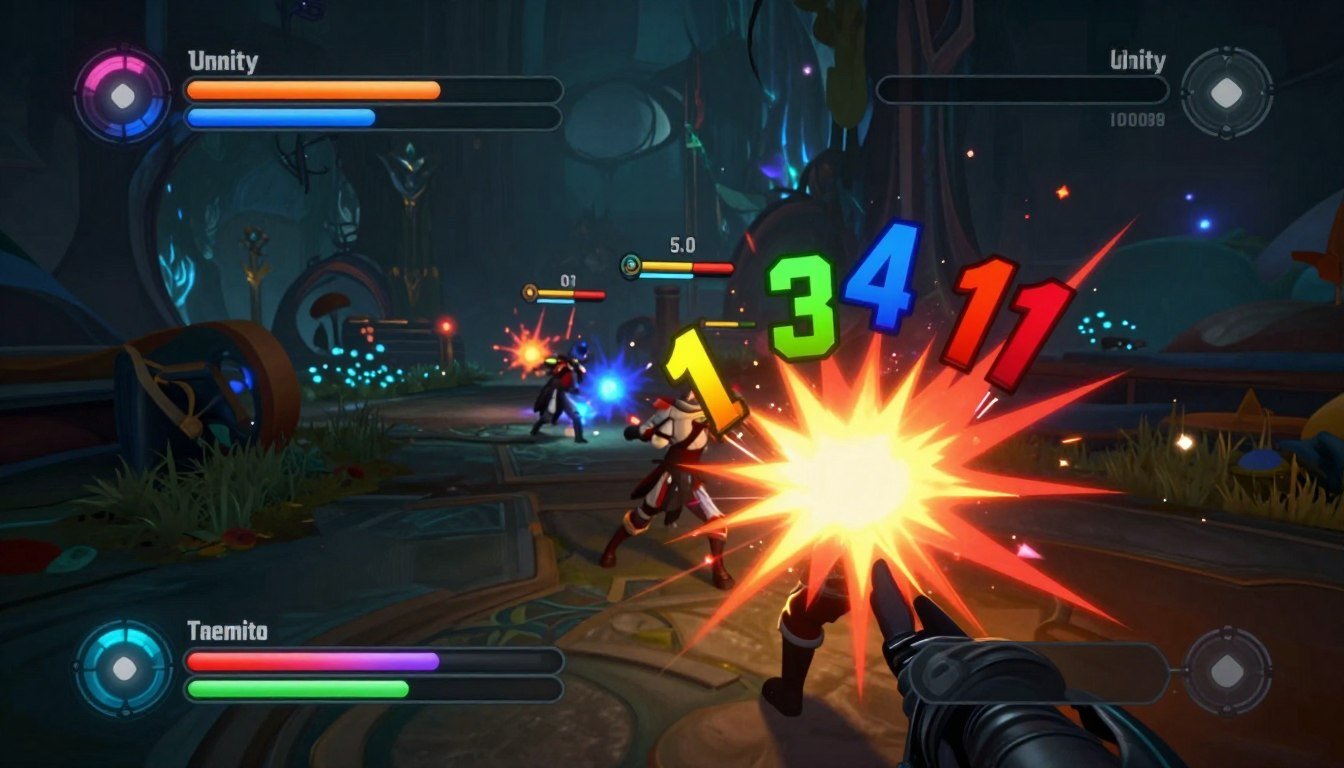
Keep floating damage text lightweight and predictable so the player sees instant feedback without taxing the device. Use a world-space canvas attached to the enemy and keep it disabled by default. Enable that component only on first hit, show the value, then hide it after the animation.
Pre-warm an object pool of damage prefabs at load time. Reuse objects instead of Instantiate/Destroy during combat. Return each item to the pool when its animation completes. This reduces GC spikes and lowers battery and thermal load on the phone.
Positioning, screen clamps, and font size
Convert the enemy world position to screen coordinates each frame the number is visible. Then clamp X/Y to the visible screen rect so values never spawn off-screen on ultrawide devices.
Scale fonts by reference DPI and cap minimum size so text stays readable at high pixel densities.
Sorting and overdraw
Assign a dedicated sorting layer or order for transient numbers so they don’t hide behind other components. Limit semi-transparent layers to avoid overdraw. If many numbers stack, collapse them into a single aggregated value to save draw calls.
| Concern | Pattern | Why it matters |
|---|---|---|
| Spawn cost | Pre-warm pool of prefabs | Avoid Instantiate/Destroy spikes and GC |
| Off-screen values | World-to-screen + clamp | Keeps text visible on all screen shapes |
| Layering | Dedicated sorting order | Prevents flicker and hidden text |
| Overdraw | Limit transparency and stack size | Reduces GPU cost and battery drain |
Quick debug checklist
- If numbers flicker, verify canvas render mode and camera assignment.
- Check sorting order and sorting layer for the damage prefab.
- If positions are wrong, confirm world-to-screen conversion and clamp logic.
Mobile performance checklist for HUDs (memory, draw calls, battery)
A tight performance checklist stops small UI changes from turning into big battery drains. Run these tests on a low-end device and measure draw calls, allocations, and thermal behavior before you ship.
Separate static and dynamic canvases
On uGUI, any change on a canvas can force a full redraw. Put static background art and decorative image on one canvas. Put fast-changing components and text on another canvas.
This reduces canvas dirtying and cuts draw calls during frequent value updates.
Texture sizes, compression, and wasted alpha
Keep sprite size tight to the visible content. Trim transparent padding and use compressed formats to save memory bandwidth.
Large RGBA textures cost GPU time even if visually small. Test with device profiling to confirm savings.
Batching, materials, and font sharing
Share font assets and materials across labels so the renderer can batch draws. Each unique material adds a draw call.
Pool transient components to avoid Instantiate/Destroy spikes that hurt battery and cause GC stutters.
Reduce layout thrash and style writes
Avoid writing style.width or left every frame. Batch property updates and limit transitions to opacity or transforms where possible.
On UI Toolkit, frequent style changes force layout recalcs. Keep animated properties to a minimum to protect frame time.
| Check | Action | Why it matters |
|---|---|---|
| Draw calls | Measure with profiler; reduce materials | Lower GPU work and heat |
| Canvas dirtying | Split static/dynamic canvases | Avoid full tree redraws |
| Texture bandwidth | Trim alpha; compress | Reduce memory and battery use |
| Layout thrash | Batch style writes; limit transitions | Lower CPU and frame spikes |
Common beginner mistakes when building HUD elements (and fixes)
When your on-screen readouts misbehave, run this quick diagnostic map. Each entry shows the symptom, the likely cause, and exact fix steps you can apply in minutes.
Missing Inspector assignments
Symptom: nothing updates or you get NullReference in the script.
Cause: PlayerControl or UIDocument references left blank in the inspector.
Fix: add [SerializeField] to private fields, assign the reference in the inspector, and validate in Awake with a clear error log if null.
Q<> returns null
Symptom: queries fail and labels never show values.
Cause: wrong element name, wrong root, or UIDocument SourceAsset not set.
Fix: confirm UXML id, query rootVisualElement after SourceAsset is assigned, and test names in UI Builder.
Pixels vs percent and masking order
- Symptom: fills jump or clipping fails — often from passing 0.5 instead of Length.Percent(50).
- Fix: use Length.Percent(…) for percent widths, or set explicit px width on fill when using overflow:hidden on the mask.
- Symptom: label hidden — Fix: reorder children so label is last or move it outside the mask, then check hierarchy and overflow settings.
| Symptom | Cause | Quick Fix |
|---|---|---|
| No input | Missing EventSystem | Restore EventSystem prefab |
| Wrong scale | PanelSettings mode misconfigured | Set Scale with Screen Size + test ratios |
| Ghost updates | Unsubscribed events | Subscribe in OnEnable, unsubscribe in OnDisable |
Prevent it: add a small validation method at startup, enforce consistent naming, and use a repeatable Builder workflow so fewer mistakes reach the play window.
Reference points and docs you should keep open while implementing
Have the exact documentation pages at hand so you can verify UXML ids, USS precedence, and PanelSettings values quickly.
Core documentation to open
Open the UI Toolkit manual pages for UI Documents, UI Builder, and the UXML/USS fundamentals. These pages show element queries, selector precedence, and the editor workflow you’ll use every day.
Also keep the PanelSettings scaling reference handy. Confirm Scale Mode = “Scale with Screen Size” and how Match Width or Height affects layout across screen shapes.
Design reference and one concrete takeaway
Study the GDC talk “Designing with Readability in Mind” for feedback timing and legibility. Apply this rule: make critical changes readable within one short moment—use a 0.35–0.6s duration and an ease-out or linear curve. Avoid heavy bounce when combat is fast so players register damage without distraction.
Docs-driven debugging workflow
- Verify UXML names in the Builder and re-run root.Q checks.
- Confirm USS selector types and clear inline sizes to let styles apply.
- Cross-check PanelSettings on device if the display differs from the editor window.
| Issue | Doc to check | Quick fix |
|---|---|---|
| Query returns null | UXML fundamentals | Match id/name in UXML and Builder |
| Style not applied | USS selector rules | Remove inline style; use .class or #id |
| Scale mismatch on phone | PanelSettings scaling | Adjust Reference Resolution or Match Mode |
Conclusion
Conclude with a short run-through: event-bound readouts, masked fills, and pooled transient text. You now have an event-driven health HUD in UI Toolkit that updates a label and a masked health bar without per-frame polling.
Follow a few rules to avoid bugs: use stable element names for root.Q<>, unsubscribe in OnDisable, clamp ratios, and keep explicit fill sizing when masking with overflow hidden. Extract styles to USS and keep transitions limited.
Next steps: add a cooldown widget driven by gameplay events, add pooled world-space damage numbers, then profile draw calls and UI rebuilds on a mid-range Android device. Keep the official unity docs and your GDC notes open as you iterate so changes are intentional, not guesswork.

Game developer with over 10 years of professional experience specializing in the mobile sector. George’s journey began with a passion for indie development, leading him to contribute to several successful mobile titles, including the critically acclaimed puzzle-platformer ChronoShift and the top-down strategy game Pocket Empires.