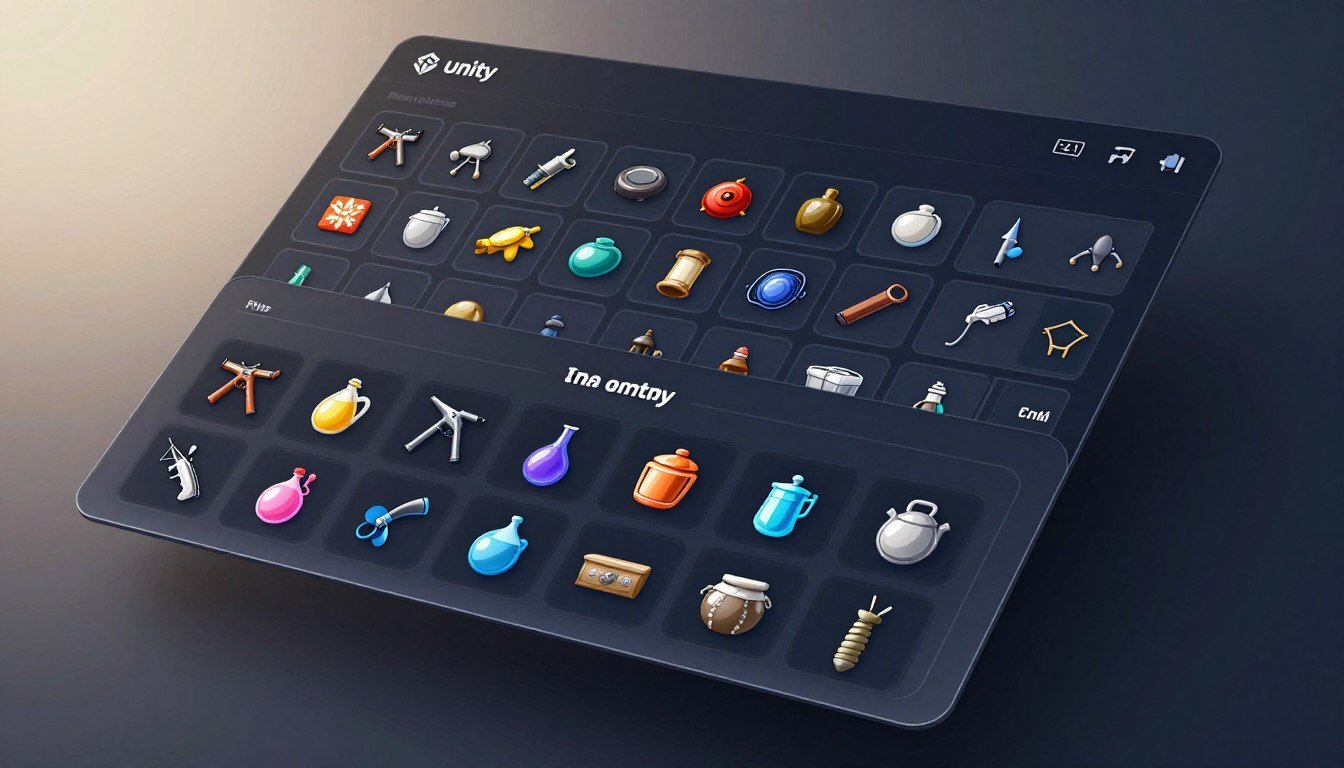
You’ll build a lean, phone-friendly inventory that handles drag-and-drop, stacking, and equipment slots without letting the UI become the source of truth. Mobile constraints matter: touch input, limited CPU, and garbage from per-frame UI rebuilds kill smooth play. Start by keeping the model pure data and the view event-driven.
Here’s a working first brick you can run in a unit test or a Debug.Log harness. The model stores only data, not scene GameObjects:
public int AddItem(ItemDefinition def, int amount) { /* stack, then fill empties, return leftover */ }
Quick test usage:
var leftover = container.AddItem(potionDef, 25); Debug.Log($"Leftover: {leftover}");
This approach maps well to phones: fewer allocations, predictable touch behavior, and no per-frame rebuilds. You’ll follow a clear roadmap in this post: data layer → model API → event-driven binding → drag/drop → equipment → pickups/drop → unique state → performance and tests. Later sections reference Unity’s EventSystem drag handler docs and ScriptableObject docs for data authoring used by PlayMobile.online author George Jones.
Set up the data layer first with ScriptableObjects and runtime item instances</h2>
Start your data model by keeping runtime state in plain C# so your mobile build stays predictable and easy to save.
Create an ItemDefinition asset
Define ItemDefinition as a ScriptableObjects asset that holds immutable metadata: ID, display name, icon sprite, max stack, world pickup prefab, and equipped prefab. This keeps asset lifetime separate from the scene and lets the asset reference prefabs safely without storing scene objects in your model.
Runtime classes: ItemStack and InventorySlot
Make lightweight classes/structs that only store an ItemDefinition (or ID) and a quantity. Do not include GameObject fields. This makes save/load and fast backgrounding reliable on phones.
| Type | Stored Fields | Notes |
|---|---|---|
| ItemDefinition (asset) | ID, name, icon, maxStack, prefabs | Immutable, references prefabs |
| ItemStack / InventorySlot | ItemDefinition or ID, quantity | Pure data, no scene objects |
| Pickup prefab | Reference to ItemDefinition, amount | Visual only; spawn/despawn separate from model |
AddItem logic and the Missing (Item) fix
Implement AddItem to fill existing stacks up to max, then use empties, and return leftover amount if full. Edge cases: partial fill and no empty slots must return the remaining count.
“Missing (Item)” happens when you store a scene instance in a list then destroy it. The reference becomes null in the scene and Unity shows Missing. Fix: store definitions or IDs in your data model, and spawn game objects purely for visuals.
Sanity check: after AddItem, print each slot as “ID x quantity” to verify stacks and leftovers before you build the view.
Decide your requirements before you write UI code (scope that won’t explode)
Before you write a single view script, pin down the exact features your inventory must support and what it must refuse to do. A short, explicit checklist keeps the model small and avoids late-stage rewrites.
Be explicit about constraints. For example, enforce “no split stacks” so your API only needs Merge and Swap, not complex partial-split logic. That single rule reduces edge cases and testing surface dramatically.
Define drag-and-drop behavior
- Swapping: two slots exchange contents.
- Merging: same item fills to max stack, leftover returned.
- Rejecting: disallowed drops give clear feedback (shake, red outline, or toast).
Model vs View (MVC/MVVM-style)
Keep the model as plain C# with no scene objects. The view subscribes to events and sends commands like SwapSlots or MergeStacks. This separation makes the core logic testable and the view replaceable.
| Area | Requirement | Note |
|---|---|---|
| Toolbelt | 5 slots | accepts consumables & tools |
| Equipment | Head / Chest / Weapon | typed slots only |
| Main | 30 slots | stack max from ItemDefinition |
Finally, avoid copying feature lists from big games. Write constraints first, then design—especially for mobile where touch targets, layout, and scroll virtualization are real concerns.
Project and scene setup for a mobile-friendly inventory UI</h2>
A stable scene layout prevents layout recalcs and keeps touch input responsive on real devices. Plan the canvas, safe areas, and prefab map before you wire any code. This reduces stutter and avoids rebuild loops that kill frame time on phones.
Canvas settings for multiple aspect ratios and safe areas
Set the Canvas Scaler to a reference resolution that matches your target phones. Use the match width/height slider to bias tall screens so touch targets remain large.
Place a SafeArea panel at the root to offset close buttons and toolbelt slots away from notches. Readable buttons prevent accidental taps and improve play on diverse screens.
Prefab strategy: slot prefab, item icon prefab, equipment slot prefab
Map prefabs to your model: a Slot prefab holds background and drop target logic. An Item icon prefab contains the Image and count text. Equipment prefabs are typed drop targets bound to an enum, not hard-coded names.
Keep one stable canvas and avoid constantly instantiating nested canvases. That reduces draw calls and layout work. Spawn game objects only for visuals and update them on events.
| Prefab | Contents | Binding |
|---|---|---|
| Slot prefab | Background, drop target component | Bind to slot index |
| Item icon prefab | Image, count text, CanvasGroup | Bind to item ID + qty |
| Equipment slot prefab | Typed drop target, lock visuals | Bind to EquipmentType enum |
- EventSystem present in the scene.
- GraphicRaycaster enabled on the main Canvas.
- Test taps and drag on actual device, not only in editor.
Build the inventory model API your UI can call</h2>
Design the API so the view calls intent methods and the model replies with success or a reason to reject. Keep the model pure C# data and expose a small command set the UI or inventory manager can call. That keeps logic testable and avoids storing scene objects in your data.
Expose one primary call like TryMove(int fromIndex, int toIndex, out string reason). The method decides between MergeStacks, SwapSlots, MoveToEmpty, or RejectMove. Always return bool + reason so your view can show clear feedback and avoid silent failures.
Raise events for minimal updates: OnSlotChanged(int index) for a single slot and OnInventoryChanged() for structural changes. The view subscribes and updates icons/text only on those events. This is a good idea in view-model design; the model never touches Images or text.
| Command | Purpose | Outcome |
|---|---|---|
| TryMove | Move or merge two slots | bool + reason |
| MergeStacks | Fill same-item stacks | leftover returned |
| SwapSlots | Exchange different items | success/fail |
| SaveSnapshot | Serialize list of slot snapshots | ID, qty, custom state |
Plan saving early: serialize an array of slot snapshots with ItemDefinitionID, quantity, and optional state blob (durability, ammo). Save on app pause so mobile suspend/resume does not lose items. This keeps your code resilient to OS kills and other mobile problems at the end of a session.
Bind the model to UI slots without polling every frame</h2>
Let slot components listen for index-specific updates so the screen redraws sparingly.
Reactive slot binding
Give each InventorySlotView an index and subscribe to OnSlotChanged(index). When that event fires, pull only that slot’s data and update visuals. Update the Image sprite, the count text, and an empty-state toggle. Do not touch other slots.
Why full rebuilds hurt on phones
Rebuilding the whole grid on every click causes layout recalcs, many Instantiate/Destroy calls, and GC spikes. That collection of work creates stutter during drag or rapid taps and wastes CPU and battery.
- Subscribe in OnEnable, unsubscribe in OnDisable.
- Guard against duplicate subscriptions when reopening screens.
- Aim for zero allocations per click/drag and verify with the profiler on device.
| Pattern | What updates | Benefit |
|---|---|---|
| Index event | Sprite, count, empty flag | Minimal redraws |
| Full rebuild (bad) | All slots, re-layout | Stutter, GC spikes |
| Polling/Update() | Frequent checks | Wastes time and battery |
Implement drag-and-drop with EventSystem handlers
Make the drag flow predictable: capture the source, render a ghost icon, then commit one model command on drop. Use the uGUI drag interfaces on the visual icon so your model stays pure data.
Handlers and ghost visuals
Attach IBeginDragHandler, IDragHandler, and IEndDragHandler to the item icon component. Implement IDropHandler on the slot view.
Ghost icon pattern
On begin drag, clone the Image to a top-level canvas and set CanvasGroup.blocksRaycasts = false. Fade the original image so the user sees a pickup. Move the clone with pointer data and avoid creating new Sprite assets.
Pointer-to-slot mapping (step-by-step)
- On begin: record sourceSlotIndex and pointerId.
- During drag: move the ghost using eventData.position; handle quick taps gracefully.
- On drop: read targetSlotIndex from the drop component and call TryMove(source, target).
| Handler | Where | Responsibility |
|---|---|---|
| IBeginDragHandler | Item icon component | Capture source index, create ghost |
| IDragHandler | Ghost on top canvas | Follow pointer, minimal allocations |
| IEndDragHandler / IDropHandler | Slot view / icon | Resolve target index, call model command |
Consult the official Unity Manual and EventSystem API for exact interface signatures and event order to match your code to platform behavior.
Make drag-and-drop actually change the inventory (not just move icons)
Treat every drop as a command to the model. The view should only request a move and then wait for a response. This keeps data and visuals in sync and reduces hard-to-find desync problems.
Drop rules: stack if same item, swap if different, reject if incompatible
- If target is empty → move the item to that slot.
- If same definition and stackable → merge up to max and return leftover.
- If different → swap the two slot contents.
- If an equipment slot disallows the object → reject and return a reason.
Beginner trap: letting the UI be the source of truth
A common problem is visually swapping icons before the model accepts the change. Then save, load, or game logic reads stale data and breaks. Don’t do that.
Make TryMove atomic: apply the change or do nothing, then fire slot-changed events. Return a rejection reason so the user gets clear feedback and your code stays robust on mobile.
| Rule | Action | Outcome |
|---|---|---|
| Move to empty | Model.Move | Slot updated |
| Merge same item | Model.Merge | Combined, leftover returned |
| Incompatible | Model.Reject | Reason sent to view |
Equipment slots: data rules + visuals</h2>
Treat equipment as a separate data container and keep visuals out of the model. That keeps your scripts simple and your saves reliable on phones.
Define slot types and make rules data-driven
Expose an EquipmentSlotType enum (Head, Chest, Weapon, Toolbelt) and add allowed types or tags to each ItemDefinition. This moves compatibility logic into assets and keeps code tidy.
Equipping and visual spawn flow
When a player equips, call a model command that checks compatibility. On success, instantiate the equipped prefab referenced by the item definition at the correct bone or anchor. Keep that visual separate from any world pickup prefab.
Unequipping and failure handling
Unequip commands move the data back to the first free slot. If no free slot exists, reject the action with a clear reason such as “No empty slot”. Don’t silently drop or delete items on mobile screens.
- Keep equipment slots in the same plain-C# model as other containers.
- Spawn equipped prefabs without adding colliders unless needed.
- Give immediate feedback on rejects: toast, color flash, or brief message.
| Slot Type | Allowed Item Tags | Visual Prefab Behavior | Reject Reason |
|---|---|---|---|
| Head | helmet | Instantiate head prefab, attach to head bone | Wrong item type |
| Chest | armor | Attach chest prefab, disable physics | Wrong item type |
| Weapon | sword, bow | Spawn at hand anchor, play equip anim | Incompatible weapon |
| Toolbelt | tool, consumable | Icon-only prefab, no colliders | No empty slot |
World pickups and dropping items without hacky inventory GameObjects</h2>
Separate the physics and visuals of a pickup from the data that describes the item in the bag. Keep your runtime model as plain data and let the scene host transient pickup actors. This avoids stored scene references and missing reference bugs when objects are destroyed.
Pickup prefab holds only definition + amount
Create a Pickup MonoBehaviour that references the ItemDefinition and an amount. Optionally serialize per-drop state (durability, tags) so unique drops keep state without adding heavy behaviors.
Pickup and drop flow
On pickup, call AddItem(def, amount) on your model. If leftover > 0, update the pickup’s amount. If leftover == 0, destroy the pickup game object. Do not “store the pickup” in the model.
On drop, remove from the model and spawn the worldPrefab referenced by the definition at the chosen point. Set the spawned Pickup fields to the dropped stack amount so the scene actor represents the dropped items only.
Why this is less hacky
Storing game objects in your data forces you to toggle colliders, disable physics, and wrestle missing references. Instead, scriptable objects can reference prefabs for colliders and animations while your model stays pure data. This prevents save/load problems and reduces runtime checks.
- Pickup MonoBehaviour: ItemDefinition + amount (+ optional state).
- Pickup action: model.AddItem → update or destroy pickup actor.
- Drop action: model remove → spawn world prefab → set Pickup amount.
| Approach | Scene Actors | Model Content | Benefits |
|---|---|---|---|
| Storing GameObjects in model | Embedded objects disabled/enabled | Scene references | Leads to missing refs, save issues |
| Pickup-as-actor (recommended) | Transient pickup MonoBehaviour | Definition + amount | Clean save/load, separate physics |
| ScriptableObject-driven | Prefabs referenced by assets | Pure data & state IDs | Author-time compatibility, simpler code |
Handling per-item unique state on mobile (durability, ammo) without re-inventing MonoBehaviours
Give each stack a tiny, serializable instance object so per-item state like durability or ammo stays testable and compact. Keep immutable metadata in assets and put only mutable fields into the runtime record.
Wrapper instance pattern
Implement an ItemInstance plain C# class that references an ItemDefinition and stores fields such as durability, ammo, or rolled stats. Slots can hold instances or stacks of instances depending on your rules.
Behavior: MonoBehaviours vs plain C#
Keep collision, animation triggers, and VFX on scene components. Keep stacking math, durability math, and saveable numbers in pure C# so you can unit test and serialize without scene refs.
Avoid overengineering
Do not build a second component loop or deep inheritance trees. Heavy generics and class hierarchies make mixed collections painful and slow your ship date.
| Role | Holds | Serialized? | Best for |
|---|---|---|---|
| Definition (asset) | Immutable metadata, icons | No | Author-time design |
| ItemInstance (plain class) | Durability, ammo, modifiers | Yes | Saves, tests, runtime state |
| MonoBehaviour view | Colliders, VFX, animations | No (transient) | Visuals and player feedback |
Mobile performance considerations for an inventory and modular inventory UI</h2>
Mobile devices demand that your inventory code minimize allocations and avoid costly layout passes. Focus on three bottlenecks: memory, CPU/battery, and draw work. Each has practical fixes you can apply in the editor and at runtime.
Memory: icons and asset loading
Keep icons as Sprite references instead of creating Texture2D copies at runtime. Use SpriteAtlas to pack assets and, when appropriate, Addressables to load icons on demand.
CPU and battery
Remove Update polling from view components. The only per-frame activity during drag should be moving the ghost icon. Drive slot updates from events so taps and moves do not trigger scans or allocations.
Draw calls and layout
Minimize nested canvases and avoid per-slot canvases. Batch elements and prevent layout rebuild loops by changing visuals only when a slot event fires.
Screen size and virtualization
Compute grid cell size from safe-area bounds and scale touch targets across aspect ratios. For large collections, virtualize rows so you only instantiate visible cells.
| Problem | Likely cause | Change to make | Expected result |
|---|---|---|---|
| Stutter while dragging | Layout rebuilds each frame | Use event-driven updates; avoid Update polling | Smooth drag, stable 60fps |
| Memory spikes | Runtime Texture2D/Sprite.Create loops | Use SpriteAtlas / Addressables | Lower GC, less RAM pressure |
| High draw calls | Nesting canvases and many independent canvases | Batch UI, reduce canvases | Fewer draw calls, better battery life |
| Poor touch scaling | Fixed grid for one aspect ratio | Compute cell size from safe area; virtualize | Consistent targets across screens |
Testing and debugging the hard parts (drag edge cases and inventory integrity)
Building safety checks around every move saves you debugging time later. Test flows that cancel or never commit so your model never becomes corrupt. Keep tests focused on touch quirks and interrupted gestures.
Edge cases to exercise
Drop outside the UI, close the panel mid-drag, or get interrupted by an OS event. The model must stay unchanged unless a valid drop completes.
Dragging from an empty slot should do nothing. Prevent ghost creation and avoid any model calls in that path.
Rapid taps and repeated drags are common on phones. Guard the view with a simple dragging flag so begin/end pairs cannot double-fire moves.
Invariant checks and practical tests
Add dev-only asserts: quantities never go negative, stacks never exceed max, and total item counts match expected totals after operations.
Create a small harness that runs random moves (for example, 1,000 iterations) and asserts invariants after each step. This finds merge and swap bugs fast.
| Test | What to watch | Recovery |
|---|---|---|
| Drop outside | No change to model | Cancel drag, restore visuals |
| Empty source | No ghost created | Ignore input |
| Rapid taps | Duplicate moves | Use dragging state lock |
| Random stress | Merge/swap invariants | Automated assertions |
Common beginner mistakes pulled from real threads (and how you avoid them)
Catching a few recurring errors early saves hours of debugging and keeps your codebase sane. Below are blunt fixes tied to real symptoms you’ll see in the wild.
Storing scene objects in runtime data
Mistake: you keep game objects in your slot list. Symptom: “Missing (Item)” after a destroy or scene unload. Fix: store an ItemDefinition ID, amount, and small instance state. Spawn visuals separately when needed.
Rebuilding one prefab per slot constantly
Mistake: you reinstantiate slot prefabs on every change. Symptom: stutter and battery drain on phones. Fix: instantiate once, then update only changed slots via events.
Mixing pickup physics with equipped visuals
Mistake: a single game object is both pickup and equipped mesh. Symptom: toggling colliders and weird physics. Fix: keep the pickup actor transient and use a separate equipped prefab on equip.
Copying big-game features without scoping
Mistake: you clone complex designs before writing requirements. Symptom: scope creep and broken edge cases. Fix: write constraints (for example, no split stacks) and ship the smallest working manager first.
| Mistake | Symptom | Quick Fix |
|---|---|---|
| Scene objects in data | Missing references | Store IDs + spawn visuals |
| Full grid rebuilds | Stutter / GC spikes | Event-driven slot updates |
| Pickup = equipped | Collider toggles | Separate prefabs |
| No requirements | Feature bloat | Define constraints, iterate |
Reality check: your inventory manager should coordinate model, save, and view events. Keep physics and visuals out of scripts that own data. That one rule prevents most post-release questions and problems.
Conclusion</h2>
This post wraps up a pragmatic, testable approach to handling item flows and touch input on phones.
You built a clear architecture: ScriptableObject definitions, a pure C# model as the single source of truth, event-driven view binding, uGUI drag/drop handlers, typed equipment slots, and pickup/drop that never stores scene objects. Keep your code as the authority; let visuals only render state and send commands.
The mobile wins are real: far fewer layout rebuilds, lower allocations, predictable touch handling, and better battery life because you avoid polling. Next steps that won’t force a rewrite include stack splitting, item filtering tabs, scroll virtualization, and richer feedback like tooltips and haptics.
Check the EventSystem drag interfaces and ScriptableObjects docs on Unity for API details as versions change.

Game developer with over 10 years of professional experience specializing in the mobile sector. George’s journey began with a passion for indie development, leading him to contribute to several successful mobile titles, including the critically acclaimed puzzle-platformer ChronoShift and the top-down strategy game Pocket Empires.