Start with this tiny code hook you’ll expand later:
using UnityEngine;
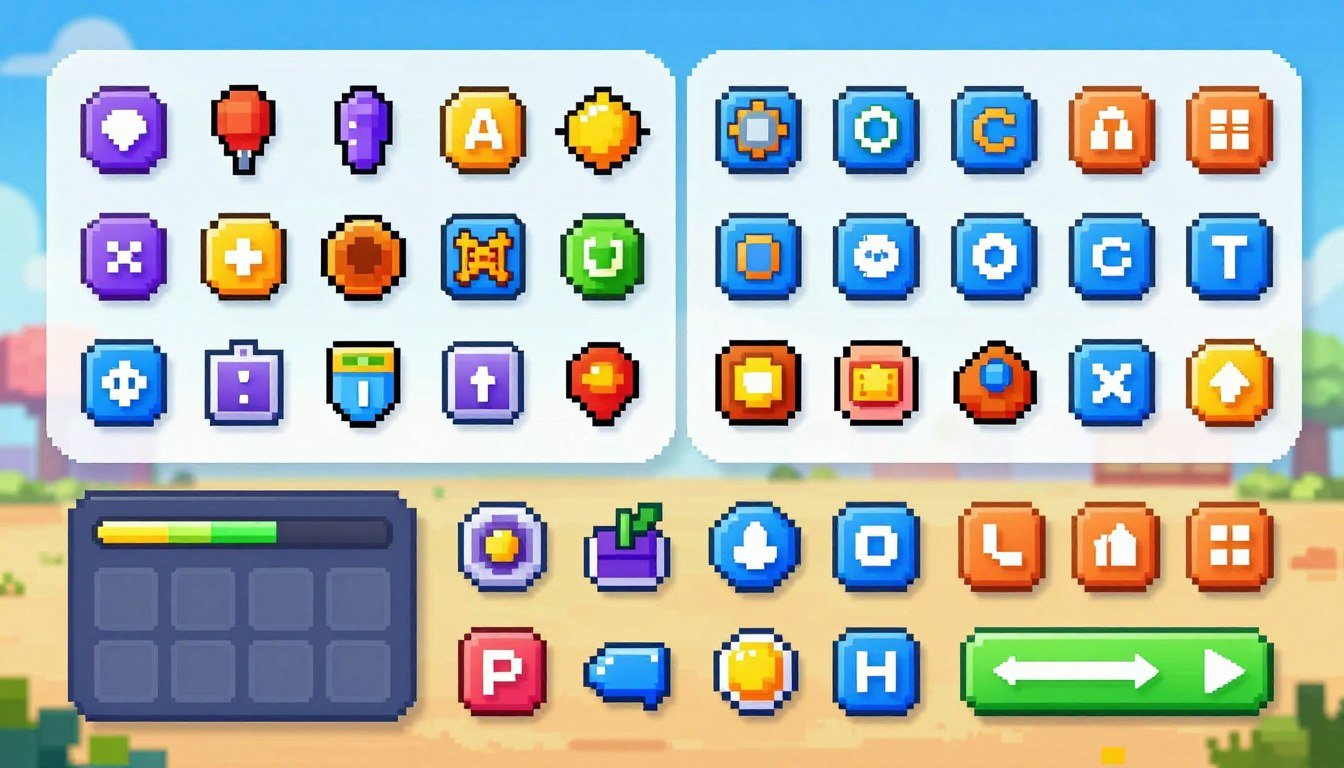
This article from PlayMobile.online (author George Jones) gives a direct, practical path to crisp interface art. First run a 60‑second checklist: set target pixel size per element, pick a single Pixels Per Unit (PPU) for the project, and decide if you want integer-only scaling on handheld screens.
Common causes of blurry output include fractional canvas scaling, mismatched PPU, and exported PNGs with incorrect settings. You must account for varied screen sizes and tight battery/GPU budgets when you design assets.
Later you’ll copy a small C# script that snaps RectTransforms to whole pixels at runtime so icons stay sharp when the Canvas Scaler produces fractional values on different phones.
Use Piskel or GIMP to export PNGs; the Unity engine imports that file format well when configured. This intro sets the scene so you can move fast and avoid blurry UI mistakes.
Pixel-perfect UI in Unity in ten minutes (no Photoshop)
In under ten minutes you’ll create a pixel-accurate icon in Piskel, export a clean PNG, and import it into Unity so it stays crisp on devices. The steps below are hands-on; follow them one at a time.
Create and export a PNG from Piskel
- Open Piskel and set canvas size to 32×32, 48×48, or 64×64. Keep the same size for related icons.
- Draw with the grid and nearest-neighbor eye. Use straight alpha (no premultiply).
- Export: PNG at 1x scale, disable any smoothing or resize options, name files like ui_icon_settings_32.png.
Unity import settings that prevent blur
In the Inspector set Texture Type = Sprite (2D and UI). Set Filter Mode = Point. Set Compression = None. Use the same Pixels Per Unit (PPU) across all icons.
| Inspector Field | Value | Why |
|---|---|---|
| Texture Type | Sprite (2D and UI) | Correct asset pipeline |
| Filter Mode | Point | No interpolation |
| Compression | None | Preserve edges |
Drop-in script and quick test
Attach the pixel-snap script (see the C# hook above) so RectTransforms land on whole pixels when Canvas Scaler yields fractional scaleFactor. Quick test: add the sprite to an Image, choose Native Size, run Game view at several aspect ratios and nudge by 1 px. No shimmer or blur means success.
Remember: many phones have varied DPIs and aspect ratios, so rely on consistent PPU and snapping rather than a single perfect scale factor.
Set your Unity UI so pixels land on pixels
Get your Canvas Scaler dialed so every element snaps to whole pixels on target screens. This prevents soft edges and keeps icons readable across aspect ratios.
Canvas Scaler: Scale With Screen Size
Use Scale With Screen Size as the default. Pick a Reference Resolution that matches your design grid. That baseline makes predictable scaleFactor values across devices.
Reference Resolution and Match slider rules
Set the Match slider based on layout weight. Icon-heavy HUDs bias toward height. Wide bars and panels bias toward width. Then test at three aspect ratios: narrow, standard, and wide.
Why “almost crisp” happens
“Almost crisp” appears when scaleFactor is fractional and anchoredPosition lands between pixels. Point filtering cannot fix a half-pixel offset, so edges look soft. Aim for integer scaleFactor or snap positions at runtime.
| Setting | Recommended | Why |
|---|---|---|
| Canvas Scaler Mode | Scale With Screen Size | Predictable scaling across resolutions |
| Reference Resolution | 1080×1920 (example) | Matches common design grid and simplifies math |
| Match Slider | 0.5 (adjust per layout) | Balanced scaling; bias height for icons |
Pixel Perfect Camera vs Screen Space
Keep world sprites under a Pixel Perfect Camera and UI in Screen Space. The camera optimizes world pixels but won’t automatically fix canvas scaling. Treat them separately.
When to use whole-number scaling
Use integer scaling for hard-edged pixel art with 1px outlines. Modern flat artwork can accept fractional scaling if you accept slight softness.
- Set Reference Resolution (e.g., 1080×1920) and Match 0.5.
- Run Game view at several resolutions and note scaleFactor values on the Canvas component.
- Snap anchors to integers or apply a runtime pixel-snap script if needed.
Split static HUD from animated panels to cut Canvas rebuild cost on phones. Also account for safe-area padding so the pixel grid survives notches without arbitrary rescaling.
Sprite import settings for mobile game UI sprites that stay sharp
Proper texture toggles in Unity decide whether your icons stay crisp or blur under scale.
Use these import defaults for most pixel-locked interface art:
- Texture Type = Sprite (2D and UI)
- Mip Maps = Off
- Filter Mode = Point
- sRGB (Color Texture) = On (unless you use linear lighting)
- Alpha Is Transparency = On for hard alpha edges
Why those choices matter
Mipmaps use extra memory and can blur tiny icons; turn them off for screen-space elements.
Point filtering preserves hard edges, but it can shimmer with sub-pixel motion. Pair it with pixel snapping or integer-step animation to avoid that shimmer.
| Setting | Recommended | Tradeoff |
|---|---|---|
| Compression | None / Low | Avoid artifacts; test ASTC/ETC2 on device if you must compress |
| Mip Maps | Off | Saves memory; prevents tiny-scale blur |
| Packing | Padding/Extrusion | Prevents bleeding when atlas is tight or rotated |
Quick debug checklist
- Zoom Game view to 100% and inspect edges.
- Check alpha channels in an external viewer if edges fringe.
- Test on a low-end device to confirm GPU sampling and compression behavior.
Keep textures small and clean to reduce memory and load time. That helps older phones and keeps your interface responsive.
Unity documentation checkpoints you should follow while setting up UI sprites
Treat the Unity documentation as a live reference while you configure each texture and canvas. Open the exact Manual pages and verify the Inspector property names as you work.
Keep these pages open: the Canvas component page (search “Canvas component – Unity Manual”) and the Canvas Scaler section (search “Canvas Scaler – scaleFactor”). Verify what changes scaleFactor and when it updates.
Verify import and compression behavior
Open “Texture Import Settings” and “Sprite import” pages. Check platform-specific notes for Android and iOS so compression options do not blur edges. Look up Filter Mode, Compression, and Alpha handling by the precise property name you see in the Inspector.
Confirm atlas packing and runtime impact
Read the “Sprite Atlas” and packing workflow pages. Verify how padding, Include in Build, and tight packing affect memory and draw calls at runtime.
- Search the Manual for the exact Inspector property to avoid outdated tutorials.
- Check docs for your Unity version to prevent version drift.
- Relate each setting to battery, load time, and GPU sampling cost on target devices.
| Doc area | What to verify | Why it matters |
|---|---|---|
| Canvas component (Manual page) | When scaleFactor updates and anchor behavior | Prevents half-pixel offsets and soft edges |
| Texture / Sprite import | Filter Mode, Compression per platform | Avoids editor-default compression that blurs icons |
| Sprite Atlas | Packing, padding, Include in Build | Controls draw calls, memory, and load times |
Free sprite tools for games that export clean UI PNGs
Pick a reliable export path so your icons land pixel-perfect and predictable across devices.
What “clean export” means
A clean export uses the exact canvas size you designed, exports at 1:1 scale, and applies nearest-neighbor (no resampling). This prevents subtle edge shifts and preserves single-pixel outlines.
Alpha and format pitfalls
Use straight alpha PNGs when possible. Premultiplied alpha or matte colors can create dark or bright fringes when Unity composites the image.
Verify by zooming the exported file at 800–1600% in a viewer that shows the pixel grid. If edges match your source, the export is clean.
Unity-side quick checks and memory note
Import the PNG, set Filter Mode = Point, view at Native Size, and compare against the zoomed source. If the image shifts or softens, re-export at exact canvas size.
Remember: PNGs compress on disk but load as uncompressed textures in memory. Watch atlas size and compression settings to keep runtime memory and GPU cost low across platforms.
| Aspect | What to check | Why it matters |
|---|---|---|
| Canvas size | Export at target pixel dimensions (1:1) | Prevents half-pixel offsets and edge blur |
| Alpha type | Straight alpha PNG vs premultiplied | Avoids fringe artifacts after compositing |
| Filtering | Nearest-neighbor on export and in engine | Preserves hard edges; reduces shimmer with snapping |
| Memory | Atlas layout and compression choice | Controls runtime RAM and GPU bandwidth |
Piskel for pixel-perfect UI sprites (browser or desktop)
When you need sharp interface art, Piskel is a fast, browser-ready app that keeps pixels honest. It runs in a browser or as a desktop build and exports high-quality PNG and GIF formats. Use Piskel as your source-of-truth when making icon sets to avoid smoothing later.
Grid, snapping, and export toggles to verify
Enable the grid and set a consistent grid size (1px or 2px) before you draw. Keep the same grid across an icon family so scale and alignment remain predictable.
- Turn on snapping so borders and 1px outlines never sit off-grid.
- Use symmetry only if it preserves the grid; don’t let tools create half-pixel offsets.
- On export, choose nearest-neighbor (no smoothing). If any resize option appears, force nearest-neighbor sampling.
| Action | Why | Tip |
|---|---|---|
| Grid size | Keeps elements aligned | Use 1px for detailed icons |
| Snap | Prevents half-pixel outlines | Test symmetry on a copy |
| Nearest-neighbor | Avoids baked blur | Verify at 800% zoom |
Naming and organization save time when you build an atlas. Use prefixes like ui_ and add size suffixes (ui_settings_32.png). Keep one source folder for master files. Sanity test: draw a 1px checkerboard line and export. If the line blurs after import, fix the export chain before you continue.
Piskel suits simple sets; if you need batch exports or heavy slicing, pair it with GIMP. That combo keeps your pipeline predictable and your icons crisp in the final build.
GIMP as a Photoshop replacement for UI slicing and batch export
GIMP is a practical Photoshop alternative when you need precise slicing and batch exports. It handles common image formats and gives control that matters when you prepare interface art for a Unity project.
Slice a packed sheet into named PNGs
- Open the packed sheet and set guides at exact pixel boundaries (Image → Guides → New Guide by Percent or Pixels).
- Use the Rectangle Select snapped to guides to isolate one element, then Image → Crop to Selection or Layer → Crop to Selection.
- Export with File → Export As using a strict name pattern (ui_icon_settings_32.png). Repeat or use Export Layers plugin for batch files.
- Keep one master sheet as the atlas input or import slices separately into Unity depending on your atlas workflow.
Avoid accidental interpolation when scaling
When you must resize, set Interpolation to None (nearest-neighbor). Scaling with bicubic or linear creates blended edge pixels that point filtering cannot reverse.
| Action | Safe setting | Why |
|---|---|---|
| Scale | None / Nearest | Preserves hard edges |
| Export naming | Consistent pattern | Predictable Unity import |
| Sheet vs slices | Choose per atlas size | Controls memory and draw calls |
Unity check: import a few slices, set Native Size, and confirm the rect equals the intended pixel dimensions. If dimensions differ, re-export at 1:1 or redraw at the correct size.
Krita for painting UI icons and keeping edges clean
Krita gives you painterly control when you need hand-made icons that still read at small sizes.
Use it when you want organic art assets that pair with a pixel-tight interface. Paint at the target size or at an integer multiple (2x, 3x), then scale down using nearest-neighbor only. That preserves hard outlines and avoids soft anti-aliased edges.
Brush guidance: favor hard round and pixel brushes for crisp edges. Avoid soft airbrush presets unless your visual concept supports glow or blur. Constrain strokes to a pixel grid when matching pixel art so single‑pixel lines remain single pixels.
- Export: PNG with straight alpha, exact pixel dimensions, no downscaling filters.
- Naming: use clear names like ui_icon_settings_32.png to simplify atlas workflows.
- Unity: keep Filter Mode = Point and Mip Maps off; compression minimal to avoid halos.
| When to use Krita | Brush choice | Export setting |
|---|---|---|
| Hand-made icons with texture | Hard round; pixel brushes | PNG, straight alpha, 1:1 or integer scale |
| Concept art refined into icons | Avoid soft airbrush for outlines | Nearest-neighbor downscale only |
| High-detail assets that will be reduced | Work at multiples, keep grid aligned | Preserve transparency; name consistently |
Sketchbook for quick concept art that you turn into final pixel UI
Capture interface ideas in minutes with a drawing app, then translate them to exact pixels. Sketchbook’s basic version runs on iOS and Android and is ideal for rapid ideation and thumb-reach tests.
Use Sketchbook to draw layouts, controls, and icon concepts. Test safe-area placements and tap targets with real users or a quick hand probe. Keep these sketches loose; they guide decisions rather than become final assets.
Handoff is a two-step workflow you can keep: (1) sketch layouts and icons in Sketchbook, export PNGs as references, (2) recreate final icons in Piskel or Krita at exact pixel sizes and strict grid alignment.
- Export the sketch at 1:1 or high-res, then place it behind your pixel grid in the editor.
- Trace using nearest-neighbor scaling and one-pixel brushes so outlines stay sharp.
- Test final assets at Native Size in the engine and pack only clean PNGs into your atlas.
| Stage | Role | Why it matters |
|---|---|---|
| Sketch | Ideation & reach testing | Validates layout on touch platforms |
| Reference | Exported image | Provides visual guide without scaling into engine |
| Pixel build | Piskel / Krita | Produces atlas-ready, memory-friendly assets |
Keeping this split prevents blurry imports and oversized textures. Clean final art packs smaller, loads faster, and costs less GPU and battery. Make sketches quick, then commit to pixel-accurate production before you ship.
Pulling free UI packs from itch.io without breaking your style
Before you add a downloaded pack to source control, verify license and pixel fit. A neat pack can save hours, but a missed term or mismatched palette will cost days at release.
License and attribution checklist
- Read the pack page and any included LICENSE file.
- Confirm commercial use, redistribution, and attribution rules.
- Screenshot the license text and save it to your project docs.
- Copy required attribution to your credits or README before ship.
Why most integrations fail
People grab a “free” pack that forbids shipping or needs attribution they forget. That creates legal risk and last-minute rework.
Standardize immediately after download
Apply these rules to make third-party art match your project:
| Rule | Check | Why |
|---|---|---|
| Palette | Limit to project palette | Keeps visual weight consistent |
| Outline | Match thickness in pixels | Prevents uneven edges at 1:1 |
| Corner radius & shadows | Set uniform radius and shadow offset | Preserves perceived scale across screens |
Pixel-safe export steps
- Recolor or resize with nearest-neighbor only.
- Re-export PNGs at exact pixel dimensions.
- Import, set point filtering and test at Native Size across DPIs.
Treat itch.io as a curated site of many useful packs, but be strict. Vet license, standardize style, and re-export clean files so those assets plug into your project without introducing blur or legal surprises.
Kenney.nl CC0 UI kits for fast prototyping on mobile
If you need rapid art that you can ship into tests, Kenney.nl is a reliable source. Its CC0 packs remove licensing friction and act as a public domain well of ready-made assets you can drop into prototypes and playtests.
Converting non-pixel kits into pixel-locked art
Many Kenney packs are not pixel-art. If you want pixel-locked output, rescaling must be precise or edges will soften. Follow this workflow to avoid blur:
- Pick a target density (2× or 3× the final size).
- Scale only by integer multiples and use nearest-neighbor sampling.
- Re-render or retouch thin outlines by hand where scaling creates half-tone pixels.
- Export at exact pixel dimensions and set import Filter Mode = Point in Unity.
When to keep the original look
If your art direction is not pixel-based, forcing pixel-lock can harm clarity. Keep the original style when it matches your visual goals.
| Why Kenney | Risk | Mitigation |
|---|---|---|
| CC0, quick prototyping | Soft edges after integer scaling | Scale in integers, touch up outlines, test at Native Size |
| Large selection of game assets | Mismatched PPU across assets | Standardize PPU and test Canvas scaleFactor |
| Well-curated site and store presence | Mixing styles breaks polish | Decide per-screen if conversion is worth the work |
Tie this back to Unity: even pixel-perfect source art will blur if your Canvas allows fractional scaling or positions land on half-pixels. Snap anchors or use a runtime pixel-snap to keep edges crisp during runtime tests.
OpenGameArt.org and public-domain sources you can legally use
Look to OpenGameArt.org when you need assets that come with clear, ship-safe licenses. The site aggregates many public-domain and permissive packs you can include with confidence if you verify terms.
Accepted licenses to look for
- CC0 / Public Domain — safest to ship with no obligations.
- CC-BY — you must include attribution lines.
- CC-BY-SA — share-alike requires redistributed derivatives use the same license.
- OGA-BY, WTFPL — permissive but confirm exact text on the upload page.
Common licensing gotcha
Mixing CC-BY-SA assets with proprietary art can force your whole derivative to adopt share-alike terms. Treat CC-BY-SA as incompatible with closed-source UI unless you plan to open that portion.
Practical compliance process
Create a /ThirdPartyNotices/ folder and store each license text, author name, source URL, and the exact attribution line you must ship. Also keep screenshots or download pages that show the uploader’s claim.
| Risk | Action | Why |
|---|---|---|
| Derived asset | Confirm uploader rights | Protects you from hidden obligations |
| CC-BY attribution | Save author & line in repo | Makes compliance quick at release |
| CC-BY-SA mix | Avoid mixing with proprietary art | Prevents last-minute rewrites |
Texture atlases and draw calls: keeping UI cheap on battery and GPU
A tight atlas strategy can cut GPU time and extend battery life on handheld devices.
Each extra draw call and overdraw layer increases GPU work and power draw. When the engine binds another texture, the GPU stalls and shader cost rises. Atlases group many small textures into a single bind, letting the renderer batch draw calls and lower fill-rate pressure.
Sprite Atlas setup checklist
- Padding / extrusion: add 2–4px to prevent bleeding at atlas edges.
- Tight packing: saves space but can raise CPU time when repacking; test build times.
- Include in Build: enable per-scene atlases or on-demand atlases to reduce peak RAM.
- Per-platform compression: choose formats that keep crisp edges on target devices without smearing.
Atlas size, memory and load-time tradeoffs
One massive atlas reduces binds but increases peak memory and longest load. Multiple smaller atlases can stream or load per screen and lower startup time.
Plan atlases around screens: common HUD assets in one file, rare popup art in another. That way you avoid loading a huge file when only a few elements appear.
Canvas rebuilds: split to save CPU (but watch costs)
Put frequently animated or changing elements (timers, score counters, scrolling lists) on separate canvases from static HUD panels. That prevents full-canvas rebuilds every frame.
However, too many canvases add sorting and draw overhead. Benchmark layout changes and aim for a small number of logical canvas groups.
Industry practice and profiling plan
Teams routinely profile overdraw and batching early — a common GDC recommendation where UI becomes the top GPU cost in menu-heavy titles.
Use Unity Profiler + Frame Debugger to confirm sprites batched into single draws and to spot canvas rebuild spikes. Monitor draw calls, texture binds, and overdraw heatmaps on target devices to guide atlas and canvas choices.
| Area | Action | Why it matters |
|---|---|---|
| Draw calls | Use atlases to reduce binds | Lower GPU stalls and save battery |
| Atlas padding | 2–4px extrusion | Prevents edge bleeding after packing |
| Atlas size | Balance one big vs many small | Tradeoff between peak RAM and load time |
| Canvas grouping | Separate dynamic from static | Reduces rebuild frequency and CPU cost |
| Profiling | Unity Profiler + Frame Debugger | Verify batching and detect rebuild spikes |
Mobile performance considerations for UI sprites
A sharp interface can still drain battery or memory if you don’t budget textures and draws. Plan with clear limits, test worst-case screens, and make tradeoffs early.
Memory budgeting and compression choices
Target one max atlas per screen under 8–16 MB in RAM on older devices. Keep large panels in separate atlases so you don’t load a huge file when a simple HUD appears.
Trim transparent margins: a packed 512×512 atlas with big empty PNGs wastes GPU memory. If edges must stay crisp, prefer low or no compression and validate on-device. When memory is tight, test platform compression formats (ASTC/ETC2) and inspect edges on a real device.
Overdraw and fill-rate
Watch full-screen alpha layers: a single semi-transparent panel can double fill-rate cost. Aim for under 2x overdraw in active screens on average.
Replace large gradients and soft shadows with smaller opaque shapes or baked shadow textures. That reduces fragment work on low-end GPUs.
Battery impact and update patterns
Limit per-frame Update loops and constant UI animations. Animate only visible elements and prefer event-driven updates. Cache layout references and avoid forcing Canvas rebuilds each frame.
Put frequent text or timer changes on their own Canvas to localize rebuild cost and cut CPU spikes.
Safe areas and notches
Respect device safe areas via Unity’s safe-area APIs or layout padding so your pixel grid isn’t scaled oddly to fit cutouts. Reserve 8–16px of padding near notches and test on portrait and landscape orientations.
Test matrix: at minimum run one small Android phone, a modern iPhone with a notch, and a tablet aspect ratio. Measure RAM, overdraw, and perceived blur on each platform, then iterate.
| Area | Target | Action |
|---|---|---|
| Atlas size | 8–16 MB per active screen | Split large art into secondary atlases |
| Overdraw | <2× average | Reduce full-screen alpha and soft shading |
| Animations | Event-driven | Limit continuous Update loops |
| Safe area | 8–16 px padding | Use engine safe-area APIs and test on devices |
Beginner mistakes that ruin pixel-perfect UI (and quick fixes)
A blurry icon usually means one of five easy-to-spot setup mistakes — and each has a direct fix. Use this short diagnostic list to get sharp results fast.
Import filtering or compression
Mistake: your texture uses bilinear filtering or aggressive compression and edges soften.
Fix: in the Inspector set Filter Mode = Point, Compression = None (or low). Reimport the file and test on device to confirm no compression halos.
Fractional canvas scaling
Mistake: Canvas Scaler produces non-integer scaleFactor and elements land on half-pixels.
Fix: adjust Reference Resolution and Match to bias a stable integer scale. If needed, attach the runtime pixel-snap script mentioned earlier so RectTransforms round to whole pixels.
Atlas bleeding (missing padding)
Mistake: tight packing causes 1px outlines to bleed when atlased.
Fix: add 2–4 px padding/extrusion in your Sprite Atlas settings or leave those elements in a separate atlas so edges do not sample neighboring art.
Mixed PPU values
Mistake: sprites use different Pixels Per Unit and Native Size yields inconsistent UI scale.
Fix: pick one PPU standard for the project and batch-fix imports so every asset uses that PPU. Then re-check Native Size on each Image component.
Unvetted third‑party packs and licensing
Mistake: shipped assets lack clear license terms and force rework at release.
Fix: keep one repository page per pack with the license text, author, and required attribution. Don’t ship anything without a saved LICENSE file in your project; treat CC-BY-SA as a production risk if you mix proprietary work.
- Quick triage order when things look blurry:
- Import settings → Filter/Compression
- Canvas scaling/placement → Reference Resolution / pixel-snap
- Atlas padding → extrusion and packing
- Device test → confirm on a real handset or tablet
| Problem | Immediate setting to change | Why it helps |
|---|---|---|
| Bilinear/Compression | Filter Mode = Point, Compression = None | Preserves hard edges; avoids artifacts |
| Fractional scale | Reference Resolution / Pixel-snap | Prevents half-pixel offsets |
| Atlas bleeding | 2–4px padding | Stops texture sampling from neighboring pixels |
| Mixed PPU | Standardize PPU | Keeps consistent element sizes across the project |
Conclusion
Wrap up by testing a single asset through the whole pipeline until it reads sharp on real hardware.
Checklist: draw and export a clean PNG at 1:1 (Piskel, GIMP, Krita, or Sketchbook), import with Point filtering and minimal compression, set Canvas Scaler so scaleFactor stays integer, and attach the pixel-snap script when needed.
Unity settings to confirm: Texture Type = Sprite (2D and UI), Filter Mode = Point, Mip Maps off, and atlas padding of 2–4px to avoid bleeding. Verify these against the Unity Manual for your version.
Keep an eye on mobile performance: atlas common assets to cut draw calls, limit overdraw, and avoid constant per-frame UI updates that drain battery.
Asset hygiene: store each license and attribution (itch.io, Kenney.nl CC0, OpenGameArt.org), standardize palette and outlines, and expect a few days of tweaks across devices to lock the look.
Next action: pick one icon, run it through this flow today, confirm crisp results on at least two real platforms, then scale the process to the rest of your assets.
— George Jones, PlayMobile.online

Game developer with over 10 years of professional experience specializing in the mobile sector. George’s journey began with a passion for indie development, leading him to contribute to several successful mobile titles, including the critically acclaimed puzzle-platformer ChronoShift and the top-down strategy game Pocket Empires.