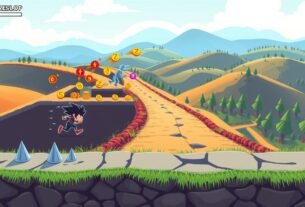
You will build a simple runner player that hops on screen input in about 30 minutes. The goal: a single clear arc, no rotation wobble, no double-raise, and a basic obstacle spawn loop you can test on device.
Run-it-now micro-implementation:
// Attach to Player with Rigidbody and Collider
public class JumpSimple : MonoBehaviour {
  public Rigidbody rb;
  public float jumpForce = 5f;
  bool grounded = true;
  void Update() {
    if (grounded && (Input.GetKeyDown(KeyCode.Space) || Input.GetMouseButtonDown(0))) {
      rb.AddForce(Vector3.up * jumpForce, ForceMode.Impulse);
      grounded = false;
    }
  }
  void OnCollisionEnter(Collision c) { grounded = true; }
}
Exact editor clicks first: create new project, open a clean scene, add a Plane ground, drop in the Player object with Rigidbody and Collider, press Play and confirm the jump works.
Two input goals: one path for the editor (Space/mouse) and one for phones (screen tap). Later you will refine grounded checks, input settings (Active Input Handling = Both), and reference Unity docs for Rigidbody.AddForce, ForceMode, and Physics.gravity.
Drop-in tap-to-jump implementation you can run immediately
Get a runnable player component and a short script that exposes the main values in the inspector. The example below uses a 3D Rigidbody, a simple feet ground check, and two input paths (spacebar plus mouse button as an editor bridge).
Create the Player GameObject with Rigidbody and Collider
- Add a GameObject named “Player”.
- Add a Rigidbody and a Capsule or Box collider, then place it just above a Ground object so gravity pulls it down.
Add this PlayerController.cs script
using UnityEngine;
using UnityEngine.EventSystems;
Attach the script, then set these inspector values: jumpForce ~5–10, public float gravityModifier 1.5–2.0, groundLayer to your ground layer, groundCheckRadius 0.15, and groundCheckOffset Y around -0.9.
Wire it in the Inspector & quick sanity test
- Assign the layer mask and tweak jumpForce until the arc looks right.
- Good: one jump per press, landing re-enables the gate, no mid-air repeats, and no rotation tipping.
Note: If your project is 2D, switch to Rigidbody2D, AddForce on Vector2.up, and use OverlapCircle for the ground check.
Project setup that won’t fight your input stack
Start with a stripped-down project so input and physics behave predictably on real devices.
Create a clean prototype project and scene
Make a new project using the empty 3D or 2D template. Keep one scene, one Player, one Ground, and a single Scripts folder.
Limit extras: one sprite/background and one obstacle. Fewer assets speed device iteration and keep the camera framing simple.
Set Active Input Handling to Both
Open Edit > Project Settings > Player > Configuration and set Active Input Handling = Both, then Apply. This prevents Input Manager checks like Input.GetMouseButtonDown from failing on newer versions.
Unity will prompt an editor restart after this change. That restart is normal — it is not a freeze.
Mobile build target and orientation basics
Switch the platform early to Android or iOS in the Build Settings. This surfaces texture compression and UI scaling issues before you tune feel.
Choose Portrait for a runner-style layout. Later you can normalize jump height across aspect ratios by scaling reference values on Start.
| Setting | Path / Panel | Why it matters |
|---|---|---|
| Active Input Handling | Edit > Project Settings > Player > Configuration | Ensures both Input Manager and Input System work; avoids silent input failures. |
| Build Target | File > Build Settings | Shows device-specific rendering and compression early. |
| Orientation | Player Settings > Resolution and Presentation | Fixes camera framing and consistent controls for portrait runners. |
Scene layout for a fast mobile game prototype Unity
Arrange your scene so the action stays clear on handheld screens. Good framing makes testing feel-focused decisions simple. Keep the player and upcoming obstacles inside a safe central lane that avoids notches and home indicators.
Main Camera framing for phones
Set your main camera so the player remains at a stable x position and obstacle spawn points appear within view across common aspect ratios. In 2D use orthographic size and check at 16:9, 19.5:9, and 4:3 presets in the Game view.
A safe-area mindset keeps important gameplay away from top and bottom edges. Move HUD or score elements inward and leave a margin above the ground line.
Background and sprite settings that don’t blur on device
Pick a low-detail background sprite so you don’t distract from tuning feel. Save parallax for later; visual noise masks timing and collision issues.
- Pixels Per Unit: match your art so sprites render at native resolution.
- Filter Mode: use Point for pixel art, Bilinear for soft art.
- Compression: choose low-compression or per-platform overrides to avoid artifacts.
| Item | Why it matters | Quick fix |
|---|---|---|
| Orthographic size / FOV | Changes perceived jump height and screen coverage | Adjust then test across screen size presets |
| Transforms | Simple anchors keep motion predictable | Anchor background, align ground, lock player x |
| Assets | High-detail art slows iteration | Use simple shapes first; swap later |
Tap detection options: pick one and commit
Choose one clear input path early so you avoid rewriting input logic later. Below are three practical approaches with tradeoffs so you can pick the fastest path for your 30‑minute build.
UI Button OnClick — “just works” for users
Add a full-screen transparent button on a Canvas and wire its OnClick() to a public TryJump() method on your player script. This method is very reliable across devices and avoids touch API quirks.
EnhancedTouch / Input System — for full-screen control
Use EnhancedTouch when you need multi-touch, gestures, or a full-screen handler without UI elements. It requires extra setup and care if your project mixes input systems.
Input.GetMouseButtonDown(0) — fastest editor bridge
This code path maps easily in the editor and often works as a first-touch on devices. It’s quick, but can conflict with UI and should not be your long-term shipped method.
- Pick Button OnClick for simplicity and device reliability.
- Choose EnhancedTouch for multi-touch or gesture plans.
- Use GetMouseButtonDown only for rapid editor testing.
| Approach | Pros | When to pick |
|---|---|---|
| Button OnClick | Reliable, low setup | Fast shipping, UI-based controls |
| EnhancedTouch | Multi-touch, gestures | Advanced input needs |
| GetMouseButtonDown | Quick test bridge | Editor iteration |
One concrete rule: if you use UI, gate the function with EventSystem.current.IsPointerOverGameObject() or use a dedicated button so gameplay input and UI clicks do not mix. Finally, avoid polling multiple systems each frame — pick one approach and stick with it to save battery and time.
Grounded checks that don’t glitch on edges
Ground detection is the hidden gatekeeper that turns a press into a single clean leap. If the check is unreliable, you’ll see spam jumps, missed inputs, and jitter when the player clips an edge.
OnCollisionEnter / OnCollisionExit flag
This method is the fastest way to prototype a grounded variable. Set grounded true in OnCollisionEnter and false in OnCollisionExit. It uses your existing collider events and needs no extra physics calls.
Limitations: it can glitch on uneven surfaces, moving objects, or when colliders briefly separate during physics steps.
SphereCast / CheckSphere ground volume
CheckSphere or a short downward SphereCast tests a volume under the feet. This method is more consistent for runners because it does not rely on contact timing.
Key tuning: small radius relative to foot width, short distance, QueryTriggerInteraction.Ignore, and keep the ground-check Transform as a child so it follows player scale.
LayerMask rule: put your player on its own layer and exclude that layer from ground casts so the check won’t hit the player collider. This prevents false positives and lets you detect player contact with only ground objects.
| Strategy | Pros | When to use |
|---|---|---|
| OnCollisionEnter/Exit | Fast, minimal code, uses existing component | Quick iteration and simple scenes |
| SphereCast / CheckSphere | Stable at edges, works with animated feet | Runners, uneven terrain, moving platforms |
| LayerMask exclusion | Prevents self-hits and false positives | Always apply when you need reliable casts |
Jump feel tuning: force, gravity, and mass without guesswork
Good jump feel comes from consistent tests, not from randomly moving sliders until it looks right. Lock your camera and use the same obstacle spacing so each run is comparable. Expose key tuning values in the inspector and change one at a time.
Impulse vs continuous force
Use ForceMode.Impulse for a single press that should give an instant velocity change. This method applies a one-time thrust and avoids frame-rate drift that continuous forces introduce. You get the same initial arc regardless of frame timing when the impulse is applied once.
A word on gravity modifiers
Many guides use Physics.gravity *= public float gravityModifier for feel. That multiplies global gravity and will stack across scene loads or multiple players.
Cache the original gravity on Start and restore it on OnDisable or OnDestroy. That prevents accidental cumulative changes and keeps other components from being affected.
Collider sizing and perceived arc
If your collider is too tall or wide compared with the character art, collisions will trigger early and you may mis-tune forces. Fix collider size first, then adjust jump force and gravity.
High refresh devices and consistent physics
Avoid frame-dependent forces. Apply the impulse on input and rely on the physics system for integration. When testing on high-refresh screens, verify behavior at different Fixed Timestep settings so the arc stays consistent across devices.
- Test rule: change one value, run five identical tests, record time in air and landing position.
- Keep the inspector clean: expose jumpForce, public float gravityModifier, groundCheckRadius, and mass if needed.
- Lock camera framing while tuning so perception does not mislead you.
| Check | Why it matters | Quick fix |
|---|---|---|
| Force method | Consistency across frames | Use ForceMode.Impulse |
| Global gravity | Can stack unexpectedly | Cache and restore original gravity |
| Collider vs art | Perceived airtime | Match collider to character visuals |
| Refresh rate | May make jumps feel floaty | Test Fixed Timestep and impulses |
Beginner mistakes that break tap-to-jump prototypes
Common early mistakes can turn a simple player leap into a frustrating mess — catch them now. This short checklist ties symptoms to concrete fixes so your iteration stays fast and focused.
Forgetting to freeze rotation (the “ragdoll tumble” bug)
If your Rigidbody tips after an obstacle hit, ground checks often fail and the player keeps sliding or spinning. Fix this in the Rigidbody constraints or set rb.freezeRotation = true in Awake. Make sure the constraint is set in the inspector so physics collisions don’t flip the model during play.
Double-jump spam from missing grounded gating
Two common failure modes: no grounded gate at all, or a gate that never resets. Use a grounded boolean and verify its transitions in Play Mode with Debug.Log or a gizmo. If it never becomes true, check your groundLayer and groundCheckRadius values in the inspector.
Jumping while paused or over UI
Taps on UI elements or while Time.timeScale == 0 often trigger gameplay input. Use EventSystem.current.IsPointerOverGameObject() or a dedicated button and gate your method with a paused flag. This prevents accidental jumps during menus or drag events.
Avoid hardcoding key tuning values
- Do not hardcode: jumpForce, gravityModifier, groundCheckRadius, spawn rate, obstacle speed.
- Expose them on your component so you tune in the inspector without recompiling the script.
| Symptom | Likely cause | Quick fix |
|---|---|---|
| Tumbles on collision | Rotation not frozen | Set Rigidbody constraints / rb.freezeRotation = true |
| Endless air jumps | grounded variable false positive or never set | Validate groundLayer & ground check in Play Mode |
| Input triggers over UI | EventSystem conflicts or paused input | Use pointer-over-UI gate and pause gating |
Add a simple obstacle so your jump has a purpose
Give the player a clear hazard ahead so you can judge airtime and landing precision. A single consistent object makes playtests meaningful and keeps iteration fast.
Build an obstacle with a Rigidbody and Box Collider
Create new art or reuse simple assets for the visual. Add a Box Collider sized to match the sprite and decide if a Rigidbody is needed.
If you move the obstacle with a script, you can leave the Rigidbody out or set it kinematic. That reduces unnecessary physics cost and keeps collisions predictable.
MoveLeft script and the key inspector variable
Drive obstacles by script: use transform.Translate(Vector3.left * speed * Time.deltaTime). Expose speed in the inspector so you can tune difficulty without code changes.
Keep the component small: one public float speed, an optional world-space toggle, and an OnTriggerEnter that logs “Game Over” or disables spawns on collision.
- Make the collider a single shape at a consistent height so a single press can clear it.
- Drag the configured object into a Prefabs folder and remove the scene instance to avoid duplicates.
- Optionally apply the same MoveLeft script to background assets for a runner illusion.
SpawnManager with timers (fast iteration loop)
A lightweight spawn manager keeps obstacle pacing out of player logic so you can iterate quickly. Use a single empty manager object and one small script that exposes timing and placement values in the inspector.
Create an empty “SpawnManager” object and attach a script that declares public GameObject obstaclePrefab; this keeps your scene tidy and lets you swap art without code changes.
Use InvokeRepeating for a simple spawn timer: InvokeRepeating(SpawnObstacle, startDelay, repeatRate). Make startDelay and repeatRate public so you can change them at run time.
Spawn position and cleanup
Store the spawn position as a private Vector3 spawnPos or expose a Transform so the position is editable while the scene runs. That lets you nudge placement live without recompiling.
Ensure spawned instances are prefab-based. Remove any stray obstacle object from the scene and parent runtime spawns under an “Obstacles” container for easy cleanup.
- Keep one script on the manager so player scripts stay untouched.
- Set repeatRate low initially to stress-test physics and input reliability.
- Add simple off-screen Destroy for cleanup; replace with pooling later if the timer floods CPU.
| Task | Why | Quick tip |
|---|---|---|
| create empty SpawnManager | Central control | One script, tweak values in inspector |
| Expose position / Vector3 | Live tuning | Use Transform if you prefer visual handles |
| Use InvokeRepeating timer | Fast iteration | Swap to coroutines or pooling later |
Mobile performance checklist for this mechanic
Small inefficiencies drain battery and ruin feel; fix the common culprits first.
Battery and CPU
Avoid heavy per-frame work. Don’t run multiple physics casts every Update, and stop logging strings each frame. Throttle spawn rates and reuse collections so your code doesn’t allocate garbage every time.
Memory
Keep textures and sprites sized for phones. Compress art reasonably and avoid importing huge bitmaps you will never display full-screen. Reuse textures and prefer smaller atlases for low-end devices.
Draw calls & UI
UI canvases rebuild can spike time on touch. Use a single simple Canvas for controls and atlas UI assets. One visible button costs more if it forces frequent canvas rebuilds.
Screen size and camera consistency
Jump arcs look different on tall versus wide screens. Test at 16:9 and 19.5:9 in the Game view and keep camera framing fixed while you tune forces. This keeps behavior consistent across aspect ratios.
| Area | Risk | Quick fix |
|---|---|---|
| CPU | Per-frame allocations | Reuse lists, avoid LINQ in Update |
| Memory | Huge textures | Compress, resize, use atlases |
| Draw calls | Canvas rebuilds | Single canvas, batch UI |
Prototype performance bar: stable framerate on device, no hitching when obstacles spawn, and no UI stutter when pressing controls. Validate in the scene on a real device early and often.
Unity documentation and industry references you should actually read
A focused reading list links the parts of your scene to the exact engine behavior. Read these pages to verify what your inspector numbers really do and avoid forum myths.
Rigidbody.AddForce and ForceMode
Start with the Rigidbody.AddForce + ForceMode reference on the official unity scripting API. It explains impulse versus continuous force and how velocity is affected. Use that knowledge to pick the correct method when you set jumpForce in the inspector.
Physics.gravity behavior and gotchas
Read the Physics.gravity doc next. It makes clear gravity is global and will change every Rigidbody in the scene if you modify it. The doc shows how to cache and restore the original value so other components aren’t surprised.
CharacterController.OnControllerColliderHit and GDC on game feel
If you switch from rigidbodies, check CharacterController.OnControllerColliderHit for collision callbacks and interaction with other physics objects. Also watch GDC talks on iterative game feel; they explain why jump arcs get tuned first — they set obstacle spacing, camera timing, and difficulty.
- Action: read the three API pages, then justify jumpForce, gravityModifier, and check radius in your inspector based on what the docs say.
| Reference | What to look for | Why it matters |
|---|---|---|
| Rigidbody.AddForce | ForceMode effects | Predictable velocity changes |
| Physics.gravity | Global modifier behavior | Avoid unintended side effects |
| CharacterController.OnControllerColliderHit | Collision callbacks | Deterministic collisions for runner |
When to use Rigidbody vs CharacterController for tap-to-jump
Pick the movement approach before you wire input and collisions. That choice affects how the player feels and how fast you iterate. Below are clear rules so you know which component to pick for a quick build versus a shipped runner.
Rigidbody — fast, physics-based iteration
For a 30‑minute build, use a physics body. The Rigidbody approach needs fewer moving parts and gives instant results with impulse methods. You can tweak jump force and gravity in the inspector and see changes immediately.
It’s ideal when obstacles are simple and you care about quick feel testing rather than deterministic collision framing.
CharacterController — predictable collisions for shipping
When you plan to ship, prefer a CharacterController. This component gives deterministic collision responses and cleaner steps or slopes handling.
CharacterController makes “always move forward” logic and consistent platform behavior easier across devices. The OnControllerColliderHit method and layer masks help you control interactions exactly.
Hybrid mistake: don’t mix Transform edits with physics
A common bug is moving a physics object by changing its transform every frame and still expecting reliable contacts. That breaks grounded checks and causes missed collisions.
Either drive movement with Rigidbody APIs (velocity, AddForce, MovePosition) or switch to a controller-driven flow. Don’t blend both.
Decision rule: if you need tight control over slopes, steps, and consistent collision boxes, pick CharacterController early. If you need fast feel, simple obstacles, and rapid iteration, keep a Rigidbody.
| Need | Recommended component | Why | Quick tip |
|---|---|---|---|
| Fast feel testing | Rigidbody | Few components, impulse forces, quick tuning in inspector | Use ForceMode.Impulse and freeze rotation |
| Deterministic collisions for release | CharacterController | Predictable contact response, better for slopes and steps | Use OnControllerColliderHit and layer masks |
| Avoid physics surprises | Controller-driven | No transform-driven physics conflicts | Don’t change Transform on Rigidbody objects |
Inspector-driven iteration workflow (what you tweak, what you don’t)
Make your inspector the control panel for fast, repeatable tuning during early playtests. Surface only the fields you will adjust in the first hour so you can iterate on device quickly and without guesswork.
Expose only the variables you’ll adjust in the first hour
Keep a short list of public variables in your component. Expose jumpForce, gravityModifier, groundCheckRadius, groundCheckOffset, obstacleSpeed, startDelay, repeatRate, and spawnPosition. These values give you meaningful control over feel and pacing without creating a tuning explosion.
Use headers and tooltips for readability
Add [Header] and [Tooltip] attributes in your script so anyone can tune the inspector without reading code. If your inspector grows past roughly ten fields, you probably need to refactor.
- What not to expose yet: multi-curve arrays, extra jump counts, advanced acceleration profiles.
- Why this matters: faster on-device testing catches input and UI issues earlier than editor-only edits.
| Expose | Why | Quick tip |
|---|---|---|
| jumpForce | Controls arc | Make public float |
| gravityModifier | Adjust fall speed | Cache original gravity |
| spawnPosition / timings | Pacing control | Expose startDelay & repeatRate |
Debugging fast: prove it’s grounded, prove it jumped
Quick checks that show ground contact and applied force save hours of blind tuning. Use a small, repeatable workflow so you can test on a device and fix the real issue, not a symptom.
Minimal logging without spamming the device
Log only on state changes. For example, print when grounded changes false→true and when the jump method fires. That gives you a clean timeline in the console without heavy allocation or battery impact.
On device, avoid Debug.Log every frame. Gate logs behind a build flag or boolean so you can enable them only during a focused test run.
Gizmos for ground checks and spawn points
Draw the ground check sphere and spawn Transform in the Scene view so misalignment is obvious. A simple OnDrawGizmos method that shows start, end, and radius lets you spot a misplaced groundCheck Transform or a spawn object buried in the ground.
Common “why won’t it jump” checklist
- groundCheck Transform not assigned in the inspector.
- groundLayer not set or excludes the ground object.
- radius or offset value too small to detect contact.
- Rigidbody is kinematic or rotation constraints tip the collider.
- UI element is swallowing input or Time.timeScale is zero.
Prove it jumped: zero vertical velocity optionally before applying an impulse. Then watch Rigidbody.velocity in the inspector. If velocity.y rises when your method runs, the impulse worked and you can focus on grounding or input mapping issues.
| Check | Quick fix | Why it matters |
|---|---|---|
| Ground detection | Assign groundCheck & set radius | Prevents false negatives |
| Layer mask | Include ground layer in groundLayer | Avoids missed hits |
| Input on device | Build early and validate | UI scaling can change touch mapping |
Polish passes you can fit inside the same 30 minutes
Small, targeted polish can lift player responsiveness far more than flashy effects. These fixes are cheap in code and nearly free on performance, so you can ship them in the same short iteration window.
Jump buffering and coyote time
Add two short timers in your component: a buffer window that stores a tap for ~0.1s, and a coyote window that allows a late press within ~0.1s after leaving ground. When input occurs, set a timestamp; when grounded becomes true, check the stored time and call your jump method if within the buffer.
This method reduces missed inputs at the exact moment players expect a leap. Expose buffer and coyote float values in the inspector so you can tweak feel without code changes.
Simple squash/stretch via scale
On takeoff, scale the visual down on Y and slightly up on X (for example 0.9,1.1) and lerp back on landing using transform.localScale. Keep the collider size unchanged — only the visual transform should change.
This visual cue is cheap, readable on small screens, and reinforces impact without extra art or particles.
| Polish | Cost | Why it helps |
|---|---|---|
| Jump buffering | Low (code) | Captures early taps for fair timing |
| Coyote time | Low (code) | Lets late presses feel forgiving |
| Squash/stretch | Very low (transform) | Visual feedback without extra assets |
Conclusion
.
Finish by verifying the loop: input handling, impulse force, grounded checks, spawn timing, and performance. You now have a simple player that uses an inspector‑driven force, a grounded gate, a moving obstacle, and a timed SpawnManager you can tweak live.
Next, pick your final input method (UI button or the input system), add coyote and buffer windows for forgiving feel, and add pooling or cleanup if spawn/destroy causes hitching. Expose the key fields in the inspector and keep your script small so tuning stays fast.
Don’t ship with global gravity stacking, Transform-driven physics, UI input conflicts, or unbounded spawns. Build early and test on a low‑end phone and a high‑refresh device. Verify camera framing and jump height across aspect ratios before wider playtests.

Game developer with over 10 years of professional experience specializing in the mobile sector. George’s journey began with a passion for indie development, leading him to contribute to several successful mobile titles, including the critically acclaimed puzzle-platformer ChronoShift and the top-down strategy game Pocket Empires.