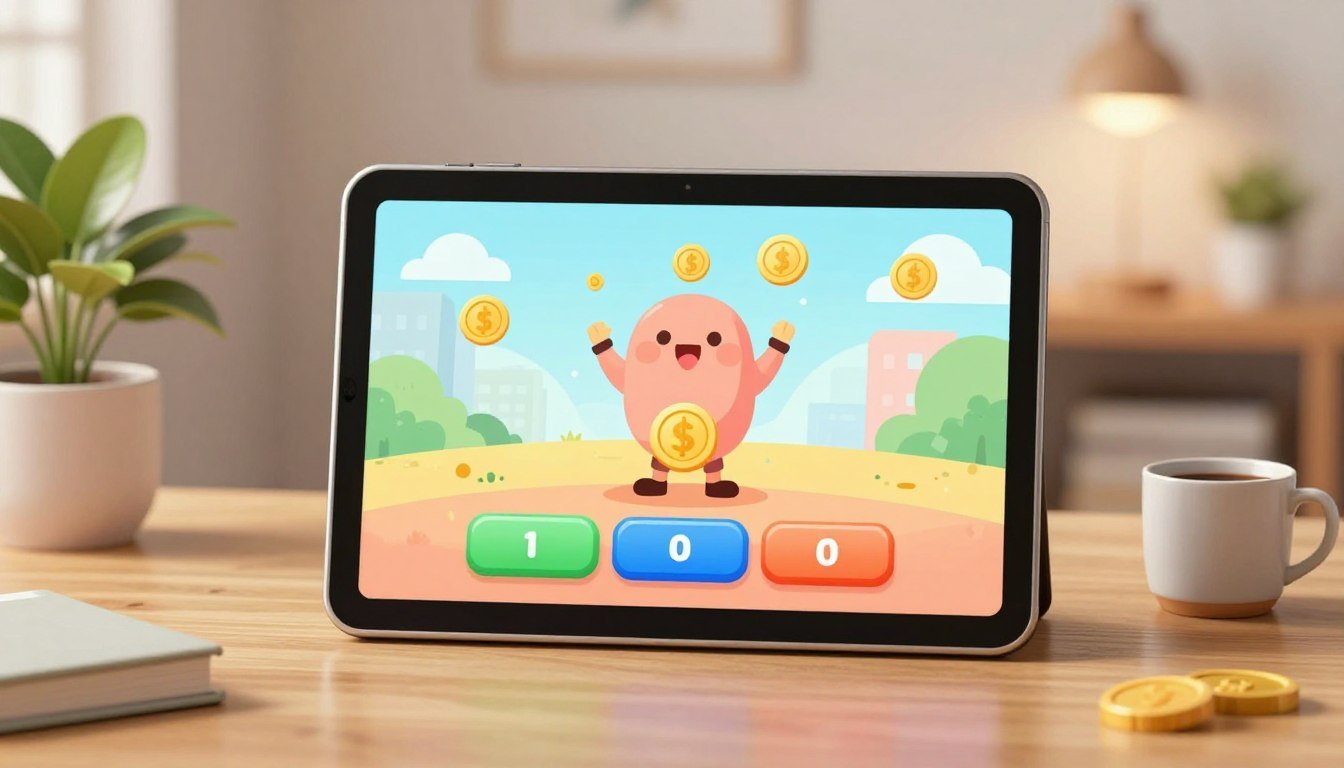
You start with one clear goal: a tap loop that works on Android and iOS right away. I show a working tap loop + script in the first minutes so your build runs on a device as soon as you test it.
This intro defines a minimal target: one tap button that grants currency, one HUD text, one upgrade button, and an optional per-second tick. The core architecture stays tiny: a state model (currency, per-tap, per-second), a UI controller, and a save layer you can expand later.
You follow official references from the Unity Manual and the Scripting API for UI and Button events, plus the Input System docs for touch. I call out mobile performance and common beginner mistakes early: null UI refs, double-firing taps, and runaway costs that break your economy.
What you won’t get yet are ads, prestige loops, or deep meta systems. Instead, you learn client-side responsiveness now and plan server-authoritative transactions later with Unity Gaming Services when you need secure progression.
Build the tap-to-earn loop with Unity UI and a working script
Set up a compact scene so touch input is reliable on phones. Create a Canvas set to “Screen Space – Overlay,” add a Canvas Scaler (Scale With Screen Size), and place an EventSystem. Add a full-width Button labeled “Tap” and a TextMeshProUGUI label for currency. Ensure the Canvas has a Graphic Raycaster and the Button image has Raycast Target enabled.
Working C# component
Paste this script into TapButton.cs, attach it to the Button, and assign the TMP text in the Inspector.
using UnityEngine;
using TMPro;
using UnityEngine.UI;

public class TapButton : MonoBehaviour
{
    [SerializeField] TextMeshProUGUI currencyText;
    [SerializeField] Button tapButton;
    [SerializeField] long currency = 0;
    [SerializeField] int tapValue = 1;
    [SerializeField] float minTapInterval = 0.06f;

    float lastTap = -10f;

    void Awake()
    {
        if (tapButton != null) tapButton.onClick.AddListener(OnTap);
        UpdateHUD();
    }

    void OnTap()
    {
        if (Time.unscaledTime - lastTap
Editor wiring and play checklist
- Assign the TextMeshProUGUI reference and Button in the Inspector.
- Confirm only one EventSystem exists and no invisible UI blocks the Button.
- Play checks: taps increment currency, HUD updates only on change, rapid taps are rate-limited, and no NullReferenceException appears.
Common beginner mistakes and fixes
- Null refs: forget to drag TMP into the serialized field — fix by checking Inspector and reading Console.
- Per-frame text updates: avoid Update() for HUD changes — update only when value changes.
- Double-firing: don’t mix Button.onClick with IPointerClickHandler; pick one input path.
- Using floats for money: use long to avoid precision and rounding issues.
For component details consult the official Button and TextMeshPro docs to understand OnClick, interactable, and TMP properties. This section gives a solid, low-overhead loop you can expand as your project grows.
Project setup for incremental game mobile Unity: input, layout, and build targets
Start by locking input and layout choices so your HUD and buttons work reliably on many phones. Pick the simplest input path first; Button.onClick already handles touch and mouse for UI elements.
If you plan non-UI taps or gestures later, enable the new input backend and disable legacy input to avoid double input. Document which system your team uses to prevent duplicated handlers.
- Safe Area: add a Safe Area panel that reads Screen.safeArea and adjusts anchors so HUD and buttons avoid notches.
- Canvas Scaler: set a reference resolution (example 1080×1920 portrait) and test extreme aspect ratios; avoid hard-coded offsets.
- Build profiles: keep separate Android/iOS profiles with consistent bundle IDs and tuned quality settings.
| Item | What to toggle | Why it matters |
|---|---|---|
| Input backend | Legacy or New | Prevents double events |
| iOS build | IL2CPP + ARM64 | Store compliance and perf |
| Frame cap | 30–60 FPS | Reduces battery and heat |
Player Settings checklist: disable development build for releases, strip unused engine code, and review Auto Graphics API entries. Pause expensive updates when backgrounded to protect battery and thermal performance.
Upgrade economy basics: costs, multipliers, and saving player state
Plan upgrade math and persistence early so buys feel fair and your system stays robust. This helps your development workflow and improves player experience when you tune pacing.
Data model and core rules
Use a compact SaveData: long currency, long earningsPerTap, double earningsPerSecond (or fixed-point), int upgradeLevelTap, int upgradeLevelIdle, plus lastQuitTimestamp.
Centralize spend logic: always clamp purchases and prevent negative currency in one method to avoid duplication and bugs.
Cost curves and balance
Start linear for early testing (cost = base + level * step). Move to mild exponential when pacing needs scaling: cost = baseCost * pow(growth, level).
- Keep numbers readable so players hit predictable milestones.
- Guard against explosive growth by capping growth or smoothing with soft caps.
- Store currency as integers to avoid float precision drift.
| Curve | When to use | Risk |
|---|---|---|
| Linear | Early testing | Slows late |
| Mild exponential | Long progression | Can explode if growth too high |
| Soft cap | Control late pace | Limits runaway numbers |
Local persistence and when to move off-device
Serialize one SaveData object to JSON and write to Application.persistentDataPath. Load on startup and save on pause/quit; avoid writing on every tap to reduce churn.
Include a saveVersion int and migration hooks now so future schema changes don’t break players. When you add competitive systems, trading, or server-validated purchases, move from local JSON to cloud or server authority.
Idle earnings and offline progress that works when your game isn’t running
Design a resume flow that grants time-based earnings safely and predictably. On pause or quit, persist a UTC timestamp (for example lastQuitTimeUtcTicks). On resume, compute elapsed seconds with DateTimeOffset.UtcNow and grant earningsPerSecond * elapsed.
Clamp and protect offline gains
Cap elapsed seconds to a design maximum (commonly 4–12 hours) so a week away does not blow up your economy or UI. Apply the cap before adding currency and clamp purchases to avoid negative balances.
Mobile backgrounding and time checks
Use OnApplicationPause and OnApplicationQuit to save lastQuitTime. Don’t run high-frequency work while backgrounded; that hurts battery and performance.
What you can and can’t detect locally
You can use Time.realtimeSinceStartup to spot odd jumps, but you cannot fully stop device clock spoofing without a server time source. For serious anti-abuse, migrate timestamp checks to a server later in your project.
- Avoid saving only on resume—save on pause too.
- Prevent double grants by flagging processed resumes.
- Reject negative elapsed values to stop subtraction bugs.
Server-trusted idle progression with Unity Gaming Services (UGS) Idle Clicker sample patterns
Server-backed state lets you validate buys, grant offline earnings, and reconcile client simulation safely. Use the official UGS Idle Clicker use case to mirror a proven pipeline and reduce integration mistakes.
What the sample does
The sample initializes Unity Gaming Services, signs the player in anonymously, reads Economy balances, and fetches or creates Cloud Save state. Cloud Code then computes produced resources since the last server timestamp and grants currency through Economy APIs.
Server patterns and deployment
Keep the server as the source of truth: store a “last produced” timestamp in Cloud Save, compute elapsed time in Cloud Code, grant via Economy, and write updated state back. Use the deployment package to ship Cloud Code scripts and Economy config so you avoid manual dashboard edits and configuration drift.
Tradeoffs and common mistakes
- Tradeoff: show fast local HUD feedback but expect reconciliation delays when server updates arrive.
- Mistake: trusting the client to grant currency — always validate on the server.
- Mistake: calling Cloud Code every tap — batch or rate-limit calls to avoid throttling.
- Mistake: ignoring failures — surface errors, revert optimistic UI changes, and ensure idempotent Cloud Code so retries don’t double-grant.
For implementation details, consult the official Unity Gaming Services Idle Clicker use case and the docs for Authentication, Economy, Cloud Save, and Cloud Code to map APIs to your clicker game unity workflow.
Mobile performance checklist for clicker games: UI, memory, draw calls, and battery
Performance for UI-heavy titles hinges on small, measurable choices you make early. Focus on reducing allocations, limiting layout rebuilds, and batching draw calls so the HUD stays responsive on phones.
UI update strategy: update on value change only. Cache formatted strings and avoid calling ToString() each frame. Keep text updates out of Update() to prevent GC spikes and repeated layout passes.
Battery-aware simulation: separate simulation from presentation. Run the visual tick at 5–10 Hz and the authoritative tick at 1 Hz. Pause timers on OnApplicationPause(true) and save state once to avoid needless wakeups.
Draw calls and overdraw: keep stable UI under one canvas for batching. If one element changes frequently, move it to its own Canvas to stop whole-screen rebuilds. Watch semi-transparent layers; they cause costly overdraw on many GPUs.
Memory and assets: use platform-appropriate compression (ASTC where available), atlas UI sprites, and size textures to actual on-screen pixels. Trim oversized assets to cut install size and runtime memory pressure.
Profiling workflow
- Profile on device with the Unity Profiler for CPU, GPU, and GC hotspots.
- Use Frame Debugger to inspect batches, overdraw, and Canvas rebuilds.
- Measure thermal and battery impact during long sessions; editor results differ from real devices.
| Issue | Impact | Quick fix | When to profile |
|---|---|---|---|
| Per-frame text allocation | GC spikes, UI hitching | Update only on change, cache strings | When HUD stutters |
| Many canvases or layout groups | Layout rebuilds, CPU cost | Flatten hierarchy, avoid nested LayoutGroups | When CPU stays high |
| High-res textures | Large memory and install size | Compress, atlas, resize to screen px | During build and device runs |
| Frequent background work | Battery drain, OS throttling | Pause on background, batch server calls | On long-play and suspend/resume tests |
Conclusion
Close out with a focused check: confirm the tap loop, minimal upgrade economy, local save, and offline progression behave on a real device. Test suspend/resume, capped offline gains, and HUD updates so nothing explodes after long gaps.
Next steps you can take: add a second income upgrade (per-second earnings), introduce prestige only after the economy feels stable, and enable basic analytics once UI and saving are solid. Keep changes small and test each one on-device.
Decision point: if your project stays casual and single-player, local JSON saves are fine. If currency integrity matters, move to the UGS server-trusted pattern (Authentication + Economy + Cloud Save + Cloud Code) and validate transactions server-side.
Re-check top traps before release: null UI references, per-frame TMP updates, unbounded offline gains, and unversioned save data. Profile on real devices—UI-heavy titles often fail from battery and GC issues before rendering limits hit.
For learning, use the official UGS Idle Clicker sample for server patterns, Unity Learn for scripting and UI practice, and Zenva’s “Craft a 2D Idle Clicker Game” course if you want a guided project from start to finish.

Game developer with over 10 years of professional experience specializing in the mobile sector. George’s journey began with a passion for indie development, leading him to contribute to several successful mobile titles, including the critically acclaimed puzzle-platformer ChronoShift and the top-down strategy game Pocket Empires.