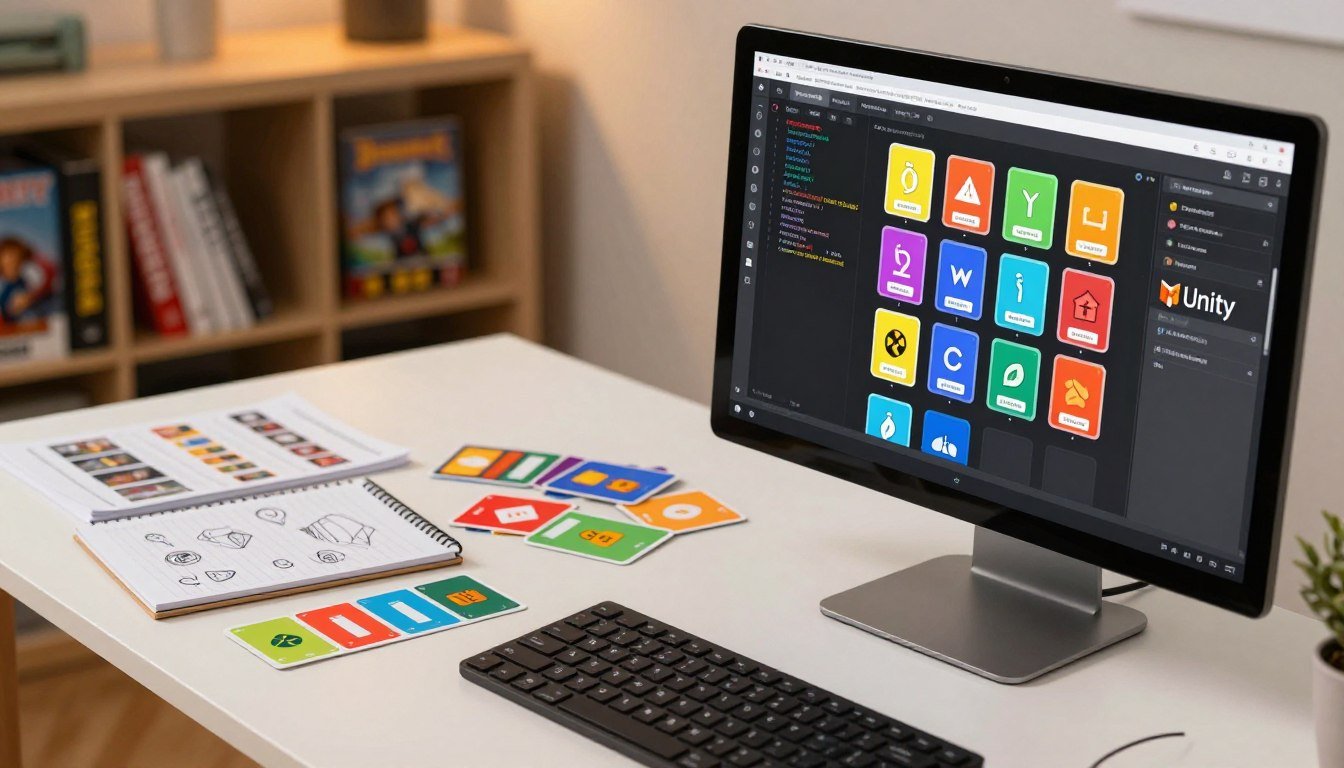
You start a compact weekend project: a simple color-matching memory game that runs on Android with a clean two-scene setup (Menu + Game). Keep the build lean so the project does not bloat and your iterations stay fast.
Below is a working grid spawner you can paste into an empty scene to see cards appear before you touch scoring or saving.
using UnityEngine;

public class GridSpawner : MonoBehaviour {
    public GameObject cardPrefab;
    public int cols = 4, rows = 3;
    public float spacing = 1.1f;
    void Start() {
        Vector2 center = new Vector2((cols-1)/-2f, (rows-1)/-2f);
        for(int y=0;y
Your core loop is simple: tap two cards, compare IDs, wait a beat, then disable matches or flip back. You will use Fisher-Yates later for shuffling.
Architect with one GameManager, Card components, and optional Board helpers. From day one avoid hard-coded positions, OnMouseDown on mobile, Resources.Load everywhere, and coroutine races. Keep textures unique, minimize Canvas rebuilds and draw calls, and favor light animations to protect battery and frame rate on varied screen sizes.
Build the card grid fast with a working spawner script
Spin up a centered grid quickly: one prefab, one spawner, and responsive sizing for phones. Start by creating a GameBoard root as a UI RectTransform under a Canvas for predictable scaling on Android devices.
Create a single prefab to clone
Drag one playing card into the scene, attach your Card script, add front/back visuals and a collider or Graphic Raycaster target, then make it a prefab. Keep the prefab transform zeroed and use a consistent pivot so every instance matches size and alignment.
Spawn a centered, scalable grid
Use rows, cols, and spacing variables in your spawn method so you can tweak difficulty without rewriting code. Center the grid by offsetting positions from (cols-1)/-2 and (rows-1)/-2, then multiply by card size and spacing.
Quick test and common traps
- Log total count and fail if rows * cols is odd — end with an even number for pairs.
- Avoid stretch anchors on UI cards; they will resize unpredictably with Canvas scaler changes.
- Don’t spawn in editor world units tied to the Scene camera — test on device to confirm fit.
- Performance tip: instantiate once per round; pool later if you add many levels.
Project setup and assets for a clean mobile pipeline
Set up a clean project baseline to keep iteration fast and predictable on mobile. Create a new 3D project named “Memory” and switch the build target to Android early so compression, input, and safe-area behavior match real devices.
Create the project and adjust player settings
Open Build Settings and choose Android. Change Orientation to Portrait if you target phones. Set a unique Package Identifier and pick IL2CPP for a weekend release if you want better performance; Mono is faster for editor iteration.
Import art and organize graphics
Import “Free Playing Cards – Ultimate Sport Pack” via the Package Manager. Keep sprites in an Assets/Art/Deck folder. Reference textures by ID in your data model so you can swap art without code changes.
- Set texture compression for mobile to avoid stutters on mid-range phones.
- Avoid Resources.Load for many items; it inflates runtime memory.
- Plan Addressables for larger packs; it reduces load spikes.
Lighting and a practical device check
Create a Directional Light and set intensity to 2 to brighten dark faces. Skip real-time GI and heavy post-processing to save battery.
| Setting | Recommended | Why it matters |
|---|---|---|
| Build Target | Android (early) | Matches compression and input behavior |
| Texture Compression | ASTC/ETC2 (mobile) | Reduces memory and load stutter |
| Asset Loading | Addressables later | Avoids Resources.Load spikes |
Quick test: verify cards are readable at arm’s length on a small phone, not just on your monitor. For profiling guidance, see Unity’s Android optimization and profiling docs: https://docs.unity3d.com/Manual/android-Optimization.html
Unity memory game tutorial, Android card matching game core architecture
A lean two-scene setup keeps flow clear: one menu scene and one play scene that you reload to restart. This pattern makes resets predictable and avoids leftover objects after a round ends.
Class responsibilities and clear separation
Divide code so each class has one job. Your GameManager owns state, score, and a timer.
The Card component handles visuals and reports taps. A BoardSpawner or Deck helper creates, shuffles, and lays out instances so the manager stays readable.
Simple state flow and input gating
Model play as a tiny state machine: no selection → first pick → second pick → resolving → back to no selection. Keep a single boolean input lock while resolving so taps do not queue.
When a Card reports “I was tapped,” the manager decides if the input is accepted. Use one coroutine for the resolve delay to prevent race conditions.
- Two scenes: Menu for options, Play for runtime logic.
- Avoid putting everything in one script; it becomes brittle when adding restart or difficulty.
- Prefer instance-level references over global statics to simplify restarts.
| Role | Primary duty | Why it matters |
|---|---|---|
| GameManager | State, score, timer | Central decision maker and input gate |
| Card | Visuals, click report | Keeps UI behavior local |
| BoardSpawner | Create & layout | Separates spawn logic from rules |
This system scales well on mobile: fewer active scripts, predictable UI, and less per-frame polling so performance stays solid on varied devices.
Card data model and color-matching rules
Keep match logic simple: compare a small integer ID, not file names or tags. That keeps checks cheap and prevents brittle code that depends on art filenames.
Represent identity, not art
Define a tiny CardData object: int id, Color color, Sprite face. Use the id as the single truth for matches.
Store visuals to avoid duplicates
Assign pairs so each id appears exactly twice in your dealt list. This guarantees deterministic pairing and straightforward shuffling.
Keep one shared back sprite and reference it from every instance. Swap Image.sprite references at runtime rather than loading textures per flip.
- Your Card component should hold Image faceImage and backImage references and set sprites on show/hide.
- Beginner trap: calling Resources.Load inside each flip causes load spikes and GC churn on phones. Avoid it.
- Visual identity may use color + sprite, but logic must always compare the integer id.
| Approach | Memory | Performance |
|---|---|---|
| Per-instance textures | High – duplicates | Slow load, GC spikes |
| Shared sprite refs | Low – reused | Smooth, predictable |
| ID-based logic | Minimal | Fast integer comparisons |
Extension point: swap from color rules to rank/suit later without changing the manager. The id stays the same, so you only update data, not core logic.
Shuffle, deal, and place cards reliably
Start by treating shuffle and deal as separate steps. Build the list of paired IDs, then randomize that list once before assignment.
Fisher-Yates and safe placement
Use the Fisher-Yates method to shuffle. It avoids bias that appears with naive sorts using random keys. Shuffle the pair list in-place, then assign each entry to a spawned slot in order.
Compute cellSize as the minimum of safeWidth/cols and safeHeight/rows so cards stay square. Offset the grid by the device safe-area inset to avoid notches and nav bars.
- Deal once per round: build pairs → Fisher-Yates → assign.
- Keep spacing as a fraction of cellSize to prevent stray taps on neighbors.
- Change rows/cols per level; reuse the same deal system.
| Step | Why | Effect |
|---|---|---|
| Fisher-Yates shuffle | Unbiased randomness | Fair layouts every round |
| Safe-area placement | Avoids notches and bars | Grid remains centered on phones and tablets |
| Adaptive cell sizing | Keep items square | Readable UI across aspect ratios |
Beginner trap: hard-coded coordinates may look fine on one device, then break on tablets or after rotation. Use this method and your project will handle varied screens and keep play consistent.
Touch input, flipping animation, and interaction lock
Design your touch layer so every tap behaves the same on device and in the Editor. Route hits through Unity’s EventSystem and treat input as a UI concern rather than a physics callback.
Mobile-first input: use IPointerClickHandler
Implement IPointerClickHandler or connect a UI Button to your Card so clicks are explicit and testable. This makes touch and simulated mouse clicks consistent for every user.
A common beginner mistake is using OnMouseDown. It may work in the Editor, but it often fails with UI raycasts, overlays, or when canvases handle input.
Flip implementation: animator vs code-driven
Animator-driven flips are easy to author and visually predictable. Keep state count low to avoid complex transitions.
Code-driven rotate/scale uses fewer assets and often costs less battery. Use a short coroutine or time-based tween for the rotation instead of per-frame polling.
Interaction lock to prevent double-taps
Keep a single boolean input lock in your manager while resolving selections. Lock on second pick, wait the resolve delay, then unlock. This prevents a third tap from flipping another card mid-resolution.
- Route taps through the EventSystem so touch works the same everywhere.
- Avoid invisible full-screen UI layers that block clicks.
- Keep flip animations short and let coroutines handle timing to save battery.
Match resolution, scoring, and a timer that won’t glitch
A stable resolve pipeline prevents errant flips and keeps rounds smooth. Make the flow deterministic: accept the second pick, lock input, wait, compare IDs, then act. This closes the loop so your game feels solid on phones.
Resolve sequence and interaction lock
Use one coroutine in the manager to run the whole resolve method. Do not start separate coroutines per card.
- Accept second pick → set inputLock = true.
- Yield wait 0.6–1.0 seconds to show faces.
- Compare IDs; if equal, mark matched; else flip back.
- Disable interaction on matched card instances (raycastTarget=false or disable Button).
- Clear selections and set inputLock = false.
Disabling interaction avoids destroying objects mid-frame and prevents null references or layout spikes.
Scoring and combo rules
Start with a simple, extensible scheme: basePoints per match, small penalty for a miss, and an optional combo multiplier for consecutive pairs. Keep calculation in one place so you can add power-ups or time bonuses later.
Reliable mobile timer
Use a single authoritative timer source (Time.timeSinceLevelLoad or an accumulated delta). Update the UI at a fixed cadence—once per second—so you reduce Canvas churn and avoid per-frame text writes.
| Approach | Update cost | Recommendation |
|---|---|---|
| Per-frame UI update | High | Avoid — causes layout churn |
| Fixed-cadence (1s) | Low | Use for visible timer |
| Authoritative source | Minimal | Time.timeSinceLevelLoad or accumulated delta |
Common trap to avoid
Beginning developers often start a coroutine per flipped object. That leads to overlapping resolves, wrong flips, and re-enabled input mid-resolve. Use one manager coroutine and an input lock to prevent racing behavior and ensure a fully functional round: spawn, tap, resolve, score, end.
Saving progress and best scores on Android without painting yourself into a corner
Treat saves as part of your UX: only write to disk at clear checkpoints. Decide what the project actually needs saved—best time, best score, and optionally last selected grid size or difficulty.
When PlayerPrefs is fine vs when to serialize a file
Use PlayerPrefs for a few simple values (ints/floats) like bestScore or bestTime. It is fast and simple for local leaderboards or settings.
Choose serialized files when you need multiple levels, per-level stats, or versioned settings. Serialization gives structure, allows migration, and avoids bloating PlayerPrefs.
How to map data and avoid common mistakes
Follow the official Unity Learn “Persistence: Saving and Loading Data” for the serialization approach. Map a small SaveData object to hold: bestTime, bestScore, lastDifficulty, and a version number for upgrades.
- Save only at safe points: round end, explicit exit, or settings change.
- Do not save every tick or every timer update—this can cause IO stalls on low-end phones.
- Do not block the main thread for file writes; use a background task if a save might take time.
- Version your save shape to avoid load failures after updates.
| Need | Simple choice | When to escalate |
|---|---|---|
| Best score/time (few values) | PlayerPrefs | Never—only if you outgrow keys |
| Per-level stats or many entries | Serialized JSON/Binary file | Use when tracking progress across levels |
| Settings with migration | Versioned save file | Required if you change fields over releases |
Practical pattern
Implement a single SaveManager that exposes Save() and Load(). Call Save() from your end-of-round code path in the menu or when the user exits. Load once on app start or when the menu scene opens.
Mobile performance pass for a card-matching game
Run a quick mobile performance pass before you call the build done. Focus on memory, draw calls, battery impact, and screen scaling so the app runs smoothly on mid-range phones.
Memory checklist
Use shared sprite references and avoid per-card Resources.Load on flip. Do not duplicate textures per instance; that creates GC and frame-time spikes on devices.
Optimize draw calls and UI batching
Keep cards under one Canvas when possible. Avoid enabling/disabling many UI roots during play because that forces Canvas rebuilds and breaks batching.
Battery and overdraw
Avoid per-frame polling in Update. Drive state with events or coroutines, shorten animations, and remove heavy effects like bloom or full-screen blur.
Screen-size and readable layout
Compute dynamic grid cellSize, enforce a minimum card size, and pick text sizes that stay legible on small phones without overlap.
- Beginner mistake: one Canvas per card — kills batching and spikes CPU on flips.
- Profile targets: CPU spikes during spawn/resolve, GC allocs on flips, Canvas rebuild cost when UI changes.
- Shipping goal: a fully functional build that flips and ends rounds without stutter.
| Area | Action | Why |
|---|---|---|
| Memory | Shared sprites, no per-flip loads | Reduces GC and load spikes |
| Draw calls | Single Canvas, atlas fonts | Improves batching |
| Battery | Event-driven updates, light anims | Lower CPU & GPU use |
For profiling guidance consult Unity’s Android optimization and profiling docs (Profiler, Frame Debugger, Memory module) to inspect CPU spikes, GC allocs, and Canvas rebuilds.
Conclusion
Finish by locking down state, visuals, and the input path so the build behaves the same on every device. You now have a complete game using a two‑scene system, a stable input gate, a centered grid spawner, clean match IDs, and a timer/score loop that won’t glitch.
Key beginner mistakes you avoided: OnMouseDown input traps, hard‑coded layouts that break on tablets, coroutine races, and asset loads that cause memory spikes. Each fix matters for reliable performance on phones.
Next steps: add difficulty buttons (3×4, 4×4, 4×5), a small tutorial overlay, and a restart button that reloads the Play scene cleanly. For scale, move content off Resources, adopt Addressables, and keep a single shared sprite atlas.
Optional production items after profiling: simple haptics, sound toggles, and AdMob only if performance stays steady. The fastest way to ship game unity projects is to keep state explicit, visuals shared, and UI predictable.

Game developer with over 10 years of professional experience specializing in the mobile sector. George’s journey began with a passion for indie development, leading him to contribute to several successful mobile titles, including the critically acclaimed puzzle-platformer ChronoShift and the top-down strategy game Pocket Empires.