You’re building a one-button project where spawns, judgement, and visuals all use a single authoritative song clock to avoid drift. The Conductor pattern is standard practice (see “Coding to the Beat – Under the Hood of a Rhythm Game in Unity” and work by Yu Chao).
Create an empty GameObject named Conductor, add an AudioSource, and attach a script that samples AudioSettings.dspTime. Compute secPerBeat, cache a dspSongTime, and set songPositionInBeats from the DSP clock. Add a tiny on-screen debug print to confirm stability on device.
Do not drive judgement off Time.time or trust AudioSource.time for long runs; those beginner mistakes cause slow drift, especially on Android. Schedule audio with AudioSource.PlayScheduled and use DSP-based timing for input, charting, and visuals.
Mobile notes: watch CPU spikes, GC allocations, draw calls, memory, and varied screen sizes. Include an Android latency offset slider during calibration.
Sanity checklist: schedule audio, derive beats from DSP, pool notes, avoid per-frame allocs, and test on a mid-range Android phone before you declare sync done.
Build the DSP-Synced Conductor With Sample-Accurate Song Time
Drive all timing from AudioSettings.dspTime to make notes, effects, and input align precisely with the track.
Implement a compact Conductor data model with these fields. Keep math allocation-free and expose read-only values for other systems.
- songBpm — beats per minute for the track; set once per track.
- secPerBeat — 60f / songBpm; compute once, not per update.
- dspSongTime — the DSP clock snapshot at play start (AudioSettings.dspTime).
- songPosition — seconds since song zero; can be negative while accounting for firstBeatOffset.
- songPositionInBeats — songPosition / secPerBeat; read-only contract for judging code.
- firstBeatOffset — seconds of leading silence; subtract from the DSP delta so beat 0 lines with the first audible downbeat.
Follow a strict gameplay contract: anything that judges timing reads songPositionInBeats only. Do not read Time.time or Time.timeSinceLevelLoad.
Find firstBeatOffset by inspecting the clip in an editor, measure the silence before the first transient, and store that value per track in a ScriptableObject. Avoid recalculating secPerBeat every frame, using float for long-running DSP deltas, or fixing drift by nudging AudioSource pitch.
Quick test: log beats to the screen, run on device for several minutes, and confirm notes keep their alignment as frame rates and loads change.
Start the Backing Track Precisely With AudioSource.PlayScheduled
Start the backing track by scheduling the clip on the DSP clock so the track always begins at an exact, repeatable point.
Scheduling avoids the run-to-run jitter you get when calling Play() immediately. The audio system can buffer and align the clip to a future DSP timestamp so your timing code has a true anchor.
Scheduling steps you can follow
- Pick a lead-in, e.g. 0.2–0.5 seconds.
- Compute scheduledDspTime = AudioSettings.dspTime + leadIn.
- Call musicSource.PlayScheduled(scheduledDspTime) and set your Conductor’s dspSongTime = scheduledDspTime.
- Treat that scheduled DSP timestamp as the song zero point for all judging and visuals.
Why immediate Play() drifts on phones
Play() is fire-and-forget: it issues a start but the engine and hardware decide the exact end-of-frame and buffer commit. Different devices and drivers add variable delays.
Scheduling with PlayScheduled reduces that variance and keeps calibration consistent across restarts and retries, which players will do often.
Guardrails and common mistakes
Do not schedule at or before AudioSettings.dspTime; schedule far enough ahead so Unity can prepare. Also avoid mixing scheduled starts with reads from AudioSource.time for the first bar.
For reference, see the scripting API pages for AudioSettings.dspTime and AudioSource.PlayScheduled:
AudioSettings.dspTime and
AudioSource.PlayScheduled.
Unity rhythm game tutorial, music sync mobile game: One-Button Input and Judgement Windows
Map touch events into your DSP-based timeline and use that timestamp for scoring. Define tight windows in milliseconds, then convert them to beats so judgments scale with BPM.
Define windows and convert to beats
Example windows: Perfect = 16ms, Good = 50ms, Miss = 100ms. Convert like this:
- windowBeats = (windowMs / 1000f) / secPerBeat
Compare against songPositionInBeats
When a tap arrives, compute
- delta = Mathf.Abs(noteBeat – songPositionInBeats)
- if delta < perfectBeat => Perfect; else if delta < goodBeat => Good; else Miss
Mobile input caveat and fixes
Classic touch paths often lack per-touch timestamps, so you may only know the frame time. That biases judging toward early hits and punishes late taps.
If the new Input System exposes an event timestamp, map it into your DSP clock and judge against that value. If you cannot get timestamps, widen the Good window slightly on lower-end phones.
A common pitfall: judging with AudioSource.time or Time.time. Fix it by always using songPositionInBeats and applying your calibration offset. Show feedback on screen quickly but avoid per-frame allocations; reuse labels or update TextMeshPro values instead.
Procedural Note Charting From BPM, Loop Length, and a Seed
Procedural charting turns simple inputs into a deterministic sequence of note times you can reuse across runs and devices.
Start by defining inputs: BPM, beats-per-loop, a subdivision (for example 0.5), a density value, and a PRNG seed. Use the seed so the same song and difficulty always produce the same list of targets.
Generate the beat targets
Iterate a beat counter from 0 to loop length in steps of the subdivision. At each step, use your seeded PRNG to decide whether to place an event. If chosen, append the beat time to a sorted List<float>.
Spawn logic and lead time
Keep a single index into that list. When songPositionInBeats passes nextBeat – spawnLeadBeats, spawn the note and increment the index. SpawnLeadBeats gives travel time in beats so movement scales with BPM.
On phones, avoid Instantiate/Destroy churn. Pool note objects and reuse them to prevent GC spikes that will desync audio and visuals.
Common beginner traps: generating or sorting every frame, scanning the whole list each update, or using an unseeded random. Add a small editor UI or gizmo that draws upcoming beats to confirm the generator’s work.
Keep Gameplay in Sync During Lag: Audio Thread vs Game Thread
When the audio thread keeps playing while your main loop stalls, your visuals and hit windows can fall out of step. This is the real failure mode: the sound marches on while frame updates stop, and players feel notes arriving late.
Two clocks you must treat differently
Define one authoritative DSP-based song time that represents the audio truth. Define a separate presentation clock that controls what you render and spawn. Always judge hits against the DSP time.
Resync strategies and trade-offs
- Strategy A (recommended): drive logic from DSP time and make spawning index-based. This avoids per-frame integration and survives frame drops.
- Strategy B (nudge): keep a smoothed presentation clock that eases toward DSP time. If the error exceeds a threshold (for example X ms), snap; otherwise ease to avoid visible jumps.
Avoid jumping the audio playhead to match the presentation. Seeking can cause artifacts, change playback speed, and break player trust. On phones, reduce per-frame allocations and heavy UI work; those cause lag that your timing code cannot fix.
Show a live “beat error” metric (presentation beat minus DSP beat) on device. That value helps you see when your systems fall behind and what work is causing the gap.
Looping Tracks and Repeating Patterns Without Losing Beat Alignment
Looped sections should preserve precise timing so patterns line up each repeat without creeping offsets.
Core loop variables and update rules
Keep three values in your conductor: beatsPerLoop, completedLoops, and loopPositionInBeats.
Compute loopPositionInBeats = songPositionInBeats – completedLoops * beatsPerLoop.
When songPositionInBeats >= (completedLoops + 1) * beatsPerLoop, increment completedLoops. This increments on the boundary and avoids double-spawns.
Normalized analog position and uses
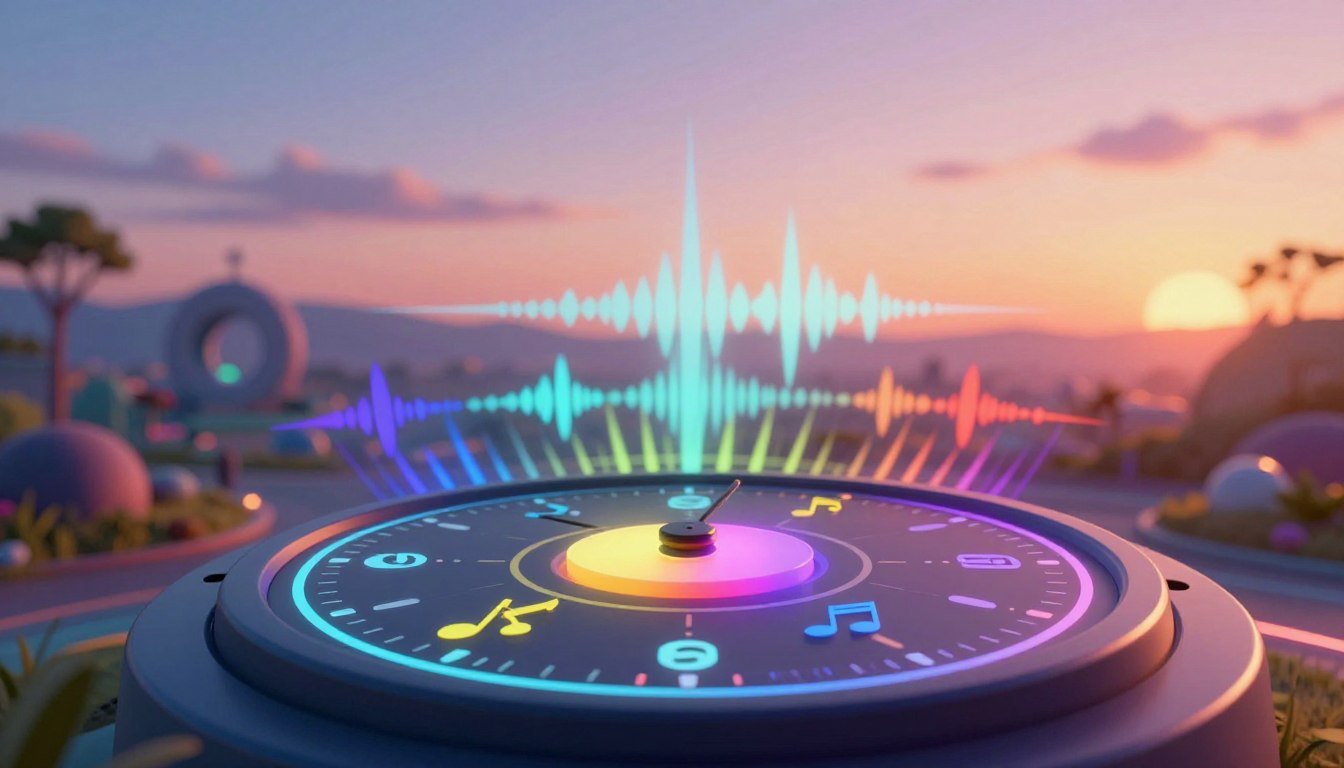
Derive loopPositionInAnalog = loopPositionInBeats / beatsPerLoop. This 0–1 value drives UI pulses, rotating rings, or shader effects without using deltaTime.
Common counting pitfall and practical notes
- Musicians count beats from 1. Your code counts from 0. For example, “beat 3” maps to loopPositionInBeats == 2.0f.
- Generate procedural patterns inside [0, beatsPerLoop) so repeats are deterministic across completedLoops.
- Ensure audio clips loop on exact beat multiples; otherwise you will hear a seam even if math is correct.
Keep loop math cheap: two comparisons and simple subtraction. That reduces spikes at the downbeat and keeps your visuals and spawns locked to the song.
Beat-Synced Visuals on Mobile Without Animator Drift
For stable, non-drifting visuals, drive display motion directly from the loopPositionInAnalog instead of accumulating motion with deltaTime. This keeps rotation, pulses, and shader parameters anchored to the authoritative beat clock so they do not wander during a 2–3 minute run.
Drive transforms deterministically. For example, set rotation with:
Mathf.Lerp(0, 360, loopPositionInAnalog).
Do the same for bobbing and scale pulses so the screen visuals match the audio beat each update.
Force Animator to a normalized time
Animator drift is common if you let the controller run at normal speed. Fix it by caching the state hash and then every frame call:
animator.Play(stateHash, -1, loopPositionInAnalog);
animator.speed = 0;
This forces a deterministic frame for that animation state and ties it to the beat.
- Why deltaTime drifts: tiny frame variance and thermal throttling accumulate error over minutes.
- Limitations: forcing time breaks transitions and blend trees; use this only for always-looping props and hit-line pulses.
- Performance: avoid extra overdraw and deep UI hierarchies. Don’t animate layout components every frame.
| Method | Deterministic | Best use | Cost |
|---|---|---|---|
| Transform via loopPositionInAnalog | Yes | Rotation, bobbing, scale | Low |
| Animator forced normalized time | Yes | Looping props, hit pulses | Low–Medium (breaks blends) |
| DeltaTime integration | No | Free-running effects | Drift risk |
| Shader parameter driven by loopPositionInAnalog | Yes | Screen-wide effects | GPU cost varies |
Tie your hit flashes and perfect rings to the same clock so feedback on the screen matches judgement. Profile rendering and UI updates on device; a 4–6 ms effect can create the very desync you are trying to avoid.
Mobile Audio Latency, Calibration, and Buffer Settings You Can’t Ignore
Even with a sample-accurate audio clock, what the player hears can lag on many Android devices. You must expose a simple calibration path so judgments match perceived sound across phones.
Why a per-device offset is required
Android latency varies by hardware and drivers. You cannot auto-measure reliably without extra gear, so store a per-device offset and apply it to judgement and optional visuals.
Implement an offset slider in milliseconds, save it in PlayerPrefs, and convert it to beats with:
calibrationBeats = (offsetMs / 1000f) / secPerBeat
Project audio buffer size trade-offs
Smaller buffer sizes lower latency but raise the risk of underruns and audible glitches. Larger sizes favor stability at the cost of delay.
| Buffer size | Latency | Stability |
|---|---|---|
| 256 | Low | Risky on some phones |
| 512 | Medium | Good balance |
| 1024 | High | Very stable |
Expose a user-facing “stability” option and call AudioSettings.Reset where supported after the player changes size to apply the new buffer.
Onboarding and optional tap sound
Ship with a conservative default offset so songs feel playable in the first run. Prompt calibration after the tutorial and make the slider easy to find.
Offer a toggle to disable response sounds. Advanced players often use physical tap or fingernail cues and prefer no extra audio layer.
Be blunt: assume Android variance, provide clear calibration UI, and document the settings in your options so players can fix timing themselves.
Performance and Build Settings for a Rhythm Game That Ships on Phones
Shipping a tight, low-latency build means you must optimize CPU, memory, and rendering for long runs on phones.
CPU and battery
Keep Update minimal: a few float math ops and comparisons only. Move chart generation, file parsing, and heavy work to load time or background threads.
Avoid per-frame allocations: no LINQ on note lists, no string.Format each frame, and no new lists during spawn checks. Pool frequently used objects.
Memory and audio
Pick import settings per track. Streaming reduces RAM but can spike CPU and latency; decompressed clips use memory but decode fast.
Test MP3 vs Ogg on target devices to avoid sudden decode spikes. Preload backing tracks you always play; stream long ambient files.
Rendering and screen size
Use sprite atlases to cut draw calls and minimize overdraw. Avoid full-screen post effects unless profiled.
Use Canvas Scaler and test tall aspect ratios. Drive note motion from beat time and convert to screen units, not pixels per frame.
Beginner mistakes checklist
- Using Time.time for judgement
- Relying on AudioSource.time instead of DSP timing
- Starting audio with Play() instead of PlayScheduled
- Instantiating/destroying notes rather than pooling
- Tying visuals to Animator speed instead of forcing normalized time
| Area | Action | Why |
|---|---|---|
| Update | Keep tiny | Prevents stalls that let audio lead |
| Audio | Test import formats | Avoid decode spikes and latency |
| Rendering | Atlas + low overdraw | Reduce GPU cost and battery drain |
Conclusion
Anchor everything to a single sample-accurate audio clock: schedule the backing track with AudioSource.PlayScheduled, set your conductor’s dspSongTime, and expose beat positions as read-only values. Keep charts deterministic and drive visuals from a normalized loop position so start-to-start behavior is repeatable in Unity projects.
Accept that device latency is real. Ship a simple calibration path and save per-song offsets so players can match perceived sound to judgement across devices and sessions.
Implementation checklist: ensure PlayScheduled is used, dspSongTime anchored, firstBeatOffset stored, judgement windows defined in ms→beats, pooling enabled, and audio buffer settings tested on Android.
Test on at least one iPhone and two Android devices (including a mid-range). Run 2–3 minute sessions, watch for drift and GC spikes.
Top mistakes to avoid: using frame time for judgement, unscheduled starts, and per-frame Instantiate/Destroy. Next steps: add a calibration scene, seed-based charts, and an on-device debug overlay showing beat, loop position, and timing error.

Game developer with over 10 years of professional experience specializing in the mobile sector. George’s journey began with a passion for indie development, leading him to contribute to several successful mobile titles, including the critically acclaimed puzzle-platformer ChronoShift and the top-down strategy game Pocket Empires.