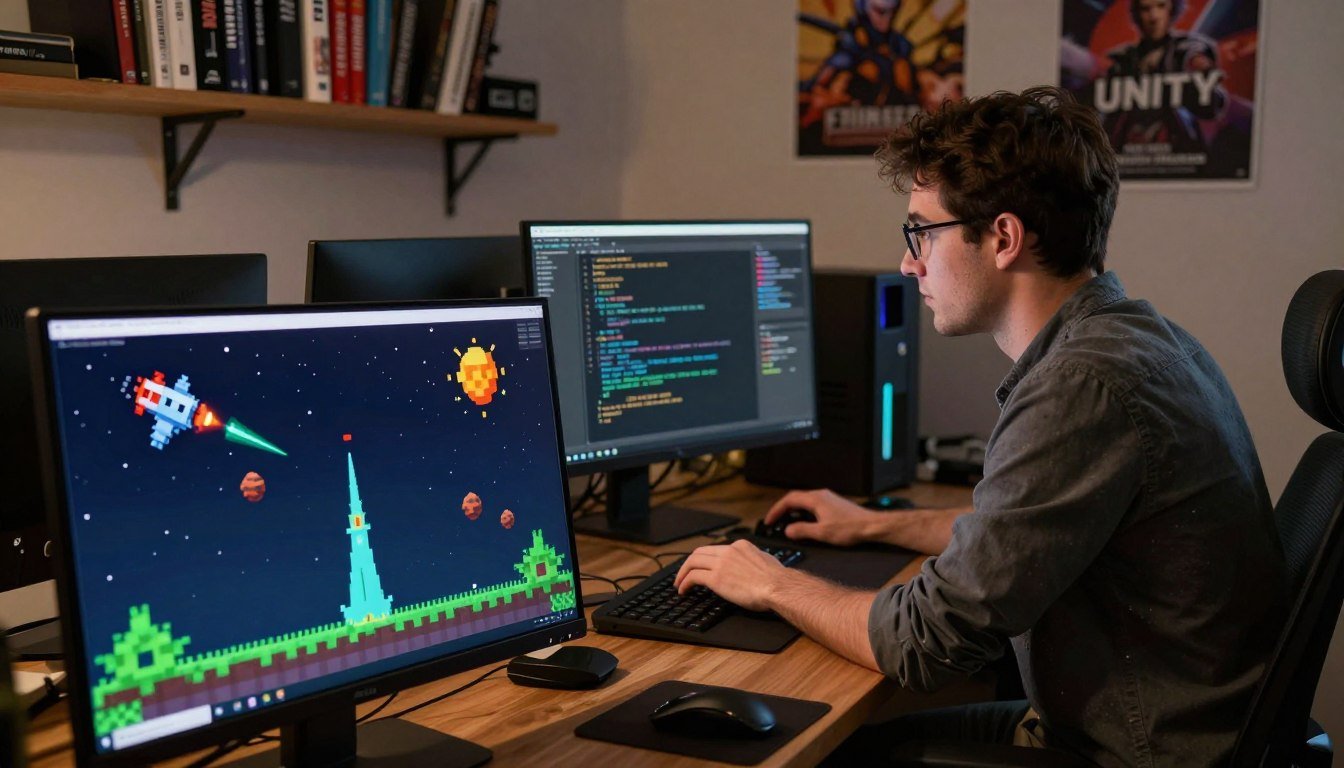
Written for PlayMobile.online by George Jones. This hands-on build was tuned for phone play: short arcade loops, simple touches, and a tight frame-time budget.
You will follow a Unity 2020.3+ LTS workflow using SpriteRenderer, Rigidbody2D, and Collider2D. The guide shipped complete scripts for player movement and firing, a spawner, collision handlers, scoring UI, and platform input layers.
Project layout kept iteration fast: prefabs, many small scripts, and a single GameController-style orchestrator. That made testing changes quick and reduced merge friction.
Expect the usual “nothing happens” traps early: wrong case in method names (Update vs update), inspector references left null, or prefab edits not applied. Fixing those saves hours.
From the start you tracked draw calls (Sprite Atlas later), memory churn (object pooling later), and battery use (frame caps). See the Unity Manual and select GDC talks for performance guidance.
Get a working ship and laser shooting in minutes
You can get the ship moving and firing in minutes with this paste-ready script. Drop it on your player GameObject, set the inspector fields, and press Play to see immediate results.
// PlayerController2D.cs
using UnityEngine;

public class PlayerController2D : MonoBehaviour
{
    public float speed = 8f;
    public float fireRate = 0.25f;
    public GameObject shotPrefab;
    public Transform shotSpawn;

    private float nextFire = 0f;
    private Rigidbody2D rb;

    void Start()
    {
        rb = GetComponent();
    }

    void Update()
    {
        if (Time.time > nextFire && Input.GetButton("Fire1"))
        {
            nextFire = Time.time + fireRate;
            Instantiate(shotPrefab, shotSpawn.position, shotSpawn.rotation);
        }
    }

    void FixedUpdate()
    {
        Vector2 input = new Vector2(Input.GetAxis("Horizontal"), Input.GetAxis("Vertical"));
        rb.velocity = input * speed;
        rb.position = new Vector2(
            Mathf.Clamp(rb.position.x, -8f, 8f),
            Mathf.Clamp(rb.position.y, -4.5f, 4.5f)
        );
    }
}
Inspector wiring (quick):
- Drag the Shot prefab into shotPrefab.
- Drag the empty ShotSpawn transform into shotSpawn.
- Set speed = 8 and fireRate = 0.25 as sane starters.
- Confirm the Shot prefab has a Collider2D and Rigidbody2D or desired components.
- Confirm method is exactly Update() (case sensitive).
- Ensure shotSpawn is not null and points to a scene transform.
- Verify shotPrefab is a prefab asset, not a scene instance.
- Check the Console for missing reference errors.
| Common mistake | Symptom | Fix |
|---|---|---|
| void update() | No firing, no errors | Rename to void Update() |
| private Rigidbody Rigidbody; | Confusing code, hard to read | Use private Rigidbody2D rb; and rb = GetComponent<Rigidbody2D>(); |
| Very low fireRate | Hundreds of bullets, lag on phones | Raise fireRate and consider pooling |
Project setup for a clean beginner workflow
Start your repository with a tidy Assets tree so references survive refactors. A simple, consistent layout keeps things obvious when you add prefabs, sprites, and scripts. That reduces time hunting for missing links and broken references.
Recommended folder layout
Under Assets create the minimal folders that kept our workflow stable:
- Scenes/
- Scripts/
- Prefabs/
- Sprites/
- Audio/
- Optional: Materials/ and UI/
This layout cut “missing script” errors when we renamed files. Keeping prefabs in one folder made inspector links predictable after refactors.
Scene basics and play area
Make the scene true 2D: set the Camera to Orthographic, use Z = -10 for the camera and Z = 0 for gameplay objects, and create Sorting Layers for Player, Enemies, FX, and UI. That keeps render order clear and components easy to manage.
Define play bounds with a single source of truth. Use either a serialized Boundary struct (min/max) or a BoxCollider2D trigger around the play area to gate movement and spawns.
Mobile screen realities and sanity defaults
Pick a reference aspect ratio early (for example, 16:9) and plan letterboxing or world-scaling so gameplay remains consistent on tall phones. Set Physics2D gravity to 0, choose a fixed timestep, and align sprite pixels-per-unit to your art.
Unity 2D space shooter tutorial, mobile game project beginner
The fastest way to iterate is to ship a tight loop where input, hazards, and scoring feed each other.
What you’re building: the arcade loop
You move the ship, fire, survive hits, and watch the score rise. Enemies spawn in waves. Collisions trigger simple explosions and a score handshake so feedback is immediate.
Core prefabs you’ll create
- Player — handles input, movement, and firing.
- Shot — travels forward, manages lifetime and pooling.
- Enemy — simple motion, health, and collision logic.
- Explosion — visual effect and short-lived VFX object.
- Boundary — clamps play area and cleans up off-screen objects.
Keeping these as prefabs made iteration fast: tweak one asset and every spawn uses the change. For a first release you kept enemies basic (asteroid drift) and left complex swarm patterns as a stretch goal.
You also kept art and audio “good enough” early so controls and performance took priority on phones. This approach helped you finish a working Unity 2D space shooter tutorial loop that proves core mechanics before polish.
Importing assets and avoiding “missing textures” confusion
When textures look missing in the editor, the issue is often the editor view, not the import. First check the Scene tab Draw Mode dropdown. If it is set to Wireframe, switch it back to Shaded or 2D to restore visible sprites.
As an authoritative reference, consult the Unity Manual section on Scene view options and Draw Mode: Editor > Scene view > Draw Mode (Wireframe). That page explains the dropdown and how the view can hide rendered textures.
For reliable mobile performance, verify these sprite import settings:
- Texture Type = Sprite (2D and UI).
- Compression enabled; use platform overrides for Android/iOS to reduce VRAM.
- Max Size capped (avoid importing 4K unless needed).
- Filter Mode: Point for pixel art, Bilinear for smooth art.
Pixels Per Unit (PPU) is a gameplay choice. Keep PPU consistent so collision boxes and movement scale predictably across the screen.
| Problem | Quick Fix | Settings to check | Validation |
|---|---|---|---|
| “No textures” in Scene | Change Draw Mode to Shaded/2D | Scene Draw Mode dropdown | Confirm in Game view |
| Heavy memory use | Apply platform override | Compression, Max Size | Profile on-device |
| Incorrect scale | Standardize PPU | Pixels Per Unit across sprites | Play test in intended screen aspect |
Physics and collisions that don’t fight you
Set clear rules for colliders and bodies so hits register when you expect them to. Good physics choices reduce odd behavior and speed up debugging.
Collider and Rigidbody setup
Use this recommended configuration for predictable results:
- Shot: Rigidbody2D (Kinematic) + Collider2D set as Trigger.
- Enemy: Rigidbody2D (Dynamic if driven by forces; Kinematic if scripted) + Collider2D.
- Player/ships: Rigidbody2D + Collider2D (non-trigger for solid collisions).
Trigger rules and common failures
For OnTriggerEnter2D to fire, at least one collider must be a Trigger and at least one object must have a Rigidbody2D.
If callbacks don’t run, check method signatures (2D vs 3D), confirm colliders are enabled, verify physics layers allow collision, and ensure you didn’t mix 3D physics components by mistake.
Gotchas, tags, and performance
Use tags like “Boundary”, “Player”, and “Enemy” to filter collisions in code. That keeps checks fast and explicit.
Archived thread note: mixing MeshCollider (3D) with non-kinematic rigidbodies required the MeshCollider to be convex. Fix by enabling Convex or switch to simpler colliders.
Mobile note: prefer Box/Circle colliders. Simpler shapes lower CPU cost and reduce jitter on low-end devices.
| Issue | Symptom | Fix |
|---|---|---|
| No OnTriggerEnter2D | Nothing happens on contact | Make one collider a Trigger and ensure a Rigidbody2D exists |
| Using 3D components | Callbacks mismatch or ignored | Swap MeshCollider/Rigidbody to 2D equivalents |
| Heavy physics cost | Frame drops on phones | Use simple colliders and kinematic bodies where possible |
Enemy spawner: asteroids now, invader swarm later
A reliable enemy spawn system keeps challenge steady and avoids frame spikes during busy scenes.
.
Implement a coroutine pattern similar to the archived SpawnWaves approach to control pacing. Call StartCoroutine(SpawnWaves()) from Start(), then use simple timers: startWait before the first wave, spawnWait between individual spawns, and waveWait between waves.
Wave coroutine pattern
The loop spawns N hazards per wave with a for-loop inside the coroutine. Each iteration yields for spawnWait seconds so instantiation spreads over time. That avoids a single-frame cost when many enemies appear.
Spawn positions and a single source of truth
Compute spawn positions with Random.Range using one serialized Bounds or a Boundary struct. Keep that bounds value in a single script or ScriptableObject so position math is consistent across your scripts.
- Ensure spawned prefabs are true prefab assets with applied components; otherwise they appear “dead” at runtime.
- Extend the spawner with multiple enemy prefabs, weighted selection, and per-wave difficulty scaling.
- For a stretch goal, swap the wave code for a swarm manager that shifts a formation side‑to‑side, moves down, and ramps audio tempo based on remaining invaders—classic Space Invaders behavior.
| Pattern | Benefit | Cost |
|---|---|---|
| Coroutine waves | Low frame spikes, easy timing | Requires careful yield timing |
| Instant full-wave | Simpler code | Large frame cost on instantiation |
| Swarm formation | Classic tempo and challenge | More script logic and AI states |
Enemy movement and difficulty tuning that still runs well on phones
How enemies move and scale across screens determines whether touch controls feel fair. Keep movement code simple and measurable so you can tune fast on device.
Simple movement approaches
Use Rigidbody2D velocity for physics-friendly movement and reliable collision callbacks. It works well when you rely on the physics system for overlap checks.
transform.Translate is simpler and uses less overhead for straight paths. But it bypasses the physics solver, so you must handle collisions and cleanup yourself.
Tuning speed and wave limits
Start with base speed = 2.5 world units/sec and increase by +0.2 per wave. Test on device; jumps larger than +0.5 felt slippery and broke aiming on touch.
Cap concurrent enemies (10 on low-end phones) and disable heavy physics on distant foes. That kept the CPU budget stable and reduced stuttering in the system.
| Approach | Pros | Cons |
|---|---|---|
| Rigidbody2D velocity | Reliable collisions, stable physics | Slight CPU cost at high counts |
| transform.Translate | Low overhead, predictable paths | Manual collision handling required |
| Hybrid (mix) | Best of both: physics where needed | More code to maintain |
Screen-size scaling and safe area
Define play bounds in world units (example: width = 16 units for 16:9). Scale camera orthographic size to match aspect ratios or clamp positions to those bounds.
Account for safe areas so enemies never spawn behind notches or system bars. Measure on device early—Unity Remote shows input but not true performance—so profile on hardware you target.
Explosions, hit detection, and cleanup without memory spikes
When a shot connects you want an instant explosion, a score bump, and no frame hitch. Keep the flow simple: detect the hit, hand off points, show effects, then recycle or remove actors.
H3: DestroyByContact pattern and scoreValue handoff
Implement a DestroyByContact script that reads the enemy’s scoreValue on collision and calls GameController.AddScore(scoreValue). Disable the enemy collider immediately to prevent double hits. Spawn a short-lived explosion effect and then return objects to a pool or schedule cleanup.
H3: Why Destroy(gameObject) can stutter and what to do
Rapid Instantiate + Destroy caused GC spikes on phones in past builds. At first use Destroy(obj, seconds) for lifetime cleanup. Then replace repeats with object pooling for shots and explosions to stop runtime garbage and lower CPU cost.
- Common mistake: wrong collider callback type or missing GameController reference — check tags and inspector refs.
- Quick fix: set object inactive or disable collider before playing effects to avoid duplicate scoring.
| Approach | Benefit | Trade-off |
|---|---|---|
| Destroy(obj, seconds) | Easy to add, low code | Still allocates garbage over time |
| Immediate Deactivate + Pool | Lowest runtime GC, consistent time cost | More setup and pool management code |
| Instantiate explosion | Simple visual fidelity | Many instances cause spikes |
Score UI using Canvas Text (not legacy GUIText)
Your score display should be simple to set up and reliable across screen sizes. Use the modern UI system so updates are immediate and easy to wire from game code.
Replace GUIText with UnityEngine.UI.Text
In your script add: using UnityEngine.UI; then declare public Text scoreText.
Drag the Canvas “Score Text” into that inspector field on your GameController object.
Minimal score manager API
Keep the API tiny and clear:
- private int score = 0;
- public void AddScore(int amount) { score += amount; UpdateScore(); }
- void UpdateScore() { scoreText.text = “Score: ” + score; }
Common pitfall: anchors push UI off-screen
If the Text updates but looks missing, check its RectTransform anchors. Bad anchors move the element when the screen size changes.
Fix: anchor to top-left or top-center, then reset Pos X/Pos Y offsets to zero so the visible position is stable.
Hierarchy and mobile notes
- Checklist: Canvas exists, Score Text enabled, reference set on the GameController in the scene hierarchy.
- Set Canvas UI Scale Mode to “Scale With Screen Size” so the score stays readable on different phones.
- Upgrade option: consider TextMeshPro later for crisper typography; keep the current implementation using UI Text for compatibility.
| Item | Symptom | Quick fix |
|---|---|---|
| Missing text | UI updates but not visible | Reset anchors and offsets |
| Wrong reference | No score change | Assign Score Text to scoreText field |
| Unreadable on device | Text too small/large | Use Canvas Scale With Screen Size |
Audio and effects without draining battery
Sound and effects should inform the player without draining power. Keep the implementation simple and centralized so the runtime cost stays low. Short, compressed clips work best for responsiveness and battery life.
One‑shot SFX and avoiding AudioSource spam
Use a single AudioSource on your GameController or AudioManager. Serialize AudioClip fields like laserClip and explosionClip, then call audioSource.PlayOneShot(laserClip, 0.7f) when firing.
When you spawn many bullets, adding an AudioSource per shot caused dozens of active sources. That increased CPU, led to clipping, and drained battery. PlayOneShot avoids that by using one component to mix short SFX.
Gizmos, editor puzzles, and wiring pitfalls
The speaker icon in the Game view is usually a Gizmos overlay. Turn off Gizmos in the Game view toolbar to hide it. That resolves the common Q&A about a floating speaker gizmo.
- Keep UI elements under Canvas; place audio on the GameController component to avoid accidental offsets.
- Avoid long looping sources at high volume; limit loops and use low bitrate compressed clips for SFX.
| Issue | Symptom | Fix |
|---|---|---|
| AudioSource spam | High CPU, distorted sound | Use one AudioSource + PlayOneShot |
| Speaker gizmo visible | Icon in Game view | Toggle off Gizmos in Game view |
| Wrong wiring | UI moved or audio missing | Keep UI under Canvas; audio under GameController |
Mobile input: touch joystick + fire button
Get a robust touch control system in place so the player can move and shoot reliably on a touch screen. Focus on two UI zones: a left-side touch pad for movement and a right-side fire area for shooting.
SimpleTouchPad pattern
Implement IPointerDownHandler, IDragHandler, and IPointerUpHandler on the pad. On pointer down record the origin, on drag compute a normalized direction and expose GetDirection(). On pointer up reset to zero.
Add a small dead zone and optional smoothing to avoid micro-movement from finger jitter.
Fire area and rate limiting
Make the fire panel return CanFire() (uses fireRate / nextFire logic). When CanFire() is true, call the same shot code you used before so shooting stays consistent with keyboard testing.
- UI setup: Canvas with Graphic Raycaster, left panel (touchpad), right panel (fire area), and EventSystem.
- PointerId tracking: store pointerId on down and ignore other touches so movement doesn’t jump when you tap fire.
- Debug checklist: ensure Raycast Target enabled only where intended, remove full-canvas Image blocks, and attach scripts to the correct UI elements.
| Symptom | Cause | Fix |
|---|---|---|
| Entire canvas responds to touch | Full-screen Image blocking raycasts | Disable Raycast Target or trim the UI image |
| Movement jumps when firing | No pointerId filtering | Track pointerId per pad and ignore others |
| Unity Remote touch mismatch | Remote maps differently than device | Test on hardware and validate event targets |
Optional mobile input: accelerometer controls with calibration
Using a quick device calibration, you can map the resting orientation to stable in‑game input. This keeps tilt optional so you can ship with touch controls first.
At Start() take a snapshot of Input.acceleration and compute the rotation that maps that vector to Vector3.up. Store the inverse as calibrationQuaternion. In FixedUpdate apply FixAcceleration: rotate the raw acceleration by the calibrationQuaternion, then use the resulting vector as your movement axis in code.
To avoid drift, ignore values where Mathf.Abs(component) < 0.05. That dead zone kept the player still when hands were steady. Add smoothing with a low‑pass filter (smoothed = Vector3.Lerp(prev, current, 0.1f)) or use Mathf.MoveTowards for per‑axis smoothing to reduce flicker over time.
Lower the speed scale for tilt vs touch; tilt often needs gentler speed so the ship doesn’t jump. Always test on real devices—Unity Remote can misrepresent sensor behavior.
| Step | Benefit | Example |
|---|---|---|
| Calibration at Start | Maps rest to neutral | calibrationQuaternion = Quaternion.FromToRotation(raw, Vector3.up).inverse |
| Dead zone | Prevents drift | ignore abs < 0.05 |
| Smoothing | Reduces jitter | Vector3.Lerp(prev, curr, 0.1f) |
Performance checklist for mobile: memory, draw calls, battery
A focused performance checklist keeps memory, rendering, and power use predictable across devices.
Sprites and atlasing: reduce draw calls with Sprite Atlas
Batching breaks when materials or textures differ, so pack core artwork into a single Sprite Atlas. Create an atlas asset, add your core sprites, and set the atlas to pack for your target platform.
Also make sure sprites share the same material to reduce state changes. That improves GPU efficiency and cuts draw calls on low‑end phones.
Object pooling for shots and explosions
Object pooling is a standard approach for mobile shooters. Prewarm N shots and N explosions at startup. On spawn call SetActive(true) and on despawn call SetActive(false).
This avoids per-shot allocation and GC spikes. Treat pooled instances as reusable components in the pool system to keep life-cycle simple.
CPU/GPU balance: timestep, physics, and overdraw
Keep physics cheap: favor kinematic bodies and simple colliders. Limit the number of dynamic bodies active at once.
Reduce overdraw by avoiding full-screen transparent layers and batching sprites where possible. Keep FixedUpdate timestep reasonable to avoid excessive physics calls.
Battery basics and measurement
Cap target frame rate (60 or drop to 30 for older devices), enable proper VSync in Player settings, and remove heavy per-frame allocations or logging in Update.
Measure on device with the Unity Profiler and consult the Unity Manual and GDC talks on mobile performance for concrete techniques. Use that information to spot GC and rendering hot spots before adding content.
| Focus | Benefit | Action | Recommended settings |
|---|---|---|---|
| Sprites | Fewer draw calls | Create Sprite Atlas; share material | Atlas packing, texture compression |
| Object pooling | Lower GC spikes | Prewarm pool; SetActive reuse | Pool size tuned to peak spawn |
| Physics / CPU | Stable frame time | Use simple colliders; cap dynamic bodies | FixedUpdate 0.02s or tuned lower |
| Battery | Longer play sessions | Limit FPS, avoid overdraw | VSync + targetFrameRate set |
Common beginner mistakes pulled from real Space Shooter Q&A
Most common crashes and “why nothing moves” moments come from tiny inspector oversights. Below are four real issues and exact fixes pulled from archived posts so you can triage fast.
Start() vs start(): NullReferenceException on Rigidbody access
Root cause: the engine never called your lowercase start() so rb stayed null and crashes followed.
Fix: change the method signature to void Start() so the cached Rigidbody reference is assigned before use.
Rigidbody naming confusion: private Rigidbody Rigidbody;
Problem: naming a variable the same as its type creates confusing code and harder debugging.
Fix: rename the variable to rb, playerRb, or enemyRb and keep the type clear in the inspector.
Prefab workflow: forgetting Apply then bolts don’t move
Issue: you edited a scene instance but did not click Apply, then deleted the instance and instantiated a stale asset.
Fix: edit the instance, click Apply in the Inspector to update the prefab asset, then remove the scene copy.
Renamed script → “The referenced script on this Behaviour is missing!”
Cause: class name no longer matches filename so the serialized component lost its link.
Fix: restore matching filename and class, or remove and reattach the correct script component.
- Check the Console first for exact errors.
- Inspect the prefab asset in the Project window, not only spawned instances.
- Verify Inspector references and components in the hierarchy.
| Symptom | Cause | Fix |
|---|---|---|
| NullReference on start | lowercase start() | Use void Start() |
| Prefabs act wrong | Changes not applied | Click Apply on instance |
| Missing script | Filename/class mismatch | Match names or reattach |
These small fixes saved hours during device testing. Keep this information handy to speed your iteration loop and avoid wasted postmortems.
Build and deploy to iOS/Android with sane defaults
A short list of player and quality settings saves hours when you first target iOS and Android. Tweak these early so installs are small, controls are reliable, and the app behaves like your tests.
Player settings to touch first
- Orientation: lock to landscape so touch layout stays stable.
- Resolution behavior: use “Scale With Screen Size” on the Canvas and set a sensible reference resolution to avoid unexpected UI shifts.
- Input handling: pick the active input system that matches your code (old Input vs New Input System) and enable only the component you use to avoid conflicts.
- Strip unused platforms/packages to cut build time and reduce binary size.
What to lower when the device feels slow
- Texture quality: use platform overrides and compression to reduce VRAM.
- Anti-aliasing: drop MSAA or use a lower level for phones that struggle.
- Particle counts and lifetime: reduce burst sizes and emission rates.
- Overall quality level: test on-device with a lower quality preset before optimizing content.
Unity Remote helps with input iteration but is not a performance benchmark. Always profile a device build to see real CPU, GPU, and battery results. Test safe areas early and keep the fire button clear of system gesture regions on each screen size.
| Setting | Why it matters | Quick action | Result |
|---|---|---|---|
| Orientation | Keeps UI layout predictable | Lock to Landscape in Player Settings | Stable controls and fewer layout bugs |
| Texture Quality | Direct VRAM and performance cost | Apply platform compression and max size | Lower memory use, fewer frame drops |
| Input System | Avoids duplicate input events | Enable only chosen Input package | Consistent touch behavior |
| Build checklist | Prevents trivial post-build failures | Verify scenes, inspector refs, clean build | Faster iteration and fewer surprises |
Unity references and industry notes you should actually read
Keep a short set of official docs and tools open as you upgrade and optimize. They act as working references when editor wiring or rendering behavior surprises you.
Core documentation to keep handy
- Input (old and new systems): https://docs.unity3d.com/Manual/Input.html
- UI (Canvas / Text / RectTransform): https://docs.unity3d.com/Manual/UI.html
- Physics 2D (Rigidbody2D, Collider2D): https://docs.unity3d.com/Manual/Physics2D.html
- Scene view Draw Mode options (wireframe troubleshooting): https://docs.unity3d.com/Manual/SceneViewDrawModes.html
What the archived Space Shooter flow left behind
The archived Learn example used legacy GUIText and older input assumptions that no longer match current systems. You should replace GUIText with Canvas Text and migrate input handling to the active input system you use.
Also move any 3D physics components to their 2D equivalents and re-check collision layers. These swaps stop many silent failures caused by mixed APIs.
Industry practice you should rely on
Object pooling is standard for handheld shooters because it stabilizes frame time and removes GC spikes from frequent Instantiate/Destroy cycles. Treat pools as first‑class systems: prewarm pools, reuse instances, and expose simple APIs for spawn/despawn.
| Area | Why it matters | Action |
|---|---|---|
| Input docs | Prevents mismatched event behavior | Follow official Input pages; pick one system and stick with it |
| UI upgrade | Stable cross‑screen text and anchors | Replace GUIText with Canvas/Text or TextMeshPro |
| Pooling | Reduces GC and frame spikes | Prewarm pool sizes based on peak spawn rates |
| Profiling | Shows real bottlenecks | Use Unity Profiler and Frame Debugger to validate batching and overdraw |
For deeper performance guidance, pair the docs above with a GDC talk on mobile rendering/optimization (search GDC vault for mobile optimization topics). Treat the Profiler and Frame Debugger as “docs in motion” when you need to see why draw calls or spikes happen.
Conclusion
This final note ties the build together with clear next steps and concrete checks before you ship. You now have a playable space shooter with responsive player controls, enemies, collision handling, explosions, and a scoring UI.
Keep two rules front and center: use exact case for engine callbacks (Start, Update) and always Apply prefab edits or wire inspector references before testing. Those save hours.
Key performance wins: pool bullets and explosions, pack sprites into a Sprite Atlas to cut draw calls, and cap frame rate to protect battery. Next steps you can add without rewrites: new enemy types, a classic invader swarm mode, and score/time difficulty ramps.
Ship checklist: test on a low‑end Android and an iPhone, profile for GC spikes, verify safe areas, and confirm touch controls don’t hit full‑canvas blockers.
Written for PlayMobile.online by George Jones. Consult the official Unity docs if editor or physics quirks appear.

Game developer with over 10 years of professional experience specializing in the mobile sector. George’s journey began with a passion for indie development, leading him to contribute to several successful mobile titles, including the critically acclaimed puzzle-platformer ChronoShift and the top-down strategy game Pocket Empires.