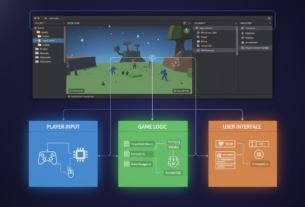
Author: George Jones — PlayMobile.online. You will build a small tower defense prototype where each turret is assembled from modules (targeting, weapon, effect) so you can swap behavior without rewriting core logic.
Run it now: create a new Unity project, drop in the single Turret script below, hit Play, and see the turret acquire an enemy and apply damage. This confirms your loop works before adding UI, placement, or upgrades.
Working C# snippet (drop-in):
using UnityEngine;
public class Turret : MonoBehaviour {
  public LayerMask enemyMask;
  public float range = 10f, fireRate = 1f;
  float fireTimer;
  Transform target;
  void Update() {
    // NonAlloc recommended later; simple loop here
    if (target==null) ScanForTarget();
    if (target!=null && Vector3.Distance(transform.position,target.position)>range) target=null;
    fireTimer -= Time.deltaTime;
    if (target!=null && fireTimer

We will rely on the Unity Manual and Scripting API (e.g., Physics.OverlapSphere, Profiler) and reference the Unity Tower Defense Template noted by Will Goldstone. Test worst-case builds on a real phone early — screen size and battery/thermal behavior change when you spam-build towers.
Drop-in Modular Turret Firing Script You Can Test in Five Minutes
Drop a compact firing script into a prefab, wire a few fields, and validate gameplay on device fast. The steps below give a minimal prefab hierarchy, the acquisition + fire loop pattern, exact Inspector fields, and a short validation checklist.
Create the prefab hierarchy you’ll extend
Use this minimal structure you can reuse: TurretRoot (logic) → Head (rotates) → Muzzle (spawn point). Add a RangeGizmo child for editor debug. This keeps visuals separate from logic and avoids prefab drift.
Add the target acquisition + fire loop
Key patterns: cache an enemy-only LayerMask, run Physics.OverlapSphere (no LINQ), keep an accumulated cooldown timer, and prefer TrackTarget to avoid constant retargeting. Use null checks and call enemy.TakeDamage(damage) when firing.
| Inspector Field | Type | Recommended Default | Notes |
|---|---|---|---|
| enemy LayerMask | LayerMask | Enemy | Set to enemy-only layer |
| targetingRange | float | 10 | Used by OverlapSphere |
| fireRate | float | 1.0 | Seconds between shots |
| damage | float | 10 | Passed to enemy.TakeDamage() |
| Head / Muzzle | Transform | Auto-find default | Apply prefab overrides to save references |
Wire it and validate on device
In the Inspector, assign the LayerMask, set range, fireRate, damage, and drag Head and Muzzle. If a field is empty, provide a default at Awake so the prefab still runs in Play Mode.
- Validation checklist: turret rotates to target, fires at the interval, stops when enemy is out of range or dead.
- Profile on Android/iOS: connect the Profiler, watch CPU, GC Alloc, and Physics while spam-placing towers to confirm per-instance costs stay flat.
- Beginner failure mode: missing prefab overrides causes “works in scene but not prefab” — open the prefab and apply overrides before testing on device.
Project Setup for a Mobile-First Tower Defense Prototype
Start your project by locking a phone-first scene baseline so visuals and input work predictably across devices.
Scene baseline, scale, and camera framing
Use consistent units (1 unit = 1 meter) and a fixed play area. Set camera framing that keeps the board visible on common aspect ratios.
Keep UI hit targets large enough for thumbs. Test on a real device early to catch tap mis-registration reported in the Unity Tower Defense Template on Android.
Using the template as a reference
Import the template to inspect naming, prefab patterns, and tuning ideas. Copy naming conventions and prefab structure, but avoid importing full systems you won’t ship.
Ignore complex UI flows, extra game modes, and unneeded editor tooling to prevent carrying unnecessary content into your project.
Folder conventions and editor hygiene
- /Prefabs (towers, enemies, VFX)
- /Scripts (Runtime, Editor)
- /ScriptableObjects (stats, upgrades)
- /Materials and /Effects
| Item | Why | Quick tip |
|---|---|---|
| Prototype scene | Profiling isolation | One test scene for performance |
| Quality & settings | Mobile perf | Limit post-processing |
| Prefab hygiene | Prevent overrides | Apply overrides inside prefab |
Unity tower defense tutorial, modular turret system mobile: Architecture for Modular Turrets
Here’s a practical layout for splitting targeting, weapon, and effect responsibilities into separate components you can mix and match. This keeps behavior swapable and lets designers tune gameplay without changing core code.
Module boundaries and data model
Define three clear modules as Unity components: Targeting (acquire/track rules), Weapon (fire cadence and delivery type), and Effect (visual/audio). Add an optional Upgrade component to hold level logic.
- Targeting: Closest, closest-to-goal, or custom targeting rules.
- Weapon: Hitscan, projectile, or beam delivery with fireRate and damage.
- Effect: Muzzle, impact VFX, and sound cues.
Use ScriptableObjects for tuning. A TurretStatsSO holds range, damage, fire rate, and upgrade levels so you can tweak values without recompiling. Keep the ScriptableObject docs open as a reference while implementing.
| Example | Modules | Notes |
|---|---|---|
| MachineGun | TargetingClosest + HitscanWeapon + MuzzleFlashEffect | Fast fireRate, low damage |
| Laser | TargetingClosestToGoal + BeamWeapon + LineEffect | Continuous damage, high range |
| EMP | TargetingArea + ProjectileWeapon + StatusEffect | Applies slow via Effect module |
Composition beats deep class hierarchies here. You add or replace a component instead of creating fragile subclasses. This reduces bugs and keeps your project flexible as new tower types appear.
For prefabs, build one base prefab with stable references, then create prefab variants per type and upgrade level. That method prevents the common regression where a scene instance works but the prefab asset loses its muzzle or effect reference.
Small team tip: treat ScriptableObjects as balance sheets and store them next to their prefab variants. This makes content audits and quick tuning straightforward while keeping memory and content duplication under control for mobile builds.
Enemy Target Points, Layers, and Physics Queries That Don’t Lie
Get physics right early: correct collider placement and layer masks prevent aim errors and save CPU on devices. The following steps make your targeting predictable and debuggable.
TargetPoint component and collider placement
Implement a small TargetPoint component on a child of the enemy model. Give it a SphereCollider and cache a reference to the Enemy root so your turret aims at the visual hit point while applying damage to the correct root object.
Do not put that collider on the root. Root transforms often sit at the feet or shift with animation, which makes targets look like they miss.
Layers, masks, and Physics.OverlapSphere
Assign enemies to an enemy-only layer (example: layer 9) and disable physical collisions with other gameplay layers in the Layer Collision Matrix. This keeps queries cheap and predictable.
Use the exact mask math for queries: const int enemyMask = 1 . Physics.OverlapSphere returns a Collider[] — not Enemy objects — so convert colliders to your Enemy via GetComponent on the hit collider or by using the cached root reference on the TargetPoint.
| Check | Why | Fix |
|---|---|---|
| TargetPoint layer | Detect only | Assign layer 9 |
| Collider type | Stable aim | Child SphereCollider |
| Query mask | Performance | 1 |
SyncTransforms and debugging
If you move enemies via Transform and physics auto-sync is off, call Physics.SyncTransforms right before your targeting update. This avoids one-frame stale positions where targets appear out of range.
For verification, draw gizmos for range and target lines in Editor and profile physics cost on device. Correct layers and collider placement reduce wasted queries and lower CPU when many objects are in range.
Target Selection Rules That Feel Consistent to Players
Players reject randomness. A clear selection flow makes hits feel earned and strategy transparent.
TrackTarget then AcquireTarget
Keep a simple two-step loop. First, TrackTarget: keep the current target while it is valid. Second, AcquireTarget: only search when you have no target.
This stops abrupt switching that players notice and complain about.
Closest-to-goal and DistanceToGoal
Choose enemies by remaining path distance, not raw distance. Sum waypoints from the enemy’s current index to the end to compute DistanceToGoal.
Cache waypoint arrays to avoid scene lookups each query. That keeps CPU and battery use low on long runs.
Ignore elevation for 2D gameplay
Compare XZ positions (or XY in strict 2D) so slight Y offsets don’t break aim. This method prevents missed shots when models float or animate.
Common mistake: calling GetComponent().DistanceToGoal() without a generic type. Use GetComponent<MoveEnemy>().DistanceToGoal() to avoid compile errors.
| Selection Type | Player Expectation | Cost |
|---|---|---|
| Track then Acquire | Stable, fair | Low (rare searches) |
| Closest-to-goal | Readable priority | Medium (waypoint sums) |
| Closest-by-distance | Surprising at times | Low (XZ calc) |
| Strongest | Strategic choice | High (extra stats) |
- Debug tip: log target switches with a reason (out of range, died, reached goal).
- Performance tip: cap full sorts to a schedule (every 0.2s) to limit per-frame work.
Shooting Implementations: Hitscan, Projectile, and Beam Without a Rewrite
Implement firing as swappable components so your fire logic stays clean and reusable. Define a simple weapon interface with Fire(target) and Cooldown properties so your main script calls one method regardless of delivery style.
Hitscan launcher
Raycast from the muzzle to the enemy aim point. Apply damage immediately and spawn a short-lived tracer and impact VFX. Keep tracers short and use a shared material to reduce draw calls and overdraw.
Projectile launcher
Pool projectiles to avoid allocations. Tune travel time and decide homing vs leading. If the target dies mid-flight, let the projectile self-destruct or impact a fallback point to avoid stray objects.
Beam / laser style
Use LineRenderer for simple beams or a stretched mesh for consistent UVs. Shared material and single-pass updates cut draw calls when many beams are active.
Common effect pitfalls
When you swap a model, muzzle references break and VFX spawn at origin. Enforce a named Muzzle child and validate it in Awake so effects always attach to the correct transform.
| Method | Cost | Latency | Best use |
|---|---|---|---|
| Hitscan | Low | Instant | High fire-rate, short range |
| Projectile | Medium (pooling) | Variable | Arcing or homing shots |
| Beam | High (draw calls) | Continuous | Sustained damage, visual clarity |
Building and Placement Input That Works on Touch
Make placement feel effortless: design a touch-first flow that keeps UI taps separate from world placement. Start with a clear loop: tap a build button, spawn a ghost preview, drag the preview with your finger, then confirm or cancel with persistent UI buttons.
Test on device early. On some Android builds EventSystem.current.IsPointerOverGameObject(fingerId) may return false for short taps. That caused UI buttons to miss and the preview to move instead. Short and long taps can behave differently on a phone than in the editor.
Mitigation and input rules
- Use a GraphicRaycaster on your Canvas and ensure an EventSystem exists.
- Check both pointerId and touch.fingerId paths, and add a UI raycast fallback if needed.
- Lock placement updates when the touch began over UI so the preview never steals button taps.
Grid snapping and validity checks
Convert world point to grid coordinates, snap the ghost, and color it green or red to show validity. Only re-check path blocking when the snapped cell changes to avoid per-pixel pathfinding.
Reject placement if the target cell already contains content or if simulating placement blocks the enemy path. Run a single path check after cell change; rollback if the path fails. Players trust your controls — a bad Accept tap that moves a piece will break that trust fast.
| Check | Mitigation | Device Test |
|---|---|---|
| IsPointerOverGameObject false | GraphicRaycaster + pointer/touch checks + UI raycast fallback | Short tap test on Android and iOS |
| Preview steals taps | Lock on touch-began-over-UI; ignore input for world placement | Tap buttons near preview in scene window |
| Path blocking | Simulate placement, run single path check on cell change | Spam-build in scene and verify enemy routes |
| Performance | Avoid allocations during drag; only recompute when snapped cell changes | Profile while dragging on device |
Performance Pass for Mobile: Memory, Draw Calls, Battery, and Heat
Profile the game on a phone early to catch CPU, memory, and thermal issues that never show up in the editor.
On-device Profiler checklist
- Build a Development Build and enable Autoconnect Profiler.
- Keep Deep Profile off unless you need line-level timing; it skews results.
- Record a session while you spam-place many towers and spawn lots of enemies.
Key metrics to watch
First watch CPU Usage (Scripts + Physics) and Rendering (batches / draw calls).
Then check Memory (textures, meshes) and GC Alloc per frame. For a prototype, aim for stable frame time and GC under a few KB per frame.
Draw calls and material discipline
Standardize materials across variants so GPU batching works. Avoid unique material instances for each prefab unless necessary.
Keep VFX light: share impact content, limit particles, and prefer opaque particles or small alpha budgets to cut overdraw.
Physics queries and scan strategy
Cap AcquireTarget scans by staggering checks across frames and favor TrackTarget on most frames. Use your existing layer mask and OverlapSphere choices to keep queries cheap.
This method cuts the per-frame amount of queries and reduces CPU time as the scene grows.
Pooling and GC control
Pool projectiles and impact effects to avoid allocations. A simple pool returns an object to the pool on disable. Size pools to peak shots-per-second times expected lifetime.
Battery, thermal, and stable settings
Sustained heat reduces clock speed. Avoid high update rates and heavy per-frame allocations. Test long runs and compare before/after GC alloc and CPU ms in the Profiler so your optimizations are evidence-based.
| Area | Action | Expected Result | How to Measure |
|---|---|---|---|
| CPU (physics & scripts) | Stagger scans, favor tracking | Lower ms per frame | Profiler: Scripts + Physics time |
| Rendering | Share materials, reduce particle count | Fewer draw calls | Profiler: Batches / SetPass calls |
| Memory / GC | Pool objects and reuse buffers | Stable GC and lower alloc spikes | Profiler: GC Alloc / Total Memory |
| Battery & Thermal | Lower update rates, avoid heavy per-frame work | Less throttling over time | Long-play profiler session; device temps |
Unity Documentation and Industry References You Should Actually Use
Treat a few reference pages as your daily toolkit; they save hours when behavior looks wrong.
Keep these official pages open while you implement features. They answer parameters, allocation behavior, and timing so you avoid chasing phantom bugs.
Docs to keep handy
- Physics queries: OverlapSphere, Raycast, Physics.SyncTransforms
- Layers and LayerMask reference
- ScriptableObject authoring and serialization
- Profiler module breakdown (CPU, GC, Rendering)
- LineRenderer and rendering components you will use
How to use the docs in practice
Confirm method signatures and default values before you change code. Check allocation notes to avoid per-frame GC. Verify physics sync rules when positions look one frame off.
Industry practice: component-driven + data-driven
Follow component-driven design so new variants are composed, not subclassed. Use data-driven tuning with ScriptableObjects as single sources of truth for stats and upgrade curves.
| Reference | Why keep open | What to check |
|---|---|---|
| Physics (OverlapSphere) | Target queries and cost | LayerMask use, allocation notes |
| ScriptableObject | Tuning without code changes | Serialization and asset workflow |
| Profiler | Measure changes on device | Scripts, GC Alloc, Batches |
Quick review checklist before sharing: are modules isolated, are ScriptableObjects the single source for stats, and are prefab variants used consistently? Data-driven tuning shortens rebuild cycles and lets you profile more iterations to hit device targets.
Common Beginner Mistakes in a Modular Turret System and How You Avoid Them
When you prototype a modular setup, small mistakes create confusing symptoms fast. This short guide lists real bug patterns, clear causes, and exact fixes so you can diagnose problems without guesswork.
Generic GetComponent errors
Symptom: compile errors like CS1061 or runtime nulls when you call methods on enemies.
Cause: using non-generic GetComponent() or forgetting the generic type.
Fix: always call GetComponent<MoveEnemy>() (or your enemy class). Add an Assert in Awake that required components exist so the build fails early and clearly.
Status effect cleanup
Symptom: enemies stay slowed or stunned after the source object is destroyed.
Cause: effect modifiers are applied but never removed when the part that applied them is removed.
Fix: track affected enemies in a List and remove modifiers in OnDisable/OnDestroy. Use weak references or IDs to avoid keeping dead objects alive.
Prefab and material pitfalls
Symptom: works in scene but not from the prefab asset; white meshes or missing particle FX appear at runtime.
Cause: instance overrides weren’t applied to the prefab, materials not included in build, or render-pipeline mismatch.
Fix: apply overrides inside the prefab, validate required child transforms (Muzzle) in Awake, and ensure materials and particle prefabs are proper assets (not scene-only).
Layer mask confusion and abstract component errors
Symptom: your part targets UI or scenery, or you get “script class can’t be abstract” when adding a component.
Cause: using a layer index where a mask is needed (or attaching abstract classes to GameObjects).
Fix: compute masks with 1 << enemyLayer and add debug asserts that OverlapSphere uses the expected mask. Replace abstract bases with concrete launcher components for GameObject attachment.
| Symptom | Likely Cause | Quick Fix |
|---|---|---|
| Compile error CS1061 / null methods | Missing generic GetComponent<T>() | Use GetComponent<MoveEnemy>(); add Awake asserts |
| Persistent slow / EMP | Effects not cleaned on destroy | Track affected enemies; remove modifiers in OnDestroy |
| White mesh / no VFX | Missing material or prefab references | Apply prefab overrides; include materials in build; validate Muzzle ref |
| Targets UI or scenery | Layer index vs mask mix-up | Use 1 << enemyLayer; assert layer bitmask at Play |
Conclusion
Below is a concise summary of results, key rules to keep, and small next steps you can apply immediately.
You now have a working tower defense prototype loop built from interchangeable modules for targeting, weapon, and effect. The project includes enemy target points and touch-friendly placement you can extend without rewriting core code.
Validate performance on device using the Unity Tower Defense Template as a reference and the Unity Profiler docs to confirm CPU, memory, draw calls, and GC behavior. Editor-only checks won’t predict battery or thermal issues.
Two high-impact rules to follow: keep targeting consistent (TrackTarget before AcquireTarget) and keep tuning data-driven with ScriptableObjects so balance stays out of code.
Next steps: add an upgrade UI wired to ScriptableObjects, implement one new weapon module, and add automated play-mode checks for required prefab references (muzzle, layer, colliders).
Quick avoid-again list: wrong layer-mask math, unapplied prefab overrides, missing effect anchors after swaps, and status effects not cleaned on destroy.

Game developer with over 10 years of professional experience specializing in the mobile sector. George’s journey began with a passion for indie development, leading him to contribute to several successful mobile titles, including the critically acclaimed puzzle-platformer ChronoShift and the top-down strategy game Pocket Empires.