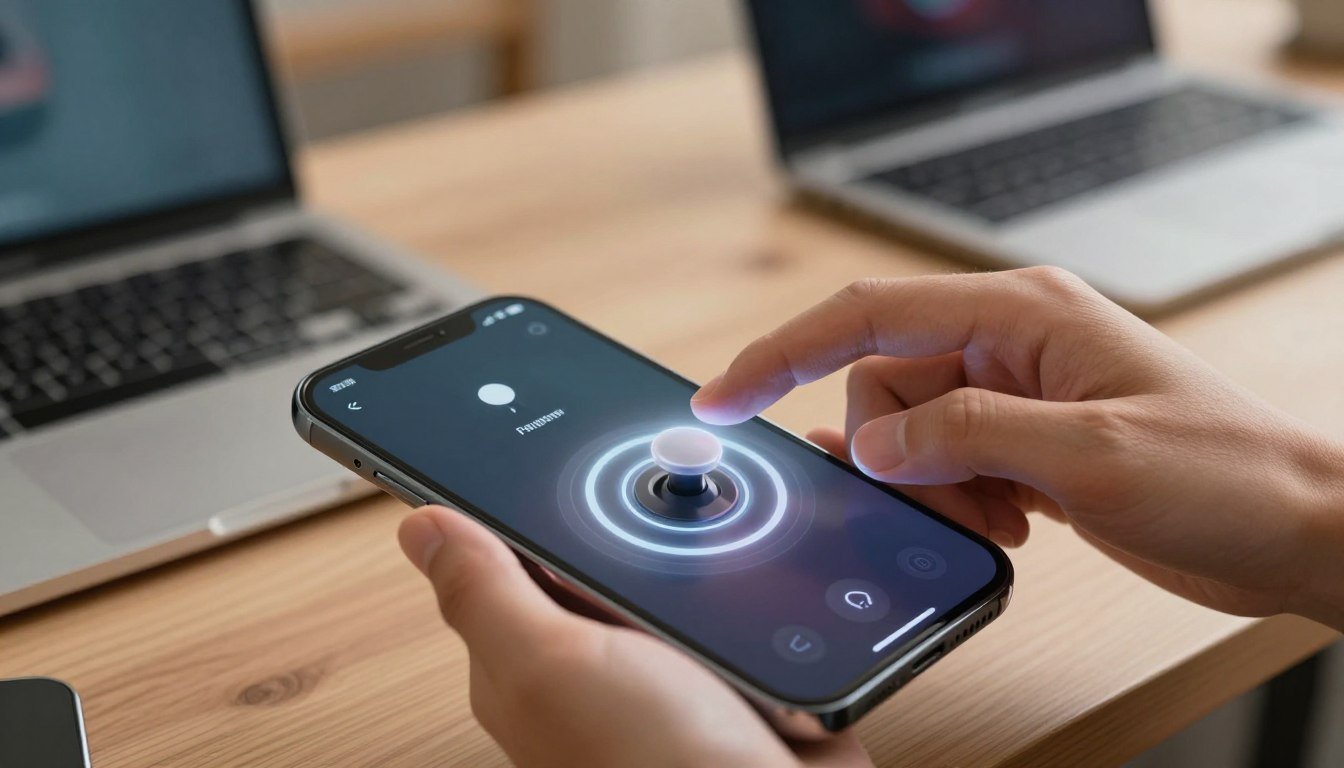
You set a clear goal: a unity virtual joystick mobile touch input setup that feels stable and predictable. You want steady movement while your thumb holds the stick, and a clean stop when you lift. Start simple and confirm motion on device before adding polish.
Paste this minimal working script into your project and keep it unchanged until you see movement on the device:
using UnityEngine;
Follow community guidance from the Unity Input System docs: bind OnScreenStick to <Gamepad>/leftStick rather than <Touchscreen>/position. Cache the Vector2 from performed/canceled events so a hold keeps moving. Note that OnScreenControls can add a one-frame delay.
Place the on-screen component near the bottom-left of the screen for reach and test across device sizes. Watch CPU and draw calls; keep the script lean to preserve frame rate. Common beginner mistakes include reading raw position every frame or not resetting cached values on cancel.
– Start with a minimal script and confirm movement on device.
– Bind to gamepad stick controls and cache Vector2 for hold behavior.
– Watch performance and reset cached values to avoid sticky movement.
Build the joystick with Unity’s On-Screen Stick in minutes
Follow these quick steps to drop a working on-screen stick into your scene in minutes. The goal is a simple UI that writes a Vector2 into a virtual gamepad stick and a movement script that reads the cached value so holding the stick keeps your character moving.
Create the UI
Create a Canvas (Screen Space – Overlay). Add a background Image as the base, then add a child handle Image for the thumb. Keep art simple: one background sprite and one handle sprite so you can atlas them later to cut draw calls.
Add the OnScreenStick component
- Select the background Image and add the OnScreenStick component (not on the handle).
- In the component’s Control Path field, set it to <Gamepad>/leftStick so it writes a Vector2 stick control.
- Ensure Image Raycast Target is enabled and the Canvas has a Graphic Raycaster so the area actually receives pointer events.
Wire actions and script
In your Input Actions asset, bind your Move action to Gamepad leftStick. Do not bind to <Touchscreen>/position — that bypasses the stick abstraction and causes confusion.
Use the performed/canceled caching pattern from Section 1: store the Vector2 on performed, clear it on canceled, and have your movement script read the cached vector each Update. Quick sanity check: drag the handle to the edge and hold; the character should keep moving. Lift your thumb and canceled should snap the vector to zero.
Choose the right input stack for mobile
Choosing the right input stack upfront prevents subtle conflicts later in development. Pick a single system to be the authoritative source for player controls in your project. That prevents two subsystems from writing the same channels at once.
The New Input System is the recommended baseline. It supports touch and on-screen controls, virtual devices, and action maps that scale from controller to phone without rewriting movement or camera code.
Why pick the New Input System
You get clean action maps, predictable performed/canceled events, and built-in on-screen controls. This makes stable multi-finger handling and consistent sampling easier to achieve. Use the action maps to drive both movement and camera so your code reads one Vector2 source.
Why not mix with Standard Assets TouchPad
The old TouchPad prefab uses CrossPlatformInput and the legacy Input Manager axes (Mouse X/Y, Horizontal/Vertical). If both systems are active, they can both write axis values. That produces symptoms like camera drift when you hold the on-screen stick.
- One project should have one source of truth for player controls: actions or legacy axes.
- Treat legacy touch prefabs as migration cases, not foundations for new projects.
- Drive Cinemachine and movement from the same action map to avoid channel conflicts.
| Area | New Input System | Legacy TouchPad / CrossPlatformInput |
|---|---|---|
| Action mapping | Clear action maps, performs/cancels | Axis names and polling |
| Multi-touch | Stable, predictable pointers | Prone to overlap and pointer fighting |
| Migration role | Preferred baseline for new projects | Legacy; migrate away when possible |
Next, design action maps for Move and Look, bind to stick controls (not touchscreen/position), and tune dead zones and sampling to reduce perceived lag.
Set up Input Actions for joystick-driven movement and camera control
Design your action map so the UI writes the same data shape your gameplay reads. That prevents surprises when an on-screen control or a physical device changes state.
Action map design
Create a Player action map with Move and Look defined as Value / Vector2. This keeps movement and camera code consistent.
- Move — Value / Vector2
- Look — Value / Vector2
Concrete bindings that make On-Screen Stick work
Bind the actions to the gamepad stick paths because on-screen sticks write into those channels.
- Move → <Gamepad>/leftStick
- Look → <Gamepad>/rightStick
Do not bind Move to <Touchscreen>/position or <Pointer>/delta and expect stick behavior. Those signals need different handling and cause erratic movement.
Control schemes and flicker fixes
Define a Touchscreen-only scheme for phone builds and optional Keyboard&Mouse or Gamepad schemes for testing. Decide whether your game accepts multiple schemes at once.
If flicker or sudden zero values occur, check that two devices are not driving the same action simultaneously.
| Aspect | Touchscreen Scheme | Gamepad Scheme | Hybrid Consideration |
|---|---|---|---|
| Primary binding | <Gamepad>/leftStick (via on-screen) | <Gamepad>/leftStick | Enforce one active scheme to avoid conflict |
| Typical issue | Pointer overlap | Physical stick takeover | Input jumping when both feed action |
| Best fix | Isolate on-screen controls | Bind explicitly to device | Switch schemes at runtime |
unity virtual joystick mobile touch input setup that doesn’t feel laggy
Feel comes down to timing: when you sample the control and when you apply movement. Start by accepting that OnScreenControls can introduce a one-frame delay. That is documented behavior and not always the culprit.
Why you may see an inherent one-frame delay with OnScreenControls
Why a one-frame delay can appear
The package may write values during the UI pass, which can land a frame later in your game loop. Remove extra smoothing and competing bindings first.
What “lag” really is
Lag shows when sampling, not rendering. Check whether you read the action in Update or FixedUpdate and whether you smooth values across frames. Smoothing adds buffered frames.
Practical settings that improve feel
Apply the cached Vector2 in Update for frame-locked responsiveness. Use FixedUpdate only for rigidbodies and carry the cached value across frames.
Tune a small dead zone, a clamp radius so the handle stops at a sane distance, and a gentle sensitivity curve to avoid jumps at the edge.
- Log action value, log applied movement, compare frame stamps.
- Disable extra smoothing and ensure a single control writer.
- Test on low-frame devices; frame pacing matters as much as raw latency.
| Setting | What it fixes | Typical value | Notes |
|---|---|---|---|
| Dead zone | Thumb drift | 0.05–0.12 | Start small; increase if drift persists |
| Clamp radius | Handle overtravel | 60–80% of visual radius | Keeps feel tight on small screens |
| Sensitivity curve | Smooth ramping | Ease-in cubic | Avoid immediate edge jumps |
Two joysticks with left/right roles (move + aim)
Give each on-screen stick a clear role so bindings never become ambiguous. Without roles, both handles are identical to the system and bindings can clash as your project scales.
Use device usages as role tags to mark the left and right controls. Register a layout override so the tags appear in the binding UI and make debugging easier.
Register usage tags
Call RegisterLayoutOverride with commonUsages for Left and Right. For example:
InputSystem.RegisterLayoutOverride(@"
{
""name"" : ""JoystickWithUsageTags"",
""extend"" : ""Joystick"",
""commonUsages"" : [ ""Left"", ""Right"" ]
}
");
Assign and bind at runtime
At startup, mark each device with SetDeviceUsage:
InputSystem.SetDeviceUsage(joystick1, "Left");
InputSystem.SetDeviceUsage(joystick2, "Right");
- Bind Move to “{Left}/stick” and Aim to “{Right}/stick”.
- Verify usages in the Input Debugger; some OnScreenControl paths may ignore tags in certain versions.
Quick checklist
- Register layout override.
- Set device usage at runtime.
- Use usage-targeted binding paths and verify in debugger.
Multi-touch: moving and aiming at the same time without fighting pointers
When two thumbs act independently, the UI must preserve each finger’s identity or controls will fight. If you want left-thumb movement and right-thumb aiming to work together, small routing mistakes will break the experience.
The common failure mode is this: you have two on-screen sticks, but only one responds. The EventSystem routes pointer events so one control grabs the stream and the other drops. Stock OnScreenStick uses pointer-style events, which can be fine for single control use but fragile for simultaneous thumbs.
Checklist to try before you write custom tracking
- Give each stick a dedicated, non-overlapping hit area and set Raycast Target appropriately.
- Confirm EventSystem and InputSystemUIInputModule are configured for touch and multiple pointers.
- Ensure no parent panel blocks raycasts; a blocking panel can steal fingers from the other stick.
When to replace the stock stick
Move to a finger-tracked custom control when you need strict fingerId binding, persistent tracking if the finger drifts outside the zone, or per-finger filtering. First fix routing and test on a real device. Only write a custom touch/finger tracker if real-device tests still fail.
Detecting release cleanly and snapping back to center
A clean release event gives your movement code a precise moment to react and stop. Relying only on canceled callbacks can miss the semantic act of lifting a thumb versus dragging back to (0,0).
Use IPointerUpHandler for a true release
Implement IPointerUpHandler on the same GameObject that hosts the stick UI component. This gives a reliable pointer-up callback when a finger leaves the screen or button area.
OnPointerUp you should:
- Force your cached Vector2 to Vector2.zero so movement stops immediately.
- Reset the handle’s anchoredPosition to center, or start a short visual return.
- Verify the pointerId matches the one that began the drag to avoid multi-thumb cancels.
Feel tradeoffs and a small implementation note
Snapping the stick vector to zero feels responsive. A short animation for the handle often looks better. Do both: zero the vector immediately, then animate the handle back over 0.08–0.15 seconds.
| Behavior | Responsiveness | Visual polish |
|---|---|---|
| Immediate snap | High | Low |
| Zero then animate | High | High |
| Animate only | Low | High |
Keep the code allocation-free: cache references to the component and avoid per-frame GetComponent or string formatting in Update. This example-friendly pattern keeps your controls tight and consistent.
Fixing flicker: inputs jumping to zero while you’re still dragging
A sudden jump to zero while dragging usually signals competing writers for the same action. You log the Vector2 and see it briefly become (0,0) even as your thumb or mouse never leaves the handle. That exact symptom is common and fixable.
Most often, two device bindings feed the same action. A virtual gamepad binding and a keyboard/mouse binding can alternate ownership. When one device updates, the action can momentarily read zero from the other.
Confirm using the Input Debugger
Open Window → Analyze → Input Debugger. Watch active devices and the control driving the action while you reproduce the flicker. Note which device updates right before the drop; that tells you the culprit.
Editor gotcha and practical fixes
In the Editor you may drag with the mouse while the on-screen control writes to a gamepad path. That causes scheme switching and the 0,0 flicker.
- Isolate bindings by scheme: use Touchscreen-only or a dedicated scheme for the on-screen control.
- Disable auto-switching or remove redundant bindings that exist “for convenience.”
- For hybrid support, implement device-priority: once a touch starts, ignore mouse/gamepad until touch ends.
| Symptom | Likely cause | Quick fix |
|---|---|---|
| Vector2 briefly reads (0,0) | Multiple devices/schemes writing same action | Check Input Debugger; remove redundant bindings |
| Flicker only in Editor | Mouse driving UI while virtual gamepad also present | Lock scheme to touchscreen or test with Unity Remote |
| Intermittent zero during hybrid play | Auto-switching between device types | Set explicit device priority rules at runtime |
Follow this workflow and you’ll stop seeing that frustrating 0,0 flicker in your next post or debug session.
Integrate with PlayerInput without surprises
Deciding how your project wires action callbacks affects menus, rebinds, and multiplayer. The PlayerInput component does three practical things: it picks devices, activates control schemes, and routes action callbacks to your handlers. That makes scaling easier, but it can flip schemes mid-gesture if left to auto-switch.
Behavior modes and why they matter
PlayerInput has behavior modes that change ownership and event routing. If auto-switching is enabled, a mouse or gamepad can briefly take over while a finger is down. That shows up as canceled and performed events that feel random.
Generated class vs PlayerInput component
Use the generated C# class for a single-player game early on. It is explicit, easy to debug, and avoids scheme surprises during menus or rebinds.
| Approach | Pros | Cons |
|---|---|---|
| Generated C# class | Explicit wiring, simple debugging | Manual routing for multiplayer |
| PlayerInput component | Scales to local players, centralized routing | Auto-scheme risks unless configured |
| Hybrid | Use generated class, migrate to PlayerInput later | Requires plan for scheme isolation |
Practical checks
- For single-player, start with the generated class and keep schemes locked.
- When moving to PlayerInput, disable auto-switch or set explicit device priority.
- In Play Mode, log the active control scheme and device list when a gesture begins to catch flips early.
Cinemachine camera look without interfering with the movement joystick
Keep camera control separate from your movement control by splitting the screen into dedicated zones. Use the right-half look zone pattern (example: Honkai Impact 3rd) so the left side is reserved for movement and the right side is for looking. This prevents pointer fights and makes roles explicit for players.
Set a right-half look zone
Create a UI panel that covers the device’s right half and set it as the look hit area. Make the area invisible if you want no art. Ensure the EventSystem and UI module treat that panel as the exclusive pointer target for camera gestures.
Feed Cinemachine from your stick values
Override Cinemachine’s default by assigning CinemachineCore.GetInputAxis to a method that returns your cached look Vector2 or derived float axes. This maps your on-screen stick or look action into Cinemachine without letting Mouse X/Y or other devices steal control.
Relative stick look vs absolute swipe look
Choose a model and tune it. Relative stick look holds a direction while the right stick is held; that is ideal for continuous turning. Absolute swipe look reads finger delta per frame and maps motion to camera rotation. Pick one as your default and adjust sensitivity and smoothing around it.
| Area | Recommended setup | Why it matters |
|---|---|---|
| Look zone | Right-half UI panel | Prevents pointer overlap with movement |
| Cinemachine binding | Override GetInputAxis with cached look values | Stops default mouse/other device interference |
| Look model | Relative stick or absolute swipe (choose one) | Simplifies tuning and player expectations |
Keep both movement and camera driven from the same actions asset. That consistency makes testing simpler and removes a common interference bug where Cinemachine reads default mouse axes while your on-screen control also handles pointer events.
Mobile performance considerations for UI-based virtual controls
Treat your on-screen controls like any other costly UI element: profile them early. Poor choices in art, layout updates, or raycast targets will show up as stutter, battery drain, or high CPU time on phones.
Keep draw calls low. Pack your sprites into a sprite atlas and host the handle and base on the same Canvas so batching works. Avoid multiple overlay Canvases that break batching and increase GPU work.
Minimize Canvas rebuilds. Do not change layout components every update. Avoid toggling GameObjects repeatedly while a finger is down. Dynamic text near the control can force extra rebuilds—move it off the same Canvas during testing.
Battery, CPU, and raycasts
Keep Raycast Target enabled only where needed. Only the joystick background needs to receive pointer events; decorative images should have Raycast Target off. This reduces per-frame raycast cost and prevents CPU spikes.
Memory and art
Use sensible texture sizes. For most handles and bases, 256–512 px is plenty. Scale with Canvas Scaler rather than shipping huge textures to cover all DPI ranges.
Screen layout and reach
Respect safe areas and thumb reach. Use Device Simulator for layout and safe-area checks, but test on actual hardware for latency and thermal throttling. Place controls so the handle stays large enough across aspect ratios.
- Do this: atlas sprites, keep controls on one Canvas, disable unnecessary raycasts.
- Avoid: per-frame layout changes, frequent GameObject toggles, oversized textures.
- Test: use Device Simulator for layout; verify performance on real devices for time-sensitive behavior.
| Area | Recommended action | Why it matters |
|---|---|---|
| Draw calls | Sprite atlas + single Canvas | Reduces GPU overhead and improves frame pacing |
| CPU | Limit raycast targets; avoid per-frame allocations | Prevents spikes and saves battery |
| Memory | Use 256–512px textures; scale with Canvas Scaler | Keeps app size small and textures efficient |
| Layout | Respect safe areas; dynamic layout for aspect ratios | Ensures controls stay reachable and usable |
Common beginner mistakes and the fixes you’ll actually use
A few predictable mistakes cause most reports of “stops while holding” or “vector2 flickers to zero.” Treat this like a code review: find the one wrong binding, the missing cache, or the fragile runtime lookup and fix it quickly.
Binding to the wrong control
Mistake: binding Move to <Touchscreen>/position. Symptom: erratic movement and no sustained hold.
Fix: bind both your action and the on-screen stick to <Gamepad>/leftStick (or a usage-targeted stick). That gives you the proper stick semantics the rest of your script expects.
Reading only on performed
Mistake: applying the value only when performed fires. Symptom: movement stops when performed stops.
Fix: cache the Vector2 on performed, apply it each Update, and clear it on canceled.
- Mistake: runtime GetChild/GetComponent lookups. Fix: serialize references to handles and components.
- Mistake: testing with a mouse in the Editor. Fix: lock schemes during editor tests and validate with Unity Remote or device testing.
| Symptom | Likely cause | Quick fix |
|---|---|---|
| Stops while holding | Performed-only reads | Cache value and apply each frame |
| Vector2 flickers to zero | Multiple devices/schemes | Use Input Debugger; remove redundant bindings |
| Handle not found at runtime | Hierarchy lookups | Serialize references in the script |
Testing touch input without shipping an APK every time
Save time by using a layered test workflow that finds problems early and narrows what you must run on hardware.
Device Simulator for layout and safe-area checks
Use the Device Simulator to confirm safe areas, aspect ratios, and whether your joystick UI sits under a notch or too close to the screen edge.
This tool is great for layout but not for final feel. Treat it as a fast visual check for your project UI and reachability.
Unity Remote for real multi-touch gestures
When you need actual multi-finger behavior without a full build, stream touches from a device to the Editor with Unity Remote.
Unity Remote gives real touch events so you can validate two-thumb move+aim flows and pointer routing before building an APK.
When hardware testing is still required
Always validate on a real device for latency, thermal throttling, and frame pacing. These factors change feel after a few minutes of play.
Keep a tight loop: simulator for layout, Remote for gesture behavior, then hardware for final tuning.
- Create a small on-device test scene: flat plane, capsule, speed readout, and live Vector2 displays.
- Use that scene to tune dead zones, sensitivity, and to watch update timing under real load.
- Document findings so your team knows when a fix is safe to ship from the engine and when a full build is needed.
| Stage | What to check | Why it matters |
|---|---|---|
| Simulator | Safe areas, layout | Fast visual validation |
| Remote | Multi-finger gestures | Real touch events without full build |
| Hardware | Latency, thermal, pacing | Final feel and performance |
Reference points: docs and samples you should keep open while building
Treat the official samples as your first stop when you need to see how components are meant to connect. Working examples show expected wiring and save hours of guesswork.
Where to find the On-Screen Controls sample
Open Window → Package Manager, select the Input System package, then click Samples. Import the On-Screen Controls sample into your project.
That sample contains prefabs, scenes, and a concrete pattern for wiring an on-screen stick and buttons to a runtime asset.
Which official docs to read for specific problems
Keep these Unity documentation pages open while you work:
- Unity Input System documentation — read Action Maps, binding resolution, and control schemes.
- On-Screen Controls docs — review OnScreenStick and OnScreenButton behavior and lifecycle.
- PlayerInput and Device Simulator docs — check scheme switching and safe-area testing.
| Symptom | Doc to check | What to look for |
|---|---|---|
| Laggy response | Input System documentation | Update modes, action sampling, and applying cached values in Update |
| Flicker to zero | On-Screen Controls docs | Binding resolution and which device wins an action |
| Pointer routing issues | PlayerInput / Device Simulator | Scheme switching and multi-pointer handling |
Scope your reading to the topics you need: movement stick, look stick, and UI-to-action wiring. That keeps your focus tight and prevents getting lost in unrelated post topics.
Polish checklist for a joystick that “feels good”
Polish the final feel by tuning small thresholds and handling real-world interrupts. Use real thumbs and devices when you tweak values. Small changes here make the controls feel intentional rather than accidental.
Thumb drift and dead zone tuning
Tune dead zones based on test sessions with actual players. Glass screens cause minor drift; a small dead zone removes unintended movement without killing responsiveness.
Verify the handle clamps at the base edge and that output is normalized so diagonal movement does not spike speed.
Edge cases: leaving the control area and interruptions
Decide how you handle a finger that slides off the visual area. For action games, keep tracking until pointer-up; for UI-heavy games, cancel immediately. Pick one and document it.
Reset cached vectors on app pause, notification pulls, or calls so your character does not keep moving when the app resumes. Implement IPointerUpHandler to detect clean releases.
Accessibility: left-handed mode and adjustable size
Ship a left-handed layout that mirrors anchors or offers a swap toggle. Let players change control size and spacing so both thumbs can reach without blocking vital UI.
Provide a sensible default but allow scaling so the same scene works on small phones and large tablets.
| Polish Area | Why it matters | Action to take |
|---|---|---|
| Dead zone | Prevents drift on glass | Test thumbs; use 0.05–0.12 |
| Clamp & normalization | Consistent diagonal speed | Clamp handle and normalize output |
| Release handling | Stops unintended movement | Use IPointerUpHandler; clear cached vector |
| Interruptions | Phone events can resume incorrectly | Reset on pause/resume; cancel on focus loss |
| Accessibility | Comfort and reach for all players | Left-handed mode; adjustable control size |
- Tune dead zone on devices with real thumbs, not a mouse.
- Clamp handle to base and normalize the output for steady movement and camera behavior.
- Decide and implement consistent behavior when a finger leaves the area.
- Reset cached vectors on pause, notifications, or app focus loss.
- Add left-handed layout and let players resize controls for comfort.
Conclusion
.
Summarize the working pattern: the On-ScreenStick writes a virtual Gamepad stick, your Move and Look actions bind to that stick, and your scripts cache the Vector2 on performed and clear it on canceled.
If something feels off, verify binding paths first. Then inspect active devices with the Input Debugger. Finally, test on real hardware to measure latency and frame pacing.
Keep one system as the source of truth. Don’t mix legacy axes with the New Input System; mixing causes flicker and erratic behavior.
Focus on two mobile priorities: responsiveness (expect the documented one-frame OnScreenControl behavior) and performance (reduce UI draw calls, allocations, and raycasts).
Next steps: add a right-stick look zone, feed Cinemachine from your cached values, and harden multitouch and release handling.
Baseline complete — iterate by measuring on device. — George Jones, PlayMobile.online

Game developer with over 10 years of professional experience specializing in the mobile sector. George’s journey began with a passion for indie development, leading him to contribute to several successful mobile titles, including the critically acclaimed puzzle-platformer ChronoShift and the top-down strategy game Pocket Empires.