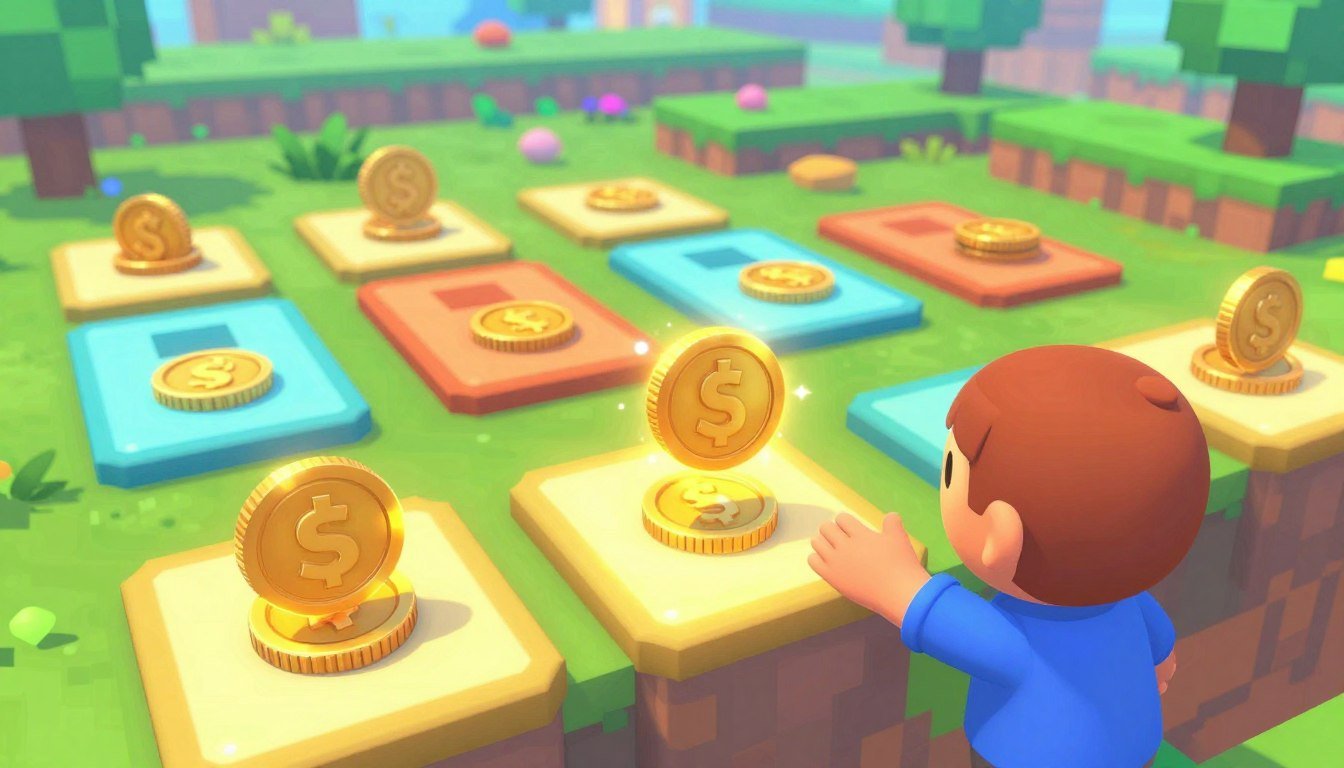
Paste this minimal working script to see coins increment score, play a sound, and disappear on contact. It uses OnTriggerEnter2D and a single score authority so you can test immediately.
// CoinPickup.cs
using UnityEngine;
public class CoinPickup : MonoBehaviour {
  public int coinValue = 1;
  public AudioClip pickupClip;
  public AudioSource audioSource;
  public ScoreManager scoreManager;
  void OnTriggerEnter2D(Collider2D other) {
    if (!other.CompareTag("Player")) return;
    scoreManager.AddCoins(coinValue);
    audioSource.PlayOneShot(pickupClip);
    gameObject.SetActive(false);
  }
}
// ScoreManager.cs
using UnityEngine;
using UnityEngine.UI;
public class ScoreManager : MonoBehaviour {
  public int score;
  public Text scoreText;
  public void AddCoins(int amount) {
    score += amount;
    scoreText.text = score.ToString();
  }
}
Inspector fields to assign: coinValue, pickupClip, audioSource (player or manager), scoreManager reference, and the UI Text. Check Unity Scripting API docs for OnTriggerEnter2D for exact behavior.
Common beginner mistake: mixing 2D and 3D APIs. If triggers never fire, verify you use Collider2D, Rigidbody2D, and OnTriggerEnter2D, not their 3D counterparts.
For mobile, keep a single score authority, avoid per-frame UI Update(), pool objects with SetActive(false) instead of Destroy(), and minimize draw calls and audio channels to save battery and memory on smaller screens.
Drop-in coin pickup script that updates score, plays SFX, and hides the coin
Use a focused script on the pickup object so each item only detects collisions. The code calls a single score owner, plays one sound, then disables the object to avoid repeated triggers.
Coin detection and action
Attach a lightweight script that checks other.CompareTag(“Player”), then calls ScoreManager.Instance.AddCoins(value). Use AudioSource.PlayOneShot on a shared AudioSource so sounds persist even if the item is deactivated.
Score manager and UI wiring
Keep one ScoreManager as the source of truth. Expose AddCoins(int) and an event like public event Action OnScoreChanged; so the UI updates only when needed. Wire the UI Text/TMP to that manager in the Inspector.
- Avoid Find() calls from pickups.
- Mark colliders as Trigger and verify the Player tag.
- On mobile, prefer CompareTag and avoid allocations in triggers.
Sanity check: touching an item should change the score once, play one SFX, and make the object disappear for reuse.
Scene and prefab setup for 2D trigger zones that actually fire
Get your scene right first: set prefab and player components so triggers always call back. If one requirement is missing, OnTriggerEnter2D won’t run and you will chase the wrong problem.
Coin prefab requirements are simple. Add a CircleCollider2D or BoxCollider2D and enable Is Trigger. Optionally add a Rigidbody2D set to Kinematic for stable, non-physics interaction.
Player requirements and conventions
The player needs a Collider2D plus a Rigidbody2D (Dynamic is standard). Keep the player on a clear tag and consistent layer so your code uses CompareTag and layer checks reliably.
Docs checkpoint and common mistakes
Review the Unity Scripting API entry for MonoBehaviour.OnTriggerEnter2D and the 2D physics manual to confirm that at least one object has a Rigidbody2D. Common errors: mixing 3D components/callbacks or using Rigidbody (3D) instead of Rigidbody2D.
- Check Project Settings → Physics2D layer collision matrix.
- Temporarily enlarge triggers, enable Gizmos, and Debug.Log in the callback to verify hits.
- Use simple colliders and fewer rigidbodies for mobile performance.
| Object | Required Components | Recommended Settings |
|---|---|---|
| Prefab (pickup) | Collider2D (Is Trigger), optional Rigidbody2D | CircleCollider2D, Rigidbody2D → Kinematic |
| Player | Rigidbody2D, Collider2D | Rigidbody2D → Dynamic, consistent tag/layer |
| Project | Physics2D layer matrix | Ensure layers interact in Project Settings → Physics2D |
unity coin collection mechanic 2d: scoring architecture that doesn’t fight your project
Design your scoring so one authoritative object owns the points and everyone else asks it to change them.
Having pickup scripts find UI text is fragile. It breaks on scene swaps, prefab reuse, and renamed objects. Those patterns often create multiple score variables that drift apart and lead to the classic “score shows 0” bug reported in forum posts.
Why a single manager is better
Use a ScoreManager or GameManager as the single source of truth. PickCoins (pickup) call AddCoins(amount). The manager updates the score and raises an event the UI listens to. That keeps responsibilities small and predictable.
Singleton vs scene reference
Singletons are fast to set up and reduce Inspector wiring. They can hide dependencies and complicate testing.
Scene references are explicit and safer for multiple modes, but require per-scene wiring.
- Practical pick: for a small mobile project, start with one ScoreManager. Avoid DontDestroyOnLoad unless you need persistence.
- Keep coin detection, manager counting, and UI rendering separate to reduce regressions on mobile builds.
| Approach | Pros | Cons |
|---|---|---|
| Singleton GameManager | Quick setup; fewer inspector links | Hidden dependencies; harder tests |
| Scene reference | Explicit wiring; easier to debug per scene | More manual setup per level |
| Recommended | Start scene-local; persist only if needed | Avoid duplicate score variables |
Score display that works on mobile screens (and won’t tank performance)
Design the score display to scale cleanly on mobile screens and avoid costly rebuilds. Keep the HUD small, event-driven, and predictable so it performs well across different device DPIs and aspect ratios.
TextMeshPro vs legacy UI Text
You should prefer TextMeshPro for most mobile HUDs. TMP gives finer control over glyph rendering and scales better across DPIs. That reduces blurriness and unexpected layout shifts when the same content appears on many phones.
Canvas and scaler settings
Set the Canvas Scaler to “Scale With Screen Size” and pick a sensible reference resolution. Test safe areas so the score never hides under notches or rounded corners.
- Use anchor presets for consistent placement on different aspect ratios.
- Test multiple resolutions in the Game view and rotate the screen where applicable.
- Keep HUD elements minimal to avoid frequent rebuilds.
Event-driven updates and a common beginner mistake
A safe update path: have ScoreManager raise an event when the value changes. Subscribe once in OnEnable and set the TMP text only on change. This avoids constant Canvas rebuilds.
Beginner mistake: writing scoreText.text = score.ToString(); inside Update(). It looks fine on desktop but wastes CPU and battery on mobile when nothing changes.
| Area | Action | Why it matters |
|---|---|---|
| HUD placement | Anchor to safe area | Prevents overlap with notches |
| Canvas usage | Separate only if needed | Avoid many canvases; balance rebuild cost |
| Testing | Change aspect ratios and rotate | Verify readability and layout stability |
When you follow a UI setup tutorial or video, match settings exactly first. Then change one variable at a time so you can track regressions and keep your information flow clear.
Sound effects for coin pickups without audio glitches or battery drain
Keep audio reliable on phones by routing pickup sound through a persistent player or manager object.
On mobile, one shared AudioSource on the player or an AudioManager is the practical choice. Use AudioSource.PlayOneShot to play short effects without creating many active sources. This reduces wake-ups and lowers CPU and battery use.
One AudioSource per player vs per pickup
Placing an AudioSource on each pickup looks simple but wakes many components during play. Centralized playback keeps components low and predictable. Keep clips short and compressed to reduce decode cost on lower-end devices.
Avoiding cut-off sounds when the object disables
If the AudioSource lives on the pickup and you call SetActive(false) or Destroy(gameObject) immediately, Unity stops that audio. The sound will cut off, creating a frustrating problem for players.
Fix it by playing the clip from a persistent object before disabling the pickup. Alternatively, have pickups call an AudioManager.PlayEffect(clip) that uses PlayOneShot and returns instantly.
Practical tips and debugging
- Throttle pickups so many effects don’t overlap in a single frame.
- If sound plays in Editor but not on a device, check AudioMixer levels, mute switches, and that the clip is included in the build.
- Avoid per-pickup coroutines for audio timing; keep one simple code path to an AudioManager.
- Optional: subtle pitch variation can add polish if it does not allocate memory at run time.
Destroy vs disable vs pooling coins (and why beginners crash their game here)
Choosing between Destroy, SetActive(false), or pooling affects stability and battery life on phones. Destroy schedules the object for removal. Other systems that cached its reference now see a missing instance and can throw null errors.
Disabling the whole object keeps scripts and references intact. That prevents crashes but may still allow triggers to fire unless you also disable the collider or set a collected flag.
Renderer-only vs full disable
Turning off SpriteRenderer makes the item invisible but leaves logic running. If you use this approach, also disable the collider or gate trigger logic so the invisible item cannot re-fire.
Simple pooling flow
- Pre-spawn N coins into a list.
- On spawn: SetActive(true) and ResetForReuse().
- On collect: SetActive(false) and return to pool.
Common mistakes and where to reset
- Not resetting collider.enabled, animation state, particle systems, or a “collected” bool.
- Scattering reset code across scripts instead of a ResetForReuse() method on the pickup component.
- Calling Destroy(gameObject) when other parts still reference it—this causes the reported crash.
| Action | Effect on refs | Mobile impact |
|---|---|---|
| Destroy | References become missing | GC spikes, crashes |
| Disable | Refs safe; must disable collider | Low GC, ok CPU |
| Pooling | Reusable instances | Best perf when reset correctly |
Debugging coin pickup and score bugs like a senior dev
When pickups behave oddly, start with focused logs that point to the exact object and event.
Targeted logging and quick checks
Insert a contextual log inside the trigger: Debug.Log($”Picked coin {name} value={value}”, this).
Click the console message to select the exact instance and avoid chasing the wrong prefab clone.
Execution order and common runtime traps
Walk the “runs earlier/later/more/less” checklist: double-fires from stacked colliders, no fire from missing Rigidbody2D, or score reset because your manager initializes after the UI binds.
Treat console warnings as first-class signals; fix the first error, then retest.
Mobile logs and isolation practice
Pull device logs when bugs only hit phones: use Logcat for Android and Xcode device logs for iOS.
Isolate a repro scene: duplicate, remove unrelated systems, then change one thing at a time. This industry practice saves time.
- Use Debug.DrawLine/Debug.Break for transient issues.
- Reference the Unity docs to confirm collider, trigger, and Rigidbody2D requirements.
- When you post on a forum, include expected vs actual, steps, and exact error messages to get faster answers.
| Symptom | Likely cause | Quick test |
|---|---|---|
| Nothing triggers | Missing Rigidbody2D or wrong collider type | Enable Gizmos and Debug.Log on Enter |
| Double trigger | Overlapping colliders or multiple scripts | Disable extras; trace with logs |
| Score shows 0 | Manager init order or null reference | Check Awake/Start order and console errors |
Mobile performance checks for coins: memory, draw calls, and battery
Mobile devices behave differently than desktops. You must test rendering, memory, and battery impact when many pickups appear on screen.
Draw calls and sprite batching
If each item uses a unique material or texture, the GPU loses batching and draw calls climb. Use a Sprite Atlas and shared materials so the renderer can batch sprites together.
Measure the draw call number in the Profiler and set a budget for your target devices. If draw calls exceed that budget, reduce visible items or merge textures.
GC and CPU spikes to avoid in hot code
Avoid allocations in trigger callbacks: no string concatenation, no LINQ, and don’t update UI text every frame. These produce GC allocs you can see in the Profiler Timeline view.
Use event-driven updates, pre-allocated buffers, and pool objects to keep per-frame GC near zero.
Physics cost and simple shapes
Each Collider2D costs CPU. Keep trigger shapes simple (circle or box), reduce unnecessary colliders, and avoid raising FixedUpdate frequency on phones.
Profile physics CPU time on-device; if it spikes, lower collider counts or simplify their geometry.
Battery: audio, vibration, and particles
Rate-limit sound and haptics. Heavy particle effects on every pickup and repeated audio clips drain battery fast. Make effects optional or throttle them per frame.
Profiling workflow and targets
Start in the Editor to catch obvious issues, then profile on-device because thermal throttling and GPU/CPU balance differ. Watch draw calls, main thread time, GC alloc/frame, and audio/physics CPU time.
Actionable targets: keep main thread under device frame budget, GC allocs near zero, and draw calls within your measured cap. If a low-end phone drops below 60 FPS, cut visible item counts or pool sizes until pacing is stable.
Conclusion
Close with a quick checklist that pinpoints the usual causes when pickups misbehave on device. Confirm the trigger fires, the ScoreManager increments once, the UI updates via events, SFX plays from a persistent AudioSource, and the item disables or returns to pool without breaking references.
Top failure types to check: missing Rigidbody2D, using 3D callbacks, tag mismatches, text updated in Update(), and audio cut off when an item disables its own AudioSource. Verify each with the Unity docs, the Profiler (CPU/GC/draw calls), and device logs.
Practical next step: build a tiny test scene with one player and one coin. Confirm the pickup loop, then add pooling, effects, and UI scaling one piece at a time. When you post a question, include the exact error, the minimal code snippet, what you expected, what happened, and which docs or video tutorial you followed.
That approach gets clearer answers faster. Thanks — and thanks for following PlayMobile.online for practical implementation and verification.

Game developer with over 10 years of professional experience specializing in the mobile sector. George’s journey began with a passion for indie development, leading him to contribute to several successful mobile titles, including the critically acclaimed puzzle-platformer ChronoShift and the top-down strategy game Pocket Empires.