You need a fast, clear onboarding flow that gets players to a first win without blocking input or wasting time. Mobile users drop quickly when guidance is slow, unclear, or locks controls. Your job is to teach just enough to move them forward.
This piece shows what you will build: a compact unity tutorial system that uses TutorialStep assets and a controller state machine. You’ll ship a pattern that is friendly for a beginner dev and ready to scale across scenes without hardcoded step order.
Expect mobile constraints up front: tiny screens, thumbs covering UI, interrupted sessions, thermal limits, and tight memory on older devices. The approach favors prompts and highlights over modal text. Guide attention; don’t take control away.
Quick preview: editor wiring with Canvas and prefabs, triggers for Level 1 scaling, re-entry rules, analytics to spot drop-off, and performance guardrails for overlays and UI rebuilds. By the end, you’ll have a reusable controller pattern and clear next steps for analytics and persistence.
Build a working tutorial controller in Unity right now
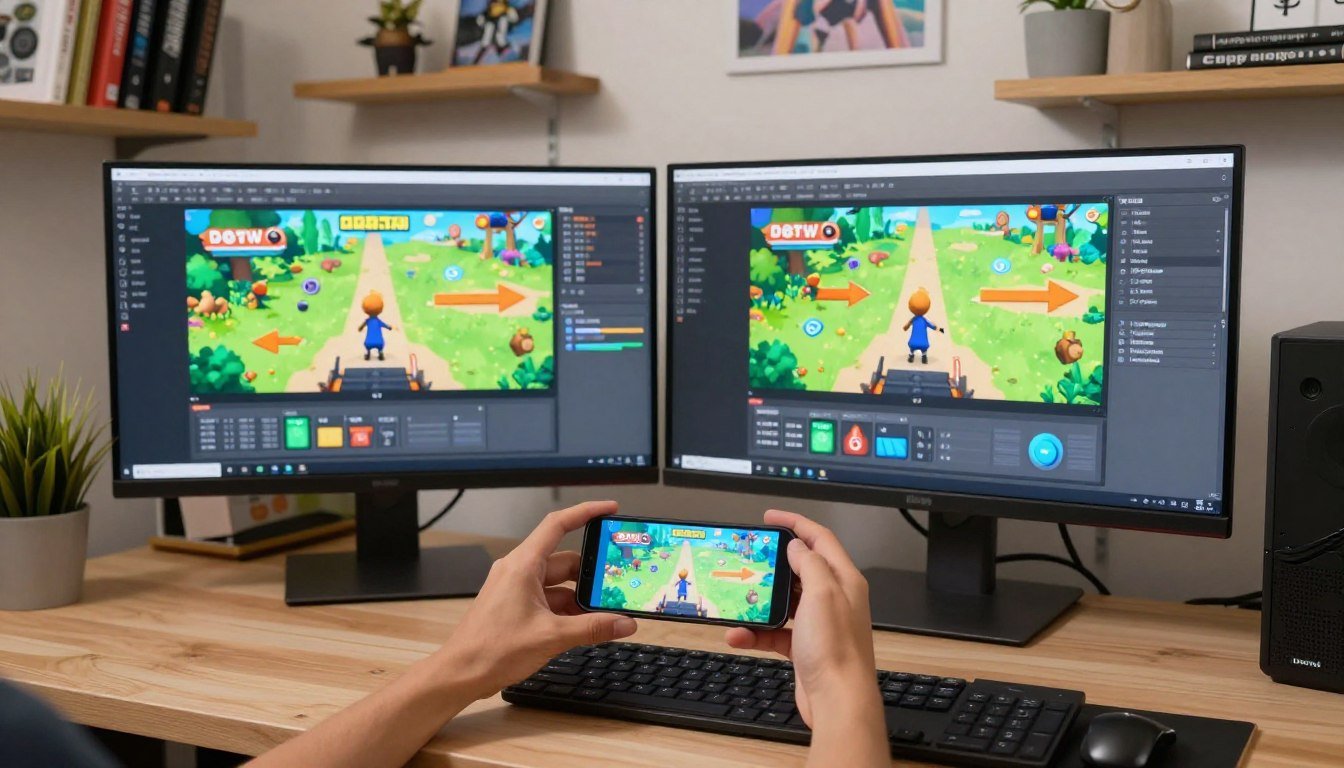
Build a lightweight controller that reads step assets, gates progress by events, and keeps taps responsive. Use ScriptableObject steps so your onboarding content is editable in the editor and not hardcoded into scripts.
Create a TutorialStep asset and drive it with a state machine
Define a ScriptableObject with fields like id, title, body, targetSelector, requiredEvent, autoAdvance, and nextStep. This lets designers swap content, test types of callouts, and change preferences without a code rebuild.
Working pattern: gating, persistence, and skip
Below is a compact, paste-ready pattern you can drop into your project. It avoids per-frame string allocations and keeps UI rebuilds minimal. Use PlayerPrefs for quick persistence and a Skip button to mark completion.
using System;
using UnityEngine;
using UnityEngine.UI;

[CreateAssetMenu(menuName = "Onboard/TutorialStep")]
public class TutorialStep : ScriptableObject {
  public string id;
  public string title;
  public string body;
  public string targetSelector;
  public string requiredEvent;
  public bool autoAdvance;
  public TutorialStep nextStep;
}

public static class TinyEventBus {
  public static event Action OnEvent;
  public static void Raise(string name) => OnEvent?.Invoke(name);
}

public class TutorialController : MonoBehaviour {
  public TutorialStep firstStep;
  public GameObject calloutPrefab;
  public Button skipButton;
  TutorialStep current;

  void Start() {
    skipButton.onClick.AddListener(CompleteAll);
    if (PlayerPrefs.GetInt("tutorial_complete",0)==1) return;
    current = firstStep;
    ShowStep(current);
  }

  void ShowStep(TutorialStep step) {
    // instantiate once; update text only when step changes
    var callout = Instantiate(calloutPrefab, transform);
    callout.GetComponentInChildren().text = step.title + "\n\n" + step.body;
    if (!string.IsNullOrEmpty(step.requiredEvent))
      TinyEventBus.OnEvent += OnGateEvent;
  }

  void OnGateEvent(string name) {
    if (current == null) return;
    if (name == current.requiredEvent) Advance();
  }

  public void Advance() {
    TinyEventBus.OnEvent -= OnGateEvent;
    PlayerPrefs.SetString("tutorial_step", current?.id ?? "");
    current = current?.nextStep;
    if (current==null) CompleteAll();
    else ShowStep(current);
  }

  public void CompleteAll() {
    PlayerPrefs.SetInt("tutorial_complete",1);
    PlayerPrefs.Save();
    // cleanup visuals
  }
}- Wire the controller in the unity editor: place the Canvas, hook skip and Next buttons, and use prefabbed callouts sized for safe areas and thumb reach.
- Keep animations short and draw calls low to protect mobile performance and battery.
Define what your first session must teach on mobile
Start your first session by forcing only one outcome: a quick, measurable win that proves the core loop. Pick a single goal the player can reach in the first minute. That win is the lens for all instructions and pacing.
Pick a single “first win” and cut everything else
Choose one measurable win—finish a match, clear a room, place the first building, or complete one run. Make every step drive that outcome. Trim extras that distract from progress.
Map inputs to thumbs, not desktop controls
Identify the minimum input vocabulary: one movement gesture, a primary action, confirm/cancel, and a recovery loop. Place the primary action inside the natural thumb arc. Avoid forcing hand shifts to top corners.
Design for short sessions and interruptions
Assume players will pause or get a call. Save progress per step so you resume without replaying long text. Teach with short bursts: show one instruction, let the player act, then advance.
| Goal | Input Vocabulary | Thumb Placement | Interruption Handling |
|---|---|---|---|
| First win (clear room) | Move, primary action, cancel | Bottom-right primary; left for movement | Save step ID; resume on return |
| First win (place building) | Tap, drag, confirm | Place controls near thumb arc | Auto-save placement preview |
| First win (complete run) | Swipe, tap, recover hint | Center-bottom action area | Resume at last actionable prompt |
- Teach recovery: give a quick hint when players fail instead of forcing a restart.
- Make the first minute playable one-handed where possible; introduce second-thumb controls after the win.
These constraints keep your game flow tight and reduce drop-off. Use this plan to make game onboarding that respects the player’s time and space while collecting useful information for future learning and game development decisions.
unity in-game tutorial system beginner: structure that scales past the first level
Plan an onboarding structure that scales from a short guided run to contextual hints that appear later. Start with a linear pass that guarantees the first win. Then let a lightweight hint layer handle problems without rebooting the experience.
Linear onboarding vs context-sensitive hints
Ship two types you can actually maintain: a linear onboarding (Step 1 → N) and a context-sensitive hint service that fires based on player signals.
The linear path teaches core mechanics fast. Context hints cover edge cases: opening a menu for the first time, failing a jump three times, or hesitating for twenty seconds.
Trigger rules: time, location, failure count, and UI interaction
- Use data-driven triggers: session time, map zone, failure_count, first_ui_open, or inventory flags.
- Store triggers as small assets or JSON so designers tune thresholds without code changes.
- Context hints reduce churn by waiting until the player shows confusion, not just on first entry.
Re-entry rules when players reinstall or switch devices
Decide a clear policy: re-run onboarding, offer skip/restore, or consult cloud saves. Make the choice obvious at first launch to avoid surprising returning players.
Saving tutorial progress with PlayerPrefs vs a local file
| Method | Pros | Cons |
|---|---|---|
| PlayerPrefs | Fast, simple, integrates with preferences | Weak versioning; easy to tamper |
| Local JSON | Schema, version fields, sanity checks | More code; still device-bound |
| Cloud save / services | Restores across devices; reliable for paid users | Requires auth, privacy docs, and sync logic |
Keep tutorial flags minimal and avoid mixing them with analytics IDs. If you store any personal identifiers or use cookies for sync, document it in privacy preferences and keep data retention short.
UI and readability for phones you don’t own
Design for the widest range of screens you cannot test directly. Small differences—an extra notch, new gesture bar, or odd aspect ratio—break callouts fast. Make layout choices that keep text legible and tap targets safe across devices.
Canvas Scaler: settings that survive many screens
Use Scale With Screen Size on the Canvas Scaler when your UI must adapt. Pick a reference resolution close to the median phone you target. Tune the match value: favor 0 for pixel-perfect icon layouts, 1 for text-heavy callouts.
Set local anchors in the editor so callouts pin to corners or world-space targets without snapping. Save these settings as scene presets for repeatable pages and variants.
Safe areas, notches, and gesture bars
Wrap callouts in a Safe Area container that reads the device inset. Place Next and Skip inside that container so system gestures never hide controls.
- Anchor arrows to world-to-screen points, then clamp them to safe bounds.
- Keep overlays off the action area; prefer offset callouts with clear arrows.
Text size, contrast, and tap targets
Use a minimum hit area of ~44×44 dp for primary buttons. Expand invisible hit zones for small icons near edges to avoid gesture nav conflicts.
Shorten lines to 35–45 characters. Choose high-contrast weights and avoid thin fonts on low-end panels. Test outdoors under bright light.
| Problem | Action | Benefit |
|---|---|---|
| Clipped buttons | Safe Area container | Visible controls across devices |
| Tiny hit zones | Increase hit area to 44dp | Fewer mis-taps |
| Layout thrash | One-time rebuild per step | Stable frame rate |
Reduce layout thrash by avoiding repeated toggles of nested layout groups. Use simple images for highlights and rebuild layout once per step. A common gotcha in unity: many canvases plus frequent changes inflate draw calls. Group overlay elements to control batches and protect performance and physics updates on weak devices.
Instrumentation that tells you where players quit
Good instrumentation shows the moment a player quits and the action that preceded it. Build events that map directly to steps so you can spot exact failure points.
Track step timing and drop-off
Log the minimal set of events that answer product questions — not vanity metrics. At a minimum you need:
- tutorial.step_start + step_id
- tutorial.step_complete + step_id
- tutorial.step_time (ms) per step
- tutorial.skip and tutorial.hard_dropoff (session end during step_id)
Naming stability and separation
Use a stable step_id that survives copy edits. Keep tutorial events in a dedicated bucket so onboarding health stays separate from gameplay telemetry. Naming stability matters because refactors and UI changes should not break historical comparisons.
| Topic | Action | Why |
|---|---|---|
| Analytics source | Raise from controller only | Single source of truth; fewer stray calls |
| Privacy | Send minimal info; avoid PII | Comply with policies and third party services |
| Docs | Reference Unity Manual for PlayerPrefs & events | Platform behavior and persistence guidance |
Document every event you send to advertising or analytics services. Keep a short schema on your site or internal docs so development, analytics, and privacy reviews align.
Performance constraints that tutorials often break on mobile
A smooth onboarding depends on keeping rendering, allocation, and thermal cost tiny. Mobile hardware has far less headroom than desktop, so your overlays and prompts must be lean.
Keep draw calls down when you add highlight overlays and arrows
Dim screens with cutouts and many arrows can add canvases and materials. Try to use a single Canvas and a single material where possible.
Prefer a single overlay with a movable mask or “hole” instead of instantiating many sprites. Pool any repeated arrows or icons to avoid per-step spikes.
Avoid GC spikes from string allocations and frequent UI rebuilds
Do not build strings every frame for timers or logs. Cache references and update UI only when the step changes.
Avoid LINQ in hot paths and be wary of LayoutGroups and ContentSizeFitter. Animating properties that trigger full layout recalcs will cost time and frames.
Battery and thermal: throttle animations and update loops
Keep pulsing glows, particle effects, and Update loops off when the overlay is hidden. On low-end phones, aggressive animation raises temperature and reduces CPU/physics time for your game.
Memory budgeting for tutorial textures, fonts, and audio prompts
Compress tutorial textures, consolidate font atlases, and keep audio clips short. Mobile GPUs and RAM are limited; budget assets per scene and unload them after use.
| Issue | Concrete fix | Why it helps |
|---|---|---|
| Excess draw calls | Single Canvas + mask; pooled icons | Fewer batches; lower GPU cost |
| Frequent GC | Cache strings; avoid per-frame allocations | Smoother frames; less jank |
| Thermal/ battery drain | Throttle animations; stop idle Update loops | Reduced throttling; consistent time and physics |
| Duplicate controllers | Guard single-instance across scene loads | Avoid double UI, double subscriptions, and crashes |
Beginner mistakes that cause tutorial churn and how you prevent them
Minor UI assumptions often turn simple instructions into blockers for new users. Fix these common errors in your project early so the player keeps moving and learns without frustration.
Blocking input instead of guiding it
Full-screen raycast blockers feel like the game is broken. Let taps pass where possible and guide attention with a highlight and a short prompt.
Offer an active “Try it now” prompt so players act while reading one line of copy.
Too much text, too early
Long paragraphs on phones make people exit. Keep each callout to one action and one reason.
Spread teaching across interactions: show, let the player try, then reinforce with a micro hint.
Hardcoding step order and tight scene coupling
A check like if (step == 3) fails when UI changes. Use asset-driven steps with stable IDs and event gating instead.
Avoid direct references to scene objects. Use selectors, anchors, or registration patterns and fail gracefully if a target is missing.
Forgetting accessibility basics on mobile screens
Low contrast, tiny hit areas, and color-only cues exclude players. Use 44×44 dp targets, strong contrast, and icon + text combos.
Always include Skip and a replay option in settings so returning players skip onboarding if they want.
- Test across aspect ratios and safe areas; the editor view can lie.
- Keep analytics per step so you can spot where churn happens and iterate fast.
| Mistake | Symptom | Quick fix | Why it helps |
|---|---|---|---|
| Blocking input | Players think UI is frozen | Use focused highlights; allow taps | Reduces frustration and accelerates learning |
| Too much text | High drop-off on first minute | One action + one reason per callout | Improves retention and completion |
| Hardcoded order / scene refs | Broken flows after UI edits | Asset-driven steps; event gates | Makes the flow robust to editor changes |
| Accessibility misses | Failing users with low contrast or small taps | Enforce contrast, larger hit areas, icon cues | Broadens reach and reduces support asks |
References and industry-proven practices you can copy safely
Collect a short list of trusted references to guide your implementation. These will save time and reduce guesswork while you wire UI, events, and persistence.
Official docs and learning pathways
Keep the Unity Manual open for Canvas, Canvas Scaler, and safe area guidance. Use the Scripting API pages for PlayerPrefs and serialization details.
Use Unity Learn “Unity Essentials” to cement editor workflow, prefabs, components, and basic scripts before you build onboarding assets.
Industry practice and GDC takeaway
Adopt the “time-to-first-fun” or first win metric as your north star. If a step does not move a player toward that win, cut it.
A GDC takeaway: reduce forced pauses. Let players act quickly, teach in context, and treat each stop as a retention cost to justify with data.
| Resource | What to use | Why it helps |
|---|---|---|
| Unity Manual / Scripting API | Canvas, PlayerPrefs, serialization | Accurate platform behavior and persistence rules |
| Unity Learn: Unity Essentials | Prefabs, editor workflow, basic scripts | Fast skill ramp for developers and designers |
| GDC talks & industry blogs | Onboarding patterns; first win guidance | Proven UX tactics that cut churn |
| Community channels | Code samples and patterns | Practical fixes and performance tips |
Be cautious with third party analytics and advertising services: document what they collect, update privacy docs, and avoid gating onboarding behind ads or impressions.
Conclusion
Close the loop with a minimal, extendable pattern you can reuse across every scene and tune with real data.
Ship a shipped-ready baseline: editable TutorialStep assets, a controller state machine, event gating, safe persistence and Skip wired through a single Canvas overlay in the Unity editor. This gives you a predictable code surface to iterate from.
Define mobile success as the first win: teach by doing, keep copy short and visible under thumbs and notches, and respect player preferences and settings on resume.
Scale with contextual hints driven by analytics, robust re-entry rules, and persistence that survives interruptions and device changes.
Keep strict performance guardrails: limit draw calls, avoid GC spikes, throttle animations for battery and thermal, and budget memory for assets. Instrument step timing and drop-off, fix the worst step first, and use data to tune the player experience.
Next action: visit PlayMobile.online to grab the pattern you can extend instead of rewriting when UI changes.

Game developer with over 10 years of professional experience specializing in the mobile sector. George’s journey began with a passion for indie development, leading him to contribute to several successful mobile titles, including the critically acclaimed puzzle-platformer ChronoShift and the top-down strategy game Pocket Empires.