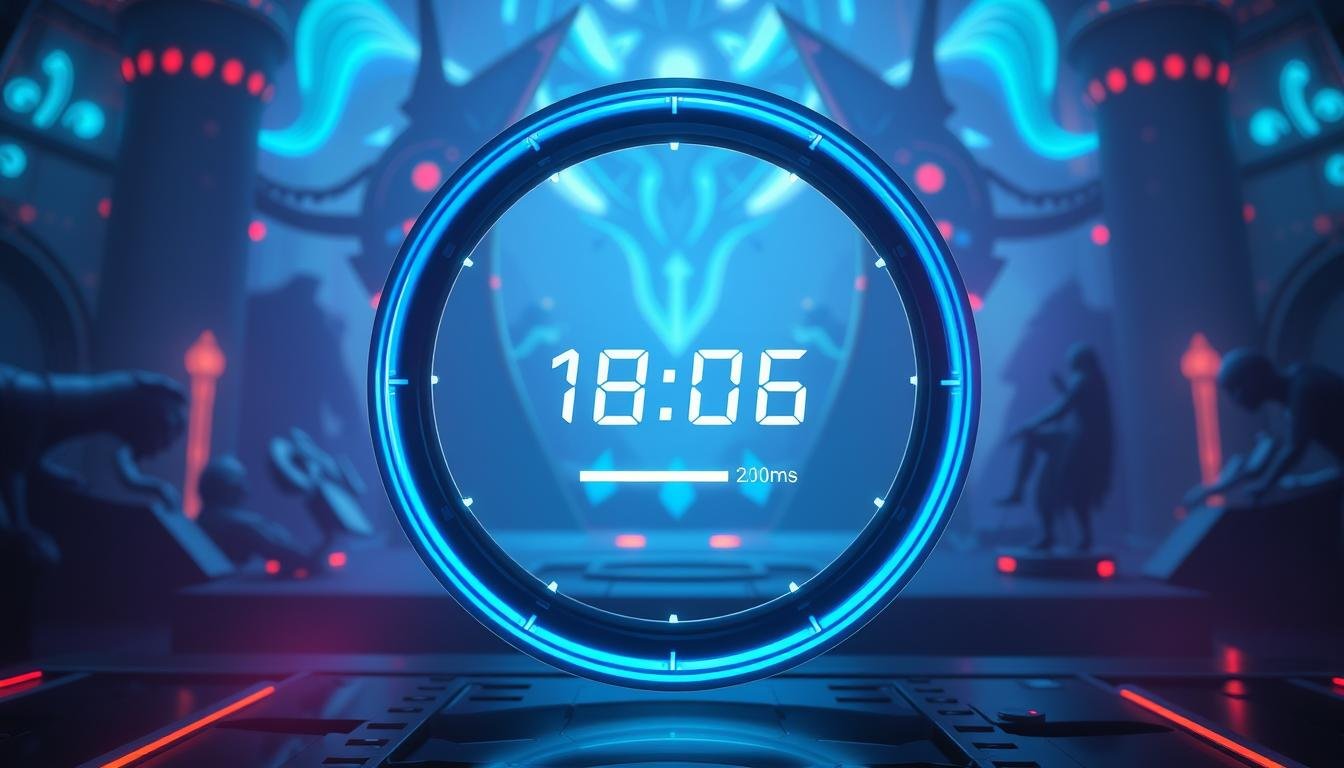
In modern game development, visual feedback is crucial for player engagement. Circular indicators for ability cooldowns provide immediate, intuitive understanding of skill availability. These elements transform abstract timing data into compelling visual communication that enhances gameplay flow.
The circular design offers superior spatial efficiency compared to linear alternatives. This allows interface designers to maximize screen real estate while maintaining clear readability during intense gameplay moments. Developers have multiple implementation pathways available, each with distinct advantages for different project requirements.
This comprehensive guide explores professional techniques for creating, customizing, and optimizing circular indicators specifically for skill cooldown mechanics. Thoughtful design not only conveys functional information but also reinforces the game’s aesthetic identity. Understanding the relationship between visual feedback timing and player perception enables developers to create responsive, satisfying experiences.
Key Takeaways
- Circular indicators provide superior visual feedback for skill cooldowns
- They offer better spatial efficiency than linear alternatives
- Multiple implementation approaches exist for different project needs
- Good design enhances both functionality and game aesthetics
- Visual timing directly impacts player perception of responsiveness
- Proper implementation bridges player actions with system responses
- Customization options allow for unique visual identities
Introduction to Circular Progress Bars and Their Role in Game Skill Cooldowns
Visual feedback systems in games rely heavily on circular designs to convey complex timing data with immediate clarity. These specialized visual elements transform numerical countdowns into intuitive spatial representations that players can process quickly.
Understanding the Concept of Circular Progress Bars
Circular progress indicators represent a unique type of visual control that displays progress information in radial format. The fundamental concept involves mapping time values to circular fill amounts, creating a clear visual metaphor.
This approach translates abstract timing data into spatial relationships that human perception processes efficiently. The circular design naturally complements many game interface elements.
Advantages for Skill Cooldowns in Game Development
Circular variants excel in compact interface designs where screen space is limited. They allow developers to maximize visibility while maintaining clear readability during intense gameplay moments.
The radial format reduces cognitive load by providing immediate user feedback about ability availability. This type of visualization serves dual purposes: communicating timing information while reinforcing game rhythm.
Well-designed circular elements integrate seamlessly with existing frameworks. They function as specialized controls that accept timing inputs and translate them into smooth visual outputs.
Setting Up Your Unity Environment for Progress Bar Integration
The foundation for successful circular cooldown visualization begins with proper environment configuration. Developers must establish a workspace that supports efficient development workflows and seamless integration.
This preparation phase ensures that all necessary tools and dependencies are available before implementation begins. A well-configured environment accelerates the development process significantly.
Installing and Configuring Necessary Packages
Begin by verifying your Unity version compatibility. The UI Builder tool for visual element creation became built-in starting with version 2021.1.
Earlier versions require package installation through the Package Manager. Confirm that your project supports the desired rendering pipeline for optimal performance.
Circular indicator implementations work across Built-in, URP, and HDRP pipelines. For pre-built solutions, consider the UnityProgressBar repository which offers robust components under MIT license.
Leveraging the UI Toolkit and Figma References
Access Window > UI Toolkit > UI Builder to enable visual creation of interface assets. This tool allows designers to construct element structures without writing initial code.
Integration with Figma references maintains visual consistency between mockups and final implementation. Official design resources provide standardized patterns that align with established UX principles.
The package configuration process should include importing dependencies for UI manipulation. Ensure all required class libraries are available for runtime data binding between timing systems and visual representation.
Implementing the unity progress bar ui in Your Project
When bringing circular skill indicators to life in your project, selecting the right implementation approach is critical for both performance and visual quality. The choice between different Unity classes depends on your specific runtime requirements and development workflow.
Creating and Integrating the Base Progress Bar Component
The UI Toolkit’s ProgressBar control serves as the foundation for circular skill visualization. This component efficiently displays progress between defined lower and upper bound parameters.
Developers can instantiate these elements through C# scripting or UXML markup. The tag enables declarative integration for static interface designs. Programmatic creation offers flexibility for dynamic UI generation during gameplay.
Proper integration involves positioning the element to overlay ability icons and establishing data binding connections. This ensures cooldown timer values directly control the visual fill amount. The architecture should separate game logic from visual representation for maintainability.
Utilizing Existing Classes like Progress and EditorUtility.DisplayProgressBar
Different Unity classes serve distinct purposes in progress visualization. The EditorGUI.ProgressBar class provides IMGUI-based solutions primarily for tool development.
EditorUtility.DisplayProgressBar creates native dialogs for lengthy operations that affect editor responsiveness. The Progress class reports asynchronous task completion to Unity’s Background Tasks window.
Each class type addresses specific development scenarios. Runtime game interfaces typically benefit most from UI Toolkit elements for optimal player interaction with skill cooldowns.
Customizing and Styling the Circular Progress Bar
Customization transforms functional progress indicators into compelling visual elements that reinforce game identity. This process involves adjusting visual properties to create intuitive player feedback systems.
Adjusting Colors, Background, and Style Settings
Begin customization by modifying fill colors and background elements. Choose hues that provide sufficient contrast against various interface content.
Background customization defines the unfilled portion of the circular indicator. Use semi-transparent colors that communicate unavailable status without obscuring underlying elements.
Style configurations should create clear visual hierarchy through color intensity and animation prominence. This helps players prioritize attention during gameplay.
Enhancing Visual Appeal with UI Builder and Custom Loaders
The UI Builder enables visual editing of USS properties for complete element hierarchies. Designers can adjust parent container styling and child element positioning.
Custom loaders require careful implementation based on available progress data. For known durations, use true percentage indicators.
Avoid progress-style visuals for indeterminate states to prevent user confusion. This consideration is particularly important for accessibility.
Best Practices in Displaying Progress Data
Position progress elements as children of their associated ability containers. This maintains spatial relationship between action and feedback.
Display indicators in the same view where the triggering action occurs. This minimizes cognitive mapping effort during intense gameplay moments.
When multiple abilities activate simultaneously, use individual focused elements rather than separate indicators. This approach maintains clear visual communication.
Optimizing Performance and User Interaction
Efficient performance and intuitive user interaction are critical factors for maintaining smooth gameplay experiences. Well-architected systems prevent visual hiccups that can disrupt player immersion during intense action sequences.
Managing Data and Progress Updates Efficiently
Smart update strategies are essential for handling multiple simultaneous cooldowns. Instead of refreshing every frame, systems should calculate changes only when the actual value shifts.
This reduces unnecessary processing load. A central manager can batch process timing data for all active abilities.
Using delta-time calculations ensures visual updates remain smooth and consistent. Interpolation techniques create fluid animations between discrete time values.
Improving User Feedback and Control During Operations
Player control remains paramount even during cooldown sequences. The circular element should be a non-interactive child within a parent container that accepts input.
This allows ability queuing or detailed info viewing without obstruction. Focus management uses subtle audio or haptic cues to signal completion.
Accessibility features like tooltips with precise time remaining accommodate diverse user needs. For lengthy editor operations, cancelable dialogs give users control.
Container-based architecture clearly communicates whether a cooldown applies to a single skill or the entire interface. This prevents confusion during complex gameplay moments.
Conclusion
Mastering circular cooldown indicators represents a significant advancement in game interface design. These visual systems bridge technical implementation with player psychology.
The comprehensive approach from environment setup to performance optimization provides developers with professional techniques. Proper implementation ensures these elements display progress clearly while maintaining aesthetic integrity. This creates engaging experiences that serve diverse player needs.
Successful systems require careful control over timing values and visual feedback. Developers must balance technical precision with user-centered design principles.
Continuous testing and refinement based on player feedback lead to exceptional results. The principles covered establish a foundation for creating intuitive cooldown visualization that enhances gameplay flow.
FAQ
What is the main advantage of using a circular element for displaying skill cooldowns?
Can I use the built-in EditorUtility.DisplayProgressBar method for my in-game interface?
How can I make the progress bar fill smoothly instead of in discrete chunks?
What are some best practices for styling the visual component to ensure clarity?
How do I handle multiple cooldown timers efficiently without performance issues?

Game developer with over 10 years of professional experience specializing in the mobile sector. George’s journey began with a passion for indie development, leading him to contribute to several successful mobile titles, including the critically acclaimed puzzle-platformer ChronoShift and the top-down strategy game Pocket Empires.