Making mistakes is a natural part of any interactive experience. In gaming, players often learn through trial and error. However, the best kind of mistake is the one that never happens. Thoughtful design can guide people away from unnecessary frustrations before they occur.
This approach focuses on creating systems that feel intuitive. It’s about understanding how people think and interact with an interface. The goal is to eliminate confusion caused by poor design, not to remove all challenge from the activity.
Effective design anticipates where a user might stumble. It uses visual cues and logical layouts to build confidence. This creates a smoother, more engaging experience where players can focus on the fun, not on fighting the controls.
Key Takeaways
- Proactive design that prevents mistakes is more effective than reactive explanations.
- Mistakes are inevitable, but good design minimizes unnecessary frustration.
- The goal is to eliminate confusion, not to remove all challenge from the experience.
- Understanding user behavior is key to anticipating potential problems.
- Intuitive interfaces allow people to focus on the task, not the tools.
- Visual cues and logical layouts are essential for guiding user interaction.
- This philosophy applies especially well to fast-paced, interactive environments.
Understanding Error Prevention Patterns in Game UI Flows
By understanding how people think and act, designers can construct layouts that minimize the chance of mistakes. This approach centers on systematic methods that anticipate common issues. The goal is to guide individuals toward successful outcomes naturally.
The Skill-Rule-Knowledge framework helps categorize different mistake types. In interactive entertainment, skill-based mistakes are most frequent. These occur during automatic actions rather than conscious decisions.
Skill-based mistakes break down into two categories. Slips happen when a physical action goes wrong, like pressing an incorrect key. Lapses occur when a mental step is forgotten, such as neglecting to equip an item.
These automatic behaviors dominate in fast-paced environments. Players operate under time pressure and high cognitive load. This makes them more likely to rely on muscle memory, increasing the risk of slips and lapses.
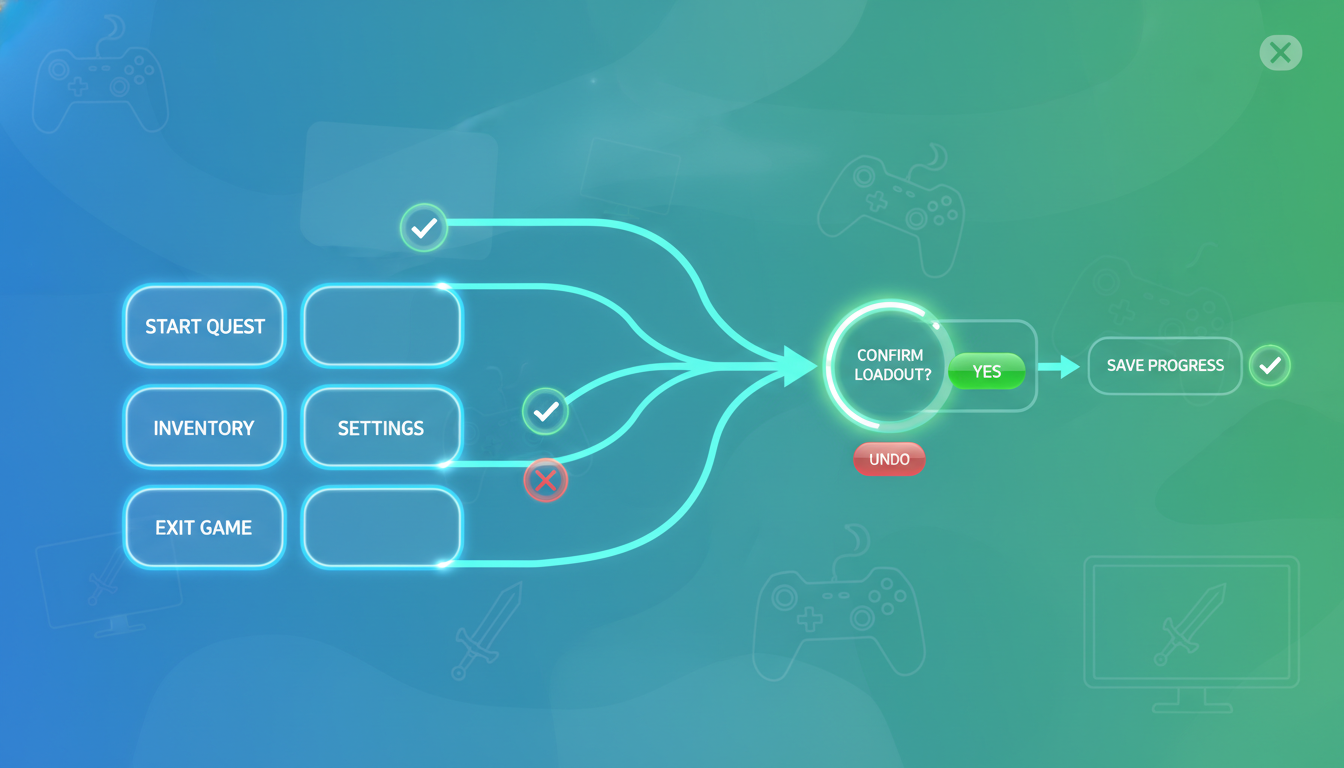
Effective design strategies work in several key ways. They can eliminate the conditions that lead to problems. They also provide clear feedback before an action becomes costly. Another method is making the correct interaction feel more intuitive than the incorrect one.
A crucial balance must be struck. The aim is to reduce frustrating interface-related issues. At the same time, intentional gameplay challenges that are core to the experience must be preserved.
| Mistake Type | Cause | Common Example | Design Solution Focus |
|---|---|---|---|
| Slip | Automatic physical action | Accidentally using the wrong ability | Input confirmation, clear button mapping |
| Lapse | Forgotten mental step | Starting a match without proper gear | Checklists, proactive reminders |
Designers must also account for varying skill levels. Newcomers need more guidance to build confidence. Experts, however, rely on sophisticated automatic skills and require interfaces that don’t hinder their speed.
The Impact of Directional Cues on User Navigation
Directional cues serve as silent navigators within complex interface landscapes. These visual elements guide people toward important actions without requiring extensive explanation. They function like road signs, providing immediate understanding through universal symbols.
Well-designed cues capture user attention at critical moments. They help individuals find their way through unfamiliar digital spaces. This approach reduces frustration by anticipating where guidance might be needed.
Using Arrows and Visual Prompts Effectively
Arrows and pointers work because they speak a visual language everyone understands. They direct attention to specific interface elements without blocking content. The best designs are noticeable but not distracting.
Strategic placement prevents common mistakes before they happen. For example, pointing toward a primary button helps users take the correct action. This is especially valuable during learning phases when people are most vulnerable to confusion.
Real-World Examples from Digital Products
Many successful platforms use directional cues to enhance experience. A service hiring digital artists uses subtle pointers to highlight their call-to-action. The Nonconventional Show website employs playful arrows that guide visitors to important sections.
These examples show how visual prompts complement good layout design. They work with existing structure rather than compensating for poor planning. The result is interfaces that feel intuitive and supportive.
Enhancing Onboarding Tutorials and Tooltips to Prevent Errors
Welcoming screens and helpful prompts create a supportive environment for newcomers. These initial interactions build confidence and establish correct usage patterns from the start.
Key Elements of Effective Onboarding
Successful onboarding introduces features gradually. It avoids overwhelming people with too much information at once. This progressive approach helps users absorb critical details.
Hands-on practice opportunities make learning interactive. They allow individuals to apply knowledge immediately. Clear explanations of unique interface conventions prevent future confusion.
Initial screens should demonstrate essential functions that stop common mistakes. Prioritizing high-impact knowledge ensures player success. This focused approach makes the learning process efficient.
Integrating Tooltips for Proactive Guidance
Tooltips offer immediate help when users need it most. They appear at the moment of interaction, providing contextual support. This just-in-time assistance prevents wrong actions.
Careful timing ensures tooltips appear when guidance is truly needed. They should not trigger too early or persist after understanding is shown. Proper implementation requires observing where people commonly struggle.
Both systems should remain accessible for future reference. Players who skip tutorials or need reminders can access help easily. This maintains support throughout the entire experience.
| Feature | Onboarding Tutorials | Tooltips |
|---|---|---|
| Timing | Initial product introduction | Contextual during interaction |
| Scope | Comprehensive system overview | Specific element guidance |
| Purpose | Establish foundational knowledge | Prevent immediate mistakes |
Visualized Limitations and Inline Validation Practices
Real-time feedback systems transform how people interact with digital forms by showing boundaries before they’re crossed. This approach prevents wasted effort and frustration. Users appreciate knowing the rules upfront.
Designing Visual Feedback for Input Constraints
Twitter’s character counter provides a perfect example of effective constraint visualization. As you type, the interface shows exactly how much space remains. When you exceed the limit, extra text gets highlighted and the tweet button becomes inactive.
This immediate feedback saves users time and prevents unnecessary clicks. The system communicates limits clearly through color changes and number updates. Visual markers help people understand constraints without reading instructions.
Best Practices for Inline Error Notifications
Inline validation provides feedback during form completion rather than after submission. This allows corrections field-by-field instead of facing a long error list. Proper timing is crucial for effectiveness.
Validation should trigger after users finish typing in a field. Empty fields shouldn’t show errors prematurely. This prevents negative reactions and keeps focus on the task.
Effective notifications explain what went wrong and how to fix it. Use red for problems and green checkmarks for valid entries. These universal colors reduce cognitive load.
Controls should remain inactive until issues get resolved. This prevents cascade failures from invalid submissions. Clear communication about required fixes maintains user confidence throughout the process.
Leveraging Text Prompts for Clear User Guidance
Clear text guidance bridges the gap between designer intent and user understanding. What seems obvious to creators can confuse people interacting with a product for the first time.
Well-crafted prompts provide immediate support right where it’s needed most. They prevent mistakes by clarifying what information belongs in each field.
Creating Concise and Informative Prompts
Effective text prompts share several important characteristics. They must be brief yet comprehensive enough to guide correct input.
The best prompts anticipate common questions before users ask them. They use simple language that matches the audience’s vocabulary rather than technical jargon.
Visual distinction is crucial for prompt effectiveness. Using lighter colors or italic styling helps people recognize these as examples rather than pre-filled content.
- Search fields benefit from prompts like “Find players or items”
- Email fields might show “e.g., name@domain.com”
- Form fields can indicate expected format clearly
Usability testing reveals where people struggle most with interface elements. This data helps designers place prompts where they provide maximum value.
When implemented thoughtfully, text prompts become invisible helpers. They support smooth interaction without drawing attention to themselves.
Empowering Users with Preview Features and Suggestions
Preview systems transform decision-making by showing outcomes before commitment. This approach gives people confidence in their choices. It eliminates the anxiety of irreversible actions.
Real-time previews work exceptionally well for customization options. When selecting character appearances or interface themes, users can evaluate results instantly. This prevents the frustration of discovering unwanted changes after confirmation.
Implementing Real-Time Previews
Platforms like WordPress demonstrate preview functionality effectively. Writers can review post changes before publishing. This catches formatting issues and content mistakes early.
Preview features collapse the error-and-correction cycle into one efficient interaction. Users avoid backtracking through multiple steps. The system builds trust through transparent results.
Using Autocomplete and Suggestive Inputs
Autocomplete suggestions guide users toward valid options. As people type, the system offers relevant choices from known-good lists. This reduces manual typing where mistakes commonly occur.
Suggestive inputs help discover available entries users might not know exist. They prevent invalid inputs while maintaining speed. The balance between helpfulness and performance is crucial.
These empowerment features work best as optional enhancements. Expert users can bypass previews while novices benefit from confirmation. This flexibility accommodates different skill levels effectively.
Utilizing Clear Explanations and Microcopy for Error Avoidance
The language used in digital products plays a crucial role in shaping how people interact with systems. Well-written microcopy provides essential guidance that helps users navigate interfaces successfully.
Every button label, tooltip, and instruction contributes to the overall experience. When crafted carefully, these small pieces of text prevent confusion before it occurs.
Developing Concise and Consistent Instructions
Effective instructional text follows a simple framework. The four key qualities are clarity, conciseness, usefulness, and consistency.
Clear messages ensure users understand exactly what you’re communicating. Avoid technical jargon and complex sentences that require multiple readings. Straightforward language communicates instantly.
Concise text respects people’s attention by eliminating unnecessary words. Brief instructions get absorbed quickly while verbose explanations often go unread. Keep every word meaningful and focused on the goal.
Useful copy directly addresses user needs rather than filling space with obvious statements. It provides necessary information that helps with interactions and decision-making.
Consistency in terminology and tone across the interface reduces cognitive load. Users learn patterns once and apply that knowledge everywhere. This creates a cohesive experience that feels intuitive.
Developing effective microcopy requires understanding common confusion points. Address specific misunderstandings with targeted text that guides users toward correct actions.
Integrating Color Accents in UI for Better Error Prevention
Color communicates faster than words in digital interfaces. It guides attention to important elements without requiring conscious reading. This visual language helps people navigate complex systems more intuitively.
Strategic color application creates clear visual hierarchies. Primary actions stand out while secondary elements recede. Users can quickly identify what matters most in any screen layout.
Using Color Contrast to Highlight Key Elements
High contrast makes critical components impossible to miss. The Drink Recipe app uses bold colors to show active tabs. This eliminates confusion about current selections.
Shopping carts benefit from color-coded item counts. A food delivery service displays cart totals in bright hues. Users see their order status at a glance without extra clicks.
Ecommerce designs use contrasting colors for primary buttons. Action figure apps make purchase buttons the most visible elements. This reduces search time and incorrect taps.
The Otozen driving app color-codes data categories for quick scanning. Different information types become instantly recognizable. This is crucial for time-sensitive decisions.
Effective color design considers accessibility needs. Colorblind users require additional visual markers like icons or patterns. Consistent color meanings throughout the interface build reliable mental models.
Utilizing Familiar Icons and Icon Labels for Intuitive Interfaces
Universal symbols create instant understanding across different user backgrounds. Icons function as visual shortcuts that everyone can recognize quickly. This approach benefits people with various reading abilities and language skills.
Well-chosen icons leverage associations people bring from other digital products. A magnifying glass means search, a shopping cart indicates purchases. These conventions become second nature to regular users.
Choosing Recognizable Icons for Common Functions
The brain processes images much faster than text. This speed advantage only works when icons have clear meanings. Ambiguous symbols actually slow people down as they try to interpret them.
Resist creative experimentation with basic controls. Innovation often creates confusion rather than delight. Stick with universally understood symbols for critical functions.
Icons provide particular value for users with reading difficulties or language barriers. They make interfaces more accessible while speeding interactions for everyone. The visual processing happens almost automatically.
When space allows, combine icons with text labels. This creates a fail-safe system where the icon offers speed and the label ensures clarity. This combination prevents mistakes caused by misunderstood symbols.
Effective icon selection requires understanding your audience’s experience level. Symbols that seem obvious to designers might confuse new users. Test icons with different user groups to ensure universal recognition.
Recognizable Patterns that Enhance User Experience
Established conventions in digital design serve as a universal language that people understand instinctively. These familiar layouts and interactions create immediate comfort for anyone navigating a new system.
Standard navigation models follow expectations built through countless previous experiences. Clickable header logos returning to home pages represent one such convention. Contact information placed in website footers represents another expected pattern.
Standard Navigation and Interaction Models
Interaction conventions communicate functionality through visual shorthand that requires no learning. Underlined text links clearly indicate clickable elements. Plus icons universally signal controls for adding items.
Breadcrumb navigation provides constant orientation in complex architectures. This prevents the common problem where individuals lose track of their location. Easy backtracking reduces navigation mistakes before they occur.
Lazy registration via social network accounts reduces manual input requirements. This approach acknowledges that authentication flows often cause frustration. Streamlined processes lower barriers to entry while minimizing input mistakes.
The GNO Blankets website demonstrates effective pattern implementation. Their cart icon appears in the typical header location. Footer content follows expected conventions with subscription forms and social links.
Following recognizable models doesn’t mean sacrificing visual identity. Designers can maintain distinctive styling while using conventional interaction methods. This balance creates interfaces that feel both fresh and familiar.
Thoughtful research helps identify which patterns resonate most strongly with specific audiences. Testing reveals where established conventions provide the most value. This data guides designers toward the most user-friendly solutions.
The Role of Progress Animation in User Feedback
The uncertainty of waiting can be transformed into informed patience through thoughtful visual design. Moving elements tell people that work is happening behind the scenes.
This approach prevents frustration during delays. Users understand the system status instead of guessing.
Visual Cues to Reduce User Uncertainty
Progress indicators serve dual purposes. They show system activity while maintaining engagement. The Grammarly tool demonstrates this well with loading animation and explanatory text.
Effective feedback prevents unnecessary actions. People avoid repeated clicks when they see movement. This reduces mistaken attempts to resolve perceived problems.
Different situations require different indicator types. Determinate progress bars work for predictable tasks. Indeterminate animations suit unpredictable processes.
| Indicator Type | Best Use Case | User Benefit | Example |
|---|---|---|---|
| Determinate Progress Bar | Predictable duration tasks | Shows exact completion time | File upload with percentage |
| Indeterminate Animation | Unpredictable processes | Confirms ongoing activity | Loading spinner during search |
| Step Progress | Multi-stage operations | Shows current phase | Installation wizard steps |
Stylish animations, like those in fitness apps, enhance perceived quality. They make waiting time feel purposeful rather than frustrating.
Proper implementation requires understanding user expectations. The right visual cues maintain confidence throughout any process.
Designing Effective Feedback Systems for Error Handling
When systems encounter problems, clear communication becomes the bridge between frustration and resolution. Even with the best preventive measures, technical issues can still occur. Well-designed feedback turns these moments into opportunities for building user trust.
Strategies for Instant and Informative Feedback
Immediate response to user actions prevents confusion and additional mistakes. The system should communicate what happened and why it matters.
Good messages explain the specific issue in plain language. They also provide clear next steps for resolution. This approach helps people understand technical problems without feeling overwhelmed.
| Issue Type | Recommended Format | User Benefit |
|---|---|---|
| Critical System Failure | Modal Dialog | Demands attention for blocking issues |
| Input Validation | Inline Message | Immediate correction without interruption |
| Status Update | Toast/Banner | Informative without disrupting workflow |
Collaborating with Developers to Improve Error Messages
Technical teams understand the root causes of system issues. Designers know how to communicate these problems effectively to users.
Working together ensures messages are both accurate and understandable. This partnership creates consistent communication across the entire platform.
Establishing message templates helps maintain quality. Centralized systems prevent scattered, confusing responses throughout the product.
Conclusion
The most effective digital products build confidence through intuitive design that minimizes confusion at every interaction point. This approach combines multiple strategies working together to create smooth experiences.
Successful systems balance eliminating frustrating mistakes while preserving meaningful challenges. Different situations require tailored solutions for various types of potential issues.
The best design becomes invisible, guiding people naturally toward correct actions. Creating this seamless experience requires collaboration across multiple disciplines.
Ongoing research and testing help identify where improvements can prevent problems. This investment pays off through better user satisfaction and stronger product reputation.

Game developer with over 10 years of professional experience specializing in the mobile sector. George’s journey began with a passion for indie development, leading him to contribute to several successful mobile titles, including the critically acclaimed puzzle-platformer ChronoShift and the top-down strategy game Pocket Empires.