You’re about to add a robust pause solution that reliably stops play, shows an overlay, blocks input, and resumes cleanly on Android and iOS. This intro gives a paste-ready starter and the key pitfalls to avoid.
First, don’t rely on setting Time.timeScale = 0 alone. That common mistake halts physics and timers but often leaves input handlers or coroutines running. Use a single bool as your source of truth and toggle a UI overlay GameObject active or inactive.
Include app background handling as well. Hook OnApplicationPause and follow the Unity Scripting API for Time.timeScale and OnApplicationPause so your session resumes exactly where the player left off.
Paste-ready starter (attach to a PauseManager object):
using UnityEngine;

public class PauseManager : MonoBehaviour
{
    [SerializeField] GameObject overlay;
    bool isPaused = false;

    public void TogglePause()
    {
        isPaused = !isPaused;
        overlay.SetActive(isPaused);
        Time.timeScale = isPaused ? 0f : 1f;
    }

    void OnApplicationPause(bool paused)
    {
        if (paused && !isPaused) TogglePause();
    }
}
Verify this minimal code first, then expand for input blocking, performance notes, and state management in later sections.
Build the pause toggle and UI hookup you can paste into your project
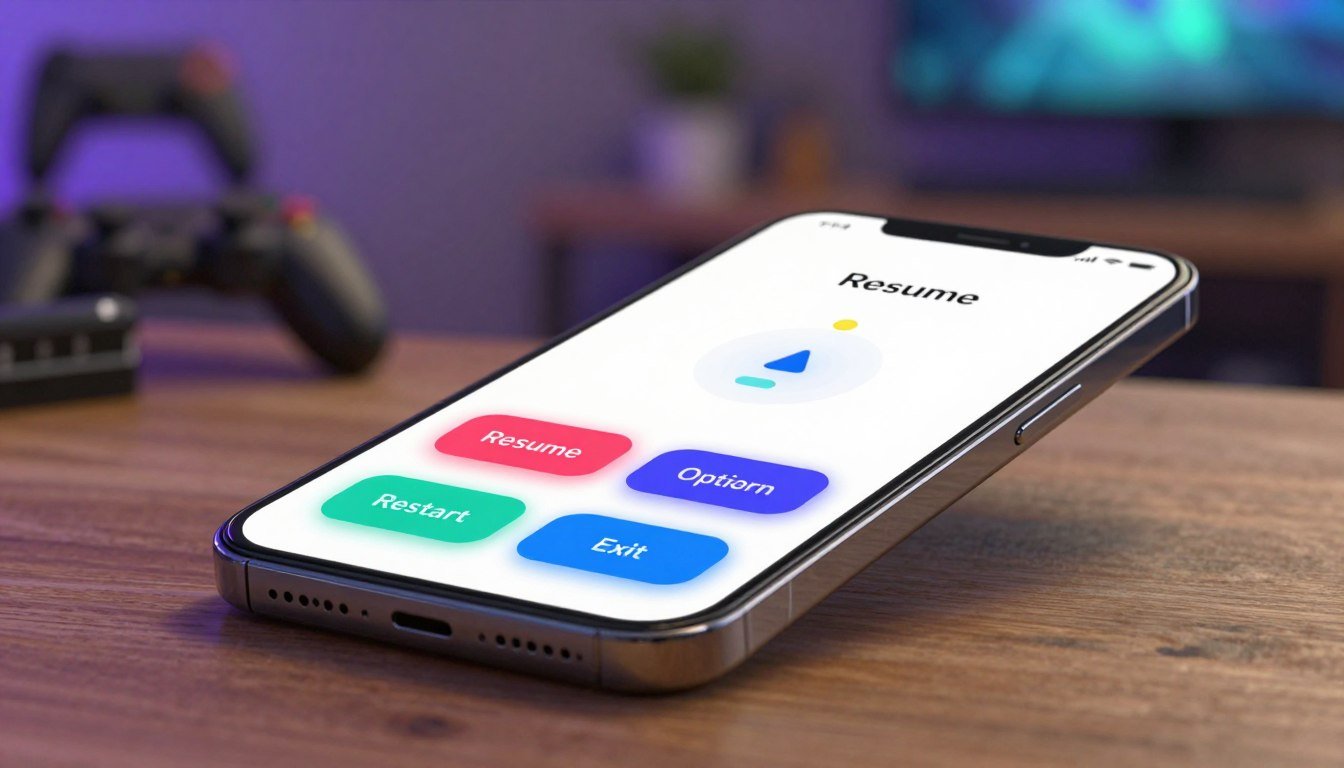
Implement a single, authoritative toggle that halts play, displays an overlay, and prevents stray input.
Create a PauseSystem script with a real paused state
Make a dedicated GameObject like Systems/PauseSystem and attach a PauseSystem script. Use a bool IsPaused as your source of truth. Avoid using Mathf.Epsilon or comparing Time.timeScale to infer state.
Wire the pauseMenu GameObject and Button callbacks
In the Inspector assign the pause menu root panel to pauseMenuRoot and keep it disabled at start. Add your visible pause button and set its OnClick to PauseSystem.TogglePause(). For touch platforms, a visible UI button reduces confusion.
Use Time.timeScale safely and restore it consistently
On pause store the current time value, set timeScale to 0, and on resume restore the saved value. This prevents slow-motion features elsewhere from breaking when you toggle.
Stop gameplay input while paused
Gate input in controllers by early-returning when PauseSystem.Instance.IsPaused is true, or disable input components. That stops the common bug where the player still moves under the overlay.
| Common Mistake | Symptom | Fix |
|---|---|---|
| Using Mathf.Epsilon on timeScale | Unreliable paused state | Use bool IsPaused and a single manager |
| No inspector wiring | Menu flashes or buttons do nothing | Assign pauseMenuRoot; keep it disabled at boot |
| Not restoring timeScale | Game stays slow or frozen after resume | Save prior time value and restore on resume |
Handle mobile input correctly for opening the pause menu
Make input behavior feel native on each platform. On Android, users expect the hardware back key to act like a back or pause control. On iOS, include a visible on-screen button so the player can tap to stop play.
Android back key and iOS button
In Update(), check for Input.GetKeyDown(KeyCode.Escape) and call PauseSystem.TogglePause() or close the overlay first if open. For iOS, wire a UI button to the same TogglePause method so touch and UI share one source of truth.
Tap-and-hold using the Touch API
Use Input.touchCount, Input.GetTouch, and TouchPhase to track a single touch. Measure hold time with Time.unscaledTime so slow motion or a paused state doesn’t break detection.
- Start touch: record Time.unscaledTime and fingerId.
- Require a hold threshold (0.35–0.5s) before firing once per hold.
- Cancel on TouchPhase.Canceled or when finger moves off UI.
Beginner trap: Input.GetMouseButtonDown(0) works for desktop but misleads on phones. Read the Input docs for TouchPhase and GetTouch to handle multi-touch and cancellations properly (see Unity Scripting API: Input.touchCount, Input.GetTouch, TouchPhase).
public float holdSeconds = 0.45f;
float _touchStartUnscaled;
int _fingerId = -1;
bool _fired;
// implement: on TouchPhase.Began set _touchStartUnscaled, on Moved/Ended evaluate Time.unscaledTime - _touchStartUnscaled
| Platform | Detection | Recommended Action |
|---|---|---|
| Android | Input.GetKeyDown(KeyCode.Escape) | Call TogglePause() or close overlay first |
| iOS | On-screen UI button (Button.onClick) | Wire to same TogglePause handler |
| Any touch device | Input.touchCount / GetTouch / TouchPhase | Tap-and-hold with unscaled time check |
Unity pause menu system mobile game state management that doesn’t break gameplay
Design a clear state-driven pause flow so every script reads the same single source of truth.
Pause as a small state machine
Keep one authoritative GameStateManager that exposes IsPaused() and a named enum like Playing, Paused, InMenu, Loading.
Other components should query that accessor instead of making their own flags. This avoids conflicting logic when ads, notifications, or modal dialogs appear.
Make UI run on unscaled time
When you set timeScale to 0, normal animators and tweens stop. Set pause panel Animators to “Unscaled Time” and use Time.unscaledDeltaTime in UI scripts so fades and countdowns still tick.
Example fade snippet:
using UnityEngine;
using UnityEngine.UI;

public class UnscaledFade : MonoBehaviour
{
 public CanvasGroup cg;
 public float duration = 0.25f;
 float t;
 void Update()
 {
  if (t < 1f) { t += Time.unscaledDeltaTime / duration; cg.alpha = Mathf.Clamp01(t); }
 }
}
Beginner mistake: tying gameplay and UI to the same time source. On mid-range phones this makes the overlay feel dead. Keep UI timing separate so taps get immediate visual feedback.
Fix the three Time.timeScale bugs beginners hit (and how to prevent them)
Small timescale mistakes cause big runtime surprises; here are concrete, testable remedies. Each fix is focused on runtime behavior so you can avoid sticky states on reloads and mismatched physics or audio quirks.
Bug: timeScale stays at 0 after scene reload or restart
If you reload a scene while paused, the engine-level timescale can remain zero because it is global, not scene-scoped.
Prevention: in your PauseManager’s OnDisable, OnDestroy, and any restart handler, call SetPaused(false) or explicitly set Time.timeScale = 1f before loading another scene.
Bug: physics and Update() behavior doesn’t match expectations at timeScale = 0
FixedUpdate stops when timescale is 0, but Update still runs every frame. That means input polling and non-time-based logic can continue to execute.
Prevention: gate gameplay input and heavy logic behind a central IsPaused flag. Early-return in Update or disable relevant components when the state is paused.
Bug: audio, coroutines, and timers keep running (or stop unexpectedly)
AudioSources and coroutines behave differently depending on API choices. WaitForSeconds pauses with scaled time, but WaitForSecondsRealtime does not. Audio mixer settings can also let sound play.
Prevention: classify systems as pause-aware or pause-immune. Use unscaled timing only for UI effects and ensure gameplay timers use scaled waits when they should stop.
Pattern: centralize pausing so random scripts don’t fight over Time.timeScale
Do not let many scripts write the global timescale. Route all requests through one owner and expose RequestPause(reason) and SetPaused(bool) methods.
- Single owner of timescale and state
- Reset timescale on scene load
- Gate gameplay input in Update/FixedUpdate
- Use unscaled time for UI only
- Decide and test audio behavior
| Bug | Cause | Exact Fix | Where to implement |
|---|---|---|---|
| Stuck at 0 | Scene reload leaves global timescale | Call SetPaused(false) or set Time.timeScale = 1f | OnDisable / Restart handler |
| Physics vs Update mismatch | FixedUpdate halts, Update runs | Gate input with IsPaused flag | Player/input scripts |
| Audio & coroutine oddness | Mismatched wait types and mixer settings | Use WaitForSeconds for gameplay; WaitForSecondsRealtime for UI | Audio and timer scripts |
Pause behavior when the app is backgrounded on Android and iOS
OS interruptions happen constantly: app switcher taps, lock screens, permission dialogs, or incoming calls can remove focus. Treat those moments as an automatic pause so the player returns to the same state and nothing runs unseen.
Use OnApplicationPause to pause when the player exits the app
Implement MonoBehaviour.OnApplicationPause(bool) and call your central SetPaused(true) when the OS suspends the app. Show the overlay or a “Resume” modal and stop simulation work there.
Resume where the player left off and avoid splash loops
Do not reload scenes on resume unless necessary. Keep scene state in memory and leave the overlay visible so the player taps to continue. This prevents returning to a main screen or splash loop after a background/resume cycle.
Prevent the app from running in the background
If you skip the lifecycle hook, physics or timers may keep running and drain battery or desync scores—this is why players report the title “keeps running” while backgrounded. Also check Application.runInBackground settings to match your intended behavior.
- Guard Time.timeScale changes through one owner and restore on resume.
- Decide whether resume is automatic or requires a tap to avoid accidental input.
- Test on device: Android home/back and iOS swipe home behave differently than the editor.
| Problem | Cause | Fix |
|---|---|---|
| Simulation runs offscreen | No OnApplicationPause handling | Call SetPaused(true) in OnApplicationPause |
| Resume returns to splash or menu | Scene reload on resume | Keep scene state and show resume overlay |
| Accidental resume input | Automatic time restore | Require explicit tap to unpause |
Compact implementation to add to your Pause manager
Use this snippet inside the same MonoBehaviour that controls state:
void OnApplicationPause(bool pausedByOS)
{
    if (pausedByOS) SetPaused(true); // show overlay and stop simulation
}
Follow the MonoBehaviour OnApplicationPause docs and test on real devices; editor behavior does not match actual Android/iOS lifecycle timing.
Mobile performance considerations when the pause menu is open
Opening the overlay must do more than stop physics: it should trim CPU, GPU, and memory pressure on the device.
Why Time.timeScale = 0 is not a performance mode
Setting timeScale to zero halts physics but does not stop Update loops or UI rebuilds. The GPU still renders full-screen effects unless you reduce them.
Battery, thermals, and costly subsystems
Disable or throttle AI ticks, pathfinding, heavy particle systems, and analytics batching while the overlay is active. Consider lowering Application.targetFrameRate during the overlay if your app can tolerate it.
Draw calls, UI rebuilds, and memory
Keep the menu overlay cheap: one dim quad, a panel, and a few text elements. Avoid LayoutGroup animations that force frequent rebuilds; prefer CanvasGroup fades and simple transforms.
Preload UI sprites, fonts, and click audio at scene start and toggle active state. Instantiating high-res textures or additive scenes on demand can cause hitches and GC spikes on older phones.
- Don’t do this: load a high-res blur texture or an extra scene only when opening the overlay.
- Test metrics: measure frame time while paused, UI draw calls, and memory allocations when opening/closing repeatedly.
| Cost | Cause | Fix |
|---|---|---|
| CPU ticks | AI/pathfinding still running | Disable or throttle in your central state owner |
| GPU overdraw | Multiple canvases and full-screen effects | Simplify overlay to minimal panels |
| Memory hitches | On-demand high-res asset loading | Preload and reuse assets at startup |
Use the official Unity docs and a proven industry pattern to keep it correct
Combine the engine’s official references with one authoritative state owner so behaviour stays predictable on devices you test. Read what the API guarantees, then codify that behaviour in a single manager your whole team trusts.
Key Unity documentation to consult
- Time.timeScale — Scripting API: confirm what pauses (physics/FixedUpdate) and what does not.
- Input touch API: Input.touchCount, GetTouch, TouchPhase for reliable touch handling.
- MonoBehaviour lifecycle: OnApplicationPause to handle backgrounding and resume.
Adopt one named industry practice
Use a single Game State / Pause Manager as the source of truth. Let other components read its IsPaused flag instead of changing engine settings directly.
How this shows up in code review
Reject PRs that set Time.timeScale outside the manager. Require input code to early-return or disable when IsPaused is true. Ask for a doc link to the API call used and a unit or device test proving behavior.
| Doc | What to verify | Where to enforce |
|---|---|---|
| Time.timeScale | FixedUpdate vs Update behaviour | Pause manager |
| Input.touchCount / TouchPhase | Touch cancel/hold semantics | Input handlers |
| OnApplicationPause | Background/resume flow | Lifecycle handler in manager |
For deeper study, review a GDC talk on state-driven architecture and a presentation on mobile performance. The combo of official docs plus one source of truth reduces device-only bugs you can’t reproduce in the editor.
Conclusion
Conclude by validating that your authoritative state, UI overlay, and input hook operate predictably across devices. You should have a real paused-state owner, a lightweight menu overlay, and a wired toggle button that cleanly stops and resumes simulation.
Verify input rules: handle Android back keys, expose an on-screen iOS control, and implement hold-to-pause using TouchPhase and unscaled time rather than mouse emulation.
Ensure you avoided common failures: movement while overlaid, timeScale left at zero after reloads, coroutine/audio mismatches, and multiple scripts fighting over ownership.
Confirm lifecycle behavior: call SetPaused(true) in OnApplicationPause and resume to the same scene state without reloading. Keep the overlay visible until the user explicitly resumes.
Ship checklist — test on one Android and one iPhone; spam open/close the pause menu; background/foreground the app; restart a level while paused; and verify Time.timeScale returns to 1.0 when expected.

Game developer with over 10 years of professional experience specializing in the mobile sector. George’s journey began with a passion for indie development, leading him to contribute to several successful mobile titles, including the critically acclaimed puzzle-platformer ChronoShift and the top-down strategy game Pocket Empires.