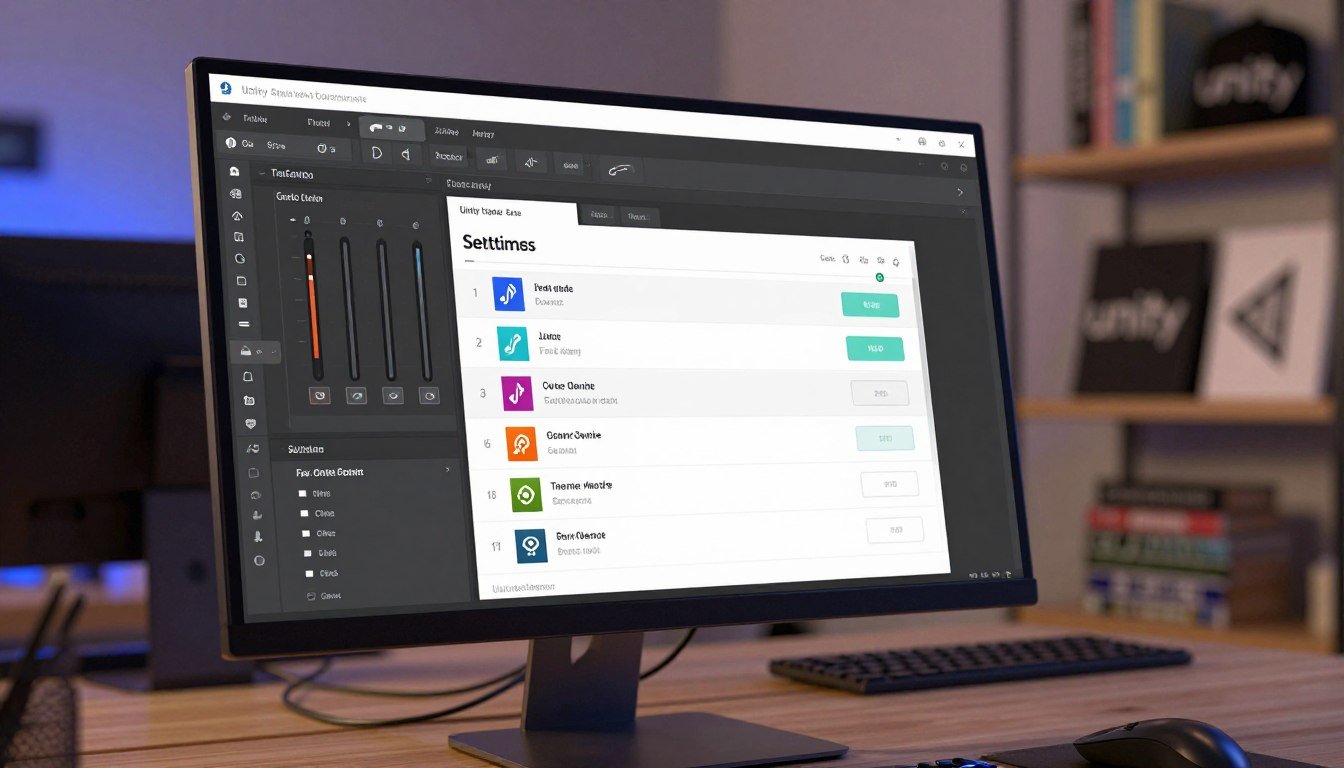
In this brief guide you get a working pattern to add runtime controls, persistence, and immediate feedback to your project. You will define what settings mean: UI controls that edit a value and code that applies changes live or on confirm. That makes behavior consistent across scenes.
Start by implementing one end‑to‑end setting: master volume. Use AudioMixer.SetFloat and PlayerPrefs to save and restore the value. This concrete script gives a pattern you copy for graphics and controls.
Code snippet:
using UnityEngine;
using UnityEngine.Audio;

public class MasterVolumeController : MonoBehaviour
{
    public AudioMixer mixer;
    void Start()
    {
        float v = PlayerPrefs.GetFloat("masterVolume", 0f);
        mixer.SetFloat("Volume", v);
    }
    public void SetVolume(float value)
    {
        mixer.SetFloat("Volume", value);
        PlayerPrefs.SetFloat("masterVolume", value);
    }
}
Quick notes: use Button OnClick → GameObject.SetActive(bool) to toggle the window, set Canvas Scaler to Scale With Screen Size, and test battery, draw calls, and memory on target devices.
– Implement one working setting first (master volume).
– Persist with PlayerPrefs and apply via AudioMixer.SetFloat (Unity docs).
– Optimize for battery, draw calls, memory, and screen size early.
Build the settings window UI and wire one working setting in minutes
Get a working options window live in minutes by building a single Canvas panel and wiring one control end-to-end. Keep the layout simple so it loads cleanly and can be toggled without destroying objects.
- Create a Canvas and add a single Panel named “SettingsRoot”. Use TextMeshPro for all labels so text stays crisp across devices.
- Make three tab buttons (Audio/Graphics/Controls). Each tab’s OnClick calls a small function that SetActive(true) for its panel and SetActive(false) for the other two.
- Set the Canvas Scaler → UI Scale Mode = Scale With Screen Size. Pick a reference resolution (1080×1920 or 1920×1080) and test multiple aspect ratios in the Game view.
- Wire the master volume Slider: in the Inspector use OnValueChanged (Dynamic Float) to call SetMasterVolume01(float) on your script. Add an Open button and a Close button that call SettingsRoot.SetActive(true/false) via Button OnClick.
Verify in Play mode that moving the slider changes audio volume in real time and that PlayerPrefs restores the saved value on restart (see Unity Scripting API: PlayerPrefs).
Project setup for a mobile-friendly settings screen scene
Organize your project so the settings logic and UI survive scene transitions with minimal overhead. Keep the runtime logic separate from visuals. That reduces allocations and helps performance on low-end devices.
Scene organization with a persistent SettingsManager GameObject
Create a single SettingsManager game object that holds references (AudioMixer, key names, defaults) and the apply functions. Mark it DontDestroyOnLoad so the object persists when you load a new scene.
Title/menu flow: activating the settings screen via Button OnClick SetActive
Implement open/close with Button OnClick → GameObject.SetActive(bool). That function is fast, reliable, and avoids costly instantiation at run time.
Keeping settings accessible across scenes with DontDestroyOnLoad
- Keep one UI root per app session. Spawn it only if it doesn’t exist.
- Toggle visibility instead of destroying the UI to save CPU time and avoid GC spikes.
- Keep apply calls idempotent so reloading a scene won’t stack effects.
- Document where the SettingsManager lives in the hierarchy for future teammates.
Unity settings menu tutorial: structuring a mobile game options screen that won’t fight you later
Design your options system so UI choices and runtime behavior live in separate layers. That reduces bugs and makes changes safer. You get predictable defaults and easier versioning when data is centralized.
Separating UI state from applied runtime settings
Keep the UI state (what the dropdown or toggle shows) distinct from the runtime state (what the engine uses). Use a small connection object with getter/setter methods so the UI reads and writes a single source of truth.
Choosing data types for values
Pick types on purpose: use bool for toggles like invert Y, int for dropdown indices such as quality presets, and float for continuous controls like volume or sensitivity. Avoid storing magic strings as primary IDs.
Mapping widgets to IDs and defaults
Define stable IDs and defaults in one file (example: pm_settings_v1_masterVol). Keep a single list that maps each widget to (ID, default, apply method). This makes adding new items a trivial wiring task.
| Widget | ID | Default | Apply |
|---|---|---|---|
| Master Volume (slider) | pm_settings_v1_masterVol | 0.0f | AudioMixer.SetFloat |
| Quality (dropdown) | pm_settings_v1_quality | 1 | QualitySettings.SetQualityLevel |
| Invert Y (toggle) | pm_settings_v1_invertY | false | PlayerController.SetInvert |
- Decide which values apply live (volume) and which use confirm/apply (quality changes).
- Version keys by prefixing v1, v2 when semantics change.
Audio options with an Audio Mixer: master volume done correctly
Begin by creating an Audio Mixer asset (Assets → Create → Audio Mixer) and expose a single “Volume” parameter on the master group. Expose that parameter so code can drive it consistently via AudioMixer.SetFloat.
Create and wire the mixer
Wire your AudioSources to the exposed mixer group. If sources do not route to the mixer, changing the mixer will not affect playback and you will waste time debugging.
Convert slider values to decibels
Map a 0..1 slider to decibels with: db = 20 * log10(max(slider, 0.0001f)). This avoids the “silent until the top end” problem and gives a perceptual response users expect.
Persist and restore cleanly
Save the normalized slider value (0..1) with PlayerPrefs.SetFloat and restore it on startup with GetFloat. In Awake/Start: read the player key, apply the converted dB to the mixer, then update the UI slider without triggering another save loop.
- Consider smoothing mutes or big jumps by lerping the mixer parameter in code rather than writing PlayerPrefs every frame.
- Sanity-check on headphones and device speakers because OS volume and compression expose edge-case values.
Graphics options: QualitySettings presets, texture quality, and anti-aliasing
Quality presets control several rendering values at once, so treat the top-level choice as the single source of truth for your graphics behavior.
Quality dropdown as the master level
Implement a dropdown that calls QualitySettings.SetQualityLevel(index). Consider this the master control that may override sub-controls.
When a user picks a preset, update other UI elements to reflect the actual applied state rather than leaving them out of sync.
Texture resolution and memory
Expose QualitySettings.masterTextureLimit to let players lower texture resolution. It acts as a divisor on source textures and directly reduces GPU memory use on mobile devices.
Lowering this value halves texture detail and can improve frame time on mid-tier hardware.
Anti-aliasing guidance
Use QualitySettings.antiAliasing to set AA levels. On phones, prefer 0–2x or rely on a lightweight post-process approach.
Higher AA values increase fill cost and battery drain quickly, so test across target devices.
Keeping dropdowns in sync and avoiding the common pitfall
Map presets to sub-values with a switch/case that matches your Project Quality list. When you apply a preset, temporarily disable sub-dropdown listeners while you set their values.
This prevents OnValueChanged callbacks from marking the master dropdown as “Custom” and avoids feedback loops. Apply changes once on selection rather than every frame to reduce hitches.
- Top-level: QualitySettings.SetQualityLevel(index) — treat as authoritative.
- Texture: QualitySettings.masterTextureLimit — divisor on textures, big memory impact.
- AA: QualitySettings.antiAliasing — prefer low values on handheld devices.
| Preset | masterTextureLimit | antiAliasing |
|---|---|---|
| Low | 2 | 0 |
| Medium | 1 | 2 |
| High | 0 | 4 |
Refer to the official Scripting API for platform quirks and to verify behavior before you ship.
Resolution and screen mode on mobile: what to show and what to hide
Be honest: many devices control the render surface for you. That means a desktop-style list of resolutions is often meaningless on phones and tablets.
Instead, expose controls that actually change experience: render scale, quality presets, and an FPS cap. These give the user measurable differences in performance and battery life.
When Screen.SetResolution is useful vs ignored on iOS/Android
Screen.SetResolution(width, height, fullScreen) exists, but on iOS and Android the OS may constrain or ignore it. Treat it as useful for desktop builds or special embedded devices, not as a guaranteed mobile feature.
Safe-area and notches: keeping UI readable at different aspect ratios
Implement safe-area aware layout so buttons and text avoid notches and home indicators. Use anchors and a runtime inset mask to push critical controls inward.
Using reference resolution previews in the Game view to catch layout bugs
Preview common aspect ratios in the Game view early and often. That step catches anchor mistakes before you build to device and prevents a window of UI breakage later.
- Do not mix fixed pixels with anchors—use relative anchors for reliable layouts.
- Validate minimum touch targets and font sizes inside the settings window as well as HUD elements.
- Test on a real device early; editor previews miss some safe-area quirks.
| Platform | Screen.SetResolution | Recommended control |
|---|---|---|
| Desktop | Usually supported | Resolutions list |
| iOS/Android | Often constrained/ignored | Render scale / quality |
| Embedded/Console | Platform dependent | Case-by-case |
Control options: sensitivity, invert Y, and input mapping without a full remap system
Keep control adjustments simple and deterministic. Store numeric values as typed data and apply them in one place so the player experience stays consistent across sessions.
Storing and applying sensitivity
Store sensitivity as a float (for example 0.25–2.0). Persist it with PlayerPrefs.SetFloat and read it when your controller initializes.
Apply the multiplier to the raw input delta once per frame. Do not multiply the stored sensitivity into an internal sensitivity each load—this causes drift.
Invert Y and sign flips
Implement invert as a single bool. Flip vertical input by multiplying by -1 when the bool is true. Keep that flip inside the input read function so you never double-invert later.
- Use one setter method per setting (SetSensitivity, SetInvertY) that applies and saves the value.
- Expose lightweight mapping toggles like “tap to shoot” or “gyro aim” instead of a full remap system.
- Decide which changes apply immediately (sensitivity) and which require confirmation (layout toggles).
| Setting | Type | Range / Values | Apply timing |
|---|---|---|---|
| Sensitivity | float | 0.25 – 2.0 | On init / immediate |
| Invert Y | bool | true / false | On init / immediate |
| Input mode | enum | Tap, Gyro, Left-handed | Immediate or confirm |
Keep the UI synced to runtime values when the window opens so the UI reflects what the player is actually using. That reduces confusion and prevents accidental reverts.
UI event system wiring that scales: dropdowns, toggles, sliders, buttons
Make event wiring resilient so your UI stays predictable as you add controls and screens. Keep each widget calling one clear function with a consistent signature. That reduces accidental side effects and makes debugging faster for your team.
Dynamic vs Static parameter bindings in OnValueChanged
Use Dynamic bindings when you want the current value passed automatically (good for sliders and dropdowns). Use Static bindings when you need to pass a fixed parameter, like tab buttons that call SetActive(true).
Preventing feedback loops when you update UI from code
Guard updates with a simple flag such as isUpdatingUI, or temporarily remove listeners before you set dependent values. Without this, a code-set dropdown can fire OnValueChanged, call Save, then trigger another update and loop.
Practical wiring and accessibility basics
Standardize signatures in the inspector: float for sliders, int for dropdowns, bool for toggles. Set default selection and navigation order so keyboard and controller users can move predictably. Keep touch targets large for users who rely on assistive input.
| Widget | Binding | Signature | Typical use |
|---|---|---|---|
| Slider | Dynamic | float | Volume, sensitivity |
| Dropdown | Dynamic/Guarded | int | Quality preset, selection |
| Tab Button | Static | none / bool | Open/close window |
Saving and loading settings values with PlayerPrefs without making a mess
Keep persistence tidy by defining a clear, versioned key scheme before you write a single preference.
Key naming conventions and versioning
Use a stable prefix and version in each key, for example: pm_settings_v1_quality. Put all keys in one static class so you avoid typos and duplicate strings across your project.
When to call PlayerPrefs.Save
Don’t flush on every slider tick. Flush on an explicit Apply/Save button or when the window closes. Frequent writes cost IO, battery, and can hitch play for the player.
Default values and first‑boot behavior
Check HasKey and apply clear defaults on first run. Store floats for normalized sliders, ints for dropdown indices, and bools as 0/1 consistently.
- Implement a Reset to Defaults that overwrites or clears keys.
- Avoid saving during gameplay-critical moments; schedule saves in menus or on exit.
- Verify persistence by killing the app and relaunching on a device.
| Type | Storage | Example key |
|---|---|---|
| Slider | float | pm_settings_v1_masterVol |
| Dropdown | int | pm_settings_v1_quality |
| Toggle | int (0/1) | pm_settings_v1_invertY |
Applying settings at startup and when returning to the game
A reliable initialization path loads persisted values, applies them to audio and quality code, then updates widgets. Follow this strict order every time to avoid race conditions and misplaced side effects.
Order of operations
First, read stored values from your persistence layer. Do not rely on UI callbacks during this step.
Second, apply those values to runtime systems (AudioMixer, QualitySettings, input handlers). Keep apply methods idempotent so repeated runs cost nothing.
Third, refresh UI widgets while a guard flag is set so OnValueChanged handlers do not re-run saves or dependent code.
Handling scene reloads and the settings window
Keep a single SettingsManager (DontDestroyOnLoad) that reapplies values on scene load or resume. When a scene reloads, call the same load→apply→UI flow so the screen and runtime match every time.
- Test the return path: open the window, change a value, close, and confirm runtime updates smoothly.
- Document whether you apply in Awake or Start so audio is set before first sound plays.
| Step | Action | Benefit |
|---|---|---|
| 1 | Load stored values | Deterministic start |
| 2 | Apply to runtime | Correct behavior at run time |
| 3 | Update UI with guard | No feedback loops |
Mobile performance considerations for settings menus
Treat the settings window like any other interactive scene element: it must stay smooth on mid-range devices. Prioritize steady frame time and avoid changes that spike CPU or battery while the player interacts.
Battery and frame pacing
Do not apply expensive graphics changes every slider tick. Apply heavy operations on pointer-up or via an Apply button. That prevents short bursts of high load that cause thermal throttling and frame drops.
Memory and allocations
Cache dropdown lists and reuse object pools so you do not allocate new lists each open. Repeated allocations trigger garbage collection and create stutters during normal play time.
Draw calls and UI batching
Keep shared materials and consistent images and color palettes. Fewer unique materials reduce draw calls and let the UI batch efficiently across canvases.
- Use Canvas Scaler and TextMeshPro for readable fonts on varied screen sizes.
- Avoid hidden Update work; prefer event-driven handlers.
| Concern | Action | Benefit |
|---|---|---|
| Battery | Apply on release | Sustained frame pacing |
| Memory | Cache lists/objects | Less GC stutter |
| Draw calls | Share materials | Lower GPU load |
Common beginner mistakes and how you avoid them in this project
Many beginner mistakes are predictable; here are exact fixes you can apply in this project. Each item ties to code or a clear inspector step so you can stop the bug at source.
Saving linear slider values but applying decibels
Problem: you store a linear slider’s value but call AudioMixer.SetFloat with that number as if it were dB. That produces wildly wrong audio.
Fix: store normalized 0..1 values. Convert to dB in one method (e.g., ToDecibel(normalized)) and call that method wherever you apply audio. This makes the unit change explicit and impossible to mix up.
Quality presets that don’t update dependent dropdowns
Problem: a preset overrides AA and texture, but the UI still shows old sub-values.
Fix: when you apply a preset, set a guard flag (isUpdatingUI) then write each dependent dropdown value programmatically. Clear the flag so OnValueChanged handlers don’t loop. That keeps UI and runtime in sync.
Shipping tiny UI by forgetting Canvas Scaler
Problem: high‑DPI devices render tiny text or clipped controls.
Fix: set Canvas Scaler to Scale With Screen Size and validate common resolutions in the Game view before you build. Test safe areas on real devices.
Using PlayerPrefs without documented keys and defaults
Problem: keys drift and free-floating values break upgrades.
Fix: centralize keys in one static class with versioned names and document each default. Call PlayerPrefs.Save at logical points (Apply/Close) instead of every tick.
- Keep one method per UI element in the inspector so wiring is clear and testable.
- Test failure modes: kill the app, rotate the device, resume from the task switcher.
- Organize code so you add new settings by extending a single manager—not by pasting snippets.
| Mistake | Symptom | Practical fix |
|---|---|---|
| Audio unit mismatch | Volume sounds wrong | Store 0..1, convert to dB in one function |
| Preset / dropdown out of sync | UI shows stale sub-values | Guard UI updates and set dependent dropdowns programmatically |
| Tiny UI on high DPI | Unreadable controls | Use Canvas Scaler and test multiple resolutions |
| Undocumented PlayerPrefs keys | Broken defaults after update | Version keys, centralize, document defaults |
Reference implementation: one SettingsMenu script that matches the UI
Use a single script that owns all UI references so wiring is obvious and repeatable. The script holds dropdown, toggle, and slider fields plus an AudioMixer asset reference you set in the inspector.
Implement SetVolume to accept a normalized float, convert it to decibels, then call audioMixer.SetFloat(“Volume”, db). Populate a resolution list from Screen.resolutions for the resolution dropdown but label this method as platform-dependent.
Implement SetQuality, SetTextureQuality, and SetAntiAliasing to call QualitySettings APIs. Use a guard flag (isUpdatingUI) when programmatic changes update dependent widgets so dropdown callbacks do not loop.
Tie SaveSettings to a Save button that writes PlayerPrefs and calls PlayerPrefs.Save once. LoadSettings should apply values, then update UI while the guard flag is active to avoid event storms on startup.
| Method | Applies | PlayerPrefs key | Notes |
|---|---|---|---|
| SetVolume | AudioMixer Volume | pm_v1_masterVol | Store 0..1, convert to dB |
| SetQuality | QualitySettings Level | pm_v1_quality | Update dependent dropdowns with guard |
| SetResolution | Render scale / resolution | pm_v1_resolution | Hide on constrained platforms |
| SetTextureQuality / SetAntiAliasing | masterTextureLimit / AA | pm_v1_texture / pm_v1_aa | Prefer low AA on handheld devices |
- Inspector hookup: dropdowns use Dynamic Int, slider uses Dynamic Float, buttons use OnClick with no params.
- Avoid saving every change; save on button or close to reduce IO and battery impact.
Documentation and industry references you should actually read
When a feature behaves differently on device, the answer is usually in official docs, not a forum thread. Bookmark primary references and make them part of your repo so teammates can verify behavior against the same sources.
Core API pages to read
- Unity Scripting API — QualitySettings: platform notes on presets and AA.
- Unity Scripting API — Screen and PlayerPrefs: how resolution and persistence behave per OS.
- Unity Manual — Audio Mixer: exposing parameters and routing AudioSources correctly.
Design and performance references
Look for GDC talks about UI/UX clarity and performance budgeting on constrained hardware. Those sessions connect interaction choices to thermals, FPS, and battery tradeoffs.
| Resource | Why read | Use in project |
|---|---|---|
| QualitySettings | Platform quirks | Map presets to runtime |
| Audio Mixer | Routing & exposed params | Fix “mixer not affecting audio” |
| TextMeshPro | Typography for legibility | Set font assets for readable UI |
Treat docs as debugging tools. Keep a short project reference note in your wiki and follow one practice: separate data (settings) from side effects (apply code). This reduces regressions when you refactor UI or change runtime logic.
Testing checklist on real devices before you ship
Put a release build on real hardware and walk this checklist before your final push. Quick editor checks miss many real‑world behaviors that users see at play time.
Core persistence and task‑switch checks
- Change several values, force‑close the app, relaunch, and confirm each value restores without opening the menu.
- Background the app mid‑play, resume, and verify an open settings window still shows current values and does not reset state.
Layout, touch targets, and aspect validations
- Test common US device aspect ratios and notched devices in portrait and landscape. Check anchors and safe‑area padding.
- Verify touch targets on a real phone; missed taps equal frustrated users, not touch problems.
Performance, thermals, and apply behavior
- Measure FPS and battery drain over sustained runs after quality changes. Look for thermal throttling over time.
- Confirm Apply actions do not hitch or reinitialize heavy systems that stall input.
- Run the same tests on low and mid‑tier devices and document device‑specific exceptions (for example, ignored resolutions).
| Test | Expected result | How to verify |
|---|---|---|
| Persistence after restart | All values restored | Change values → force‑close → reopen → confirm |
| OS task switching | UI state unchanged | Background/resume while open → check widget values |
| Safe area & touch targets | Readable layout, reliable taps | Test on notched devices, measure touch target size |
| Performance under quality changes | Sustained FPS, acceptable thermals | Run 10+ minute loop while monitoring FPS and battery |
Conclusion
End by making the implementation reliable: version keys, guard UI updates, and validate on real hardware. Take the audio path you exposed and keep volume stored as 0..1, convert to decibels in one function, and save only when it matters.
Treat quality presets as authoritative for graphics and sync dependent controls programmatically. Be honest about resolution on phones and favor render scale and FPS caps over a fake list.
Document keys, defaults, and where your manager object lives. Run the device checklist, fix feedback loops, and ship with clear apply/save functions so the player sees predictable results.

Game developer with over 10 years of professional experience specializing in the mobile sector. George’s journey began with a passion for indie development, leading him to contribute to several successful mobile titles, including the critically acclaimed puzzle-platformer ChronoShift and the top-down strategy game Pocket Empires.