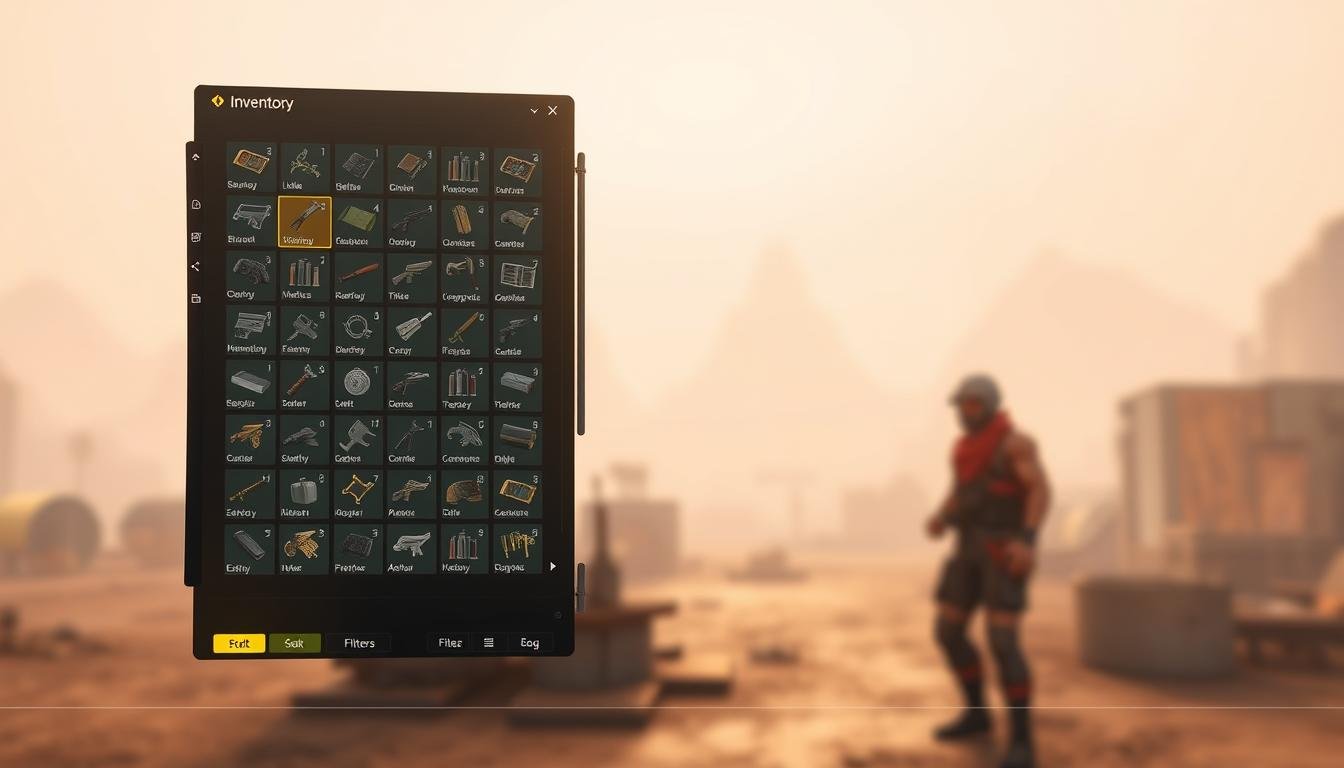
Welcome to this complete guide on building a functional item management system for your game development projects. Creating a working prototype early can save you significant time and help test core gameplay mechanics before committing to complex implementations.
If you’re building interactive experiences and need to quickly test how players will manage items, this guide provides the perfect starting point. You’ll learn an efficient approach that integrates smoothly with the engine’s user interface tools.
Designing item management can be surprisingly challenging. You need to decide how items should be defined and how they’ll appear throughout your experience—as 2D icons in menus or 3D objects in the world.
This article teaches you to create a functional prototype using Scriptable Objects. This method offers a resource-efficient approach that works seamlessly with the UI system. You’ll learn about the fundamental components that make up item management systems.
By the end, you’ll have built a working prototype that you can expand as your project develops. This foundation works for RPGs, survival games, or any experience requiring item management.
Key Takeaways
- Prototyping your item system early saves development time and helps test gameplay mechanics
- Scriptable Objects provide a flexible and resource-efficient approach to item management
- Understanding the difference between item data and item instances is crucial for system design
- A well-structured prototype can easily scale as your project grows in complexity
- This approach works for various game genres including RPGs and survival experiences
- Proper organization of containers and item data leads to more maintainable code
- Early testing helps identify potential issues before they become costly to fix
Understanding Inventory Systems in Unity
At the heart of every item management solution lies a carefully designed architecture of interconnected parts. These components work together to create a flexible system that can grow with your project’s needs.
Key Components: Container, Item Data, and Item Instance
Every functional storage mechanism is built on three fundamental elements. The Container acts as the holding space for your game objects. This could be your player’s backpack or a treasure chest in the world.
Item Data serves as the blueprint that defines what makes each object unique. This includes its name, icon, description, and statistics. The information lives outside your scene as reusable assets.
The Item Instance represents specific copies of item data with unique properties. These classes allow generic types to have individual characteristics like durability or randomized stats.
Navigating the Challenges of Defining Items and Their Instances
One key decision involves choosing between instanced and non-instanced approaches. Non-instanced objects point directly to scriptable object data, which works well for simple collectibles.
Instanced items wrap that data in unique classes holding individual properties. This structure provides flexibility for complex game mechanics. You can pass objects between different containers and manage their unique characteristics efficiently.
Using scriptable objects for your data is recommended because they provide access to engine structures without heavy overhead. This makes your system more resource-efficient and easier to maintain as your project grows.
Setting Up Your Unity Project for Inventory Prototyping
A well-structured workspace from the beginning ensures your prototyping process remains efficient and scalable. Starting with a clean slate helps you focus on building your system without clutter from other development elements.
Begin by creating a new project specifically for your storage system prototype. This dedicated workspace allows you to test and refine your approach without distractions.
Preparing Your Canvas, UI Elements, and Scene Layout
When designing your interface, keep both the Scene and Game view tabs visible. This dual perspective lets you see real-time changes to your layout as you work.
Set up your Canvas with placeholder slots arranged in a grid or list format. Ensure proper scaling across different screen resolutions for a consistent user experience.
For UI elements like buttons, use the Sprite Editor to create borders that prevent stretching. Set values like 7 pixels on each side to maintain visual quality at any size.
Organizing Assets and Resources for a Smooth Workflow
Create two main folders: Scripts for your code and Resources for assets. The Resources folder has special significance for runtime asset loading.
Inside Resources, establish a subfolder hierarchy like Sprites > Items. This organization keeps your item icons accessible when scripts need to load them dynamically.
When importing sprite images, verify their texture type is set to “Sprite (2D and UI)” in the Inspector. This ensures proper rendering on your Canvas-based interface.
This initial organization might seem detailed, but it pays off tremendously during development and debugging phases.
Building a Unity Inventory Mockup Using Scriptable Objects
This section focuses on the hands-on process of defining your game items using Scriptable Objects, the cornerstone of a manageable system. These special assets let you create templates directly in your project, separate from any scene.
Creating Item Templates with Scriptable Objects
Start by writing a new ItemData class. The key is to make it inherit from ScriptableObject instead of MonoBehaviour. This single change unlocks powerful data management capabilities.
Add the [CreateAssetMenu] attribute above your class. This lets you right-click in the Project panel to create new item assets instantly. Designers can add new items without writing a single line of code.
Your ItemData class should hold core properties like a name, an icon sprite, and a description. These properties define what the item type is. You can create many unique assets, like a health potion or a magic sword, all sharing the same structure.
Instanced Items: Plain Classes vs. Structs
Some items need unique stats, like durability. For these, you wrap the ItemData in an ItemInstance class. This plain class holds a reference to the base data and any instance-specific value.
Using a plain class is better than a struct for your items. Classes can be null, which is perfect for empty slots. Their data also persists correctly when moved between containers.
Give your ItemInstance a constructor. It should accept an ItemData object and set starting values. This ensures every new sword begins with full durability. This approach keeps your data organized and flexible.
Integrating Data Management and Dynamic Inventory Features
The true power of your item management emerges when it responds dynamically to gameplay events. A flexible system adapts as players collect and use various objects throughout their journey.
This approach eliminates the need to predefine what users will carry. Instead, your storage grows and shrinks based on actual play patterns.
Managing Item Instances and Inventory Slot Data
Create your storage as a scriptable object containing a List of ItemInstance objects. Include a maxItems variable to limit capacity. This structure allows natural expansion as players acquire new gear.
Implement an AddItem method that intelligently handles insertion. First, it searches for empty slots with null entries. If none exist but space remains, it adds new entries. The method returns false when completely full.
Proper instance management recognizes that each list entry is unique. Two health potions might share the same template data but have different quantities or conditions.
Essential methods include RemoveItem, GetItem, and SlotEmpty. These functions manage slot availability and item retrieval. They create the foundation for interactive storage mechanics.
Consider item flow from world spawn to player collection and eventual use or disposal. This comprehensive view ensures smooth data handling throughout the gaming experience.
Effective data management creates systems where items can be queried, sorted, and manipulated efficiently. This flexibility enables rich gameplay experiences that adapt to player choices.
Testing, Optimizing, and Enhancing Your Inventory Prototype
Testing represents the bridge between theoretical design and practical implementation in your development workflow. This phase ensures your system behaves correctly under various conditions.
Begin by creating simple pickup mechanics. Attach a PhysicalItem script to world objects that holds references to scriptable object data. This connects visible game elements with your storage system.
Debugging Inventory Interactions and UI Updates
Implement player interaction using distance checks and key presses. When the user collects an object, create a new item instance and add it to their collection. Destroy the physical object to complete the pickup process.
Use Debug.Log statements to verify your methods work correctly. Check that slots fill properly and capacity limits function as expected. This debugging approach catches issues early.
Create an UpdateInventory method that refreshes your display. Loop through slots to show item icons when occupied or hide empty spaces. This keeps visual information synchronized with backend data.
Test with multiple object types in your scene. Verify each appears correctly with proper sprites and details. Check edge cases like full capacity scenarios.
Optimize performance by updating the UI only when changes occur. Avoid refreshing every frame. Consider object pooling for better efficiency.
Enhance user experience with audio cues and visual feedback. Add tooltips that show item information on hover. These touches make your system feel polished and responsive.
Create a dedicated test environment to validate all functionality before integration. Monitor scriptable objects in play mode to catch subtle bugs.
Wrapping Up Your Inventory Prototype and Future Enhancements
With your prototype complete, you now possess a flexible system ready for expansion and refinement. This foundation demonstrates the core structure professional developers use for managing game assets efficiently.
Consider enhancing your system with features like item stacking and sorting functions. Many successful games implement drag-and-drop functionality for manual organization. You could also expand your scriptable objects to include more complex data types.
The beauty of this approach is its flexibility. Designers can create new items without waiting for programmers. The clean separation between data and logic means changes won’t break your system.
Remember that great systems feel good to use. Add smooth animations, satisfying sound effects, and clear visual feedback. Test different approaches to find what works best for your specific project type.
Now it’s your turn to experiment and make this system your own. Build on this solid foundation while maintaining the core principles of organization and efficiency.