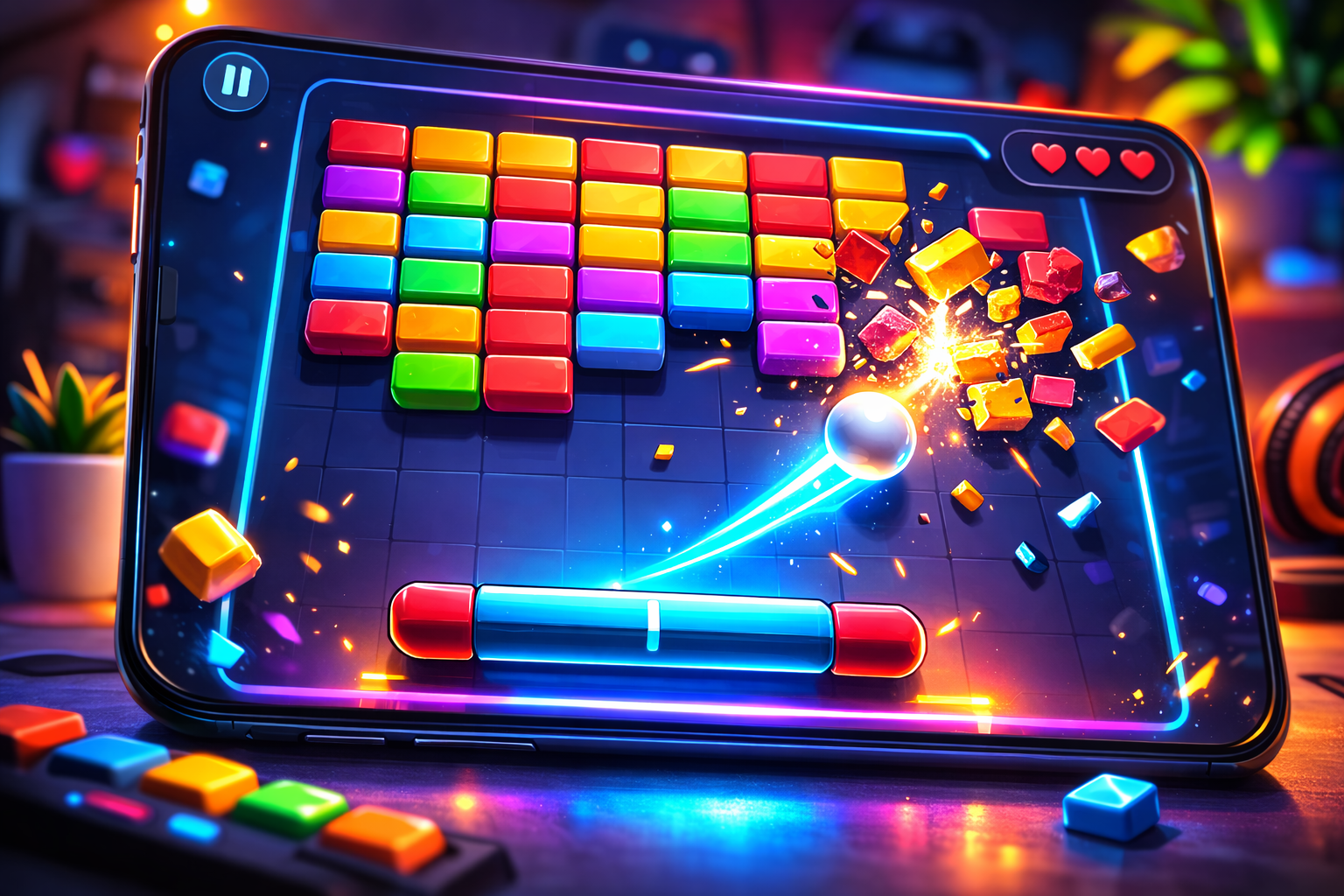
You’re building a mobile-first brick breaker that focuses on reliable ball physics, touch paddle control, scalable bricks and scoring, and a clean level reset. The project goal is clear: prevent stuck balls, keep speed consistent across 30–120 FPS, and ensure resets do not leave duplicate objects.
Start by creating an empty GameObject named Bootstrap. Add a small script that positions the ball on the paddle and launches it on tap or click. This setup keeps startup deterministic and avoids common beginner mistakes like spawning duplicates or relying on frame-dependent forces.
Paste this starter C# snippet into a new script called Bootstrap.cs and attach it to the Bootstrap object:
using UnityEngine;

public class Bootstrap : MonoBehaviour {

    public Rigidbody2D ballRb;

    public Transform paddle;

    public float launchSpeed = 7f;

    bool started = false;

    void Update() {

        if (!started) {

            ballRb.position = paddle.position + Vector3.up * 0.5f;

            if (Input.GetMouseButtonDown(0)) {

                ballRb.velocity = Vector2.up * launchSpeed;

                started = true;

            }

        }

    }

}
For API details see the official docs: https://docs.unity3d.com/ScriptReference/ . Consider mobile performance: use simple physics steps, limit Instantiate/Destroy calls, and test on low-end devices. Common mistakes include relying on Update for physics moves and not clamping velocity.
Ball physics you can ship: Rigidbody2D setup, launch code, and predictable bounces
Get the ball to behave the same across devices by locking down Rigidbody2D values and a simple launch flow. Use a Dynamic body with Gravity Scale = 0, Linear Drag = 0, Angular Drag = 0, and Freeze Rotation = true. This baseline component setup reduces variance between low- and high-end phones.
Create a PhysicsMaterial2D for both ball and walls: Friction = 0 and Bounciness = 1. That combination prevents “sticky” edges where non-zero friction makes the ball ride colliders at low frame rates. For docs, see the Rigidbody2D and PhysicsMaterial2D pages and guidance to write physics in FixedUpdate for reliable results.
- Collision mode: start Discrete for performance; switch to Continuous for the ball only if you see tunneling.
- Clamp speed in FixedUpdate, add a tiny anti-vertical nudge, and avoid setting transform.position on the physics body.
- On life lost: set rb.simulated = false, snap to paddle, rb.velocity = Vector2.zero, then re-enable and launch on input.
| Setting | Value | Why it helps |
|---|---|---|
| Body Type | Dynamic | Uses 2D physics solver for velocity-based motion |
| PhysicsMaterial2D | Friction 0 / Bounciness 1 | Prevents sticky collisions and preserves energy |
| Collision Detection | Discrete (or Continuous for fast ball) | Balance between performance and tunneling prevention |
Beginner traps: never move a Rigidbody2D by setting transform.position—use MovePosition for kinematic or velocity changes for dynamic bodies. Wrong collision detection plus high speed causes missed bricks hits that only appear on certain devices and frame rates.
For implementation details and official information, consult the Rigidbody2D, PhysicsMaterial2D, and FixedUpdate documentation on the Unity Manual and Scripting API.
Project setup for a mobile-first Brick Breaker
Decide orientation and UI spacing first; that choice shapes input zones, safe areas, and visual balance on small screens.
Portrait vs landscape and touch-area rules
Pick portrait for one-handed play and tighter vertical flow. It suits Skillz-style sessions but forces stricter button spacing near the paddle.
Keep action buttons away from the control band. Allow a “touch anywhere” fallback so accidental edge taps don’t end a run. This prevents common user complaints from Brick Miner feedback.
Scene plan and exact Build Settings steps
Use three scenes: BB_StartMenu, BB_Game, and BB_ProgressionRoom. Separate scenes reduce reset bugs and speed iteration.
In the editor: File → Build Settings → Add Open Scenes. Ensure BB_StartMenu is index 0 if you follow the Skillz-style launch flow.
TextMeshPro essentials and UI setup
Open any TMP-using scene and accept the prompt, or run Window → TextMeshPro → Import TMP Essential Resources manually. Missing TMP assets can break UI on device builds.
- Set Application.targetFrameRate early (e.g., 60) to stabilize physics and animations.
- Enable sprite atlas workflow and plan Canvas splits so score updates don’t rebuild every element.
- Test on at least one small phone and one tall-aspect device to catch notch and safe-area issues.
| Topic | Why it matters | Unity step |
|---|---|---|
| Orientation | Drives layout, thumb reach, and asset sizes | PlayerSettings → Default Orientation |
| Start menu order | Ensures correct launch flow and SDK compatibility | Build Settings: place BB_StartMenu at index 0 |
| TMP import | Prevents missing font/material errors on device | Window → TextMeshPro → Import TMP Essential Resources |
| Performance | Texture sizes and targetFrameRate affect battery and smoothness | Set Application.targetFrameRate and use atlases |
Build the paddle controller for touch input (and keep it consistent across devices)
Make the paddle feel like an extension of the player’s finger. Keep motion smooth, avoid jitter from scaling, and protect the control area from UI overlap.
Map touches by converting screen coordinates to world X: use Camera.ScreenToWorldPoint for the initial position, then set only the X on the paddle transform or Rigidbody2D. Optionally apply a damping move (Vector2.Lerp or SmoothDamp) to avoid overshoot on fast swipes.
Pointer/touch mapping to world space without jitter
Read touches in Update and cache the target X. If you use physics, apply movement in FixedUpdate to keep input and physics in sync. Ignore zero-delta movements to reduce micro-jitter.
Constrain movement to screen bounds with Camera.ViewportToWorldPoint
Compute left/right limits with Camera.ViewportToWorldPoint(0,0) and (1,0). Subtract half the paddle width and clamp target X so the paddle never leaves the visible playfield.
Common touch UX pitfall: buttons too close to the control area
Player feedback from Brick Miner shows accidental presses when power-up buttons sit inside the thumb zone. Create a UI safe strip or move buttons to a top row.
- Ignore touches that start over UI using EventSystem.IsPointerOverGameObject at touch begin.
- Only raycast UI on touch start to save battery and CPU.
- Pause overlays must block input so background swipes don’t buffer.
| Problem | Why it happens | Fix | Cost |
|---|---|---|---|
| Jittery paddle | Applying transforms in Update while physics runs in FixedUpdate | Read input in Update, move rigidbody in FixedUpdate | Low |
| Paddle leaves screen | No viewport clamping | Clamp X using Camera.ViewportToWorldPoint and paddle half-width | Low |
| Accidental button taps | Buttons overlap control area | Use UI safe strip or top-row buttons; ignore UI-start touches | Low |
| Battery drain | Per-frame UI raycasts | Raycast only on touch begin | Minimal |
Brick grid, hit points, and scoring rules that scale
Plan a flexible brick layout that supports varied rows, health tiers, and clear scoring rules. Keep the model simple so levels scale without prefab changes.
Data model and visible state
Give each brick a small data object: hitPoints, baseValue, and an optional multiplier flag. Expose a visible health state—cracks or a tiny number—so players can aim strategically.
Scoring rules
Keep the scoring truth in one place (MatchManager). Use a formula like: baseValue * multiplier * combo. Have bricks emit a single “I was hit” event and let the manager update the total.
- Define a reusable data class for easy edits.
- Store active bricks in a list and return them to a pool on reset.
- Avoid FindObjectsOfType during resets; iterate your list instead.
| Topic | Why it matters | Action |
|---|---|---|
| Pooling | Reduces GC spikes | Reuse prefabs, reset state |
| UI updates | Layout thrash kills frame time | Set TMP.text directly, avoid string concat per frame |
| Colliders | Physics cost grows with objects | Use BoxCollider2D and no per-brick Update |
On mid-range devices, pooling preserves memory and performance. Design the grid generator to change rows/columns per level without swapping prefabs.
Level reset and match flow: start, end, and clean restarts without ghost objects
Match flow hinges on a reliable restart path that restores ball, paddle, and UI to known states. Make your Ready state the only place that attaches the ball and waits for player input. That keeps restart logic simple: return to Ready.
Reset checklist you can tick off
- Ball — velocity = 0, angular velocity = 0, attached-to-paddle flag set.
- Paddle — position reset, input enabled, collision intact.
- Bricks — repool or recreate, colliders enabled, visible state set.
- Timers & score — match time reset, UI updated to current values.
- Power-ups & particles — disable emitters, clear active effects.
- Coroutines — stop tracked handles; cancel spawners in manager functions.
Scene reload vs in-place reset
Reloading a scene is safer early on. It reduces edge-case state bugs but costs load time and may hitch on older devices.
In-place reset is faster but needs centralized state ownership and strict disabling of lingering objects and coroutines.
| Approach | Pros | Cons |
|---|---|---|
| Scene reload | Resets everything, fewer bugs | Load time, memory churn |
| In-place reset | Low latency restart | Requires disciplined state cleanup |
| Recommendation | Use reload until spawner/coroutine count ≤1 | Move to in-place after tests |
unity brick breaker game mobile tutorial: putting it together with a simple GameManager
Centralize match flow in one manager that owns state, score, and time. This keeps resets deterministic and reduces cross-object coupling.
State machine
Implement four states: Ready, Playing, LifeLost, and GameOver. Each state has a clear enter/exit action so you avoid hidden side effects.
- Ready — attach ball to paddle and wait for input.
- Playing — enable physics and scoring events.
- LifeLost — pause physics, decrement life, return to Ready.
- GameOver — stop input and show end UI with restart options.
Keep Update light
Read input once in Update, then route it to the active state. Push physics writes to FixedUpdate and make bricks emit events on collision.
Battery and GC tips
Avoid per-frame allocations: reuse strings, cache references, and only rebuild UI when values change. Do not call Find or GetComponents during play.
| Setting | Why it matters | Suggested value |
|---|---|---|
| Max ball speed | Prevents tunneling and physics instability | 7–12 units/sec |
| Multi-ball cap | Limits CPU and collision cost | Max 3 simultaneous |
| Physics iterations | Balance accuracy and battery use | Velocity iterations 6, position 2 |
This manager-led approach wires the pieces into a cohesive system you can extend later with power-ups or modes.
Mobile performance pass: draw calls, physics cost, memory, and battery
Start your performance pass by profiling on an actual phone. Measure frame time stability, physics step time, and GC allocations per second. Editor stats do not reflect device thermals, CPU limits, or background OS activity.
Sprite atlases and batching
Use sprite atlases so sprites share materials and batch automatically. Keep brick variants and HUD sprites in the same atlas when possible. Fewer draw calls means lower GPU work and battery use.
Physics2D cost controls
Tune velocity and position iterations in Project Settings → Physics 2D. Use Continuous collision only for fast objects that tunnel. Replace PolygonCollider2D with BoxCollider2D for many static blocks to cut solver cost.
UI and memory
Split canvases: static HUD vs frequently-updated score. Use TextMeshPro and avoid layout-group animations every frame. Reduce per-frame allocations to lower GC spikes and memory pressure.
Screen testing and touch failsafe
Test safe areas and notches across aspect ratios. Clamp paddle bounds dynamically so the control never falls under a top UI bar. Slightly enlarge the paddle collider to compensate for finger occlusion without changing visuals.
- Measure on device: frame time, physics step time, GC/sec.
- Limit particle counts and audio sources to save battery.
- Cap frame rate if you don’t need high refresh rates to reduce power draw.
| Metric | What to measure | Recommended action | Settings |
|---|---|---|---|
| Draw calls | Average per frame on device | Use atlases, unify materials, batch sprites | Sprite Atlas, shared Material |
| Physics cost | Time spent in physics step | Lower iterations, use box colliders, selective Continuous | Physics 2D → Iterations |
| Memory & GC | Alloc/sec and GC frequency | Pool objects, avoid per-frame allocations | Object Pooling component, reuse strings |
| Battery | Drop in FPS over time / temperature | Limit particles, cap FPS, reduce audio sources | Application.targetFrameRate |
Optional Skillz integration: run the Brick Break example project and mirror its scene flow
If you want a fast, known-good match lifecycle, use the Skillz example. This gives you a clear start → play → results flow without wiring every connection yourself. Treat this as optional but time-saving during early development.
Where the example lives
Open the Project window and navigate to Assets/Skillz/Examples/Brick Break. The example project files and scenes live under that folder. Inspect the Scenes subfolder to find the exact assets you’ll add to your build.
Build Settings steps
File → Build Settings → Add Open Scenes or drag these from Assets/Skillz/Examples/Brick Break/Scenes:
- BB_StartMenu
- BB_Game
- BB_ProgressionRoom
Important: BB_StartMenu must be index 0. The example expects that scene as the entry menu when the Skillz UI launches.
Run in-editor with SIDEkick
Open Skillz → Settings → SIDEkick. Add these templates from the example’s SIDEkick folder: BB Match Types, BB Match Parameters, BB Players, BB Progression Responses, BB Seasons. These types match the sample scenes and keep match data consistent.
Don’t waste time running on device first. Run the example in-editor with SIDEkick to remove configuration noise. If you want structured practice after this, check the Packt course “Unity Android Game Development Build 7 2D and 3D Games” for a guided chapter on 2D bricks.
This minimal setup gets you running quickly and provides the exact information you need to mirror the sample flow.
Match parameters and deterministic randomness (fairness) for competitive play
Deterministic randomness and clear match parameters keep matches fair and reproducible. You parse match rules once at match start and drive gameplay from that single source.
Read rules from the platform
Call SkillzCrossPlatform.GetMatchRules() at the start. It returns a Hashtable with keys like game_mode, time, and multi_ball. Parse these values once and apply them to your timer, spawn plans, and scoring modifiers.
Centralize randomness
Create a single function such as BB_Fairness.GenerateFairGame(). Use SkillzCrossPlatform.Random.Range() and InsideUnitCircle() only inside that function. Build a deterministic plan: board index, multiplier indices, extra-ball schedule, and initial ball perturbations.
Why call order matters
If multiple scripts call Random, coroutine timing or execution order can change outcomes. Even with the same seed, different call orders produce divergent sequences and unfair matches.
- Keep all Random calls in one system function.
- Make multi-ball spawns follow the consolidated plan.
- Sanity-check during development by logging chosen board and multiplier indices to confirm repeatability.
Score submission, anti-cheat, and pause-screen rules you should copy
Treat the end-of-match path as a guarded operation: submit once, validate locally, and return cleanly. That makes the post-match flow auditable and reliable for the platform and the player.
Submit flow you can copy
Call SkillzCrossPlatform.SubmitScore(GetScore(), OnScoreSubmitSuccess, OnScoreSubmitFailure) a single time when the match ends.
On success set hasSubmittedScore = true. In Update check that flag and then call MatchComplete(), which runs SkillzCrossPlatform.ReturnToSkillz(). This centralizes the post-submit transition and prevents re-entrancy.
On failure call SkillzCrossPlatform.DisplayTournamentResultsWithScore(GetScore()) so the player’s result is preserved without blocking the main thread.
Anti-cheat vault pattern
Store critical integers in a small vault that XORs values with a random code. Expose a Read() that returns the de-obfuscated value only if IsValid() passes a checksum. Use the vault as the single source of truth for the manager’s score reads.
This defends against basic memory editing; it raises the cost for attackers but is not perfect cryptography.
Pause and input rules
When paused, fully obscure the board (opaque overlay), stop paddle input, and stop physics or set Time.timeScale = 0. Block touches so players can’t pause to plan shots or click through UI.
Beginner mistakes to avoid: submitting twice (GameOver + OnDestroy), trusting a plain int in memory, and updating UI from a different source than the vault-backed score.
| Area | Concrete Rule | Why it matters |
|---|---|---|
| Submission | Submit once; use callbacks; fallback to DisplayTournamentResultsWithScore() | Prevents duplicate submits and lost results |
| Anti-cheat | XOR vault + IsValid() checksum; single read source | Blocks simple memory edits and enforces validation |
| Pause | Opaque overlay, disable input, stop physics | Prevents planning and accidental clicks |
Conclusion
Wrap up by confirming the concrete systems you now ship: stable ball physics, a touch paddle that stays in bounds, scalable bricks with hit points and score, and a reset that never leaves ghost objects in the scene.
Follow core rules: write physics via Rigidbody2D, never set transform on dynamic bodies, zero velocities on reset, stop coroutines, and centralize state in one manager to avoid duplicated logic.
Keep mobile performance habits: use sprite atlases, pool objects to avoid GC spikes, drive UI updates with events, and profile on a real device for frame pacing and battery impact.
UX note: protect the paddle control zone, place buttons outside the thumb area, and offer “touch anywhere” fallback. If you add Skillz later, your scene flow and deterministic randomness are ready.
Next steps: add capped multi-ball, only add a progression room after clean resets, and profile UI + physics before adding visual polish. Tutorial by George Jones on PlayMobile.online.

Game developer with over 10 years of professional experience specializing in the mobile sector. George’s journey began with a passion for indie development, leading him to contribute to several successful mobile titles, including the critically acclaimed puzzle-platformer ChronoShift and the top-down strategy game Pocket Empires.