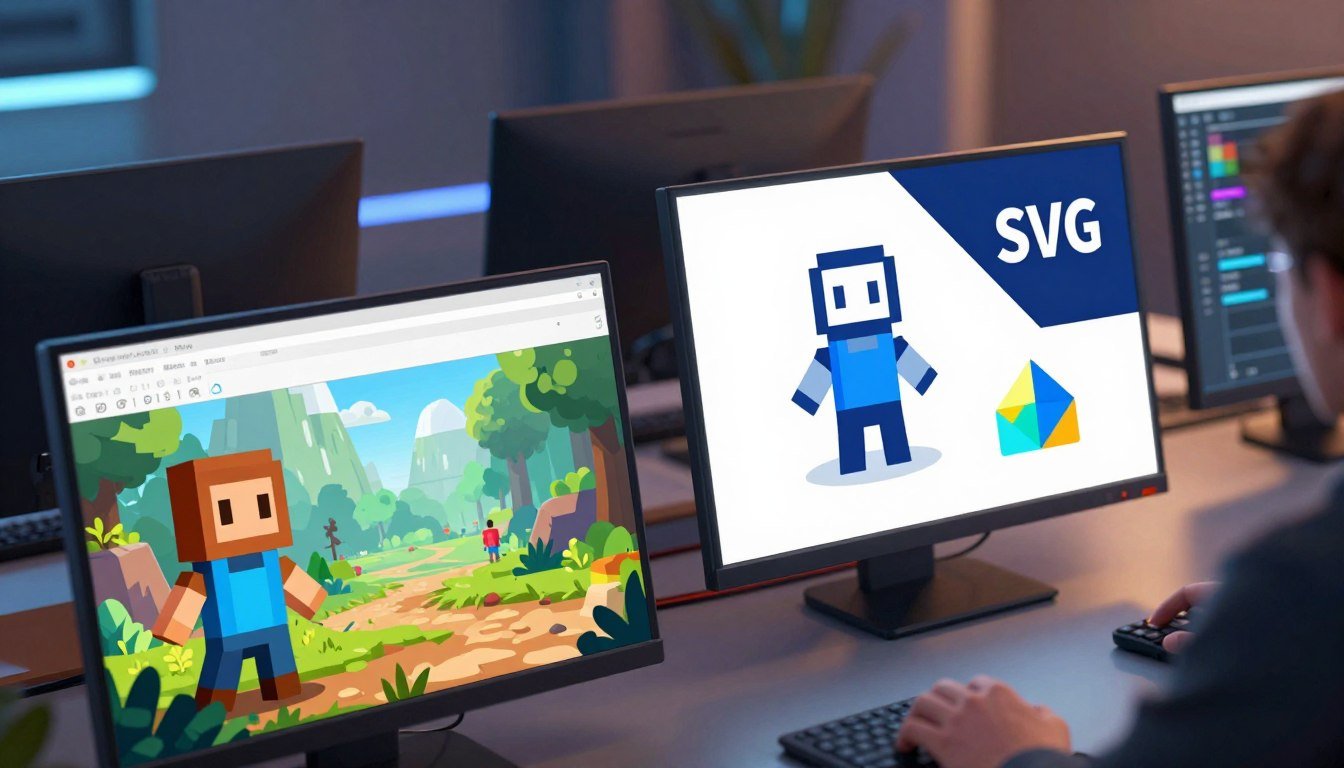
Your format choice on mobile becomes a mix of download file size, install size, texture memory, and CPU/GPU work. Those costs hit frame rate and battery and shape runtime performance and perceived quality.
Run this 10-minute mini-checklist before deciding:
– Pick 5 representative UI icons + 2 in-game sprites; export both png and svgs.
– Measure (a) import time, (b) Sprite Atlas packed size, (c) runtime texture memory in Unity Profiler, and (d) cold-start loading times on a mid-range Android device.
Do this now: create a Unity scene with a Canvas, drop test assets, enable the Stats overlay or Frame Debugger, and record draw calls before and after atlasing. Make the decision from measurable performance, not preference.
Expect that Unity usually rasterizes vectors to textures, so the real question is when you rasterize and at what resolution. If a vector saves network and build files but costs CPU each tessellation, it can be a poor trade for under-3-second loading targets.
Section 2 will give a fast Unity setup and a working script; later sections cover compression, DPI behavior, and common spikes. By George Jones for PlayMobile.online
Fast Unity setup: importing SVGs and generating mobile-ready sprites
A fast Unity workflow lets you convert vectors into runtime-friendly sprites before the user launches the app.
First, install the Vector Graphics package via Window → Package Manager → Vector Graphics. Confirm an .svg imports and that the SVG Importer settings appear in the Inspector. Default high tessellation and auto-generated variants inflate build size and texture memory.
Import guidance and practical steps
- Set the SVG asset to generate a Sprite and pick a controlled reference pixels-per-unit.
- Reduce tessellation detail for handheld targets to limit runtime texture memory and CPU work.
- Don’t import thousands of tiny svg files without planning to atlas their raster outputs.
Working script to rasterize and log texture memory
// Requires Unity Vector Graphics package
using UnityEngine;
using Unity.VectorGraphics;
public class RasterTest : MonoBehaviour {
  public TextAsset svgAsset;
  public int targetPx = 128;
  void Start() {
    var scene = SVGParser.ImportSVG(new StringReader(svgAsset.text));
    var tessOptions = new VectorUtils.TessellationOptions() { StepDistance = 1.0f / (targetPx/100f) };
    var geom = VectorUtils.TessellateScene(scene.Scene, tessOptions);
    var tex = VectorUtils.RenderToTexture(geom, targetPx, targetPx);
    Debug.Log("Estimated tex mem (KB): " + (tex.width * tex.height * 4f / 1024f));
  }
}
Generate 1x/2x/3x raster sprites, pack them into a Sprite Atlas, then use the Frame Debugger to compare draw calls. Unity Manual “Sprite Atlas” and the Vector Graphics package docs explain packing and rasterization behavior and are authoritative references for settings.
Do this so you decide if cost belongs in build time or will cause runtime CPU spikes and battery draw on the user’s device. The correct format choice is the one that meets your performance and build-size goals.
What PNG and SVG really mean in a Unity mobile pipeline
In Unity, what you author rarely equals what the GPU actually renders on a device.
The runtime typically samples textures. That holds true whether you start with raster or vector. Most svgs become a raster at import or build time unless you explicitly generate them at runtime.
Raster vs vector in practice: what ends up on the GPU on iOS and Android
PNG input gives you a fixed pixel grid and predictable texture memory. Vector sources produce scalable geometry and then tessellate to triangles and textures based on tessellation settings.
- Vectors save source file flexibility but can increase CPU work if tessellation happens at runtime.
- Rasters are stable for texture packing and atlases, so draw calls and memory use are easier to predict.
Transparency, alpha edges, and why UI icons behave differently than world sprites
Large transparent regions inflate fill-rate and cause overdraw on phones. Soft alpha edges and filtering can add halos if premultiplied alpha is mismatched.
| Concern | UI icons | World sprites |
|---|---|---|
| Batching | Often breaks (different materials, masks) | Usually batches if same material/atlas |
| Overdraw | High with many overlapping canvases | Lower if layers are limited |
| Quality need | High crispness and scaling | Often tolerates lower resolution |
Concrete take: prefer vector sources as your master files, but ship pre-rasterized, atlas-ready textures tuned for your target resolution and performance goals.
PNG vs SVG game assets, image optimization mobile games: the decision checklist
Make the choice by testing real costs on your target devices. Focus on texture memory, draw calls, CPU tessellation, and startup time. This checklist helps you pick a format that meets your performance goals without guessing.
Choose SVG when icons are simple and must scale
Use scalable vector where icons are flat shapes, few gradients, and reused across many UI scales. Vectors stay crisp as screen DPI changes and keep a small source file size for simple designs.
Choose PNG when you need heavy detail or predictable GPU cost
Pick raster for pixel art, painted textures, or noisy brushwork. Rasters give stable texture memory and filtering behavior, which makes draw calls and battery use easier to predict.
Hybrid approach: keep SVG as source, ship PNG atlases
Most teams benefit from a hybrid flow: store scalable vector as the master file, then export controlled-resolution rasters and pack them into atlases. Fewer atlases and consistent sizes reduce draw calls and memory spikes.
- Review rule: if you can describe an icon as shapes and strokes, use scalable vector as the source.
- SVG trap: many tiny paths or complex strokes can raise tessellation CPU and inflate raster size.
- PNG case: authored-on-pixel-grid art should be shipped as raster to avoid filtering artifacts.
- Batching tip: favor fewer atlases/materials to lower draw calls on device.
| Decision factor | When to pick scalable vector | When to pick raster |
|---|---|---|
| File-source size | Usually smaller for simple icons | Larger for photographs and painted detail |
| Runtime cost | Low if pre-rasterized; higher if tessellated at runtime | Predictable texture memory and GPU cost |
| Quality across DPI | Infinite scalability without loss | Fixed; needs multi-resolution variants |
| Best practice | Source-of-truth for UI and reusable icons | Ship atlased rasters for runtime stability |
File size, compression, and loading times on mobile networks
Network transfer matters: small downloads speed the path from tap to play. If your build streams UI or downloads content on first launch, cutting file sizes shortens time-to-interact on cellular.
For simple vector-like icons, svg files can save up to ~60% network bandwidth versus png in real tests. That difference can turn a sub-3-second start into a churned user, since Google finds about 53% of mobile visitors abandon when loading times exceed ~3 seconds.
Compression behavior differs: svg files are text and respond well to lossless compression. PNGs are already packed, so tools usually yield only ~5–20% extra gains without quality loss.
- Workflow: run png through TinyPNG before commit.
- Minify svg files with an SVG minifier before bundling.
- Re-check Unity import settings; a tiny download can still produce large runtime textures.
| Metric | Typical svg | Typical png | Action |
|---|---|---|---|
| Network weight | Lowest (up to -60%) | Higher | Prefer svg for simple icons |
| Lossless compression | Strong | Minor gains (5–20%) | Minify text, run TinyPNG |
| Runtime memory | Depends on rasterization | Predictable texture size | Verify in Unity Profiler |
| User impact | Improves loading times | May increase startup time | Test on mid-range devices |
Guardrail: treat file size as one axis. Always pair download savings with runtime texture memory and draw-call checks before you lock a format.
Quality at different screen sizes: scaling, DPI, and adaptive resolution
Sharper UI requires planning: how you rasterize determines whether icons stay crisp across densities.
Scalable vector graphics scale infinitely without losing quality as a concept, but Unity usually turns vectors into textures at some point. That means you must pick raster targets that match common device scale factors (1x/2x/3x) to avoid soft edges.
Gameplay cameras often hide small softening from motion blur and post effects. The user notices blur quickly in UI elements with thin strokes or small text. Prioritize crispness for HUD and menus, not every world sprite.
Dynamic Resolution Scaling and what it changes
Dynamic Resolution Scaling adjusts render resolution to keep frame rate steady. You set trigger points (frame rate or GPU load), the system lowers or raises the render scale, and transitions should be smoothed.
If you drop resolution under load, thin strokes and diagonal lines can shimmer. That makes guardrails important: choose raster sizes that downscale cleanly and avoid fractional scale steps that force constant filtering changes.
- Test icons at smallest and largest on-screen sizes; if either is soft, raise the raster target or simplify the vector.
- Verify on-device by toggling render scale and watching thin strokes for shimmer.
| Area | Recommended export sizes | Why it matters |
|---|---|---|
| UI icons | 1x, 2x, 3x (clean multiples) | Prevents filtering halos and keeps quality across DPIs |
| HUD text/controls | Raster at final on-screen px or higher | Users notice soft text immediately; preserves readability |
| World sprites | Author lower-res variants; avoid chasing vector crispness | Motion and effects often mask minor quality loss |
| Dynamic resolution | Design for downscale thresholds (e.g., 80%, 60%) | Reduces shimmer by aligning raster targets to scale steps |
Runtime performance on mobile: memory, draw calls, battery, and CPU spikes
The biggest runtime wins come from controlling texture sizes, batching, and avoiding expensive tessellation.
Texture memory math for PNG atlases
Once your art becomes a texture, memory is roughly width × height × bytes-per-pixel. A 2048×2048 RGBA texture uses about 16 MB uncompressed (2048×2048×4 bytes). Platform compression lowers that, but the raw footprint explains why a single oversized atlas can dominate RAM.
Draw calls and batching
Packing many small png files into one atlas reduces texture swaps and lowers draw calls. Fewer draw calls mean less CPU work per frame and better battery life. The common anti-pattern is many tiny files that break batching and cause driver overhead.
SVG tessellation cost
Complex svgs produce heavy geometry when tessellated. If you convert at runtime or use very fine settings, the CPU pays each time. That shows as spikes on mid-range Android cores and drains battery faster than a stable atlas.
Overdraw and fill-rate
Large transparent areas still shade pixels. Stacked UI panels cause overdraw and increase GPU work beyond visible pixels. Trim alpha regions, flatten layers, and avoid full-screen translucent textures when possible.
| Concern | What to watch | Quick fix |
|---|---|---|
| Texture memory | Texture memory in Profiler | Reduce atlas size or compress |
| Draw calls | Batches / Draw Calls | Atlas and share materials |
| CPU spikes | Main thread, GC, script time | Pre-rasterize svgs and lower tessellation |
| Overdraw | GPU overdraw view | Flatten UI, trim transparency |
Profiling targets on mid-range Android
- In Unity Profiler watch: CPU main thread, Rendering (batches/draw calls), and Memory → Textures.
- Use Frame Debugger to see what breaks batching and where texture swaps occur.
- Test on device, not Editor—thermal throttling and drivers change real performance.
Tie the measurements back to format decisions: a small file on disk is only good if it doesn’t force CPU work every frame. Profile first, then choose the format that gives stable runtime performance for your target devices.
Manipulation and animation: when SVG is worth the hassle
When small UI parts must move separately, vector manipulation saves export time and keeps designs editable.
You can animate individual paths or groups inside svgs to drive micro-interactions directly in Unity. That makes changing timing or color simple without re-exporting frames.
By contrast, swapping png frames is straightforward for complex motion but inflates texture counts and can increase draw calls.
Practical choices and a concrete example
Example: a settings gear with separate teeth and a highlight. In vector form you rotate a tooth group or animate a stroke. If you export frames, you may need 24–30 rasters for one smooth loop.
On phones, live tessellation or heavy vector math can cause uneven frame time and visible jank. If the animation shows up often in menus or HUD, bake it to a spritesheet for stable performance.
| Method | Runtime cost | Best use | When to bake |
|---|---|---|---|
| Element animation (svgs) | Low editor cost, higher runtime if tessellated | Micro UI motion, editable design | Bake if plays frequently |
| Frame swap (png frames) | Predictable GPU cost, higher texture count | Complex motion, pixel detail | Ship as spritesheet and atlas |
| Baked spritesheet | Lowest runtime spikes | Hot UI loops, HUD | Always for frequent playback |
In production, keep svg files as masters but export a controlled spritesheet for shipping. Consistent frame pacing improves player experience more than theoretical savings from live vector math.
Common beginner mistakes with PNG and SVG assets in Unity
Beginner setup mistakes often hide as small files or quick imports, but they surface as spikes and blurry UI on device.
Mistake: shipping raw, un-atlased pngs and wondering why draw calls spike
Symptom: each icon is its own texture and break batching. Fix: pack sprites into a Sprite Atlas, use shared materials, and verify batching with the Frame Debugger.
Mistake: importing svgs without controlling tessellation detail and getting stutters
Symptom: heavy tessellation runs on the main thread. Fix: lower tessellation, pre-rasterize at build time, and test on a mid-range Android device to spot CPU spikes.
Mistake: scaling png UI at runtime instead of authoring correct sizes for your Canvas
Symptom: blurred controls and inconsistent quality across DPIs. Fix: author at target screen resolutions, use Canvas Scaler, and export proper raster targets for each scale.
Mistake: assuming svg is always smaller than png
Complex vectors can produce large files or heavy raster outputs. Fix: compare final file and atlas outputs, and include compression in your checks before choosing a format.
Mistake: ignoring platform support and editor vs device differences
Editor results can mislead. Fix: test on device, inspect install size, verify texture compression, and confirm runtime memory and frame times.
| Mistake | Symptom | Quick fix | Measurable outcome |
|---|---|---|---|
| Un-atlased pngs | High draw calls | Use Sprite Atlas; align materials | Fewer draw calls, lower CPU per frame |
| Excessive tessellation | Stutter on load or interaction | Reduce tessellation; pre-rasterize | Smoother frame times, fewer spikes |
| Runtime scaling | Soft UI, wrong resolution | Author correct sizes; Canvas Scaler | Sharper UI across screens |
| Assumed file size | Surprising build/install weight | Compare final files and atlas exports | Predictable install size and memory use |
Conclusion
Decide formats by what actually hits the GPU, not by what looks best in your editor.
Choose vector sources when you need scalable image masters and smaller file sizes without losing quality, but control when rasterization runs so performance stays stable. For heavy detail, ship baked raster atlases to guarantee steady frame time and lower CPU spikes.
Treat file size and compression as secondary levers: trust lossless compression and smaller file sizes to speed loading times, yet never trade stable runtime performance for a tiny download win. Measure draw calls, texture memory, and transparency overdraw as your success metrics.
Final checklist for your pipeline: profile on device, verify atlas packing, confirm overdraw isn’t wasting fill-rate, then lock the choice and ship for the best user experience.

Game developer with over 10 years of professional experience specializing in the mobile sector. George’s journey began with a passion for indie development, leading him to contribute to several successful mobile titles, including the critically acclaimed puzzle-platformer ChronoShift and the top-down strategy game Pocket Empires.